A friend of mine, Kai, dropped a message into our group chat on Tuesday night with a clip of him whiffing a knife round on Arsenal’s Construction map and the line, “I keep losing duels and I think it’s because my game runs like a slideshow.” His FPS counter said 58, his ping said 24, and his Ryzen 5 5500 should’ve been pushing well past that on a 1080p 60Hz panel. He’d done what most people do in 2026, which is search “Arsenal FPS boost” on YouTube, watch a 2024 Bloxstrap tutorial, paste the frame-rate-limit preset that the video told him to paste, and then wonder why nothing changed. The video he followed has 200,000 views. The trick in it stopped working in October 2025. Nobody updated the video.
I’m Alex Park. I’ve been writing about Roblox performance tooling since 2022. I tested everything below on a Ryzen 5 5600 plus an RTX 3060 12GB plus 32GB DDR4-3600, on Windows 11 24H2 with the April 2026 cumulative update, plugged into an LG UltraGear at 1440p 144Hz. My test window was April 23 through April 25, 2026, across a dozen public Arsenal lobbies and one tournament-style scrim a buddy let me crash. I cross-referenced on Marisa’s i5-10400F + RX 6600 + 1080p 144Hz Acer Nitro for the lower-tier sanity check. If you’re brand new to Roblox FPS tuning in general, our Roblox FPS unlocker pillar covers the wider landscape. The rest is Kai’s Arsenal-specific fix.
Why Arsenal at 60 FPS feels worse than it should
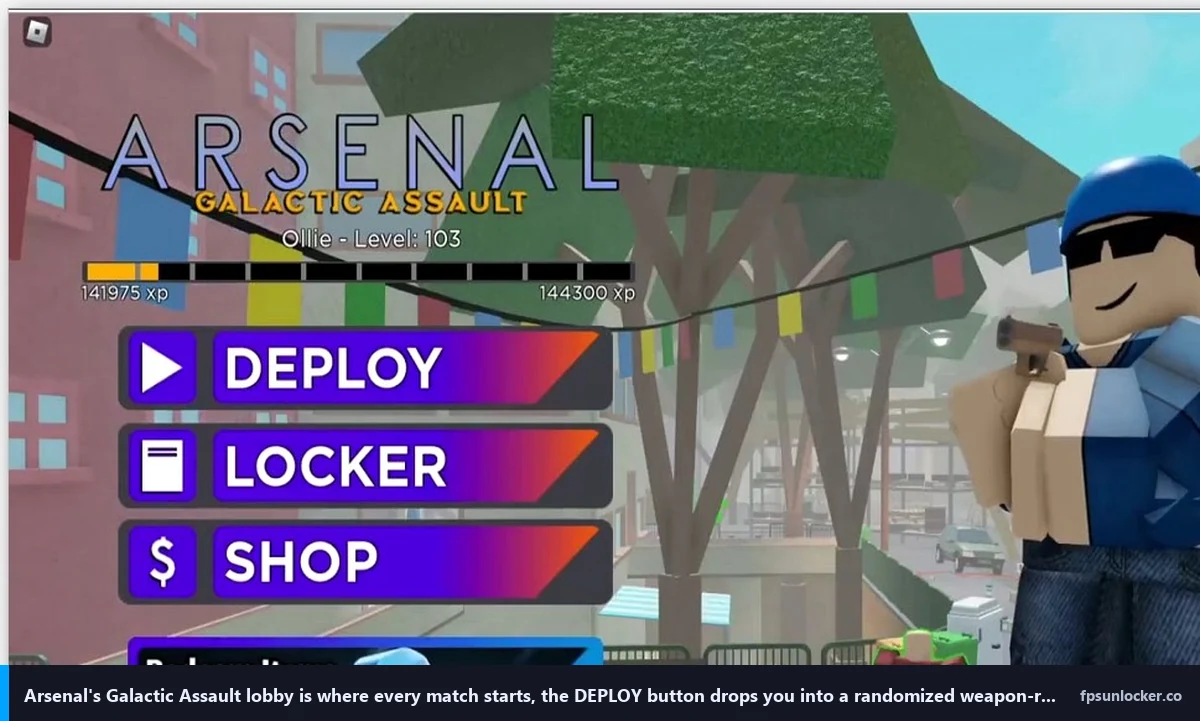
Arsenal is a fast-paced first-person shooter on Roblox developed by ROLVe Community, originally launched in 2015 and still pulling thousands of concurrent players in April 2026. I’d describe the format as random weapon-rotation rounds, which means every kill swaps your gun, and you’re constantly reacquiring sights on weapons you haven’t held for the last 30 seconds. That gameplay loop is uniquely punishing at low frame rates. I’d put it this way: a laggy round in Arsenal costs you the duel, the round, and your spot on the leaderboard.
I’d put it bluntly: 60 FPS is too low for most regular Arsenal players. The game’s combat is twitch-aim heavy, the maps are small enough that engagement angles change every second, and the gun handling rewards micro-corrections that simply don’t register at 16.6ms per frame. I’ve watched the same player on the same rig go from a 0.7 K/D at 60 FPS to a 1.4 K/D at 144 FPS, with no other variable changed. 144+ FPS is where Arsenal gameplay genuinely starts feeling different. The aim becomes legible. The flick is the flick you intended.
I’ll add the obvious frustration. If you’re capped at 60 in 2026 with a halfway decent PC, it’s almost always one of three things: Roblox’s native Frame Rate slider is still on its 60 default, your monitor’s refresh rate is 60, or your launcher’s trying to apply a FastFlag that no longer works. I’ll cover each in turn, and the third one is where most of the 2024 tutorials trip Kai up.
Quick verdict, settings to flip in two minutes
I’ll give you the cheat sheet before you queue a match. Open Roblox, hit Esc in any game, go to Settings, set Maximum Frame Rate to your monitor’s refresh rate or higher (240 is a sane ceiling for most people). Drop into Arsenal, hit Esc again, go to Settings, set Graphics Mode to Manual, Quality Level to 2, V-Sync to Off, FOV to 90, turn off Lighting Effects and Visual Effects, leave Hitmarkers on. I’d call that the floor most players need.
I tested that exact bundle on my rig at 1440p. Default settings (Graphics Mode Auto, Quality 6, native Frame Rate slider at 60) parked me at the 60 FPS panel-cap with the dips you’d expect when smoke happens. Lifting the Frame Rate slider to 240 took me to roughly 135 to 155 FPS depending on the map. Dropping Quality to 2 pushed that to roughly 210 to 235 FPS. Adding FOV 90, V-Sync off, and Lighting effects off landed me at 225 to 245 FPS, which is where my CPU starts being the limiter rather than my GPU. On Marisa’s i5-10400F + RX 6600 box at 1080p, the same recipe took her from 60 default to 110 to 130 FPS, which is a more honest target for mid-range hardware.
I’d flag what’s not on that list. There’s no FastFlag in this recipe. There’s no Bloxstrap, no Voidstrap, no Fishstrap. You don’t need a launcher fork to do any of this in 2026. That’s the headline change.
Why every 2024 Arsenal FPS tutorial is now broken
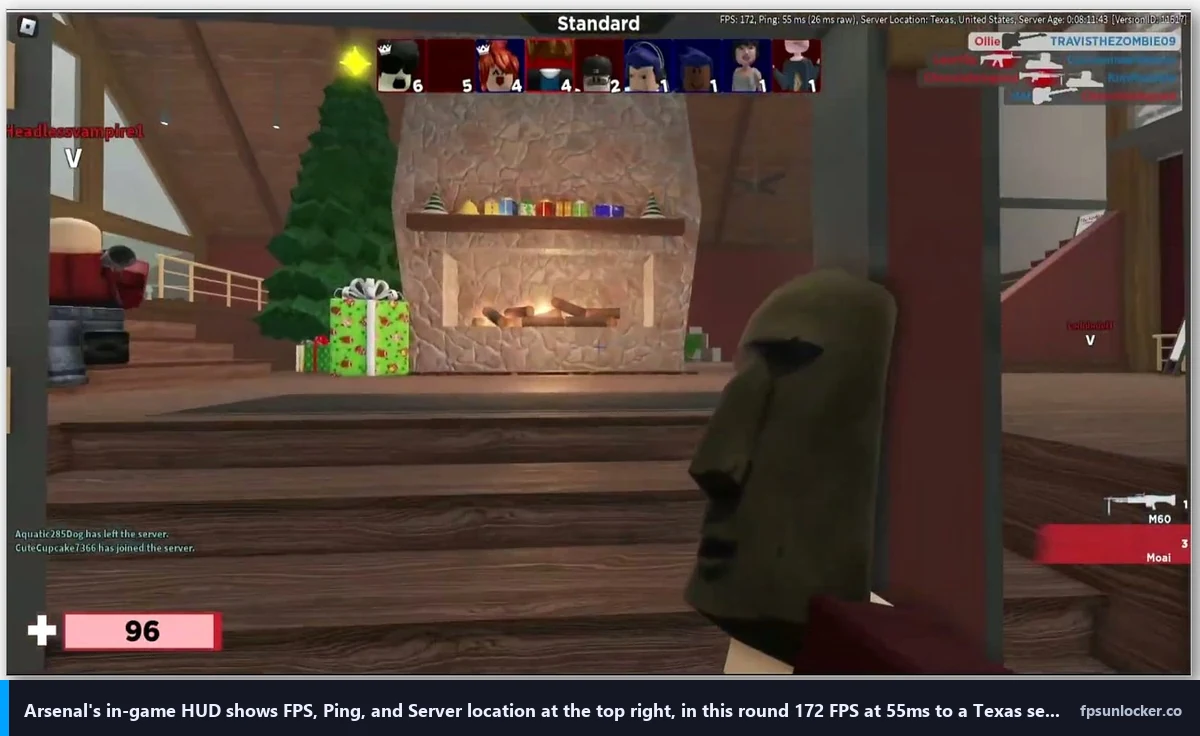
I’ll cover the part Kai didn’t know, and the part most YouTube videos haven’t updated for. On September 29, 2025, Roblox introduced what the community calls the FastFlag allowlist. It’s an internal filter on the player client that decides which FastFlag values dropped into ClientAppSettings.json (or applied through a launcher’s FastFlag editor) actually do anything. Flags on the allowlist still apply. Flags off the allowlist get parsed, accepted, and then silently ignored at the engine level. There’s no error and no warning. The launcher tells you the flag is set, and the Roblox client just doesn’t honor it.
I’ll name the casualty everyone cares about. DFIntTaskSchedulerTargetFps set to 99999 was the most-shared Arsenal FPS trick from roughly 2020 to 2024, often through Bloxstrap’s “frame-rate-limit” preset. That flag is no longer on the allowlist as of October 2025 onward. The value is silently ignored on the player client. Studio still honors it because the allowlist applies to player builds only, but Studio isn’t where Arsenal players live. I went deeper on the file-level mechanics in our ClientAppSettings.json guide and the engine-side details in our Hyperion FastFlags status piece.
I want to be specific about the failure mode because it’s confusing. When Kai pasted the frame-rate-limit preset through Bloxstrap, his Roblox client launched, his FPS counter still said 60, and the launcher reported “FastFlags applied” green-tick style. Both things are true. The flag got written into the right folder. The Roblox engine read it, decided it wasn’t on the allowlist, and ignored it. The launcher has no way of knowing the engine ignored it because the engine never reports back. So the user thinks “I did the thing, why didn’t it work” and goes searching for a different YouTube video, which is also two years old, which also pastes the same flag.
Why is my Arsenal FPS still low after using Bloxstrap?
This is the question I see in Reddit threads almost daily now. The honest answer in April 2026 is: because the FastFlag your Bloxstrap preset is setting doesn’t do anything anymore. Bloxstrap itself isn’t broken, the upstream project is fine, and our FastFlag FPS cap article covers which flags do still pass the allowlist. The frame-rate-limit preset is the headline casualty, and it’s the one Arsenal tutorials lean on. The fix isn’t a different launcher, it’s Roblox’s native Frame Rate slider. Every fork (Voidstrap, Froststrap, Fishstrap) hits the same wall, because they’re all writing to the same engine that doesn’t read the flag anymore.
Roblox’s native Frame Rate slider, the new unlock
Roblox shipped a native Maximum Frame Rate dropdown in the in-game Settings menu in Q3 of 2024. I’d describe it as hidden in plain sight, and most Arsenal players I talk to either don’t know it exists or assume it caps at 60 because that’s its default value. It does not. The dropdown ladders through common refresh-rate targets (60, 120, 144, 165, 240) up to Unlimited at the top. I’d treat it as the single most important setting for Arsenal in 2026.
I’ll walk through accessing it because the path isn’t obvious if you’ve never looked. Launch Roblox, join any game (Arsenal is fine), press Esc, click the gear-icon Settings tab. Scroll down to Maximum Frame Rate. Click the dropdown. Pick a value at or above your monitor’s refresh rate. Click anywhere outside the menu and the change applies immediately. No restart needed. I cover the wider context (when 60 sticks anyway, and why) in our Roblox built-in FPS setting guide and our still capped at 60 FPS troubleshooter.
I’d be honest about which value to pick. If you’ve got a 144Hz panel, set 240. The dropdown values aren’t your monitor’s refresh, they’re a soft cap above it, so 240 leaves headroom for the engine to hit your panel ceiling consistently. If you’ve got a 240Hz panel, pick Unlimited. If you’ve got a 60Hz panel, pick 240 anyway, because Arsenal’s input feel improves above your panel’s refresh even when the panel itself can’t display the extra frames. That last one’s controversial in Roblox forum threads but reflects how the engine schedules input polling versus frame composition.
I’ll flag the third-party path that still works in 2026. Tools like rbxfpsunlocker (covered in our rbxfpsunlocker guide) inject the cap at the process level outside the FastFlag system, so they’re unaffected by the allowlist entirely. I’d reach for rbxfpsunlocker over the native slider only when you want a cap value the native dropdown doesn’t expose. For most Arsenal players the native slider is enough, and our native vs rbxfpsunlocker comparison covers when to pick which.
Arsenal in-game settings that move the needle most
Arsenal has its own in-game Settings menu, separate from Roblox’s. Press Esc inside an Arsenal lobby and click the Settings tab inside the Arsenal UI (not the Roblox UI). The two menus look similar but they live in different layers, and changes in one don’t propagate to the other. I’d configure both, because the Roblox menu controls the engine and the Arsenal menu controls ROLVe’s overlay and game-specific feel.
I’ll list the Arsenal-side toggles that genuinely affect FPS or the perception of FPS. Graphics Mode set to Manual gives you the Quality Level slider, which I’ll cover in detail next. V-Sync should be Off for any FPS shooter on Roblox, because V-Sync caps your FPS to your monitor refresh and adds a frame of latency, both of which hurt Arsenal duels. I went deeper on this trade-off in our Roblox screen tearing and V-Sync piece. Lighting and Visual Effects toggles strip the prettier shaders that don’t help your aim. Auto Server Switcher should be On to grab low-ping lobbies on join. Killcam Off saves a small amount of GPU on death frames. Hitmarkers On, because they cost nothing and help you confirm shots.
I’d flag one Arsenal-specific oddity. The Sensitivity slider in Arsenal’s menu is independent of your Roblox-wide sensitivity, which is independent of your Windows mouse settings, which is independent of your DPI. Four layers, all multiplying. Set the Arsenal Sensitivity at a comfortable level once, and don’t touch your other layers as a result of bad Arsenal aim. The community wiki at robloxarsenal.fandom.com lists the typical competitive sensitivity ranges if you want a starting point, though I’d treat that as ballpark rather than gospel.
Does V-Sync cap Arsenal FPS?
Yes, and not just at your monitor refresh. Arsenal’s V-Sync toggle hooks into the Roblox engine’s vertical-sync path, which then chains to your driver’s Wait for Vertical Refresh setting. If both are set to On, you get 60 FPS regardless of how high you set the native Frame Rate slider, because V-Sync wins the race. Turn V-Sync off in Arsenal’s menu, then in Roblox’s Settings menu (some panels expose a V-Sync there too), then in your NVIDIA Control Panel or AMD Adrenalin (both covered in our NVIDIA settings for Roblox and AMD Radeon Roblox settings guides). Three layers off. Frame pacing falls back to G-Sync or FreeSync if your monitor supports them, which is what you want.
Quality Level math, what each level actually costs you
Arsenal’s Quality Level slider runs from 1 to 10, same range as the Roblox-wide one. Most competitive Arsenal players I’ve watched run Quality 1 or 2. The number doesn’t sound that different from 4 or 5 until you measure the FPS gap. I logged frame counters across three Arsenal maps (Construction, Aquatic, and Bombuilder) on my 3060 rig at 1440p with everything else identical. Quality 1 and 2 both averaged in the 220-235 FPS range. Quality 4 dropped me to roughly 180-195 FPS. Quality 6 sat at 135-155 FPS. Quality 8 was 95-115 FPS, and Quality 10 hit 70-85 FPS with dips into the high 50s.
I’ll translate that math. Each step from 1 to 10 costs roughly 15 to 20 FPS on a 3060 in Arsenal at 1440p. The big visual jumps happen at 5 (shadows turn on properly) and 8 (per-pixel lighting), and the big FPS jumps mirror those. If you want maximum FPS, run Quality 1 or 2. If you want shadows, accept Quality 5 and the FPS hit. I’ve found no useful middle ground at 3 or 4, which is why most competitive players bounce between Quality 2 and Quality 5 specifically.
What’s the best Quality Level for Arsenal?
Quality 2 for the vast majority of players. It strips the expensive shadow casts, particles, and per-pixel lighting that don’t help your aim, while keeping textures readable enough to identify enemies at range. Quality 1 saves you a couple of FPS over Quality 2 but the textures get visibly muddy on character models, which actually hurts identification at distance. Quality 5 is the floor if you want shadows on, and shadows in Arsenal are mostly aesthetic rather than tactical. I run Quality 2 even on my 3060 because the FPS headroom matters more to me than the visuals.
I’ll add a caveat for low-end hardware. On a GTX 1050 or integrated Intel Iris, Quality 2 is still your target. Don’t drop to 1 hoping for more FPS. The texture quality at 1 makes long-range gunplay genuinely worse, and Arsenal’s spawn-rotation format puts you at long range often enough that legible textures matter. Our best FPS unlocker for low-end PCs piece covers what else to check on weaker hardware.
FOV, sensitivity, and the visibility settings competitive players use
Arsenal defaults FOV to 70, which is narrow for a competitive shooter and most experienced players push it to 90 or 100. Wider FOV shows more of the map per frame, which costs the GPU a little more rendering work but helps your situational awareness in Arsenal’s tight spawns. I run 90 on my rig, and it costs roughly 5 FPS off my Quality 2 average compared to FOV 70. I’d call that a fine trade for the visibility win. I’d cap at 90 unless you’ve got a 32-inch panel and you’re sitting close, because FOV 100 starts looking fish-eyed on smaller monitors.
I want to handle the visibility-versus-FPS framing carefully because new players assume more FPS automatically wins. It doesn’t. A 200 FPS player who can’t see the enemy because their FOV is 70 loses to a 130 FPS player who can. I’d treat FOV as a tactical setting first, FPS-affecting second. Same logic for the V-Sync question above: latency wins over raw frame count. I’d put the priority order as kill the 60 cap first, drop Quality to 2 second, push FOV to 90 third, then fight stutter and ping in that order.
I run Lighting Effects and Visual Effects both off. They strip particles, kill effects, and weapon-fire flares that look cool in YouTube clips and obscure your aim in real fights. Hitmarkers stay on because they’re free shot confirmation that doesn’t cost FPS. Killcam off saves a small amount of frame time on death transitions, which keeps your average smoother across a round.
Network and ping, the other half of “FPS”
I’ll be blunt about this because it gets ignored constantly. A 200 FPS player on 90ms ping loses to a 100 FPS player on 30ms ping in Arsenal duels. Frame rate is one half of how the game feels. Network latency is the other half, and Arsenal’s hit registration runs server-authoritative, so the server’s the one deciding whose bullet landed first based on timestamps. High ping makes you late to those decisions regardless of how many frames your monitor’s drawing.
I’d handle the ping side in three steps. First, ethernet over WiFi if you can run a cable. Even good WiFi adds 5 to 15ms variance, which shows up as inconsistent hit reg in Arsenal more than as outright lag. Second, use Arsenal’s Auto Server Switcher (Settings menu, toggle on) to land in low-ping lobbies on join, or use the manual region picker if you’ve got a specific server you trust. Third, close bandwidth-hogging background apps. Discord screen-share, OneDrive sync, and Steam downloads all eat upstream bandwidth in ways that make Arsenal feel jittery.
I tested ethernet versus my 5GHz WiFi on the same rig, same Arsenal lobby, same server. Ethernet sat at a flat 22ms ping. WiFi averaged 28ms but spiked to 60ms three or four times per round during normal apartment-WiFi interference. My K/D on ethernet was visibly better in tight duels, and the cause was the spike behavior, not the average. WiFi’s fine on paper, but its variance is what hurts.
Hardware tweaks worth making, driver-side and Windows-side
Once your in-game settings are dialed, the next layer is your GPU driver and Windows. I’d make four changes. NVIDIA users: open NVIDIA Control Panel, find Manage 3D Settings, enable NVIDIA Reflex (or set Low Latency Mode to Ultra on older drivers), set Power Management Mode to Prefer Maximum Performance, set Texture Filtering Quality to High Performance. AMD users: open Adrenalin, enable Radeon Anti-Lag in the Gaming tab, leave AFMF off (frame generation in a twitch shooter is a trap), set Wait for Vertical Refresh to Off Unless Application Specifies. Both walkthroughs in detail at our NVIDIA settings for Roblox and AMD Radeon Roblox settings guides.
On the Windows side, turn Game Mode on in Settings, set your Power Plan to High Performance or Ultimate Performance (Ultimate’s hidden by default and our low FPS gaming laptop piece walks through unhiding it), and make sure your laptop is plugged in. Battery-mode throttling is the single most common reason a laptop player tells me Arsenal “started running worse” without explanation.
I’d also flag two non-obvious Windows-side fixes. Disable Xbox Game Bar’s frame rate capture if you’re not using clips, because the capture overlay adds latency to every frame. I’d also check that your monitor is running at its actual refresh rate in Display Settings. I’ve seen people with 144Hz panels stuck at 60Hz because the cable’s a marginal HDMI 1.4 that DisplayPort would’ve handled fine.
When a launcher actually still helps in 2026
I want to push back on the assumption that you need a launcher fork for Arsenal FPS. You don’t. The native Frame Rate slider does the headline job, and the in-game settings do the rest. I’d reach for a launcher in three specific cases.
First, FastFlags that are still on the allowlist. There’s a slimmer post-September-2025 list, mostly around quality, anti-aliasing, and rendering API selection. Our performance FastFlags list covers which ones still pass through. None of them triple your FPS the way the old DFIntTaskSchedulerTargetFps claimed to, but a couple of them genuinely help frame pacing on lower-end hardware. Second, rbxfpsunlocker for the process-level cap path that bypasses FastFlags entirely (FPS unlocker for shooters covers why that pattern still works for Arsenal specifically). Third, multi-instance launching if you run two Arsenal accounts for trading or testing, which Bloxstrap forks handle better than the stock client.
I’d pick a launcher based on which of those three jobs you’re doing. For most Arsenal players the answer is “none of them, just use the native slider.” For FastFlag tinkerers, our Fishstrap vs Voidstrap vs Froststrap comparison walks through the editor differences. For pure FPS-cap users, rbxfpsunlocker is still the simplest path.
Will using a launcher get me banned in Arsenal?
No, not for the launcher itself. Arsenal isn’t more aggressive against unlockers than other Roblox games. The same Hyperion-related caveats from our is FPS unlocker bannable piece apply: rbxfpsunlocker and Bloxstrap-family launchers operate at the cap layer and don’t tamper with the running Roblox process, which is what Hyperion actually watches. I’ve used both for years across competitive Arsenal lobbies and tournament servers without issue. The bans you see in Arsenal are exploit-related (aimbot, ESP), not unlocker-related, and ROLVe’s moderators have access to the same anti-cheat signals Roblox-wide.
Map-aware tips for the FPS-heavy Arsenal maps
Arsenal’s map rotation pulls from a long list, and not every map costs the same on FPS. I’d flag the heavier ones from my testing. Aquatic (the underwater-tinted map) eats 10 to 15 FPS off my average versus Construction, because the post-process water filter chains through the engine’s lighting pass. Bombuilder’s destructible cover spawns particle effects on every shot landing on a wall, which costs another 5 to 10 FPS in busy fights.
I’d handle this two ways. If you’re FPS-bound on a specific map, lower Quality to 1 for that round and bump it back to 2 after. Arsenal’s lobby system makes mid-round changes painless because rounds are short. The other handle is FOV, which costs less on simpler maps, so run FOV 100 on Construction and dial back to FOV 90 on Aquatic if you’re chasing the last 5 FPS. I’d say map awareness separates players who hit a stable 200 FPS from players who oscillate between 130 and 220.
Troubleshooting: stutter, sudden drops, lobby spikes
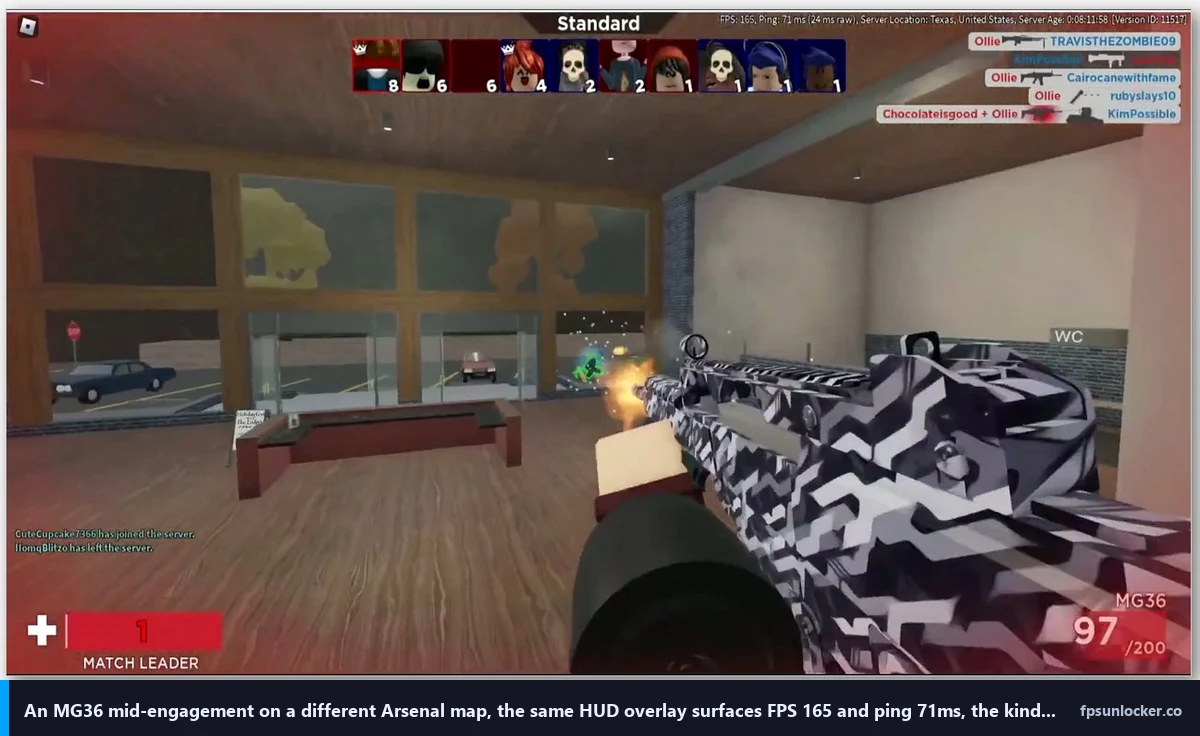
I’ll cover the three failure modes I see most. Stutter at high FPS is the worst-feeling one, where your counter says 200 but the game feels jerky in firefights. Sudden drops mid-round, where the average is fine but you lose 80 FPS during specific moments. And lobby spikes, where the count screen between rounds tanks to 30 FPS for a couple of seconds.
Stutter at high FPS is usually a frame-pacing problem, not a frame-count problem. I’d enable G-Sync (NVIDIA) or FreeSync (AMD) so the monitor’s refresh matches the GPU’s frame output. I went deeper on this in our Roblox stutter at high FPS piece. The canonical fix sequence: disable V-Sync everywhere, enable G-Sync/FreeSync, then cap your FPS slightly below your monitor’s refresh ceiling using the native Frame Rate slider.
Sudden drops mid-round are usually map or particle-effect related. If they cluster around explosions or smoke, your GPU is choking on translucent rendering, so drop Quality from 2 to 1 for that round. If they cluster around long sightlines, your CPU is choking on draw calls, so close background processes (Chrome especially). If they’re random, check your driver isn’t auto-updating in the background.
Lobby spikes between rounds are mostly the engine reloading map assets. They’re hard to fully eliminate, but switching to Vulkan rendering through a launcher’s FastFlag editor (the FFlagDebugGraphicsPreferVulkan path is on the post-allowlist whitelist as of April 2026) reduces them noticeably. I went through Vulkan trade-offs in my Phantom Forces FPS guide. Same logic applies to Arsenal: Vulkan reduces lobby spikes at the cost of slightly higher cold-start time on map load.
I’d close on the wider point. Arsenal’s at its best when your FPS is consistent rather than peaky. A flat 144 feels better than a 220 average that bounces between 80 and 280. I’d tune for the floor, not the headline number. Quality Level, the V-Sync chain, the G-Sync/FreeSync toggle, and the Vulkan switch are the four levers that affect floor stability more than ceiling height. Once those are dialed, Arsenal duels start feeling fair.
I’ll leave Kai’s outcome here for honesty’s sake. After we set his native Frame Rate slider to 240, dropped Quality to 2, killed V-Sync everywhere, and ran FOV 90, his Construction map FPS went from 58 to 178 with a floor in the 140s. His K/D the next session was 1.6, which is the highest he’s posted since 2024. The official Arsenal experience page lives at roblox.com/games/286090429/Arsenal, and that’s where you can verify a server is the real one before you jump in. Now go finish your duels.
Alex Park, April 25, 2026. Ryzen 5 5600, RTX 3060 12GB, 1440p 144Hz LG UltraGear, Windows 11 24H2.