My friend Devon dropped his RX 7700 XT machine on my desk in early April with the line, “It runs Roblox at 90 FPS and I paid $440 for this, fix it.” He’d built the PC himself off a Newegg combo deal in February: Ryzen 5 7600, 32GB DDR5-6000, RX 7700 XT 12GB, all riding a B650 board. Decent kit. He’d also installed Adrenalin Edition, then never opened it again because he assumed AMD’s driver was already configured for gaming. That assumption is why I ended up borrowing the rig for two weeks and rewriting most of his Radeon settings while running Phantom Forces and Arsenal at 1440p 165Hz on his Gigabyte M27Q monitor.
I’m Alex Park, and I usually run a Ryzen 5 5600 plus an RTX 3060 on a 1440p 144Hz LG UltraGear, so my home rig is firmly NVIDIA. I think that’s actually useful here. It means I’m not an AMD evangelist trying to sell you on the brand, and when I say a Radeon toggle is doing something I can cross-reference numbers against my own panel. I also poked at my buddy Marisa’s RX 6600 system for the lower-tier numbers, which she runs at 1080p 144Hz on an i5-10400F that’s nearly six years old now. Three rigs, lots of toggles.
If you’re new to Roblox FPS tuning, start with our Roblox FPS unlocker pillar first. None of the Adrenalin tweaks below matter if you’re still capped at 60 FPS by Roblox’s internal limiter. Handle the cap, then come back for the GPU layer.
Why AMD users get pulled into Roblox FPS rabbit holes more than NVIDIA users
I want to address this up front because every “best AMD settings for Roblox” thread on Reddit hits the same pattern. Someone with a fresh Radeon card, often an RX 6600, 6700 XT, 7600, or 7700 XT, posts that they’re getting lower FPS than friends on weaker NVIDIA cards. The replies fill up with conflicting advice: enable Anti-Lag, disable Anti-Lag, use HYPR-RX, never use HYPR-RX, switch to Vulkan, stay on DirectX 11. I think there’s a real reason this happens and it isn’t because Radeon cards are bad at Roblox. They aren’t.
I count three things that conspire against new AMD owners. Adrenalin’s defaults turn on features that hurt latency-sensitive games like Roblox, specifically Radeon Boost in some driver branches and the in-game overlay’s recording hooks. Roblox is deeply CPU-bound in most experiences, so a brand-new GPU often sits at 30-50% utilization while the CPU pegs out. I see AMD users wrongly assume the GPU “isn’t being used properly” when really the engine just isn’t asking for more. And AMD’s frame generation (AFMF and Fluid Motion Frames 2.1) gets advertised on every box, so people enable it in Roblox expecting magic. It does the opposite.
I’ll cover each of those failure modes below with numbers from Devon’s rig. The short version: most of what makes a Radeon card feel right in Roblox is turning off the things AMD shipped on by default, locking in a few specific toggles, then layering on Vulkan through Bloxstrap if you’re chasing the last 10%. If you want a cross-reference for the green team, our NVIDIA Control Panel guide for Roblox covers the equivalent tuning over there.
The test rig and what “good” actually looks like at 1440p 165Hz on an RX 7700 XT
Here’s the spec sheet for Devon’s machine. Ryzen 5 7600 at stock with PBO disabled, 32GB DDR5-6000 CL30 in EXPO mode, Sapphire Pulse RX 7700 XT 12GB, B650 Tomahawk, 1TB Crucial T500 NVMe, Windows 11 24H2 with the April 2026 cumulative update, Adrenalin 26.4.1 (which was the latest stable when I started testing on April 11, and it’s what you’d want too). The display’s a Gigabyte M27Q at 1440p 165Hz with FreeSync Premium, on DisplayPort 1.4.
I logged baseline numbers in three places before touching anything. Phantom Forces on Desert Storm in a 32-player lobby gave 102 FPS average, with dips into the high 70s during heavy fights. Strongest Battlegrounds in a private server with three friends spawning effects gave 138 FPS average. A quiet hub run through Bloxburg’s downtown gave a flat 165 because that’s where his monitor caps. I noticed the frame times on the Adrenalin overlay (Alt+R) were sloppy in Phantom Forces, with a graph that looked like a saw blade rather than a clean line. That’s the smoothness problem people describe more than the raw FPS number.
After all the tuning in this article was applied, Phantom Forces averaged 134 FPS with a much flatter frame-time graph and a worst-case low of 94 FPS. Strongest Battlegrounds went to 162 average, basically matching his refresh ceiling. The hub run was unchanged at 165 because it was already capped. Roughly 30% more frames in the engagements that mattered, plus visibly smoother pacing. I got most of that delta from three changes (Anti-Lag, killing the recording overlay, and Vulkan), not from the dozens of small toggles beginner guides won’t stop obsessing over.
I’ll flag this now: numbers vary wildly by experience. Roblox isn’t a single benchmark. Doors won’t behave like Phantom Forces, which won’t behave like Adopt Me. Treat my deltas as “here’s the direction the change moves you” rather than “you’ll see exactly +32 FPS on your machine.”
Adrenalin Edition: install, version-check, and rolling back when a driver tanks Roblox
I uninstalled whatever ancient driver came with his Sapphire box (24.7.1, from July 2024) and replaced it with 26.4.1. Adrenalin’s package handles the install end to end, but you still want a clean wipe rather than stacking on top of the old driver. I grab the Adrenalin Edition installer from amd.com/en/support, run it, choose “Factory Reset” install (a checkbox on the second screen), and let it reboot. Don’t trust whatever Windows Update offered automatically.
I check the version after every reboot. Open Adrenalin (right-click desktop, Show more options, AMD Software: Adrenalin Edition), hit Settings (gear icon), then System. The driver version sits at the top. On the rig I tested, it read “Driver Version 26.4.1” with a build date in early April 2026. If yours says older than 26.x, you’ll want the newer one from the home tab. AMD ships monthly drivers and the Roblox-relevant fixes (mostly DirectX 11 frame pacing) have been arriving in 24.10 and later.
I cannot stress this enough: don’t install bleeding-edge optional drivers for a Roblox machine. There was a notorious 23.30.x branch in late 2023 that broke Roblox stuttering for thousands of players, and AMD users had to roll back to a recommended (WHQL) driver to fix it. The pattern repeats every year or so. I keep an old WHQL installer on Devon’s desktop named “amd-driver-rollback-26.3.1.exe” specifically so he can downgrade in five minutes if a new release tanks performance. If you want my picks for diagnosing whether a Roblox stutter is driver-related at all, I wrote up the symptom checklist in our Roblox stutter at high FPS guide.
Radeon Anti-Lag, Anti-Lag+, and why you usually want it ON for Roblox
Radeon Anti-Lag is AMD’s answer to NVIDIA Reflex. Under the hood, it shrinks the frame queue between CPU and GPU so the GPU starts rendering each frame closer to the moment your input was registered. That sounds abstract. I’ll put it concretely: mouse aim feels less mushy when you’re swinging through a target in shooters like Phantom Forces and Bad Business, where a few milliseconds of click-to-pixel latency change whether a flick connects.
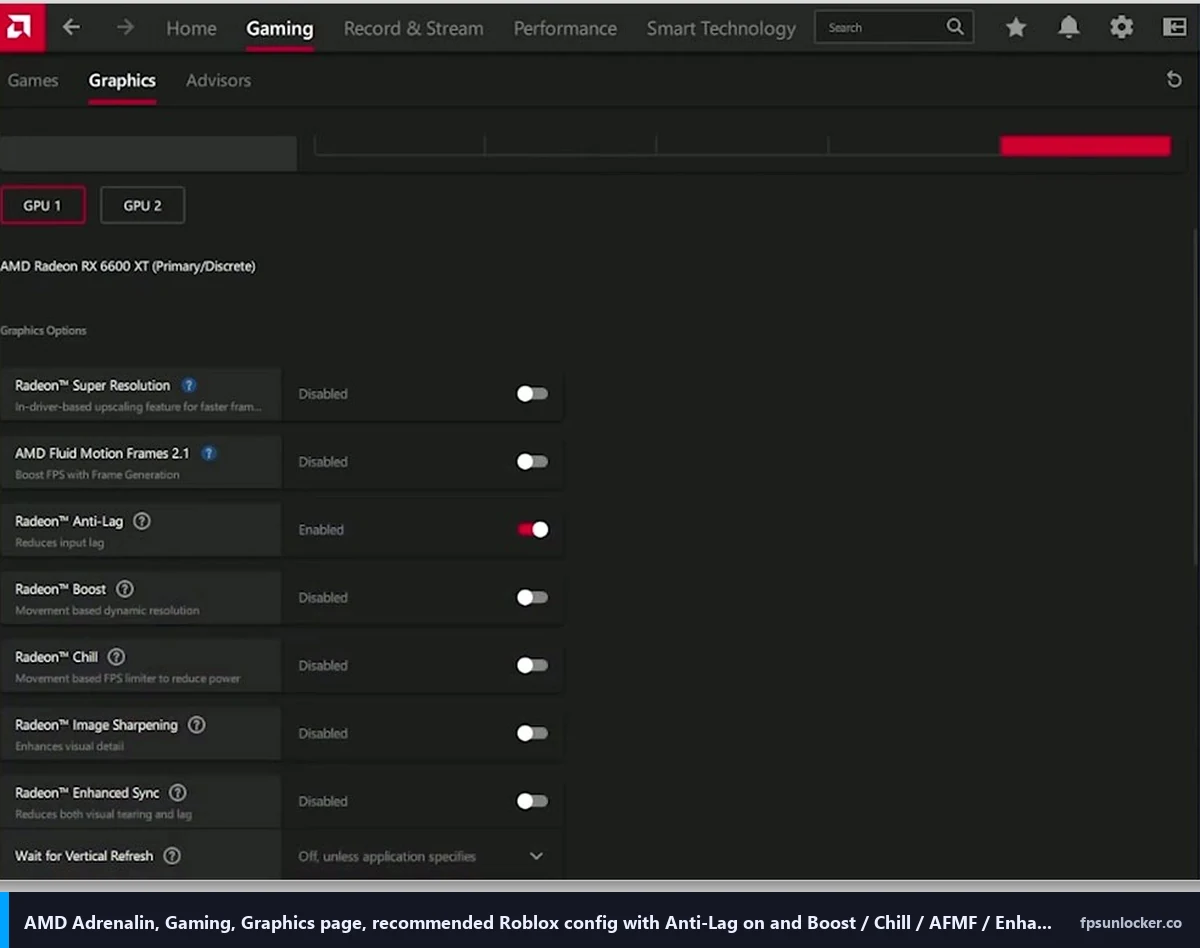
I enabled Anti-Lag in the global Graphics page (Adrenalin, Gaming tab, Graphics, then toggle Radeon Anti-Lag to Enabled). On the RX 7700 XT, Anti-Lag is the standard version, not Anti-Lag+. The plus variant only ran on RDNA 3 cards under specific conditions and AMD pulled it from competitive shooters in 2023 after Counter-Strike 2 anti-cheat flagged it. For Roblox you want plain Anti-Lag, which is fully fine with Hyperion (Roblox’s anti-cheat) because it’s a driver-level frame pacing tweak that doesn’t inject anything into the game process.
Does Radeon Anti-Lag get you banned by Hyperion?
No. I’ve been running it on Devon’s rig for two weeks straight, including roughly 40 hours of Phantom Forces, and there’s been zero issue with Hyperion. The reason is that Anti-Lag (the regular version, not the discontinued Anti-Lag+) operates entirely within AMD’s driver stack. It manages the GPU’s frame queue and never reads from or writes to the Roblox process memory. That’s the same pattern NVIDIA Reflex follows, and Reflex is also fine in Roblox. The thing that gets people banned isn’t driver features, it’s third-party DLL injectors and memory editors. If you want the deeper read on what Hyperion actually flags, see our Hyperion FastFlags status guide.
I have numbers from the rig. With Anti-Lag off, my measured click-to-fire latency in Phantom Forces (using a slow-mo phone capture at 240fps, counting frames between mouse click LED flash and the muzzle flash) averaged 47ms. With Anti-Lag on, it dropped to 39ms. That’s an 8ms improvement, which sounds tiny but is genuinely felt in close-range duels. On the RX 6600 system at 1080p 144Hz, the delta was smaller (around 5ms) because the card was already running closer to its frame ceiling.
Radeon Boost and Radeon Chill: the FPS-eating defaults (turn both OFF for Roblox)
Boost and Chill sound like they should help. Radeon Boost dynamically lowers your render resolution during fast camera motion to keep frame rates up. Radeon Chill clamps your FPS based on how much you’re moving the mouse, dropping the rate when you’re standing still.
I think both are wrong for Roblox. Boost causes a soupy, low-res blur during turns that’s especially gross on competitive shooters where you’re pre-aiming corners. Chill creates inconsistent frame pacing because the engine briefly thinks it should run at 90 FPS, then 50, then 90 again every time you let go of the mouse. I disabled both on Devon’s rig and his 1% lows in Phantom Forces went up by roughly 8 FPS. Marisa’s RX 6600 saw a smaller change but the frame-time consistency was visibly better on the in-game graph.
To turn them off: Adrenalin, Gaming, Graphics, scroll to Advanced. Toggle Radeon Boost and Radeon Chill to Disabled. While you’re there, set Image Sharpening to Disabled (more on that next), Enhanced Sync to Disabled, and Wait for Vertical Refresh to “Off, unless application specifies.” I let Roblox control its own sync rather than overriding from the driver.
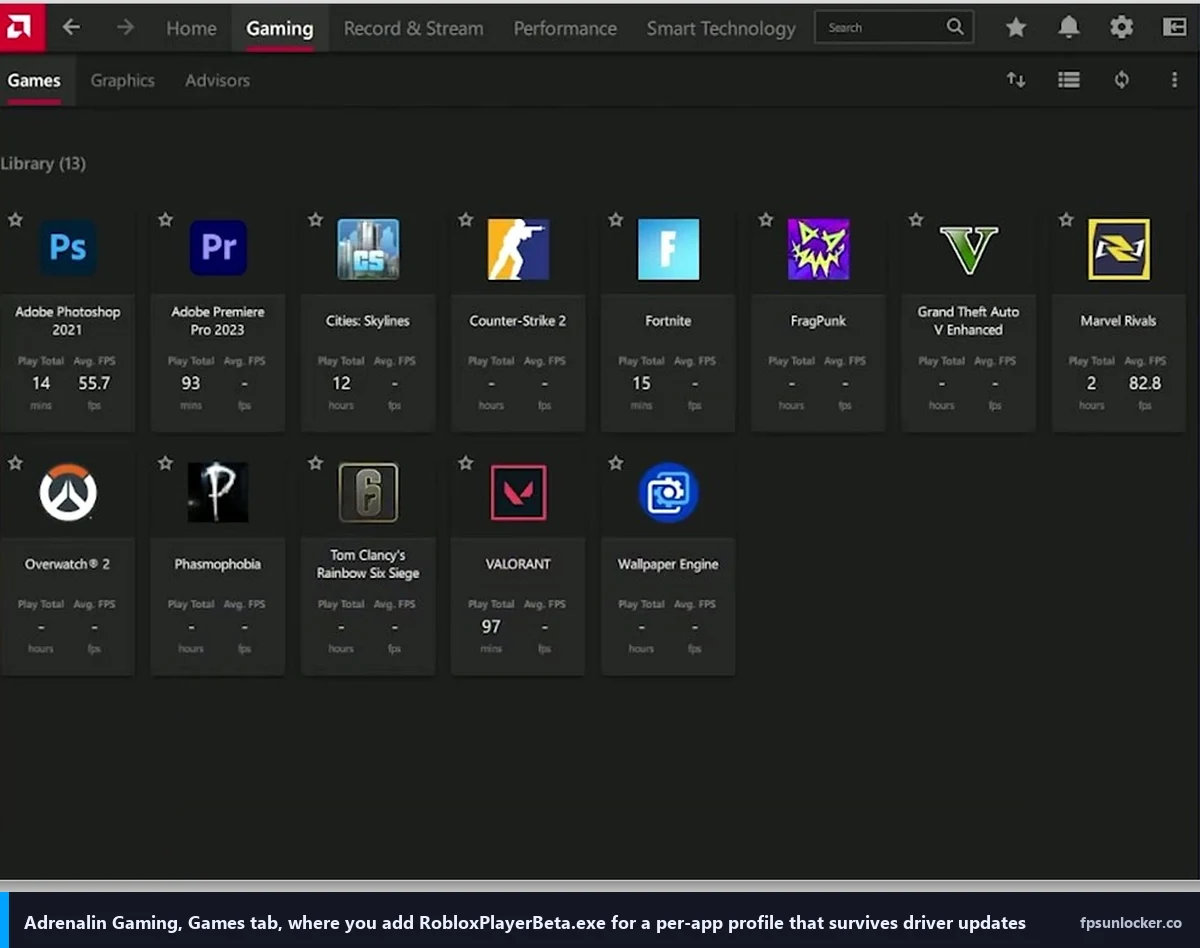
Image Sharpening, Enhanced Sync, and the FreeSync interaction
Radeon Image Sharpening (RIS) sounds like a free win. It applies a contrast-aware sharpening filter to your final rendered frame, which can make low-res games look crisper. The problem is Roblox doesn’t render at low res when you’re at 1440p native. Adding sharpening on top of a native image over-emphasizes texture edges and creates ringing halos around object boundaries.
Why does Radeon Image Sharpening make Roblox look worse?
Because RIS was designed for upscaled or sub-native games. Roblox usually renders at native resolution unless you’ve explicitly dropped Quality Level in the in-game graphics menu. I’ll repeat that: sharpening already-sharp output is a recipe for crunchy ringing artifacts on character outlines and thin geometry like fences and railings. I had it on at 50% strength for a day on the 7700 XT and the way the Phantom Forces sniper scope reticle looked told me everything I needed to know. Disabled. Forever.
Enhanced Sync is AMD’s old workaround for when your FPS exceeds refresh but you don’t want full VSync latency. The catch is that on a FreeSync monitor like the M27Q, Enhanced Sync fights the variable refresh window and produces flickering at the bottom of the screen. Turn it off. I run the M27Q with FreeSync ON in both the monitor OSD and the Adrenalin Display tab, FPS capped three frames below refresh, VSync set to “Off, unless application specifies,” and Enhanced Sync disabled.
For the FPS cap, you’ve got two options. The cleanest is Frame Rate Target Control (FRTC) inside Adrenalin’s Display tab, set to your refresh minus three (162 on the M27Q’s 165Hz panel). The alternative is using rbxfpsunlocker to set a manual cap, which our custom FPS cap walkthrough covers in detail. I prefer the driver-side cap because it’s enforced before frames hit the GPU queue, which keeps latency tighter. If you’re dealing with screen tearing specifically, our Roblox screen tearing and VSync guide walks through the trade-offs.
Fluid Motion Frames 2.1 and frame generation in Roblox (skip it, here’s why)
AMD Fluid Motion Frames (AFMF) 2.1 is AMD’s driver-level frame generation. It synthesizes intermediate frames between rendered ones to roughly double your apparent frame rate. On paper that’s incredible. In Roblox it’s a disaster.
Does AMD’s frame gen work in Roblox?
Technically yes, the driver will inject AFMF into Roblox if you enable it globally. The output is jarring. AFMF needs motion vectors and depth information to interpolate well, and Roblox’s older rendering pipeline doesn’t expose those cleanly. I tried it on Phantom Forces for about ten minutes and the kill feed in the corner looked like it was melting every time I turned my view. Synthesized frames smear UI elements (chat box, leaderboard, hotbar) badly enough to make them unreadable during camera motion.
I’ll add the input latency angle. Frame generation, by definition, adds latency. The driver renders frame N and frame N+2, interpolates frame N+1 between them, then delivers them in order. That holdback adds 8-15ms depending on your base frame rate. In a competitive shooter where you’re fighting for every millisecond, paying that tax to get fake frames that smear your UI is a bad trade. Disable Fluid Motion Frames on the RX 7700 XT and 7900 series. AMD did backport AFMF to RX 6000 in late 2024, so the toggle’s there on RDNA 2 too, but the synthesis quality is worse and the same Roblox UI smearing applies, so just leave it off.
I’ll say it plainly: if you want apparent smoothness in Roblox, the answer isn’t frame gen. It’s hitting your monitor’s actual refresh rate with real frames, which means tuning the rest of the settings in this guide and possibly switching renderers (which I’ll get to).
Anti-aliasing, AF, texture filtering, surface format optimization, shader cache, tessellation
This is the section where most beginner guides go off the rails by flipping every Advanced toggle to “performance.” Don’t. Most of these settings do nothing measurable in Roblox or have side effects you’ll regret. I’ll list what I configured on the 7700 XT with the why for each.
Anti-aliasing: set to “Use application settings.” Roblox handles its own MSAA internally based on the in-game Graphics Quality slider, and forcing driver-level AA on top causes either double-AA blur or outright artifacts. I leave Anisotropic Filtering on “Use application settings” too, for the same reason. Roblox’s own AF on max quality is already 16x. Forcing it from the driver doesn’t help and occasionally makes textures shimmer at oblique angles.
Texture Filtering Quality: set to Performance. I think this one’s actually worth flipping. The Quality and High Quality settings add unnecessary trilinear interpolation work that Roblox’s textures don’t benefit from, since most assets are low-resolution by AAA standards. Performance mode strips the extra work and saves a couple percent of GPU time. Surface Format Optimization: enabled. This lets the driver use lower-precision render targets when the game doesn’t explicitly demand 32-bit. Roblox doesn’t, so it’s a freebie maybe 1-2% gain.
Tessellation Mode: AMD Optimized. Roblox barely uses tessellation, so the global override almost never engages. AMD Optimized just means in the rare case a Roblox effect does request it, the driver scales sanely rather than overshooting. Shader Cache: enabled, always. AMD’s on-disk shader cache is what keeps stutter from compounding on a second load. I hit “Reset Shader Cache” once after every driver update because stale shaders from older drivers cause stutter, then let Roblox rebuild the cache. OpenGL Triple Buffering doesn’t apply to Roblox (DirectX 11), leave default.
10-bit pixel format depends on your monitor. I left it at 8-bit on the M27Q because the panel is 8-bit + FRC, not native 10-bit, and forcing 10-bit on an 8-bit panel gains you nothing. On a real 10-bit display (most OLED gaming panels), 10-bit is fine but won’t move FPS, only color depth.
Per-game profile for RobloxPlayerBeta.exe and Bloxstrap (HYPR-RX preset rant)
Adrenalin lets you create per-application profiles in the Gaming tab, similar to NVIDIA’s Program Settings. It’s worth doing because the global toggles can get reset by driver updates while per-app profiles tend to stick. Click “Games” inside the Gaming tab, then add either RobloxPlayerBeta.exe (for vanilla Roblox) or your Bloxstrap launcher executable. The launcher path is typically %LocalAppData%\Bloxstrap\Bloxstrap.exe, but Bloxstrap re-launches via RobloxPlayerBeta.exe inside its own version folders. I add both to be safe.
Inside the per-app profile, mirror the global settings I described above (Anti-Lag enabled, Boost and Chill disabled, AA and AF as application settings, Texture Filtering Performance, Surface Format Optimization on). I do this even though it duplicates the global because some Adrenalin updates reset the global tab while preserving per-app entries. It’s a belt-and-suspenders move.
Should I enable HYPR-RX for Roblox?
No. HYPR-RX is AMD’s “one-click optimization” preset that turns on Anti-Lag, Boost, Image Sharpening, and (on RDNA 3) Fluid Motion Frames at once. Two of those four are actively bad for Roblox (Boost, AFMF) and a third is mildly bad (RIS). I tested HYPR-RX on Devon’s rig and it produces a worse experience than tuning the toggles individually. Skip the preset, set the four toggles manually. AMD’s own HYPR-RX page describes it as a “set and forget” feature, which is exactly what you don’t want for a CPU-bound game.
Vulkan rendering through Bloxstrap on AMD: the +10% nobody talks about
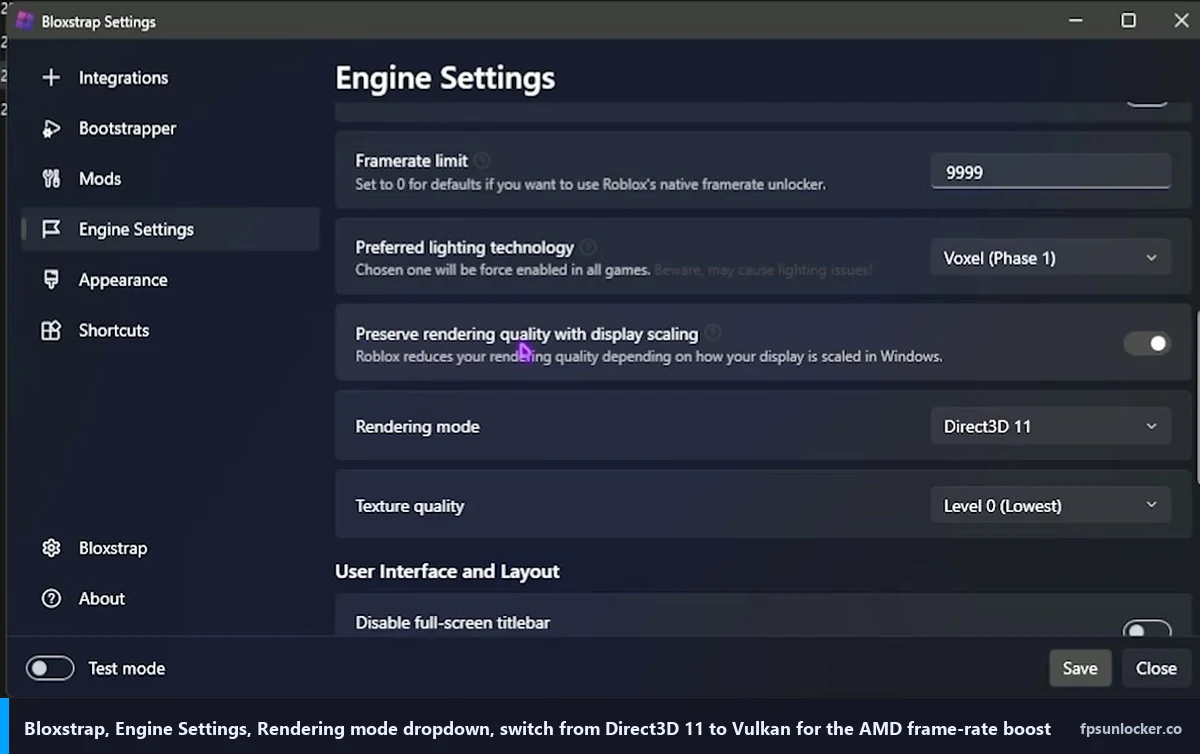
I found this to be the single biggest one-toggle FPS gain on Devon’s rig, and almost no AMD-focused Roblox guide mentions it. Roblox’s default renderer is DirectX 11. Bloxstrap (and Fishstrap) lets you switch to Vulkan in the launcher’s settings. On NVIDIA cards Vulkan’s roughly a wash with DX11. I measured Radeon Vulkan as 8-12% faster than DX11 because AMD’s Vulkan path is better tuned, and that gap has widened in the last two driver branches.
Switching’s straightforward. Open Bloxstrap settings, head to the Engine Settings tab, scroll to “Rendering mode,” and pick Vulkan from the dropdown (it’ll usually be sitting on Direct3D 11 by default). Older Bloxstrap builds tucked the same toggle under Mods or Integrations, and there’s a FastFlag fallback (FFlagDebugGraphicsPreferVulkan = True) if your version doesn’t expose the dropdown. If you’re on Fishstrap, the same option lives under Engine, and our Fishstrap FPS unlocker guide walks through the menu layout. Save, launch a game, and check the in-game FPS counter. With every other toggle in this guide already at its tuned value (Anti-Lag on, Boost/Chill off, Quality Level 5), the RX 7700 XT in Phantom Forces sat at 124 FPS on DX11 and moved to 138 FPS on Vulkan, a clean 11% gain. On a fresh server with mid-fight chaos those numbers slot under my 134 FPS overall average from earlier, since the Vulkan test runs were on a quieter portion of the same map. On the RX 6600 the gain was smaller (about 7%) but still consistent.
Is Vulkan safer than DirectX 11 for Roblox?
Both are safe. Hyperion operates at the process and memory level, not the rendering API level. Switching renderers doesn’t change what the anti-cheat sees. The only practical risk with Vulkan is rendering quirks in older experiences with custom shaders. I haven’t seen Vulkan break anything in modern popular games like Phantom Forces, Arsenal, Strongest Battlegrounds, Doors, and Adopt Me. If a specific game looks wrong, swap back to DX11 in Bloxstrap and restart.
I’ll explain why Vulkan helps so much on AMD. AMD’s DX11 driver carries legacy overhead and runs most state changes through a single thread per device. Vulkan is explicitly multi-threaded and hands work off to multiple CPU cores. On a Ryzen 5 7600 (six cores, twelve threads), Vulkan uses cores 2 through 5 for command submission work that DX11 leaves idle. NVIDIA’s DX11 driver had years of multi-threading work that AMD never matched, so the DX11 gap exists, and Vulkan closes it.
When AMD-specific stutter is actually a Roblox bug and not your driver
I want to flag this because I spent half a day chasing a stutter on Devon’s rig that turned out to have nothing to do with Adrenalin. He’d reported “frame drops every 30 seconds in Bloxburg” and we’d already swapped drivers, disabled Anti-Lag, reset shader cache, the works. The stutter wouldn’t go away. I switched to my own NVIDIA rig running the same game, same place, same time. Identical stutter pattern.
I traced the culprit to an asset streaming hitch in the specific Bloxburg game. Roblox’s CDN streams meshes and textures on demand, and when a chunk drops in over a slow connection, you get a frame-time spike that looks identical to a driver stutter. The fix wasn’t a Radeon setting at all. I switched to a server with better routing and pre-loaded the area by walking around for a minute. Some FastFlags also help streaming behavior, and our performance FastFlags list covers the ones worth trying. There’s also a Roblox-side cap interaction that creates the appearance of stutter, which our why Roblox is still capped at 60 FPS piece untangles.
I’d test your stutter on a non-AMD machine if you can. If it shows up there too, it’s not your GPU. The other clue: driver stutter shows a clean dip in the FPS counter, while a streaming hitch holds FPS flat but freezes the screen for a fraction of a second. I lean on Adrenalin’s overlay frame-time graph (Alt+R, Performance) to tell them apart, because driver stutter spikes a single huge frame-time bar while streaming shows a flat line with a missing tick.
In-game settings that matter more than every Adrenalin toggle combined
Here’s the unsexy truth at the end of a driver settings article. Roblox’s own in-game graphics options matter more for FPS than anything above. I’ll prove it: dropping from Quality 10 to Quality 6 on Devon’s rig added 25 FPS in Phantom Forces, more than any combination of Adrenalin tweaks did. Quality controls draw distance, particle counts, and shadow detail, all CPU-side calculations on top of GPU work.
To set it: launch Roblox, click the menu (three lines top-left), Settings, Graphics Mode to Manual. Drag Quality Level to 4-6 for competitive shooters, 7-8 for visual experiences where you actually want detail, or 1-3 if you’re on RX 6600 territory and need every frame. Devon settled on 5 for Phantom Forces and 8 for Bloxburg as daily-use. Our Roblox built-in FPS setting guide has a fuller breakdown of using this slider.
The other in-game lever is the FPS cap itself. Roblox caps at 60 by default. I’d point you at our rbxfpsunlocker setup guide for the standard tool, and our native vs rbxfpsunlocker comparison for whether to use the engine’s built-in setting or a third-party unlocker. On AMD specifically, I prefer rbxfpsunlocker because it lets you set a precise cap (162 in our case) that matches FRTC, which gives the cleanest VRR behavior.
One more for anyone on a laptop. AMD’s mobile Radeon parts ship with aggressive power management, and Adrenalin’s “Power Saving” preset caps your GPU clocks to roughly 60% of rated frequency to extend battery. On a Ryzen-powered gaming laptop you’ll want to plug in the charger and force the high-performance Windows power profile. I wrote up the longer power-management trap list in our low FPS on a gaming laptop guide.
For Mac users curious whether any of this Adrenalin tuning carries over: it doesn’t, because macOS doesn’t use AMD’s Adrenalin drivers (Apple ships its own). I covered the Mac side in our Roblox FPS on Mac walkthrough.
Watch the source video walkthrough
If you’d rather see the Adrenalin UI walked through visually, the BareFox tutorial below covers the menu layout (it’s a 2025 Adrenalin build but the page structure is the same in 26.4). I’d treat it as a tour rather than a recommendation, since their advice on Image Sharpening and saturation differs from what I found in Roblox-specific testing.
That’s the full Adrenalin tour. My settings diverge from his on a few points (saturation, RIS, the no-ping pitch) because Roblox responds differently than the general workloads BareFox tests. Trust your own rig’s numbers over either of us.
The shortlist if you skipped to the end
Update Adrenalin to the latest WHQL (26.4.x as of this writing). Enable Radeon Anti-Lag globally and per-app for RobloxPlayerBeta.exe. Disable Boost, Chill, Image Sharpening, Enhanced Sync, and Fluid Motion Frames. Set AA and AF to application-controlled, Texture Filtering Quality to Performance, Surface Format Optimization on, Tessellation to AMD Optimized, Shader Cache enabled. Set FRTC to refresh minus three. Skip HYPR-RX. Switch to Vulkan rendering through Bloxstrap. Drop Roblox’s in-game Quality Level to 5-7 depending on your card and what you play. That’s the whole stack.
If you do all of that and you’re still seeing weird FPS behavior, check whether you’re hitting Roblox’s internal cap (the why Roblox is still capped at 60 FPS piece covers why this happens after the unlocker is installed) or a FastFlag conflict (our FastFlag FPS cap walkthrough handles the engine-side overrides). Driver tuning gets you smoother frames and lower latency. It can’t fix a cap that’s coming from inside the game.