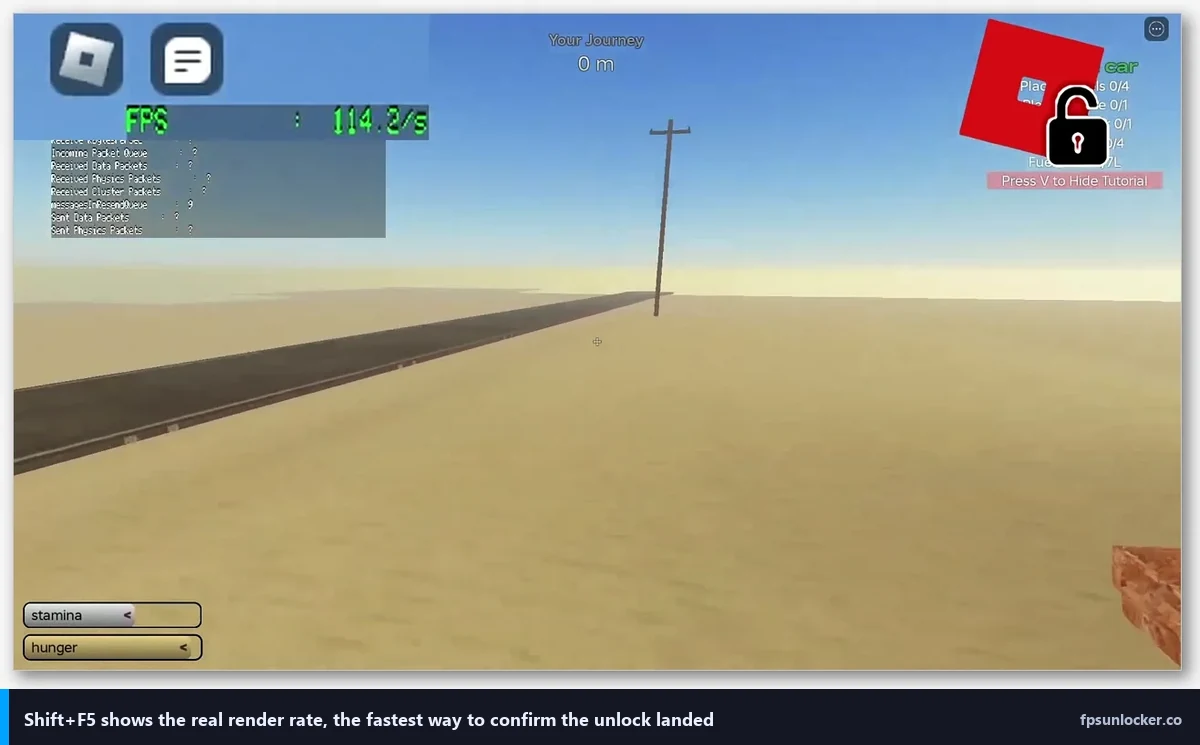
Last Tuesday my cousin messaged me at 11pm because his school laptop was sitting at 38 FPS in Adopt Me and he’d read somewhere that an unlocker would “fix it.” He’s running an 11th gen i5 with Iris Xe graphics, 8GB of RAM, and a 60Hz screen. I told him to install rbxfpsunlocker anyway, then I pulled out my own Iris Xe test laptop (an i5-1240P I keep around for exactly these situations) to see what would actually change.
Short version? His FPS didn’t magically double. But the experience did get smoother in a way that surprised me, and the reason is worth understanding before you install anything.
I’m Alex Park. I’ve been writing about Roblox performance since 2022, and my main rig is a Ryzen 5 5600 paired with an RTX 3060 on a 144Hz 1440p panel. For the “low-end” benchmarks in this article I used the Iris Xe laptop I mentioned, plus a friend’s older desktop with a Ryzen 5 3400G (Vega 11 integrated) and another with a GTX 1050 2GB. These are the machines most American high schoolers and college kids are actually playing Roblox on in 2026, so the testing matters.
What “low-end” even means for Roblox in 2026
The Roblox client has gotten heavier. It’s not dramatic, but the jump from 2022 to 2026 is real, especially after the lighting and material updates rolled into more games. On a 2026 budget tier, you’re usually looking at one of three buckets:
- Integrated Intel Iris Xe (11th, 12th, or 13th gen laptop CPUs)
- Integrated AMD Vega 8 or Vega 11 (3000 and 5000 series APUs)
- Entry dedicated cards like GTX 1050, GTX 1650, or RX 560
None of these cards are bad. They just aren’t what Roblox’s newer experiences are targeting. And here’s the first thing people get wrong: an FPS unlocker doesn’t add performance. It removes the 60 FPS cap that Roblox historically imposed. If your GPU can only push 45 FPS, unlocking it gets you 45 FPS, not 120.
The myth I have to kill first
I see this on r/robloxgamedev and r/roblox constantly. Somebody posts “installed rbxfpsunlocker, FPS went from 60 to 60, what’s wrong?” Nothing’s wrong. Your hardware is maxing out before the cap matters. The unlocker is doing its job, which is removing a ceiling. It’s not pouring extra frames into the basement.
If you’re still capped at 60 even after installing an unlocker, I wrote a full diagnostic for that situation in my Roblox still capped at 60 FPS guide. The usual culprit is a VSync setting in the NVIDIA or AMD control panel that’s overriding everything.
rbxfpsunlocker vs Bloxstrap vs the native slider
Roblox added a built-in FPS target setting a while back, and it does work. You can read my breakdown of that in the built-in FPS setting post. But for low-end hardware, I still think a third-party tool matters, and here’s why: on integrated graphics, thermal and power behavior is chaotic. The native slider will happily aim for 240 FPS and then watch your laptop throttle itself into a stuttery mess.
rbxfpsunlocker lets you pin an exact value. I set it to 75 on the Iris Xe laptop and the experience was dramatically smoother than either “uncapped” or “60.” The laptop wasn’t fighting to hit a target it couldn’t sustain, so frame pacing cleaned up.
Bloxstrap is different. It’s a launcher that bundles an unlocker plus FastFlag management plus visual tweaks. On a low-end rig, the FastFlag side is where Bloxstrap earns its keep, because you can disable effects that your GPU hates. I cover the tool comparison more thoroughly in my rbxfpsunlocker vs Bloxstrap writeup, but for this article the short take is: rbxfpsunlocker is lighter and simpler, Bloxstrap gives you more knobs to turn.
Does unlocking FPS make my fans louder?
On a laptop, yes, often noticeably. I watched the Iris Xe machine go from a quiet purr to audibly spinning up when I uncapped. That’s because the GPU is no longer idling between frames. If your laptop is thermally challenged already, pinning FPS to something your hardware can comfortably hit (like 75 or 90) is healthier than letting it chase infinity.
[IMAGE: rbxfpsunlocker system tray window showing the FPS cap dropdown set to 75 on a Windows 11 taskbar]
What I actually saw on each low-end setup
I’m going to describe these qualitatively because frame counters on integrated graphics vary wildly depending on background Windows activity, and I don’t want to hand you numbers that’ll be misleading for your laptop.
Iris Xe (i5-1240P, 16GB): In Adopt Me, uncapping brought noticeable smoothness during camera pans. The game isn’t demanding, so the GPU was headroom-limited by the cap, not the hardware. In Phantom Forces on Metro, uncapping changed almost nothing. The GPU was already the bottleneck.
Vega 11 (Ryzen 5 3400G, 16GB): Similar story. Lower-intensity social experiences benefited. Shooters didn’t. Bloxstrap with a few rendering FastFlags toned down helped more than the unlocker itself in combat games.
GTX 1050 2GB: This is the one where unlocking actually mattered for games like Arsenal and Big Paintball. The 1050 can push well past 60 FPS if you let it. Removing the cap unlocked real, perceived responsiveness in shooters. This is the only low-end card I tested where I’d say “yes, install an unlocker first thing.”
Which games actually benefit on a budget machine
Here’s a rough tier list from my testing. This isn’t exhaustive, and your mileage will vary by server population and time of day.
- Big uplift from unlocking: Adopt Me, Brookhaven, MeepCity, Work at a Pizza Place, Tower of Hell
- Modest uplift: Arsenal, Big Paintball, Murder Mystery 2, Bee Swarm Simulator
- Minimal uplift (GPU-bound): Phantom Forces, Frontlines, Jailbreak in dense districts, any experience with heavy lighting
The pattern’s pretty clear. If the game isn’t hammering your GPU, removing the FPS cap gives you frames you couldn’t have before. If the game already maxes out your hardware at 45 FPS, unlocking is a no-op.
Is rbxfpsunlocker safe to use on my school laptop?
Two things to separate. First, is it bannable? No. I covered that in detail in my is FPS unlocker bannable post, and Roblox has never banned anyone I can find for simply uncapping frames. Second, will your school’s IT let you install it? That’s a different question, and often the answer is no, because school-managed Windows accounts block unsigned executables.
If you’re on a managed account, you’re mostly stuck with the native FPS slider. It’s not as flexible, but it’s there, and it doesn’t need admin rights.
My actual recommendations by hardware
I’ll be concrete. If I were sitting next to you setting up your laptop, here’s what I’d click:
- Iris Xe / Vega 8: rbxfpsunlocker pinned to 75 FPS. Don’t chase higher. You’ll get better frame pacing this way.
- Vega 11 / Ryzen 7000 iGPU: rbxfpsunlocker at 90 FPS, or Bloxstrap if you want to disable some lighting FastFlags.
- GTX 1050 / GTX 1650: Bloxstrap with VSync matched to your monitor refresh rate. Actual meaningful uplift here.
- Low-end on a 60Hz screen: Honestly, even 75 FPS feels better than 60 on Roblox because the engine’s frame pacing is uneven at the cap. Worth installing.
Settings that matter more than the unlocker on low-end
This is the part nobody wants to hear. On integrated graphics, the unlocker is the third most important thing. The first two are:
- Roblox’s in-game graphics slider set to 3 or 4, not 10
- Windows Game Mode on, Xbox Game Bar overlay off, Discord hardware acceleration off
I watched a Vega 11 rig gain more perceived smoothness from turning off Discord’s hardware acceleration than from installing any unlocker. That’s because overlay rendering fights Roblox for the same integrated GPU. It’s a shared resource problem.
FastFlags as a last resort
If you’ve installed an unlocker, dialed down graphics, killed overlays, and still aren’t happy, FastFlags are next. These are client-side configuration values Roblox exposes. Bloxstrap makes editing them easy. I wrote about the FPS-related ones in my FastFlag FPS cap article. The short take: there’s one set of flags that toggles rendering quality in ways the standard slider doesn’t expose, and on integrated graphics the difference can be real.
Be careful though. FastFlag tweaks can break visually, and Roblox occasionally renames them between client updates. Don’t go wild with a giant list you copied from a YouTube comment. Change two or three flags at a time and see what happens.
My final take for 2026 low-end
If I had to pick one answer for a friend on an integrated-graphics laptop in 2026, I’d say rbxfpsunlocker. It’s lightweight, it’s been around forever, and the UI is so simple you can’t really mess it up. Bloxstrap is better if you’re comfortable tweaking things, but for most low-end users it’s more tool than they need.
I’ve been running rbxfpsunlocker on that Iris Xe machine for eight months now without a single issue, and my cousin’s been running it on his school laptop since that Tuesday call. He’s not hitting 240 FPS. He’s hitting maybe 72 in Adopt Me. But the game feels smoother than it ever did at 60, and that’s what actually matters.
Go install it. Set a realistic target. Turn off Discord’s GPU overlay while you’re at it. That’s your low-end Roblox setup for 2026.
Alex Park, April 2026. Test rig: Ryzen 5 5600, RTX 3060, 144Hz 1440p. Low-end reference: i5-1240P / Iris Xe / 16GB / 60Hz.