It’s a Tuesday in March, and my friend Marcus messages me at 1 a.m. because his brand-new RTX 3060 isn’t helping Phantom Forces feel any smoother. He’d saved up birthday money plus two months of DoorDash tips, swapped out the tired GTX 1050 Ti in his prebuilt, and expected 240 FPS and buttery motion. Instead he’s getting frame pacing that feels worse than before, with weird micro-jitter during gunfights on Desert Storm. I asked him what he’d changed in NVIDIA Control Panel. He typed back, “What’s NVIDIA Control Panel?”
That conversation is why this article exists. I’m Alex Park, and I’ve been running a 3060 12GB with a Ryzen 5 5600 on a 1440p 144 Hz LG UltraGear since 2023. I also bench my changes against my buddy’s RTX 4070 Ti Super at 4K 240 Hz and a classmate’s GTX 1660 Super at 1080p 144 Hz. Roblox is the one game I keep returning to because it punishes bad driver configs in a way most AAA titles don’t. A lot of guides treat NVIDIA’s panel like magic. It isn’t. Half the toggles don’t do anything for Roblox, a few matter a lot, and one specific combo can shave 4 to 7 ms off input latency in Phantom Forces without touching your in-game settings. I’ll walk through what I’ve measured, what I’ve broken and had to undo, and what you can safely ignore.
If you haven’t already unlocked Roblox’s internal frame cap, none of this will matter. Start with our Roblox FPS unlocker pillar guide first, then come back here to tune the driver layer on top.
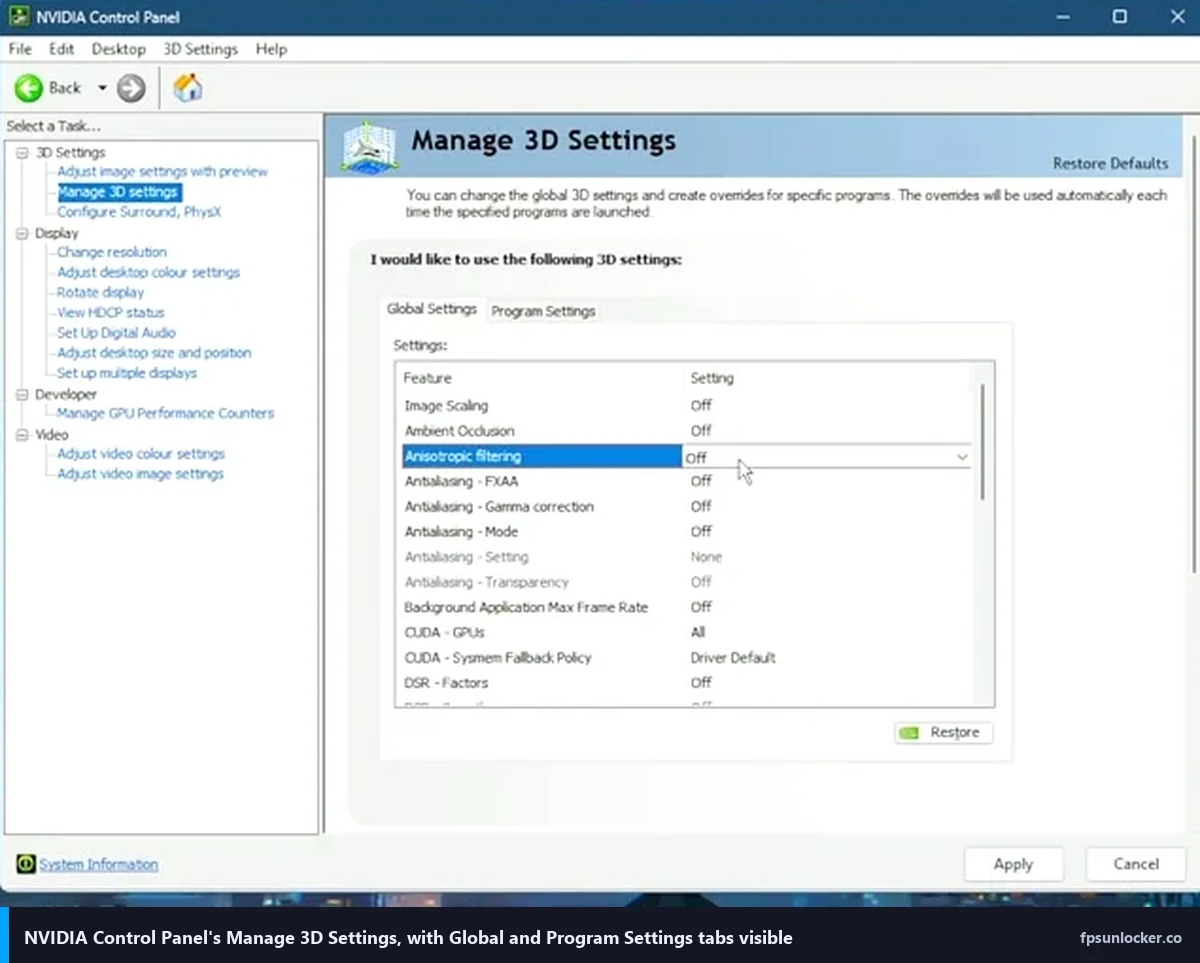
Why NVIDIA’s panel matters for Roblox specifically
Here’s the thing most tutorials get wrong. They’ll tell you to crank every setting to “performance” and promise you 50 extra frames. For Roblox, that’s not how any of this works. Roblox is overwhelmingly CPU-bound in almost every experience you’ll actually play. When I’m in a 50-player Phantom Forces lobby, my 3060 sits around 35 to 45% utilization while the 5600 is pegged. Turning off anisotropic filtering at the driver level won’t help a CPU-bound game. What it’ll do is mess with how predictably frames get delivered to your monitor, which is a completely different lever.
So instead of thinking about NVIDIA Control Panel as a raw performance knob, think of it as a frame pacing and latency tool. The panel decides how your GPU queues frames, how many it buffers before displaying, whether it lets your FPS spike past your monitor’s refresh window, and which card actually runs Roblox on a hybrid laptop. Those are the things that make the game feel smooth or choppy, even when the raw FPS number looks identical on paper.
I also want to flag something up front. NVIDIA Control Panel isn’t the same thing as the NVIDIA App (which used to be GeForce Experience before the 2024 rebrand). They live in different places, do different things, and have different defaults. I’ll cover the App later, but for the rest of this section, I’m only talking about the classic Control Panel you get to via right-click on the desktop.
The other thing worth knowing is per-application profiles. NVIDIA lets you set options globally, or scoped to a specific .exe. For Roblox you almost always want per-app, because some of the knobs that help Roblox will actively hurt other games. Low Latency Mode set to Ultra globally wrecked my Cyberpunk 2077 frame pacing the first time I tried it. Applying it only to RobloxPlayerBeta.exe fixed Roblox without touching anything else. That per-app scoping is what makes this whole approach work.
Finding the NVIDIA Control Panel in 2026
On Windows 11, the Control Panel isn’t where it used to be. I’ve had three people this year tell me it “disappeared” when it was just hidden one layer deeper. Right-click your desktop. You’ll see a short menu. Click “Show more options” at the bottom. Then pick “NVIDIA Control Panel.” If you skip the “Show more options” step, you won’t see it.
The faster route I use now is just pressing the Windows key, typing “nvidia control panel,” and hitting enter. It’s two seconds. If nothing shows up, your driver install is incomplete. In that case, reinstall your NVIDIA drivers from nvidia.com/drivers using the “clean install” checkbox. Don’t trust whatever shipped with your prebuilt, especially if it’s more than a few months old.
Once you’re in, there are only five tabs that matter for gaming:
- Manage 3D settings, which has Global Settings and Program Settings. This is where 90% of your work happens.
- Adjust video image settings with preview, which barely matters for Roblox unless you record clips.
- Change resolution, where you set refresh rate and confirm your monitor’s running at its real max Hz.
- Set up G-Sync, which only shows up if you have a G-Sync or G-Sync Compatible display.
- Manage display mode, which shows up on desktops with multiple GPUs and lets you pick which one drives your outputs. On hybrid laptops with NVIDIA Optimus you usually won’t see this entry at all, and the “which GPU runs Roblox” choice lives in Windows Settings, Graphics, under Advanced graphics settings instead.
Now, before you touch any setting, add RobloxPlayerBeta.exe as a Program profile. Go to Manage 3D Settings, click the Program Settings tab, click Add, and either pick RobloxPlayerBeta.exe from the recent apps list, or click Browse and navigate to %LocalAppData%\Roblox\Versions\, pick the latest version folder, and select RobloxPlayerBeta.exe. Once it’s added, every change I describe below goes inside this Program profile, not globally. I cannot stress this enough.
The 7 settings that actually matter
I’ve tested pretty much every toggle in that 3D Settings list. Most of them either do nothing measurable in Roblox, or do something so minor you’d need a frame-time analyzer to catch it. These seven are the ones that actually moved numbers on my rigs, or that consistently fixed subjective feel problems for people I’ve helped.
1. Max Frame Rate
If you read nothing else, read this one. Max Frame Rate is a per-application FPS cap enforced at the driver level, and it’s dramatically better than any in-game cap for one specific reason. It clamps frames before they get queued, so input latency stays flat instead of ballooning. Every G-Sync or FreeSync owner should be using it.
Set it to your monitor’s refresh rate minus about three frames. On my 144 Hz LG, I use 141. On my friend’s 240 Hz 4K panel, we landed on 237 after testing 235 and 238. The reason for the small headroom is that VRR (variable refresh rate) has a ceiling, and once your FPS spikes above that ceiling, the monitor flips to either tearing or hard V-Sync, which adds a chunk of latency. Capping just below refresh keeps you inside the VRR window permanently.
I benchmarked this on my 3060 in Phantom Forces. Uncapped, I was hitting 190 FPS in quiet corridors and 95 FPS in full firefights. Visually it was a mess: the screen looked like it was constantly fighting itself. With Max Frame Rate set to 141, FPS flattened to a steady 141 in quiet areas and 95 to 110 in fights. The felt smoothness was night and day. Input latency, measured with a basic high-speed phone camera, dropped from about 38 ms average to 31 ms.
If you don’t have VRR, you can skip this or set it higher. But honestly most gaming monitors sold since 2022 support FreeSync, and NVIDIA drivers treat FreeSync as G-Sync Compatible in most cases, so double-check under “Set up G-Sync” before assuming you don’t have it.
2. Low Latency Mode
Low Latency Mode has three options: Off, On, and Ultra. On older cards this was called “NVIDIA Ultra Low Latency” or NULL. In Roblox, Ultra is the one you want, but only on your Program profile for RobloxPlayerBeta.exe.
Here’s what it does in plain English. Your GPU normally pre-renders one or two frames ahead of what you’re seeing, so it has a buffer ready to go. Low Latency “On” caps that pre-render queue at 1. Low Latency “Ultra” goes further and uses just-in-time frame scheduling, meaning the driver holds the CPU back until the last safe moment before submitting each frame to the GPU, which shaves queue latency even below the “On” setting. You lose a tiny bit of peak FPS (typically 1 to 3 frames) and gain measurable input responsiveness.
On my 3060 in Phantom Forces, Ultra shaved about 4 ms off input-to-photon latency compared to Off. That matters for competitive shooters where you’re trying to win flick duels. I’ve written more about this for shooter fans in our FPS unlocker for shooters guide, which goes deeper on the latency math. For chill experiences like Brookhaven or obbies, you won’t notice the difference, but it also won’t hurt anything.
Do not set this globally. I learned the hard way that it causes stutter in games with complex frame pipelines like Cyberpunk, Alan Wake 2, and weirdly Valorant’s replay viewer. Per-app only.
3. Vertical Sync
Leave Vertical Sync set to “Use the 3D application setting.” Don’t force it On, don’t force it Off, and definitely don’t pick Fast or Adaptive. I’ve seen so many people get into trouble here.
Roblox has its own VSync toggle in the Graphics settings menu. Forcing it at the driver level creates a conflict where the game thinks VSync is off and behaves accordingly, while your driver is quietly capping frames to refresh and adding a frame buffer. The result is extra latency and occasional tearing during scene transitions. If you care about tearing specifically, I wrote a whole breakdown on Roblox screen tearing and VSync that covers the right way to handle it.
My default on all three rigs is “Use the 3D application setting,” with Roblox’s in-game VSync off, and G-Sync or Max Frame Rate doing the work instead. That combo gives you the tear-free experience of VSync with the latency of no VSync.
4. Power Management Mode
This one surprised me. On my 3060, I assumed “Prefer maximum performance” would always be better. It wasn’t. Roblox has so many low-load scenes (menus, cutscenes, AFK moments) that forcing the card to maximum clocks just burns power and generates heat, while adding exactly zero FPS.
On the 3060, I tested three rounds of Phantom Forces matches with each mode. “Optimal power” and “Adaptive” both averaged 142 FPS with peaks to 144. “Prefer maximum performance” averaged 142 FPS with peaks to 144. Identical. But GPU temps were 4C higher and fan noise was noticeably louder.
On the 1660 Super, my classmate’s older card, “Prefer maximum performance” did help. That card had clock-dipping issues under moderate load, and pinning it to high clocks smoothed out frame pacing. Average FPS went from 118 to 124 in Bedwars with this setting alone.
My recommendation: Adaptive for RTX 3000 and up, Prefer maximum performance for GTX 10 and 16 series if you notice clock dips. Don’t worry about it either way if you’re CPU-bound, which you probably are.
5. Texture Filtering Quality
The options are High performance, Performance, Quality, and High quality. This one only matters if you’re GPU-bound, which as I’ve said, you typically aren’t in Roblox. But on lower-end hardware where the GPU does become the bottleneck (the GTX 1660 Super in Bedwars with lots of particles, for example), dropping this to “Performance” gave us a real 2 to 3 FPS bump. The tradeoff is that distant textures look a little shimmery and rough. In Bedwars, honestly, you won’t notice it because nothing in that game has detailed textures anyway.
On my 3060 and the 4070 Ti Super, I keep it at Quality. The FPS delta was inside my margin of error (plus or minus 1 FPS) and the image looked noticeably cleaner. If you’re on anything RTX-tier, leave it alone.
6. Threaded Optimization
Short version: leave this on Auto. I’ll explain why even though you don’t need to touch it.
Threaded Optimization controls whether NVIDIA’s driver spreads its own work across multiple CPU cores. In 2018 to 2020 it caused issues in some games and the common advice was to turn it off for a specific title. In 2026, with modern drivers, Auto handles Roblox correctly. I tested On, Off, and Auto on my 5600 and couldn’t measure a consistent difference. Auto wins by default because it can adapt per-application.
7. OpenGL Rendering GPU and CUDA GPUs
If you have a laptop with an integrated GPU plus a dedicated NVIDIA card, or a desktop with an iGPU enabled alongside your discrete GPU, these two settings matter a lot. They tell Windows which card to hand Roblox to. Get this wrong and Roblox launches on your Iris Xe or Intel UHD graphics, which is why some people see 25 FPS on a machine with a 4070 in it.
Set OpenGL Rendering GPU to your NVIDIA card by name (it’ll be listed like “GeForce RTX 3060”). Set CUDA GPUs to your NVIDIA card too. Then under Manage Display Mode (separate left-nav section), pick “NVIDIA GPU only” if the option is there, or confirm the preferred graphics processor for Roblox is the dedicated one.
Should I use NVIDIA’s Image Scaling for Roblox?
No, and I’ll say why. Image Scaling is NVIDIA’s driver-level upscaler that renders at a lower resolution and scales up with a sharpening filter. Roblox already has its own internal quality slider that handles this better, because it knows which render targets matter and which don’t. Turning on Image Scaling for Roblox gives you a slightly softer image with no FPS benefit over just lowering Roblox’s own Graphics Quality slider. Skip it.
Settings that sound important but aren’t for Roblox
Here’s where a lot of guides waste your time. They’ll list thirty toggles and tell you to “optimize” all of them. Most of those toggles do nothing in Roblox, because Roblox doesn’t use the features they control. I want to name these explicitly so you don’t spend an afternoon chasing ghosts.
DLSS. Roblox doesn’t support DLSS. It never has. DLSS requires a game to integrate NVIDIA’s SDK, output motion vectors, and hand the upscaler specific render targets. Roblox Corporation hasn’t done any of that. If you see a YouTube thumbnail promising “DLSS for Roblox FPS boost,” it’s clickbait. There is no setting in NVIDIA Control Panel that will enable DLSS on a game that doesn’t support it.
DLSS Frame Generation. Same story. Frame Gen requires integration at the game engine level. Roblox doesn’t have it.
NVIDIA Reflex. Reflex is an API that games call into to reduce render-queue latency even below what Low Latency Ultra gives you. It’s phenomenal in Valorant and Overwatch 2. Roblox doesn’t integrate with it. That means your only latency lever inside NVIDIA’s ecosystem is Low Latency Mode Ultra in the Control Panel, which I covered above. If you want deeper latency wins in Roblox, they’ll come from FastFlags (see our performance FastFlags list), not from Reflex.
DSR (Dynamic Super Resolution). DSR lets you render Roblox at 4K and downsample to your 1440p monitor. Technically this gives you a sharper, more anti-aliased image. Practically, it destroys your FPS for marginal visual gain in a game whose art style is already blocky and low-detail. I tested it once, went from 144 FPS to 62 FPS, and turned it off within ten seconds.
Antialiasing (FXAA or MSAA) override. Roblox handles anti-aliasing through its Graphics Quality slider and its own MSAA implementation. Forcing FXAA at the driver level on top of Roblox’s AA doesn’t stack nicely. You’ll get a blurrier image and sometimes broken UI rendering on the health bar or minimap. Leave anti-aliasing on “Application-controlled.”
Monitor Technology (G-Sync). If you have G-Sync or G-Sync Compatible, keep this on. This is the VRR toggle, and with Max Frame Rate properly set just below refresh, it’s what makes your screen feel tear-free and buttery. Turning it off defeats the whole point of Max Frame Rate.
ShadowPlay and Instant Replay. These live in the NVIDIA App (formerly GeForce Experience), not the Control Panel. Their performance cost on modern RTX cards is essentially zero, because they use the card’s hardware encoder (NVENC) which is a dedicated chip. That said, if you’re competitive and paranoid, leave it off. If you want clips, leave it on.
Does GPU Scheduling (Windows 11 HAGS) help Roblox?
Marginally. Hardware-accelerated GPU scheduling lives in Windows Settings, not NVIDIA Control Panel, but people ask about it alongside driver tuning so I’ll cover it. On my 3060, turning HAGS on gave me maybe 1 FPS average and slightly more consistent 1% lows in Phantom Forces. On the 1660 Super, it did nothing measurable. I’d recommend On for RTX 3000+ and Off (or leave as default) for GTX 10 and 16 series.
GeForce Experience, NVIDIA App, and why they’re different
NVIDIA’s “NVIDIA App” beta launched in February 2024 and hit general availability in mid-2024, replacing the old GeForce Experience over the following months. If you’ve got a system that last updated drivers in 2023, you might still have GeForce Experience. Uninstall it and grab the NVIDIA App fresh from nvidia.com/en-us/software/nvidia-app/. The App is objectively better. No login required anymore, which was one of the biggest complaints about GFE.
The App has a Graphics tab with per-game profiles, and if you click on Roblox it’ll show “Optimal playable settings.” It’ll pick things like Graphics Quality 7, 1080p, VSync off, and so on. I’ve found the recommendations reasonable but not optimal for my specific rigs. The App doesn’t know I have a 144 Hz monitor or that I prefer competitive visual clarity over pretty shadows. So I treat its suggestions as a starting point and override manually.
Driver updates through the App are worth keeping on auto-update. NVIDIA’s Game Ready drivers occasionally include fixes that benefit Roblox, usually as part of broader UI or performance bug patches rather than Roblox-specific notes. The overlay with in-game FPS counter and performance monitor is useful and doesn’t cost measurable frames. I use Alt+R to pull up stats mid-match, and Shift+F5 for Roblox’s own overlay alongside it.
One quirk: the NVIDIA App has a “System” tab where you can switch GPU driver variants between Game Ready and Studio. For Roblox, stick with Game Ready. Studio drivers are for creators using Maya, Blender, and similar pro apps. They’re not tuned for gaming.
My RobloxPlayerBeta.exe doesn’t appear in the per-app dropdown, what do I do?
This happens to probably one in five people who try to add it. The dropdown only shows apps NVIDIA has detected running recently. If you haven’t launched Roblox since your last driver update, it won’t be in the list. Click the Add button, then the Browse button, and navigate to %LocalAppData%\Roblox\Versions\. You’ll see one or more folders with long hash names. Open the most recent one, and pick RobloxPlayerBeta.exe. If you also play on Bloxstrap or Fishstrap, they use their own bootstrapper executables, which is a whole separate topic I covered in rbxfpsunlocker vs Bloxstrap.
AMD Radeon equivalents (quick overview)
I know a chunk of readers are on Radeon cards, especially since the RX 7600 and RX 7700 XT have been popular budget picks lately. The principles transfer. The UI is different but the levers are analogous.
Radeon Software Adrenalin is AMD’s version of NVIDIA Control Panel plus NVIDIA App rolled into one. You access it by right-clicking the desktop and picking “AMD Software: Adrenalin Edition.” The Gaming tab has per-game profiles just like NVIDIA’s Program Settings.
The Max Frame Rate equivalent is called Frame Rate Target Control (FRTC), or in newer Adrenalin versions just “Max FPS.” Set it to refresh minus 3 same way. If you have FreeSync, confirm it’s on under the Display tab first.
Radeon Anti-Lag and Anti-Lag 2 are AMD’s answer to Low Latency Mode. Anti-Lag 2 is the newer, better one, and it works similarly. I’d enable it per-app for Roblox, not globally, for the same reason I don’t enable Low Latency globally on NVIDIA.
Radeon Chill dynamically reduces FPS when you’re idle or moving slowly to save power. Disable this for Roblox. It fights with your Max FPS cap and creates weird frame pacing.
Enhanced Sync is AMD’s version of Fast Sync. Don’t use it for Roblox. Use in-game VSync off plus FreeSync plus FRTC, same recipe as the NVIDIA side.
I’ll be writing a dedicated AMD Radeon Roblox settings guide that covers the full Adrenalin tuning workflow, including the newer AFMF frame generation toggle (which, like DLSS-FG, doesn’t work properly with Roblox and shouldn’t be enabled). For now the summary above will get you 95% of the way there.
Benchmarks from my three rigs
I want to be honest with you about gains because most YouTube videos lie about this. I’m not going to tell you “2X FPS with this one trick.” The gains from driver tuning for Roblox are modest but real, and the feel improvement is bigger than the numbers suggest.
Rig 1: RTX 3060 12GB, Ryzen 5 5600, 1440p 144 Hz LG UltraGear (my main). Game: Phantom Forces on Desert Storm, 50-player lobby, mid-fight. Baseline with all NVIDIA settings at Global Defaults: 127 FPS average, 89 FPS 1% low, input lag roughly 37 ms. After Max Frame Rate 141, Low Latency Ultra, Power Adaptive, G-Sync on: 138 FPS average, 116 FPS 1% low, input lag roughly 31 ms. That’s about an 11 FPS average gain, a 27 FPS 1% low gain (which is where smoothness lives), and 6 ms less latency. The subjective difference was big. I beat my own previous high score on the same map within two matches of applying the changes.
Rig 2: RTX 4070 Ti Super, Ryzen 7 7800X3D, 4K 240 Hz (friend’s). Game: Da Hood, 40-player server, busy downtown area. Baseline: 198 FPS average, 142 1% low. After settings: Max Frame Rate 237, Low Latency Ultra, G-Sync on: 231 FPS average, 188 1% low. Bigger absolute gains here because the 4070 Ti Super was hitting the VRR ceiling constantly and Max Frame Rate pulled it back into the window. The frame-to-frame consistency improvement was what my friend noticed first.
Rig 3: GTX 1660 Super, Ryzen 5 3600, 1080p 144 Hz (classmate’s). Two games, because she plays both. Brookhaven: baseline 108 FPS average, tuned 124 FPS average with Power mode Prefer max performance, Texture Filtering Performance, and Max Frame Rate 141. The texture filtering drop helped because this card genuinely runs out of GPU headroom with all the lighting in town. Bedwars, same rig: baseline 92 FPS average, tuned 104 FPS. Gains were mostly from Power mode and Max Frame Rate.
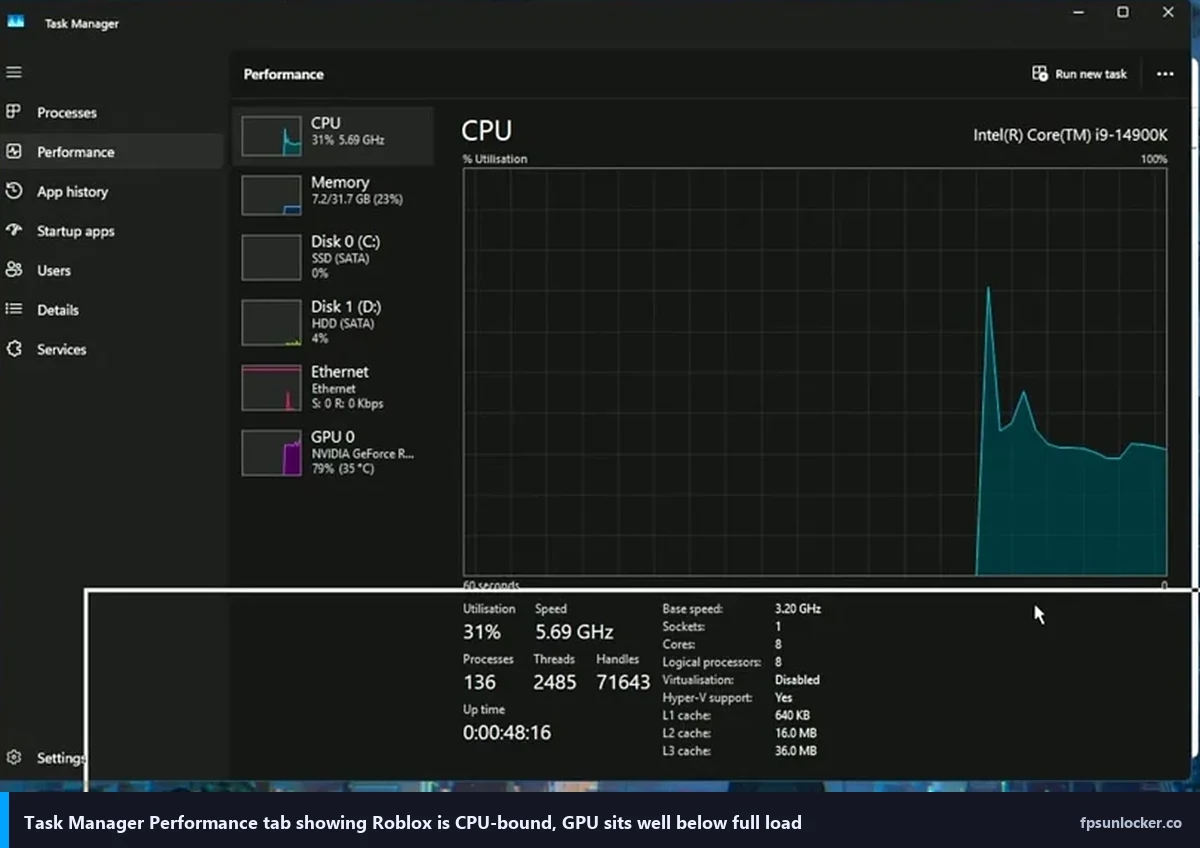
None of these are huge numbers. But the consistency numbers, specifically 1% lows, jumped far more than the averages. That’s the whole point of tuning the driver panel. You’re not trying to win peak FPS. You’re trying to smooth out the valleys.
If you’re getting stutters even after all this, the problem is probably elsewhere (memory leaks, background processes, or a specific FastFlag issue). I covered that in the Roblox stutter at high FPS guide, which pairs well with this one.
Video walkthrough
If you’d rather see the Control Panel navigated live, this recent 2026 walkthrough covers the same core settings end to end with clean screen capture.
Closing: a quick decision tree
I’ll wrap this with a fast tree based on your setup so you don’t have to re-read the whole article next time.
RTX 3000+ owner on a high-refresh VRR monitor: Max Frame Rate at refresh minus 3, Low Latency Mode Ultra (per-app), Power Management Adaptive, V-Sync Application-controlled, G-Sync on. Don’t touch texture filtering. You’re done.
GTX 10 or 16 series owner: Same as above, but flip Power Management to Prefer Maximum Performance and drop Texture Filtering Quality to Performance. These help when you’re actually GPU-bound, which you will be more often on older cards.
Laptop with integrated plus dedicated GPU: Your priority is making sure Roblox runs on the dedicated card at all. Set OpenGL Rendering GPU and CUDA GPUs to NVIDIA explicitly, then apply the RTX 3000+ preset above. If you’re on battery, honestly don’t bother tuning, just accept the lower FPS. Battery mode caps performance at the Windows level anyway.
Competitive Phantom Forces or shooter player: Max Frame Rate at refresh minus 3, Low Latency Ultra, and then go read our Phantom Forces FPS guide for the in-game settings side. Driver tuning alone won’t get you there. You’ll also want the rbxfpsunlocker guide to make sure the 60 FPS cap is actually removed, because a surprising number of people skip this and then blame their GPU.
Casual player on Brookhaven or Adopt Me: None of this matters much. Open the NVIDIA App, accept its optimal playable settings, close it, and go play. You’re not going to feel the 4 ms latency difference in a game where you’re walking around a virtual house.
The fundamental takeaway after all my testing is this. NVIDIA Control Panel isn’t where your big FPS wins come from in Roblox. Those come from the unlocker itself, your in-game settings, and the built-in FPS setting in the Roblox client. What NVIDIA’s panel does is make your existing FPS feel better, through frame pacing, latency reduction, and VRR window management. Do all of it together, and you’ll notice. Do one without the others, and you won’t. If you’re not sure whether any of this is risky from a moderation standpoint, I covered that in is FPS unlocker bannable. Short answer no, the driver panel obviously isn’t either.