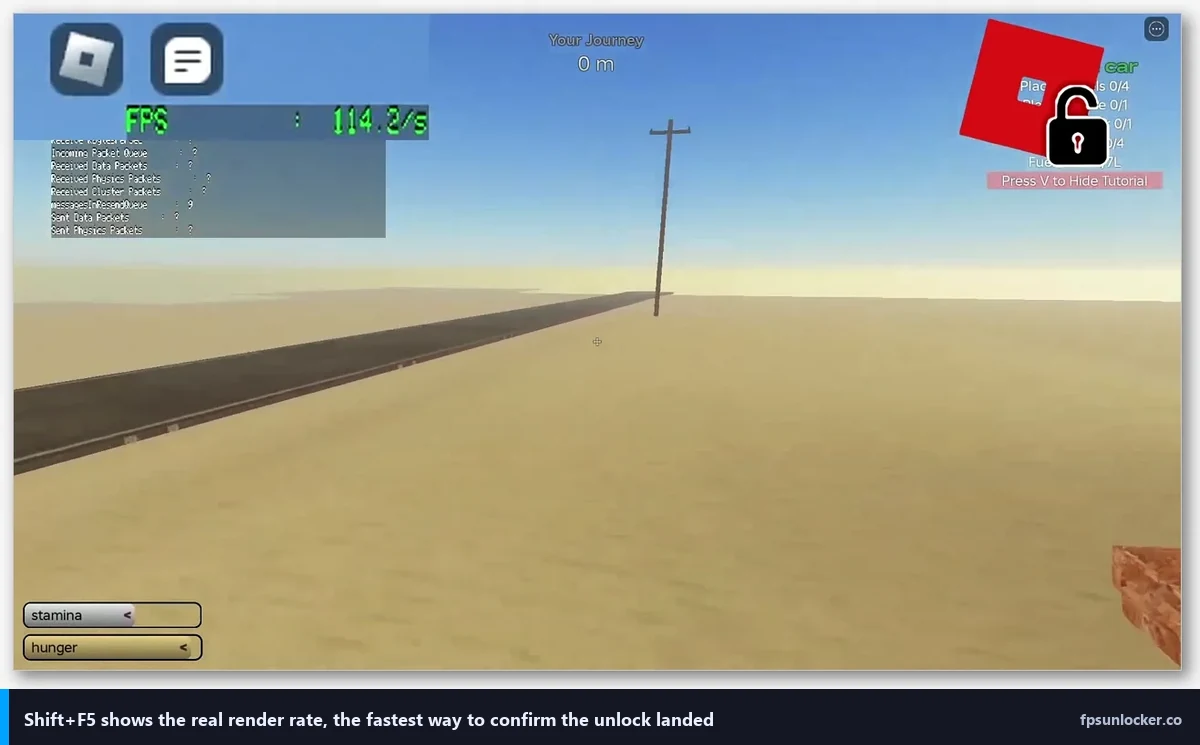
My friend Dylan sent me a clip last week of his Phantom Forces gameplay where the FPS counter proudly showed 238 in the corner and the camera was visibly hitching every few seconds during firefights. He’d just built a new 7800X3D rig with an RTX 4070, and he was furious. “How am I stuttering at 240?” Valid question. High frame rate and smooth frame rate aren’t the same thing, and the difference is where most Roblox performance confusion lives.
I’m Alex Park, writing from my Ryzen 5 5600 and RTX 3060 setup on a 144Hz 1440p monitor. I’m going to walk through exactly why a high average FPS can still feel janky, and what to change to make it stop.
Average FPS lies to you
The FPS counter in Roblox (or any overlay) shows you an average across the last second. If you’re rendering 240 frames in a second, that number displays as 240. But if 200 of those frames took 3ms each and 40 of them took 10ms each, your experience is uneven even though the math says 240.
This is what “frame pacing” means. Your eye perceives smoothness from frame-to-frame consistency, not raw throughput. A locked 90 FPS with perfectly even spacing feels smoother than a bouncy 200 FPS that’s all over the place.
The GPU is thermal throttling (yes, even yours)
When you uncap Roblox and your GPU starts pushing hundreds of frames per second, it’s working hard. On smaller cards this can push temps into the 75-85°C range quickly, and modern GPUs will quietly drop their boost clock to stay in a safe zone. That clock drop causes exactly the kind of micro-stutter Dylan was seeing.
I’m not saying you’re frying your card. Modern GPUs protect themselves. But protection comes at the cost of clock stability, and clock stability is what you feel as smoothness.
Fix: open HWInfo64 or MSI Afterburner, watch your GPU core clock while playing. If it’s oscillating between 1800 and 2400 MHz repeatedly, you’ve got a thermal issue. Cap your FPS below your max (I cap at 138 on a 144Hz monitor, which leaves headroom) and the clock stabilizes.
VSync off + no G-Sync = screen tearing AND uneven pacing
Here’s a combo a lot of people don’t understand. If you uncap FPS, turn VSync off, and don’t have a VRR (variable refresh rate) monitor, your screen is trying to display 240 frames on a 60 or 144 Hz panel. You get tearing, and the frames that do make it to the display land at irregular intervals because they’re not aligned to the refresh cycle.
If you have a G-Sync or FreeSync monitor, that panel can adjust its refresh rate to match the GPU. Smooth. If you don’t, you want to cap FPS to your refresh rate (or slightly below) and either enable VSync or use NVIDIA’s Fast Sync.
How do I know if my monitor actually has G-Sync?
Open NVIDIA Control Panel, go to Display, and look for “Set up G-Sync” in the left sidebar. If the option’s there and your monitor shows up in the compatibility list, you’re good. On AMD, check Radeon Software for “AMD FreeSync Premium” on your display. Many modern panels have it even if the box didn’t advertise it loudly. My current 144Hz monitor was $180 and it’s FreeSync-capable, which NVIDIA cards have supported as “G-Sync Compatible” since 2019.
[IMAGE: NVIDIA Control Panel showing the Set up G-Sync page with “Enable G-SYNC, G-SYNC Compatible” checked and a monitor listed below]
Roblox’s physics tick creates a weird ceiling
The Roblox engine simulates physics at a fixed rate. Rendering runs independently, but when the physics simulation hitches (an expensive server replication, a ton of assemblies spawning, a network hiccup), your rendering thread can stall waiting for world state. You’ll see a perfectly fine FPS counter and still feel a hitch.
There’s not much you can do about this client-side, because it’s the game’s server-plus-engine interaction. But understanding it helps. If you’re stuttering specifically during combat in a shooter or when lots of players spawn assets simultaneously, it’s physics replication, not your GPU.
Windows Game Mode and background app chaos
Windows Game Mode is better than it used to be. I leave it on. What I also do is aggressively kill background stuff before a session, because Windows 11 loves to schedule things at the worst moment.
- Discord overlay and hardware acceleration can both cause hitches. Overlay is the bigger offender.
- Chrome with YouTube open in another tab uses GPU video decode. That’s GPU cycles Roblox wants.
- Windows Search indexing during gameplay is a classic stutter source. Pause it via Settings.
- Xbox Game Bar’s “auto-record last 30 seconds” feature is constantly encoding in the background. Turn it off.
I’ve timed Chrome’s impact specifically. With a YouTube tab playing video in the background, my RTX 3060 loses a clearly perceptible chunk of Roblox frame stability. I’m not going to give you a number because it varies by video resolution, but it’s noticeable.
1% lows: the number that actually matters
If you want to diagnose stutter properly, you need to track 1% lows, which is the FPS your worst 1% of frames deliver. Most in-game counters don’t show this. Use MSI Afterburner’s RivaTuner overlay, or CapFrameX for a proper capture.
A “smooth” 240 FPS experience has 1% lows above 150. A stuttery 240 FPS experience has 1% lows at 60 or below. That gap is where the jank lives. When I tell you to cap FPS for stability, what I’m really doing is raising your 1% lows by forcing the GPU into a sustainable pattern.
NVIDIA Ultra Low Latency mode
This is one of my favorite settings because a lot of people don’t know it exists. In NVIDIA Control Panel, under Manage 3D Settings, there’s a setting called “Low Latency Mode” with three options: Off, On, and Ultra.
Ultra reduces the render queue to basically nothing, which cuts input latency and often helps frame pacing. I have it on globally. For Roblox specifically, I’ve seen it smooth out the feel without changing the FPS number at all. Try it.
AMD has an equivalent called Radeon Anti-Lag, which does something similar. Same idea: the GPU isn’t allowed to queue up tons of frames that are about to be stale.
Why does capping my FPS lower make it feel smoother?
Counterintuitive but real. When your GPU is consistently hitting its limit, thermal and power behavior becomes chaotic, and frame times become uneven. When you cap at something the GPU can comfortably sustain (say 80% of max), the hardware settles into a steady rhythm. Frame pacing tightens. 1% lows come up. Perceived smoothness improves even though the top number went down.
This is why I cap at 138 on my 144Hz monitor instead of letting it fly. Lower peak, higher floor, better experience.
Roblox-specific stutter checks
Beyond the generic GPU stuff, a few things about Roblox itself:
- Check your in-game graphics quality. At the max setting, lighting calculations hit your GPU hard every time something moves.
- Try a server restart. Some servers are just genuinely overloaded, and the hitch is the server replicating to you.
- Check your ping. High ping plus low packet loss can still cause engine-level stutters as the client waits for server state.
- If you’re using Bloxstrap, double-check your FastFlags. A bad flag can cause asymmetric rendering problems. Some of the popular “FPS boost” flag packs are outdated and actively hurt performance in 2026.
I talked through the FastFlag side in more depth in my FastFlag FPS cap article, and compared the two main tools in my rbxfpsunlocker vs Bloxstrap comparison. If you went down the FastFlag rabbit hole and stutter started after, that’s probably where your answer lives.
My actual fix sequence when someone says “Roblox is stuttering at 240”
Here’s what I walk people through, in order:
- Cap FPS to just below monitor refresh (141 for 144Hz, 237 for 240Hz)
- Enable G-Sync or FreeSync if the monitor supports it
- Turn on NVIDIA Low Latency Mode: Ultra (or AMD Anti-Lag)
- Close Chrome, Discord overlay, Spotify if it’s doing anything weird
- Confirm GPU temps are stable (under 78°C sustained)
- Check 1% lows with MSI Afterburner
- Only then start looking at FastFlags or deeper tweaks
Nine times out of ten, steps one through four solve it. Dylan’s case was step one plus step three. He was uncapped with no VRR, and turning on Low Latency Ultra plus capping at 141 killed the stutter immediately.
When stutter is actually the network
If none of the above helps, check your network. Roblox uses UDP and is sensitive to packet loss. Run a quick test on packetlosstest.com while the game is running. Anything above 1% packet loss consistently is going to cause stutter that looks like a GPU problem but isn’t.
Wi-Fi is a common cause. If you’re on 5GHz with good signal it’s usually fine, but 2.4GHz in a dense apartment building can be rough. Ethernet always wins for competitive play.
The takeaway
Stutter at high FPS isn’t a paradox. It’s what happens when your hardware hits its ceiling unevenly, when your monitor can’t keep up with your GPU, or when something else on your system is competing for resources. The fix is almost always to cap FPS at a sustainable level, enable VRR if you can, turn on low-latency mode, and kill background apps.
If you’re sitting at 240 and hitching, try capping to 144 and see how it feels. I’d bet money the “lower” FPS feels meaningfully smoother. I know that sounds wrong. It isn’t.
Alex Park, April 2026. Ryzen 5 5600, RTX 3060, 144Hz 1440p.