I unboxed a 27-inch LG UltraGear 1440p 144 Hz last weekend, hauled it home from the Best Buy on 14th, and spent about ninety seconds admiring the bezel before loading Phantom Forces on my new Roblox FPS unlocker setup to try it. The game looked exactly the same as it did on my old 60 Hz Dell. Not a little the same. Identically the same.
I’m Alex Park. I write about Roblox performance for a living, and I’ve been neck-deep in FPS unlockers since axstin’s little memory patcher was basically the only option in 2019. My daily driver is a Ryzen 5 5600 with an RTX 3060 pushing that LG at 1440p. I also keep a low-end Intel i5-1240P laptop with Iris Xe graphics around for the “what does this feel like for a kid on a Chromebook-adjacent thing” perspective, plus an M2 MacBook Air and a Steam Deck OLED because Roblox runs weird on both and somebody has to cover it. If you landed here because your Roblox is still glued to 60 FPS in 2026, you’re in the right place. This is the full picture: the three real methods, the five tools worth naming, the per-platform reality, and the tweaks that actually move the needle once the cap is gone. I’ll tell you what to skip, where the scams are, and why your friend’s “bro just run this .exe” advice might be fine or might be deeply wrong depending on your setup.
Why Roblox was stuck at 60 FPS for fifteen years
Before we get into how to unlock it, you should know why the cap existed in the first place, because it wasn’t laziness. Roblox shipped with a hard 60 FPS ceiling for roughly a decade and a half, and there were three load-bearing reasons that kept it there. I’ll cover them quickly because they matter for understanding why the unlock story looks the way it does now.
Reason one was physics tick determinism. Roblox’s physics simulation was tied directly to the render loop at 60 Hz, which meant every character’s jump arc, every vehicle in Jailbreak, every sword swing in Blade Ball, resolved against a clock that ticked exactly sixty times a second. If you cranked render FPS higher without separating the physics clock, you’d either get physics running too fast (remember old Skyrim at 144 Hz where doors flew off their hinges?) or you’d desync with the server. That’s a recipe for chaos on a platform where tens of millions of players share the same physics engine.
Reason two was QA cost. Roblox supports Windows, macOS, iOS, Android, Xbox, and PlayStation. Every time you add a variable frame rate path, you’ve got to regression-test it across every platform, every GPU tier, every driver. Locking at 60 was a sanity tax that kept the test matrix small. Reason three was Hyperion, the anti-cheat system Roblox deployed in 2023 (known as Byfron during its rollout phase). Hyperion watches memory patterns, and anything touching the frame-pacing code needed to be cleared so the anti-cheat wouldn’t flag legitimate unlockers. That coordination took time.
Roblox spent 2023 and early 2024 reworking how the render and physics loops interact so they no longer have to share a single 60 Hz clock. With interpolation filling the gaps, the render loop can now run well above 60 while physics keeps its own steady tick. That engineering work is what opened the door. A few months later, they walked through it.
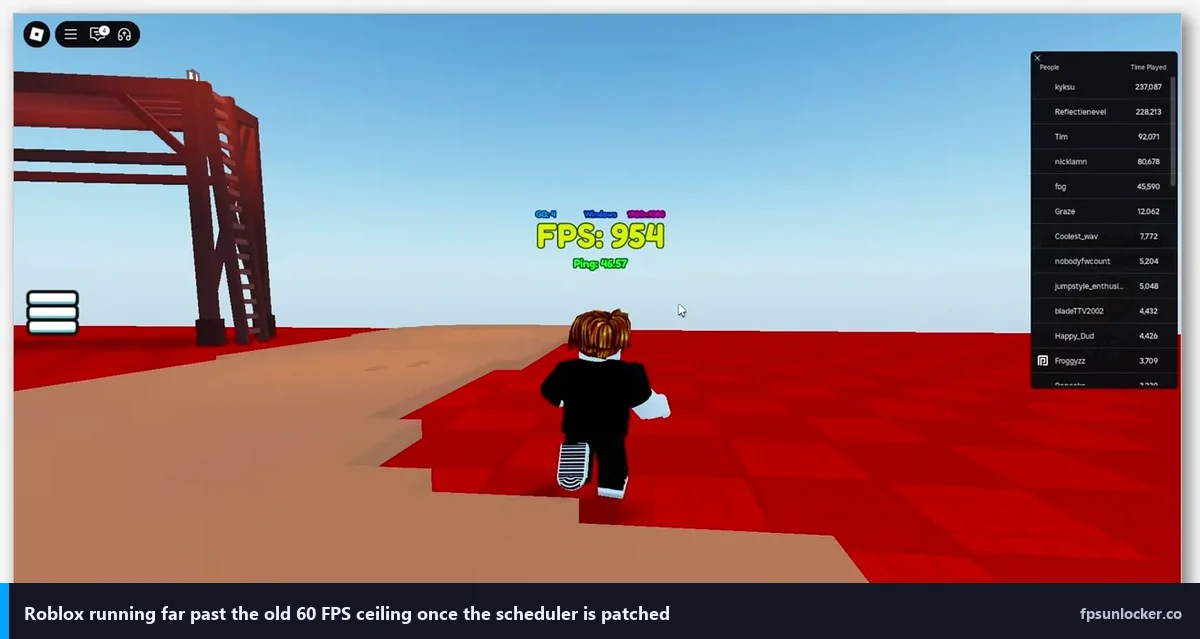
May 2024: Roblox finally shipped the fix themselves
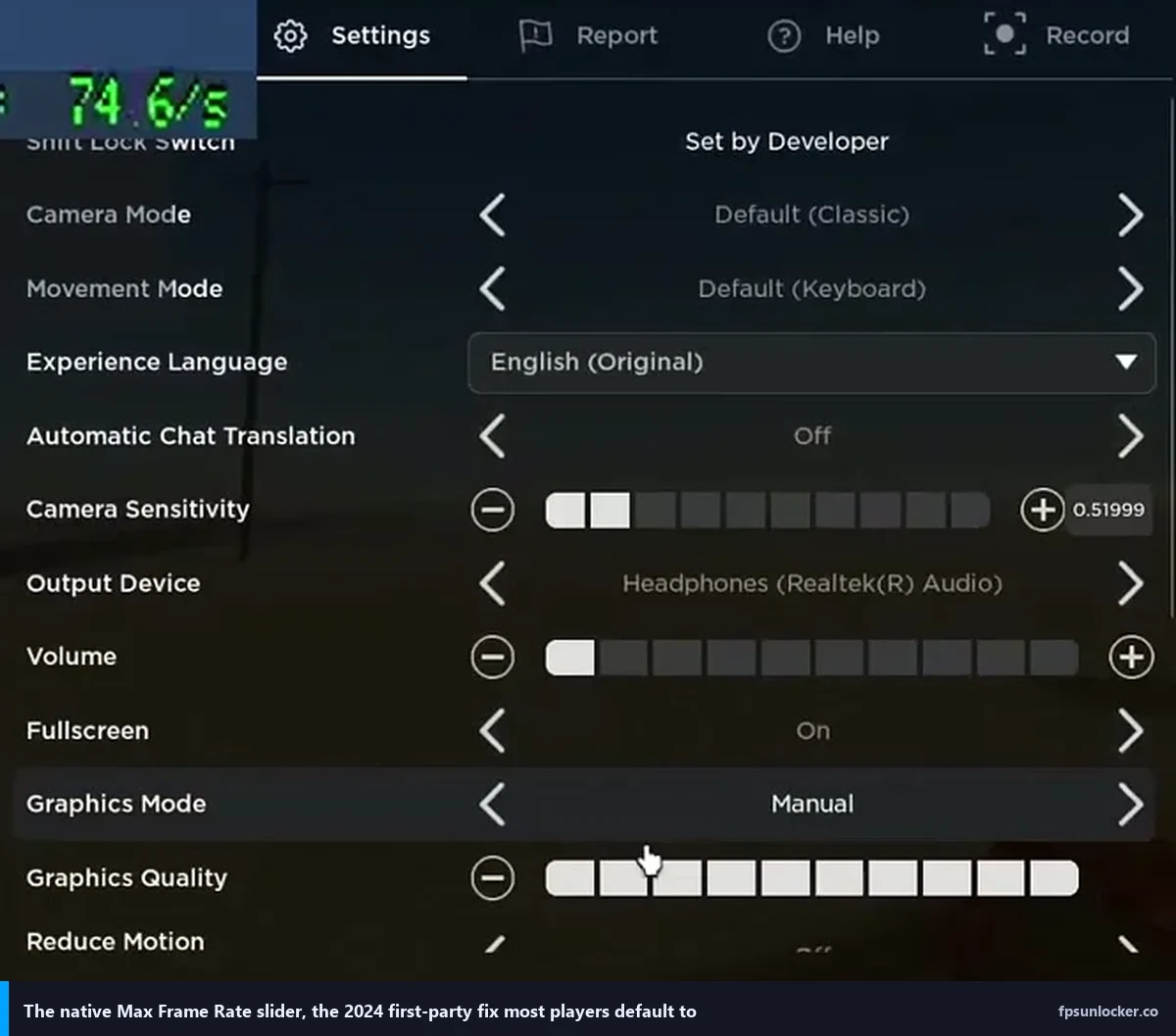
Here’s the thing a lot of older tutorials still don’t say clearly. In May 2024, Roblox added a native Max Frame Rate slider directly inside the in-game Settings menu. You tap Escape, you go to Settings, you slide it up. It goes to 240. It works. No downloads, no third-party patches, no Hyperion drama. That single change moved 90% of the FPS-unlocker use case inside the official client. I’ve got a full breakdown of exactly where it lives and the oddities it has on the built-in FPS setting page, but for this guide you just need to know it exists and it’s the default answer for most people now.
That doesn’t mean the third-party tools died. They didn’t. They evolved into a different role, which is the next section.
The three real methods in 2026
In April 2026, there are exactly three ways to get Roblox above 60 FPS on Windows. Not four, not seven, not whatever some 2022 YouTube video tells you. Three. Every other “method” is a rename or a fork of one of these.
Method A: the native Max Frame Rate slider
This is the path I recommend to 90% of people who ask me. Launch any Roblox game, hit Escape, go to Settings, find Max Frame Rate, drag it up to whatever you want, max 240. Done. It survives Roblox updates, it never triggers anti-cheat warnings, and it takes about six seconds. If you’re reading this and you don’t have a specific reason to use something else, that’s the method to use. Come back to this page only if it doesn’t stick or if one of the corner cases below describes you.
Method B: a third-party unlocker tool
This is the classic route. You download a small program (rbxfpsunlocker, Bloxstrap, Fishstrap, Voidstrap, or Froststrap), you run it, it modifies the Roblox process in memory or via launch-time configuration, and your FPS climbs. These tools are where the community lived from 2019 through 2024, and they’re still relevant for people who want features the native slider doesn’t offer. Multi-instance support, FPS overlays, G-Sync windowing, caps above 240 on 360 Hz panels, all of that lives here.
Method C: FastFlags via ClientAppSettings.json
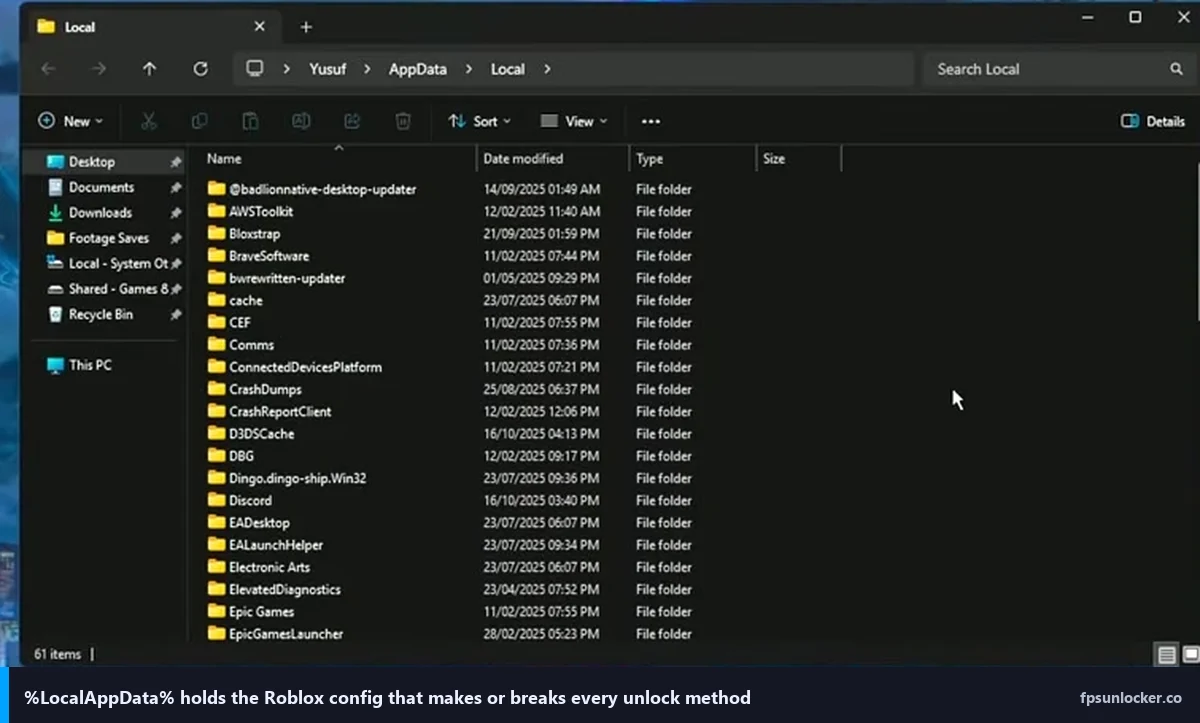
I call this the corporate-PC method. A FastFlag is a configuration value Roblox reads at startup from a JSON file inside its version folder. By dropping a file called ClientAppSettings.json with a specific key (DFIntTaskSchedulerTargetFps and a value like 240), you tell the Roblox client to uncap itself without running any executable whatsoever. No admin rights, no installs, no tool in your tray. If you’re on a locked-down school laptop that blocks unknown .exe files but still lets Roblox run, this is your only shot. I’ve got the exact file contents and the fallback paths for when Roblox rebuilds its version folder on the FastFlag FPS cap guide.
What’s actually different between the three
Here’s the part most tutorials skip. All three methods ultimately modify the same thing under the hood. Roblox’s engine has an internal variable called the TaskScheduler target FPS, and that value governs how often the render loop fires. The native slider writes to it through the official Settings UI. Third-party tools like rbxfpsunlocker patch it directly in process memory. FastFlags change it at startup before the process even fully initializes. Same destination, three different doors. The practical differences are about convenience, portability, and what extra features come along for the ride.
The five tools worth knowing by name
Search “roblox fps unlocker” on GitHub and you’ll get hundreds of repos, most of them forks, clones, or actual malware. I’ll cut the list down to the five that matter and give you an honest take on each. I’ve personally used all of them on my RTX 3060 rig and on the Iris Xe laptop over the past two years, so these aren’t secondhand opinions.
rbxfpsunlocker by axstin
This is the original. Written by axstin, under 200 KB, it’s a tray-resident memory patcher that scans for the Roblox process and adjusts the TaskScheduler variable on the fly. It does nothing else. No UI bloat, no mod manager, no launcher replacement. You run it, it sits in your system tray, Roblox runs uncapped. I still use it on my main rig because it’s the most transparent tool and the source is on GitHub for anyone who wants to audit it. My full walkthrough is at the rbxfpsunlocker guide, including the per-monitor FPS cap config most people never touch.
Bloxstrap by pizzaboxer
Bloxstrap isn’t an unlocker, exactly. It’s a full Roblox launcher replacement that includes FPS unlocking as one feature among many. You get a FastFlag editor with a GUI, a mod manager for texture packs, Discord rich-presence integration, splash screen customization, and the FPS cap control. If you’re the kind of player who likes to tinker, this is the one to install. It’s also what I’d recommend for anyone who wants to run multiple Roblox instances or who cares about matching Roblox’s refresh rate to a G-Sync window. You can grab it from bloxstrap.com. I wrote a direct face-off between this and rbxfpsunlocker at the comparison page if you’re torn.
Fishstrap
Fishstrap is a Bloxstrap fork that leans hard into multi-instance support and a slightly different UI aesthetic. If you run two or three Roblox windows for trading, grinding parallel accounts in Adopt Me, or testing games as a dev, this is more polished than vanilla Bloxstrap for that specific workflow. It’s a fork so the underlying FastFlag engine is the same. My Fishstrap write-up covers the setup in detail.
Voidstrap
Voidstrap is another Bloxstrap fork. It exists. Development has been sporadic, the Discord’s quiet, and I don’t have a single reason to recommend it over Bloxstrap itself unless you specifically want its UI theme. I’m mentioning it because you’ll see people link it on Reddit and I’d rather you know what you’re looking at than get sent there blind.
Froststrap
Froststrap is essentially a reskin of Bloxstrap with a different color palette and icon set. No meaningful feature differentiation that I can find. It’s safe, it works, but if you’re choosing between this and the original, pick the original. Froststrap primarily exists because some people prefer its dark theme, which is a valid reason to run software but not a reason to pretend it’s a different product.
So which one do you actually install? If you’re a casual player who just wants more frames, the native slider is the answer and none of these tools are. If you want FastFlag editing with a GUI plus mods, Bloxstrap. If you run multi-instance for trading or content creation, Fishstrap. If you want the smallest possible tool with no launcher replacement, rbxfpsunlocker. If you’re on a corporate or school PC that won’t let you run executables, none of these work and you go straight to FastFlags via raw JSON editing.
When you still need a third-party tool in 2026
Given the native slider exists, you might fairly ask why anyone bothers with the external tools at all. I get this question a lot. The honest list of reasons is shorter than it used to be, but it’s not empty. Multi-instancing (running two or more Roblox windows at once) still requires a launcher like Bloxstrap or Fishstrap because the vanilla Roblox client actively prevents it. FPS overlays that display in-game are tool territory, since the native slider doesn’t show you what your actual frame rate is. If you’re running a 360 Hz esports panel like the Alienware AW2523HF, the native 240 cap leaves performance on the table and you’ll want rbxfpsunlocker to push beyond. G-Sync and FreeSync windowing, where you want Roblox to tell your monitor exactly when to draw, works better with a tool that can cap FPS just below your refresh ceiling (238 on a 240 Hz panel, classic low-latency move). Older Roblox builds, which modders and preservationists still run, predate the native slider and have no other option. And then there’s the corporate PC scenario where the native slider does technically work but the TaskScheduler value gets reset every session, and a FastFlag JSON pinned in the version folder is more reliable.
Per-platform reality check
Roblox runs on a lot of platforms. The FPS unlocking story on each one is different, sometimes surprisingly so. I’ll hit them in order of how many people I get emails about.
Windows
This is the default. Every method in this article targets Windows as its primary case. Windows 10 and Windows 11 both work identically for the native slider, all five tools, and FastFlags. If you’re on Windows you’ve got maximum flexibility.
macOS
On Apple Silicon Macs (M1 through M4), the native Max Frame Rate slider works fine. I’ve tested it on my M2 MacBook Air and it’ll happily push Roblox past 120 FPS in low-intensity experiences. On older Intel Macs, though, the client runs through Rosetta2, which is Apple’s Intel-to-ARM translation layer. Rosetta2 adds overhead, and in my testing on a 2019 Intel MacBook Pro I couldn’t reliably push Roblox past about 75 FPS even with the slider maxed, because the translation layer becomes the bottleneck. Third-party unlockers don’t run on macOS at all (they’re Windows-only binaries), so the native slider is the entire toolbox. Full platform writeup at the Roblox FPS Mac guide.
Linux and Steam Deck
Roblox doesn’t officially support Linux. There’s no native client. The way Linux and Steam Deck players run it in 2026 is through Sober, an Android-wrapper project that launches the Android Roblox APK inside a Wine-like container. Sober respects the Max Frame Rate slider inside the Roblox settings, so you can push your Deck OLED past the default 60 and watch battery life plummet. I’ve benchmarked my Deck OLED running Brookhaven at 90 FPS with the screen locked to 90 Hz, and it held. Phantom Forces is rougher on the hardware but doable. Full details at the Steam Deck FPS guide.
Mobile (iOS and Android)
You can’t unlock FPS on mobile. Full stop. The operating system enforces the refresh rate, Roblox respects that cap, and there’s no path around it without jailbreaking (iOS) or rooting (Android), neither of which I recommend for something as trivial as frame rate. Any TikTok or YouTube video titled “Roblox FPS unlocker for iPhone no download” is either a fake that does nothing or a scam that steals your Roblox cookie. I’ve tested probably a dozen of these over the years and they all fell into one of those two categories. Don’t install them.
Xbox and PlayStation 5
Console Roblox caps at 60 FPS and you can’t change it. The console builds simply don’t expose the Max Frame Rate slider the desktop client has, and Roblox targets a steady 60 as its console performance goal. The Xbox Series X and PS5 could technically push higher, but until Roblox ships a console-facing FPS setting (no sign of one in 2026) it’s just not a knob you can turn. That’s the end of the conversation on console.
Is using an FPS unlocker bannable?
No. I’ll give you the short version here and link the deep-dive. Roblox doesn’t ban players for running FPS unlockers, and they haven’t in the history of the platform. The strongest proof is that Roblox shipped the Max Frame Rate slider themselves, which would be a bizarre product move if they considered uncapped frame rates cheating. Third-party tools that only modify the TaskScheduler target (rbxfpsunlocker, Bloxstrap, the FastFlag approach) operate in a space Hyperion explicitly permits. What will get you banned is installing a tool that’s been bundled with a cheat, a Synapse-style exploit, or a cookie logger masquerading as an unlocker. The fake “FPS unlockers” that get people banned are cheats wearing costumes. The real ones are fine. I walk through the specific cases and Hyperion’s actual behavior at is an FPS unlocker bannable.
Performance tweaks that matter more than the unlock itself
Here’s the thing nobody tells you on Reddit. Raising the FPS cap from 60 to 240 only helps if your hardware can actually push that many frames. On my low-end Intel i5-1240P with Iris Xe graphics, the native slider at 240 might as well be the native slider at 90, because the GPU can’t physically render past 90 in most games. Uncapping doesn’t create frames out of nothing. If you’re on modest hardware, the real wins come from the tweaks below, not from moving the slider.
The Graphics Quality slider is the dominant lever
I’ll say this louder for the low-end kids. On the Iris Xe laptop, dropping Roblox’s graphics quality from 10 to 4 roughly doubled my frame rate in Phantom Forces. It’s the single biggest performance control in the entire client. Shadows, draw distance, material quality, and post-processing all scale with that slider, and dropping them freed up enough GPU headroom that the game went from choppy to smooth in the same match. If your Roblox feels laggy, try this first and the unlocker second.
Windowed versus fullscreen mode
Roblox defaults to a borderless-window style that isn’t quite exclusive fullscreen. Exclusive fullscreen gives you slightly lower input latency and lets the GPU optimize more aggressively, because the OS doesn’t have to composite your window with anything else. The trade-off is that Alt-Tabbing is slower and you lose some flexibility. For competitive Phantom Forces play I use exclusive fullscreen. For casual Adopt Me I don’t bother. You switch via Alt+Enter while in a game.
NVIDIA Control Panel settings
If you’re on NVIDIA hardware, the Control Panel’s 3D Settings tab has three controls that matter for Roblox. Set “Max Frame Rate” per-application for RobloxPlayerBeta.exe to about 3 frames below your monitor’s refresh (so 141 on a 144 Hz, 237 on 240 Hz), which keeps you out of the G-Sync ceiling where input latency spikes. Turn “Low Latency Mode” to Ultra for Roblox specifically, not globally, because Ultra can cause weird stutter in other games. Set “Vertical Sync” to “Use the 3D application setting” so Roblox’s own V-Sync toggle controls things without fighting the driver. I run these on my RTX 3060 and the input feel in Phantom Forces is noticeably crisper than with defaults.
AMD Radeon settings
On Radeon, the equivalents live in the Adrenalin app under Graphics and Display. Turn on Radeon Anti-Lag for Roblox (the per-app override), turn off Radeon Chill if it’s on globally (it reduces FPS to save power and it’ll fight your unlocker), and disable Frame Rate Target Control specifically for Roblox because it conflicts with the in-game cap. I’ve had readers email me confused about why their FPS was stuck at some random value like 141 when they’d set 240 in Roblox, and FRTC was the culprit every time.
Windows 11 system settings
Turn Game Mode on (Settings > Gaming > Game Mode). Turn the Game Bar off, because it hooks into the rendering pipeline and causes the occasional frame-time spike even when you don’t see it. In Display Settings, check whether you’ve got variable refresh rate enabled and make sure it’s not fighting with your GPU driver’s G-Sync or FreeSync setting (pick one, not both). Those three changes shave maybe 5 to 10 percent off the 1% low frame times on my setup, which matters way more for feel than the average FPS number.
Background applications
I’ll name names. Discord’s hardware-accelerated overlay costs frames. Turn off the overlay in Discord settings, or at least turn off hardware acceleration in the Advanced tab. Chrome’s accelerated rendering competes with Roblox for GPU time, so close tabs or quit Chrome entirely during competitive play. OBS capture costs frames too, obviously, but people forget to disable it when they’re not recording. Each one of these is small, but stacked together they add up to a meaningfully smoother experience on mid-range hardware.
Why my Roblox still caps at 60 after all this
I get this email constantly. You’ve done everything in this article and you’re still locked at 60. The most common cause in 2026 is the native slider fighting a third-party tool, both trying to write to the TaskScheduler variable and one of them winning the race. The second most common is a corrupted GlobalBasicSettings_13.xml file that needs the read-only attribute trick to hold a custom value across sessions. I wrote the entire debugging tree at why Roblox is still capped at 60 because it genuinely takes a full article to cover. If you’ve got this problem, that’s the page for you.
Does unlocking FPS feel different, or is it placebo?
Honest answer: it depends on what you’re pairing it with. On a 60 Hz monitor, unlocking Roblox to 240 FPS does not make you see 240 FPS. You’ll still see 60, because your display physically can’t draw more. What you will feel, subtly, is lower input latency, because the game is sampling your mouse and keyboard at 240 Hz even though only every fourth frame actually gets shown.
Some people swear this is night-and-day and some people can’t detect it. I land in the middle: the difference is real on my gaming mouse at 1000 Hz polling, but my girlfriend playing on the same rig can’t feel it, and she’s not wrong, she’s just less attuned to the specific feel of input latency.
On a 144 Hz or 240 Hz panel the difference is visually obvious, not subtle. Motion blur drops, aim tracking gets smoother, and character animations look fluid where they used to look choppy. Mouse polling rate and monitor response time also matter a lot. A 1 ms LG UltraGear at 144 Hz shows FPS differences way more cleanly than a 5 ms budget panel at the same refresh rate. If you’re buying hardware to pair with an FPS unlock, prioritize the monitor over the GPU for most Roblox players, because most Roblox games are CPU-bound, not GPU-bound.
Per-game notes: which Roblox games actually benefit
Not every Roblox game benefits equally from a higher FPS cap. The engine may be shared but the workload varies wildly between experiences, and some of them are so lightweight that they’d run at 200 FPS on a potato while others are so CPU-heavy that unlocking barely changes anything.
Phantom Forces and Arsenal
These benefit enormously. They’re competitive shooters where input latency and aim tracking determine whether you hit shots, and the difference between 60 FPS and 144 FPS in Phantom Forces is the difference between landing headshots and eating them. I do all my PF play at 144 FPS locked, not 240, because my 144 Hz monitor is the bottleneck and there’s no point pushing past it. My Phantom Forces FPS guide has the specific settings I use plus the sensitivity math. For any competitive shooter the unlock is essentially mandatory, which is also covered in the shooter-focused writeup.
Jailbreak
Jailbreak benefits less than you’d expect. It’s CPU-bound thanks to the volume of physics objects (every car, every player, every door) and you’ll often see the CPU cap your frame rate at 120 or 130 even on a strong GPU. The unlock helps, but the bottleneck is the physics thread, not the render thread. My RTX 3060 hits around 140 FPS steady in a full server.
Bedwars
Bedwars is mid. You’ll see a nice bump from 60 to 144, but the game’s visual style doesn’t demand ultra-smooth motion the way a shooter does, so the feel improvement is smaller. Still worth doing, still better than 60.
Adopt Me and Brookhaven
These barely matter. They’re low-intensity social games and the difference between 60 and 144 is essentially cosmetic. I’d still unlock them, because why not, but if you’re deciding where to spend your troubleshooting energy this isn’t where.
Blade Ball
Blade Ball is weirdly input-sensitive. The timing window for deflects is small enough that the extra sample rate from running at 144 FPS actually changes your win rate noticeably. I’m not exaggerating. I’ve got a clip folder full of deflects I would’ve missed at 60.
Da Hood
Da Hood benefits like Phantom Forces does, because it’s a combat-heavy game where aim and movement timing matter. Uncap it. It’s worth it.
The decision tree, in plain English
I’ll close with the simplest possible routing guide, because after four thousand words of context you’ve earned a straightforward answer. Read the line that matches you and act on it.
If you’re a casual Roblox player on Windows or an Apple Silicon Mac and you just want more frames, open Roblox Settings, drag the Max Frame Rate slider to 240, and you’re done. Zero downloads, zero risk. This covers maybe 70% of everyone reading this article.
If you’re on a corporate or school PC that blocks executables but runs Roblox, you can’t use tools and the native slider sometimes resets, so your path is FastFlags via a ClientAppSettings.json file in the version folder. It’s a text file, no admin needed, and it survives most corporate environments. That guide’s at the FastFlag FPS cap page.
If you need multi-instance support, an FPS overlay, G-Sync matching, or caps above 240 for a 360 Hz panel, install Bloxstrap from bloxstrap.com or rbxfpsunlocker depending on whether you want the full launcher experience or a tiny tray tool.
If you’re on a Steam Deck or Linux machine, install Sober, boot Roblox through it, and use the in-game Max Frame Rate slider the same as Windows players. Full instructions at the Steam Deck guide.
If you’re on an Intel Mac running Rosetta2, the native slider is your only option and you’ll realistically cap at around 75 FPS due to translation overhead. Not Roblox’s fault, not the slider’s fault, just the reality of emulating x86 on ARM. More context at the Mac-specific guide.
If you’re on iOS, Android, Xbox, or PS5, you can’t unlock FPS. You can’t. Nothing in this article helps you and nothing on YouTube helps you either. Anyone telling you otherwise is selling something or stealing something. I know that’s not the answer you wanted but it’s the honest one.
And if you’ve done all of this and your Roblox is still capped at 60, head to the still-capped-at-60 guide for the specific debugging steps, including the GlobalBasicSettings_13.xml read-only workaround that fixes about half the cases I see in my inbox. Good luck out there. Go see what 144 Hz Phantom Forces actually feels like. I promise it’s worth the twenty minutes you just spent reading this.
Watch a walkthrough
If you’d rather see this in motion, this eight-minute walkthrough from December 2025 runs through rbxfpsunlocker setup end-to-end with clean screen capture. I don’t agree with every choice the creator makes (I’d skip the “unlimited” FPS cap), but the install and verification steps are exactly correct for a 2025-2026 Roblox client.