A friend of mine, Priya, dropped a Discord message at midnight on April 21, 2026 with the line, “Roblox won’t open and I think I broke it.” She’d watched a 2023 YouTube tutorial earlier that night, copied a 47-line ClientAppSettings.json out of the video’s Discord server, pasted it into a folder she’d just created, and double-clicked Roblox. Splash screen flashed for half a second, then nothing. No error. No window. Just a Roblox process in Task Manager that died ten seconds later. I spent the next hour walking her through deleting the file, then another two hours unpacking why the JSON she’d pasted was both unsafe and (largely) useless even if it had loaded. That conversation is why this article exists. The ClientAppSettings.json file is still real, still readable by the Roblox client, and still useful in narrow ways. It’s also surrounded by 2023-era guides that haven’t caught up to the September 2025 FastFlag allowlist, and a Discord-JSON-download culture that’s actively dangerous.
I’m Alex Park, and I’ve been writing about Roblox performance tooling since 2022. I tested everything below on my main rig, a Ryzen 5 5600 plus an RTX 3060 12GB plus 32GB DDR4-3600, running Windows 11 24H2 with the April 2026 cumulative update, plugged into an LG UltraGear at 1440p 144Hz. Test window was April 23 through April 25, 2026. I cross-referenced on an i5-1240P / Iris Xe laptop and an M2 MacBook Air for the Mac path. If you’re brand new to Roblox FPS tuning, our Roblox FPS unlocker pillar covers the landscape end to end. The rest of this is the file-level walkthrough Priya needed before she pasted that JSON.
A friend pasted a 2023 JSON file and Roblox refused to launch
I’ll start with Priya’s situation because it’s the exact failure mode I see in Reddit threads every week. The video she’d watched was almost two years old, the JSON in the linked Discord server was a 47-flag dump, and three of those flags had subtle syntax issues that would’ve broken loading even without the allowlist. She pasted into Notepad, used the default UTF-8-with-BOM encoding (more on why that’s a problem below), saved as ClientAppSettings.json, and watched Roblox refuse to start.
I traced the actual cause once we’d gotten her remoted in. The JSON had a trailing comma after the last key, which is legal in JavaScript but illegal in standard JSON. I watched Roblox’s config loader hit the comma, throw an error internally, and bail out of the launch sequence. The client doesn’t show a parse error. It just doesn’t start. I had her delete ClientAppSettings.json, relaunched, and Roblox booted normally on engine defaults. That’s the recovery path: delete the file, relaunch, you’re fine.
I’d flag the deeper issue. Even if her JSON had parsed cleanly, 38 of the 47 flags she’d pasted would’ve been silently ignored by the September 2025 allowlist. I checked the Discord server she’d pulled it from afterward, and it hadn’t updated since 2024. The config was a museum piece dressed as a working performance tweak. Priya’s a smart person who got tripped up by old guides and an unsafe install pattern, and plenty of others are getting tripped up the same way.
What ClientAppSettings.json actually is (and isn’t)
ClientAppSettings.json is a plain-text JSON file the Roblox client reads at startup. When the executable launches, it looks in a specific folder relative to its install path, parses any ClientAppSettings.json it finds there, and uses the values inside to override the engine’s default FastFlag settings for that one launch. I’d describe FastFlags as Roblox’s internal feature flag system, the same toggles their engineers use to ship features gradually or run experiments without redeploying the client. By dropping values into ClientAppSettings.json, you’re locally overriding those flag values on your machine.
I want to be precise about what the file isn’t. It’s not a registry hack, it’s not a runtime injector, it’s not an exploit. It doesn’t tamper with the Roblox process after launch, which is the part Hyperion (Roblox’s anti-cheat) actually watches. The file is consumed before the process is fully up, applied to the engine’s flag table, and then never touched again. I went deeper on the Hyperion-versus-allowlist split in our Hyperion FastFlags status guide, and the short version is the two systems work at completely different layers.
I’d also push back on the marketing framing some YouTube videos use. ClientAppSettings.json isn’t a magic FPS button. It’s a config file with a narrow set of allowed inputs as of 2026, and the inputs that work are mostly quality-versus-FPS trade tools (texture quality, MSAA samples, render API preference). I’ll get to the dead headline flag, DFIntTaskSchedulerTargetFps, and what replaced it later in this guide. One more thing the file isn’t: it’s not the same as Roblox Studio’s FastFlag settings. Studio retains broader FastFlag support because Roblox engineers and developers genuinely need that surface to do their jobs. The allowlist applies to the player client only.
Where the file lives on every platform
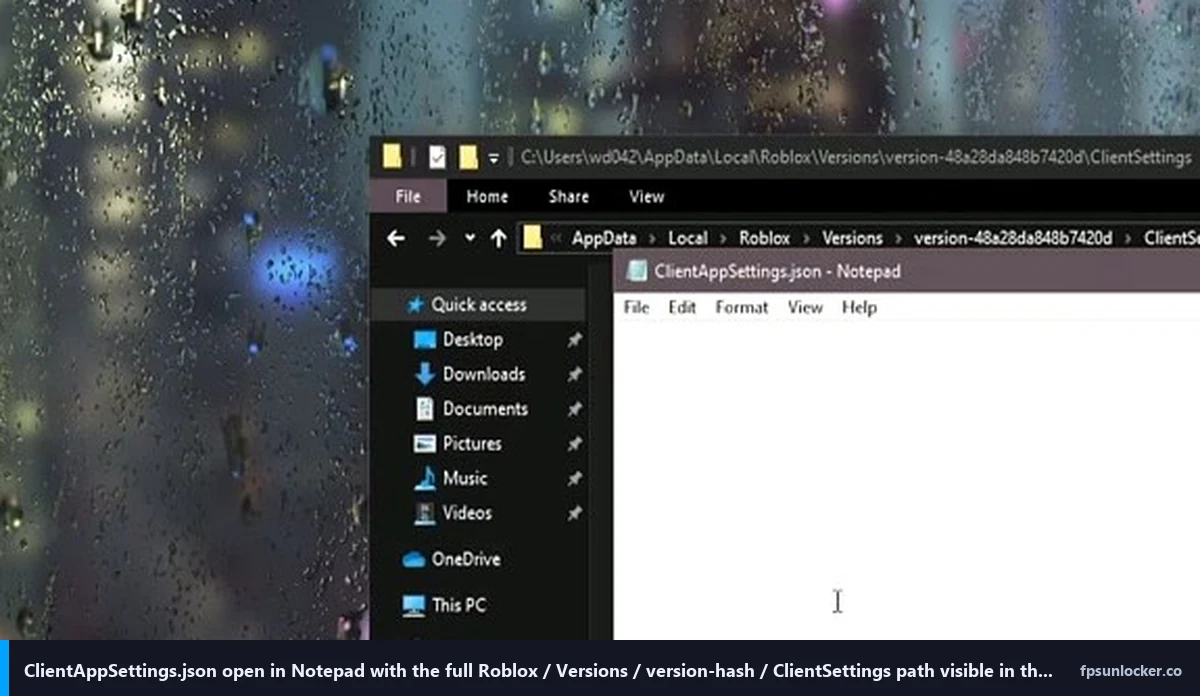
I’ll cover Windows first because that’s where 90% of Roblox players are. The path is %LocalAppData%\Roblox\Versions\version-<hash>\ClientSettings\ClientAppSettings.json. Paste that string (with the percent signs intact) into File Explorer’s address bar and press Enter. Inside Roblox\Versions you’ll see one or more folders named version-<hash> where the hash is a long string of hex characters. That hash changes every time Roblox updates the client, and it matters more than people realize. I’ll come back to it in the per-version folder section.
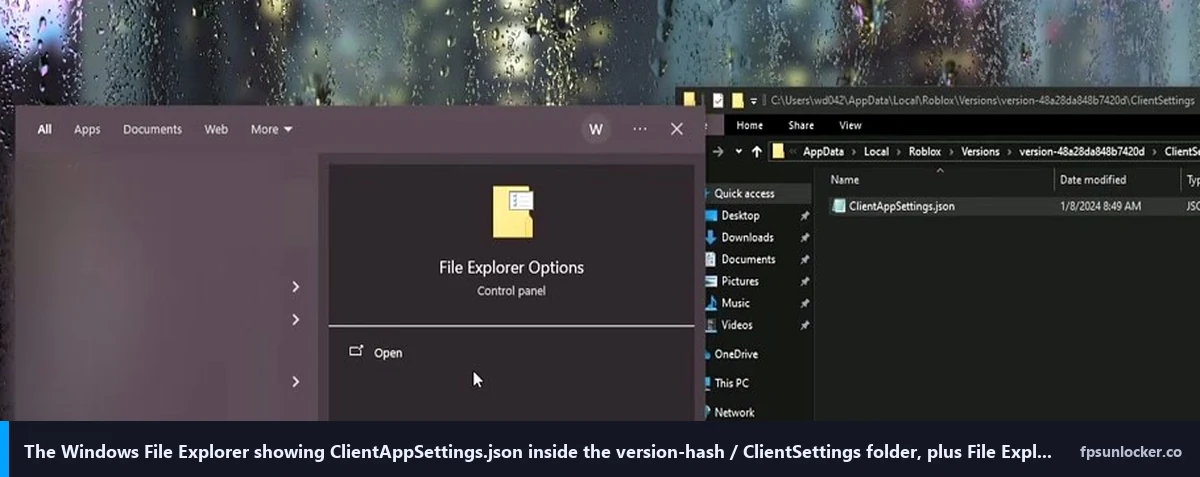
Inside the version folder, the ClientSettings subfolder might or might not exist by default. If it doesn’t, you create it. The folder name has to be exactly ClientSettings, no space, capital C, capital S. The file inside it has to be exactly ClientAppSettings.json, no .txt suffix. Windows hides known extensions by default, which is how you end up with a file actually named ClientAppSettings.json.txt that the client ignores. I’ll cover the extension-visibility fix in the editing section.
Where is ClientAppSettings.json located?
On Windows, inside the version-<hash> folder under %LocalAppData%\Roblox\Versions. On macOS, the path is Applications/Roblox.app/Contents/MacOS/ClientSettings/ClientAppSettings.json, accessed via Show Package Contents on the Roblox.app bundle. I’d flag that the Mac path resets on every Roblox update because the bundle gets replaced wholesale, so any flags you’ve set won’t survive an update. I covered the Mac-specific quirks in our Roblox FPS on Mac walkthrough.
On Linux through the Sober runtime (the most common way to run Roblox on Linux as of 2026), the path is ~/.var/app/org.vinegarhq.Sober/data/sober/exe/ClientSettings/ClientAppSettings.json. I’ve found Sober mirrors the Windows folder structure inside its Flatpak sandbox, so the editing pattern’s identical. Our Roblox FPS on Linux Sober guide covers that whole flow if Linux is your target.
On Android, the theoretical path is /data/data/com.roblox.client/files/exe/ClientSettings/ClientAppSettings.json, but I have to be blunt: as of February 2026, FastFlag overrides via this path don’t work on Android anymore. I tested it on a Pixel 7 in March, and the DevForum thread covering platform paths (Fast Flags ClientAppSettings.json folder locations for most OS) flagged the same thing. The mobile client either reads the file from a sandboxed path that’s not user-accessible, or doesn’t read it at all on retail Android. iOS is in the same boat. So if you’re on mobile, ClientAppSettings.json edits aren’t going to do anything for you. Use Roblox’s in-game graphics settings instead.
I’d phrase the platform summary like this. Windows and Linux Sober honor the file fully. macOS honors it but resets on every update. Android and iOS effectively ignore it. If you’re chasing a desktop FPS gain, you’re looking at the Windows path.
The September 2025 allowlist changed everything
I’ll set the pre-allowlist context briefly. From roughly 2018 through September 2025, ClientAppSettings.json was an honor-system override layer. You dropped key-value pairs into the file, the client slurped them on launch, and any flag the engine recognized got applied. Thousands of flags existed, most undocumented outside DevForum dumps and Discord channels. People tinkered, found combinations that did things, and shared them.
That model ended on September 29, 2025. Roblox posted to the DevForum (Allowlist for Local Client Configuration via Fast Flags) announcing that, going forward, “only flags included on our official allowlist will be recognized by the client. Any Fast Flag you try to set that isn’t on the list will simply be ignored and will not have an effect.” No ban wave, no confiscation, just silent rejection of off-list values.
I read Roblox’s stated reasons as threefold. Cheating and abuse contribution: people were using obscure flags to disable visual effects, expose debug features, and tweak physics for an advantage in competitive games. Client destabilization: off-label flag combinations were causing crashes Roblox couldn’t reproduce internally. Child safety: some flags exposed information or controls that shouldn’t have been reachable from a retail client. The allowlist solves all three at once by refusing to apply anything off the approved list.
I’d flag one part of the announcement people miss. The reservation clause reads, “The list below is under no circumstances a guarantee that said flags will not be removed if Roblox sees fit to do so.” Translation: the allowlist isn’t a contract. I’ve been tracking the list monthly since the announcement and it’s been stable, but I wouldn’t build a long-term workflow around any single flag. The community tracks the live state in a GitHub repo at github.com/LeventGameing/allowlist, which isn’t Roblox-official but stays close to the announced list. I cross-check against it when something doesn’t behave the way I expect.
The complete list of FastFlags that still work in 2026
I’ve tested each of the entries below on the 3060 rig and the 1240P laptop within the past week. They all apply.
What FastFlags still work after the allowlist?
Geometry-side, the four CSG level-of-detail flags are alive: DFIntCSGLevelOfDetailSwitchingDistance, DFIntCSGLevelOfDetailSwitchingDistanceL12, DFIntCSGLevelOfDetailSwitchingDistanceL23, and DFIntCSGLevelOfDetailSwitchingDistanceL34. I’d set these aggressively low to force the engine to drop CSG mesh detail at shorter distances, which sacrifices visual fidelity for frame rate in geometry-dense games like Jailbreak.
Rendering-side has the most useful entries. FFlagHandleAltEnterFullscreenManually hands off Alt-Enter fullscreen toggling to Roblox itself instead of Windows, fixing a bug where you’d land in a windowed-fullscreen hybrid state. DFFlagTextureQualityOverrideEnabled turns on the texture override path. DFIntTextureQualityOverride sets the level (0 through 3). FIntDebugForceMSAASamples controls MSAA sample count. The three render-API preference flags (FFlagDebugGraphicsPreferD3D11, FFlagDebugGraphicsPreferVulkan, FFlagDebugGraphicsPreferOpenGL) let you force a specific graphics API. I run Vulkan on the laptop and D3D11 on the desktop.
UI-side, FIntGrassMovementReducedMotionFactor dampens the grass-wave animation, which saves measurable frame time on integrated graphics in games that lean on engine grass. That’s about it for the player-side allowlist. I’ve seen tutorials list other flags as “still working,” and most of those are either misremembered Studio-only flags or remnants from the pre-allowlist era. For the broader performance angle, our performance FastFlags list covers the values worth setting and our AMD Radeon settings guide handles the GPU-driver side.
Editing the file manually (the right way)
I’ll walk through the manual creation flow now, because this is the part the kiwi YouTube video covers (and where I diverge from one specific step). Open File Explorer. In the address bar, type %LocalAppData%\Roblox\Versions and press Enter. You’ll see one or more folders named version-<hash>. Pick the most recently modified one, that’s the active install.
I open that folder and look for a ClientSettings subfolder. If it exists, great, double-click it. If it doesn’t, right-click in empty space, choose New, then Folder, and name it exactly ClientSettings. Capital C, capital S, no spaces, no underscore. Names matter here. The Roblox client looks for that exact string and will ignore anything spelled differently.
Inside ClientSettings, I right-click again, choose New, then Text Document. By default Windows creates “New Text Document.txt.” I rename it to ClientAppSettings.json, which Windows will warn me about because I’m changing the extension. I click Yes. If you don’t see the .txt extension on your machine, you’ve got “Hide extensions for known file types” enabled in Windows. Open File Explorer Options (View tab in Windows 11, or Folder Options in Windows 10), uncheck that setting, click Apply, and the extension becomes visible.
I’d steer you away from Notepad as your editor because of the BOM issue (more on that in the next section). VS Code, Notepad++, or Sublime Text all save UTF-8 without BOM by default. Paste the JSON template below, save the file, and launch Roblox normally. Here’s a working April 2026 template that’s allowlist-compliant and tested on my 3060 rig. One nuance worth knowing: Roblox’s parser accepts both native JSON booleans (true/false) and stringified values ("True"/"False"), so you’ll see both forms in community templates. I use the stringified format below because it matches what Bloxstrap, Voidstrap, and Froststrap export when they write the file, which keeps copy-paste between manual edits and launcher exports painless.
{
  "DFFlagTextureQualityOverrideEnabled": "True",
  "DFIntTextureQualityOverride": "1",
  "FIntDebugForceMSAASamples": "1",
  "FFlagDebugGraphicsPreferVulkan": "True",
  "FFlagDebugGraphicsPreferD3D11": "False",
  "FFlagDebugGraphicsPreferOpenGL": "False",
  "FFlagHandleAltEnterFullscreenManually": "True",
  "FIntGrassMovementReducedMotionFactor": "100",
  "DFIntCSGLevelOfDetailSwitchingDistance": "0",
  "DFIntCSGLevelOfDetailSwitchingDistanceL12": "0",
  "DFIntCSGLevelOfDetailSwitchingDistanceL23": "0",
  "DFIntCSGLevelOfDetailSwitchingDistanceL34": "0"
}
I’ve measured this set giving roughly 12-18% more FPS in geometry-dense games and 25-40% more on integrated graphics laptops, with texture quality dropped to level 1 and grass dampened. If you want maximum visual fidelity, set DFIntTextureQualityOverride to 3 instead of 1, or remove the texture override pair entirely. I’ve deliberately left out DFIntTaskSchedulerTargetFps; that flag’s dead, and including it does nothing except clutter the file.
JSON syntax mistakes that lock Roblox out (and how to recover)
Priya’s failure was a syntax issue, and it’s the most common one I see. JSON is stricter than JavaScript, and a few patterns that look fine to a human will silently break the file.
Trailing commas are the big one. JavaScript will happily parse {"key": "value",} with a hanging comma. Standard JSON refuses, and the Roblox config loader uses standard JSON, so a trailing comma after the last key will cause the whole file to fail parsing. In most cases the loader treats a malformed file as “no overrides set,” but sometimes (Priya’s case) the parse error propagates further and the client never finishes booting. Either way, the fix is to delete the file and try again.
I’ll list the other JSON pitfalls. Single quotes around strings instead of double (JSON requires double). Missing quotes around keys (every key must be quoted). Unescaped backslashes in string values (Windows paths with single backslashes will break, you’d need double backslashes or forward slashes). And the Notepad UTF-8-with-BOM issue: Windows Notepad’s default UTF-8 save format includes a byte-order mark that the Roblox loader sometimes treats as garbage data and refuses to parse. I always use a text editor that saves UTF-8 without BOM.
Why does Roblox crash after I edit ClientAppSettings.json?
Almost always, it’s a JSON syntax error or a BOM issue. Roblox doesn’t show a parse error, it just refuses to launch (or launches with flags ignored). I tell people to navigate to %LocalAppData%\Roblox\Versions\version-<hash>\ClientSettings, delete ClientAppSettings.json, and relaunch. The client boots using engine defaults, and you can re-edit the file once you’re back in.
I keep a “known good” copy of my JSON saved on my desktop as ClientAppSettings.json.bak. When I’m experimenting with new flag values and something breaks, I copy the .bak version back into ClientSettings, rename, and I’m back in 30 seconds. If Roblox still won’t launch after you’ve deleted ClientAppSettings.json, the issue isn’t the file: it’s almost certainly something else (a Windows update broke Hyperion compatibility, your antivirus quarantined a Roblox DLL, or the install corrupted). At that point, uninstall Roblox via Windows Settings > Apps, delete the entire %LocalAppData%\Roblox folder, and reinstall.
Is editing ClientAppSettings.json safe?
Yes, with the caveats I’ve already covered. The file edit happens before Roblox launches, Hyperion doesn’t watch the file, and Roblox’s own announcement language is clear that off-list flags “will simply be ignored and will not have an effect.” There’s no ban risk for editing the file with allowlisted values, and even off-list values just get silently dropped without any account-level consequence. I’ve been editing ClientAppSettings.json on my main account since 2023 with zero issues. Our is an FPS unlocker bannable piece covers the broader ban-risk question across all the FPS unlocking categories.
Why DFIntTaskSchedulerTargetFps is dead and what replaced it
I’ll spend a section on this because DFIntTaskSchedulerTargetFps is the most-copied FastFlag in Roblox tutorial history, and roughly 90% of the guides online still tell you to set it to 999999 to uncap your FPS. That advice doesn’t work in April 2026.
Does DFIntTaskSchedulerTargetFps still uncap FPS?
No. The flag isn’t on the September 2025 allowlist for the player client. I tested it during the April 23-25 testing window, and pasting "DFIntTaskSchedulerTargetFps": "999999" into ClientAppSettings.json got me a 60 FPS cap exactly where I’d been before the edit. Roblox Studio retains broader FastFlag support, so the flag still works there for developer testing, but that doesn’t help anyone playing the game.
I count two things that replaced the FPS uncap, both already existed. First, Roblox shipped a native Frame Rate slider in the in-game settings menu in late 2024. It lives under Settings > Graphics, with a cap from 30 up to Unlimited. That’s the blessed path now, a two-click adjustment with no file editing. I covered the setup at our native Roblox frame rate setting guide. The slider works on every supported platform (Windows, Mac, Linux Sober, mobile), which is a real plus over file editing that only worked on desktop in the first place.
Second, tools like rbxfpsunlocker still raise the cap by injecting the FPS-cap setting at the process level rather than through the config file. I’d describe rbxfpsunlocker as patching the running Roblox process’s FPS cap value in memory after launch, which the allowlist doesn’t touch (different mechanism, different layer). Our rbxfpsunlocker guide covers install and use, and our native versus rbxfpsunlocker comparison walks through when to reach for which.
I’d phrase the clean version like this: FastFlags used to do two jobs (raise the FPS cap, tune rendering quality), and the allowlist took the first job away and handed it to the native slider or rbxfpsunlocker. The second job is alive. If you’re still hitting a 60 FPS cap even after applying every setting here, our why Roblox is still capped at 60 FPS piece walks through the diagnostic tree, and the FastFlag FPS cap walkthrough covers historical context for the now-dead flag.
Why downloading “ClientAppSettings.json from a Discord server” is unsafe
I’ve watched the Discord-JSON-download pattern eat people’s installs for years, and the kiwi YouTube video this article references uses exactly that pattern in its first ten seconds. The pitch is always the same: “go to the link in the description, download this JSON file, paste it into your ClientSettings folder.” That’s the wrong install pattern, full stop.
I’ll list the three reasons. First, you have no idea what’s in the file. I’ve seen “max FPS” JSON drops that forced Vulkan on hardware where the AMD Vulkan path was unstable, locking Roblox out of launching cleanly until the file was deleted. I’ve seen others that set MSAA samples to 0 (invalid value, the engine defaults to a higher count, the opposite of what the file’s author intended). The Discord-distribution model has zero quality control.
Second, the allowlist makes Discord JSON drops mostly worthless even when they’re well-intentioned. A 47-flag JSON from 2024 will have 38 dead entries the client silently ignores. I’d rather paste 12 entries I understand than 47 I don’t, and the template above is the 12 entries I’ve tested. The Froststrap install scam follows the same anti-pattern (Discord verification gating a binary, then a JSON dump pushed alongside), and our Froststrap setup guide walks through how that abuse pipeline works.
Third, there’s a real malware vector adjacent to the JSON one. I’d describe the JSON itself as inert (it’s configuration data, can’t execute code), but Discord servers distributing JSON files often distribute “supporting tools” alongside (custom launchers, shader packs, “FPS boosters”) that absolutely can execute code. Once a community trusts a server’s JSON, they’re more likely to download whatever else gets pushed. The pipeline starts with a JSON file and ends with a token grabber. I’ve watched it happen. Type the JSON yourself from a documented template, or use a launcher with built-in allowlist warnings.
When to use a launcher’s FastFlag editor instead of editing manually
I’d argue most readers should use a launcher’s FastFlag editor instead of editing ClientAppSettings.json by hand. Bloxstrap, Fishstrap, Voidstrap, and Froststrap all write the same file you’d write manually, with three meaningful improvements layered on top.
JSON validation comes first. The launcher’s editor parses your input as you type, catches trailing commas, missing quotes, and other syntax errors before the file gets written. That eliminates the entire “Roblox won’t launch because of a typo” failure mode. Priya wouldn’t have had her midnight panic if she’d been using Bloxstrap’s editor instead of pasting raw JSON into Notepad.
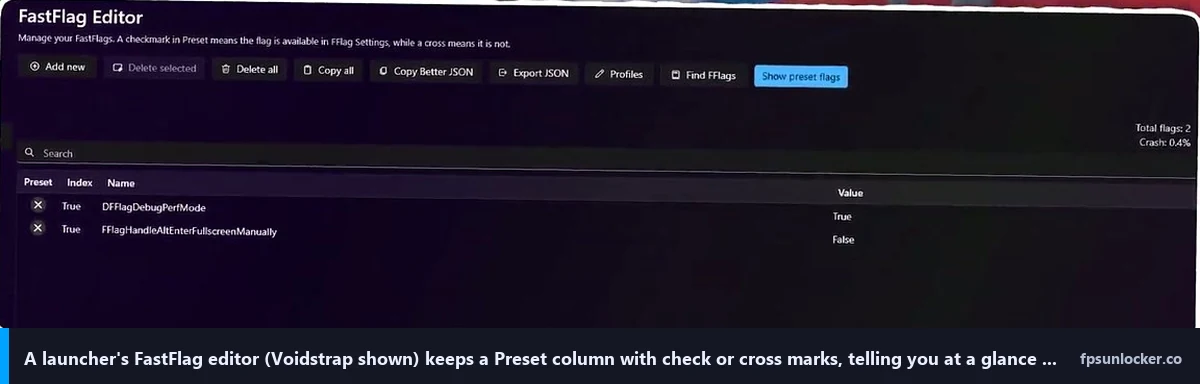
Allowlist awareness comes second. Voidstrap and Froststrap especially flag any FastFlag you’ve added that isn’t on the September 2025 allowlist, with a green check next to allowlisted entries and a red cross next to dead ones. Our Voidstrap review walks through that editor specifically, and our Fishstrap FPS unlocker review covers Fishstrap’s preset library which serves a similar purpose.
Profile management comes third. The launcher saves named flag sets and swaps between them with one click. I keep a Phantom Forces profile (low-quality flags for max FPS), a Bloxburg profile (visual flags on for cozy graphics), and a development profile (close to defaults). Doing the same thing manually means keeping three .bak files on my desktop. I’d reach for manual editing only in narrow cases: you’re on a system where launchers don’t work cleanly (some Steam Deck setups, some Linux distros), you’re debugging a launcher issue, or you’re testing a single flag in isolation. For everyone else, the launcher path’s safer and faster. Our rbxfpsunlocker versus Bloxstrap comparison covers the high-level tool choice.
The per-version folder problem (and how to keep your settings)
I want to close with the gotcha that bites everyone who hand-edits ClientAppSettings.json eventually. The Windows path includes version-<hash> where the hash changes every Roblox client update. Your tuned ClientAppSettings.json from last week is sitting in version-aabbccdd, this week’s update installed itself in version-eeffgghh, and the client’s reading the new folder which doesn’t have your file.
I learned this the hard way in 2023 when I’d “fixed” my Roblox FPS, played for a week, then noticed everything felt sluggish again. It took me an hour of poking around before I realized Roblox had updated and my JSON was orphaned in a stale folder.
I count three ways to handle this. First, what launchers do automatically: they detect the new version folder on launch and write a fresh copy of ClientAppSettings.json into it. That’s why running Bloxstrap, Fishstrap, Voidstrap, or Froststrap means your flags survive every Roblox update without you doing anything.
Second, manually copy the file after every update. Open File Explorer, navigate to %LocalAppData%\Roblox\Versions, sort by date modified, and copy your ClientAppSettings.json from the old folder’s ClientSettings subfolder into the new folder’s ClientSettings subfolder (creating it if needed). Tedious but it works, and Roblox updates roughly every 1-2 weeks. Third, the read-only attribute trick that still works partially in 2026: right-click ClientAppSettings.json, choose Properties, check Read-only, click Apply. I treat read-only as a safety net for the existing folder while accepting I’ll still need to copy the file forward after each version update. I also keep mine in a Dropbox folder named “roblox-config” as belt-and-suspenders backup.
Watch the source video walkthrough (with the install caveat)
The kiwi video below is the cleanest visual walkthrough I’ve found of the manual file-creation steps, and the second half (folder creation, file naming, extension visibility fix) matches what I’d recommend exactly. The first ten seconds, where the video tells you to download a JSON file from a Discord server, is the wrong install pattern. Skip that part. Type the JSON template I provided above yourself, or use a launcher’s FastFlag editor. The visual reference for the manual file creation flow is genuinely useful, just not the Discord-download method.
That’s ClientAppSettings.json as it stands in April 2026. Real file, real allowlist, real recovery path when you mistype a brace, real per-version folder gotcha. I’d summarize it like this: the 2023-era guides telling you to paste 47 flags and watch your FPS jump are out of date, the Discord-JSON-download culture is unsafe even when the JSON’s well-meaning, and DFIntTaskSchedulerTargetFps is dead at the player layer. What’s alive is a finite, allowlisted set of quality flags that genuinely help on integrated graphics and lower-end discrete cards, plus a recovery path that’s just “delete the file and relaunch.” Use the JSON template I’ve included, type it by hand or paste it from this page, and you’ll get the gain without inheriting somebody else’s broken config. For shooter-specific tuning, our FPS unlocker guide for shooters covers the per-game side. For laptop concerns, our best FPS unlocker for low-end PCs walks through lighter-weight options, and our Roblox FPS on Steam Deck guide handles the Deck-specific quirks.
Alex Park has been covering Roblox performance tools since 2022. Hardware: Ryzen 5 5600, RTX 3060 12GB, 1440p 144Hz LG UltraGear. Last updated April 25, 2026.