Picture this. It’s your lunch break at work, you’ve got thirty minutes before the 1 p.m. standup, and you want to hop into a quick round of Phantom Forces on the loaner laptop IT issued you. The game loads. The frame counter hovers around 60. You try to download rbxfpsunlocker, and your corporate endpoint protection nukes the installer before it finishes unzipping. “Unsigned executable blocked by policy.” Cool. Cool cool cool.
I’ve been in that exact seat, and I’ve also been the privacy nerd who just doesn’t want another third-party .exe sitting in the system tray watching what I do. If either of those is you, there’s good news. Roblox itself ships an internal toggle system called FastFlags, and with a plain text file you can write in Notepad you can push the engine past its default 60 FPS lock without installing anything at all. No unsigned binaries. No tray icons. Just a JSON file the Roblox client reads at launch.
This guide walks through the one flag that actually matters, the second flag you now need alongside it as of late 2024, the folder path that trips people up, and the one annoying catch that’ll bite you after your next Roblox update if you don’t plan for it.
What a FastFlag actually is
FastFlags are Roblox’s internal engine configuration toggles. There are hundreds of them buried in the client, and Roblox engineers use them to A/B test features, gate new rendering paths, or quietly roll back broken changes without shipping a whole new build. The client reads them from a file called ClientAppSettings.json before the engine fully boots. If that file exists and contains valid JSON, the values inside override the defaults the client would otherwise pull from Roblox’s servers. That’s the entire mechanism.
The two FastFlags that matter for FPS in 2026
For a long time, the conversation around Roblox FastFlag FPS unlocking was about exactly one flag. That’s not true anymore. You now need two working together.
The first is DFIntTaskSchedulerTargetFps. This is an integer flag that writes directly to the task scheduler’s target frame rate. The task scheduler is the loop that decides how often Roblox runs its simulation and render steps per second. Set this to 240 and the engine aims for 240 frames per second instead of the default 60. Set it to 360, it aims for 360. It’s the lever.
The second is FFlagTaskSchedulerLimitTargetFpsTo2402. This one’s a boolean. Roblox added it in late 2024 after a rash of users setting absurd target values like 50,000 to chase bragging rights on benchmark screenshots. Left at its default of true, this flag enforces a hard ceiling of 2402 frames per second regardless of what you put in the integer flag above. For most people that’s academic, because nobody’s pushing a GPU to three thousand frames in a Roblox experience anyway. But the flag affects how the two values negotiate, and if you’re ever debugging weird behavior around your target, you want to know it exists. I set it to false in my own config because I’d rather my integer flag be the single source of truth.
Finding the right folder
I’ll be honest, this step is where 80% of the failure reports come from. People either create the file in the wrong folder, or misspell the folder name, or create it in the generic Roblox install root instead of inside the specific version folder that the client actually reads from at launch.
Open File Explorer and paste this into the address bar:
%LocalAppData%\Roblox\Versions\Hit Enter. You’ll see one or more folders with names like version-abc123def456. These are the actual engine builds Roblox has installed. If you have the Microsoft Store version of Roblox, stop right here because this method doesn’t apply to the UWP build, and you’ll want to switch to the standalone Roblox Player download from roblox.com.
Inside each version folder you’ll see files like RobloxPlayerBeta.exe. That tells you which version folder is the live player. If you have two folders and only one has that exe, that’s your target. Step inside it.
Now look for a folder named ClientSettings. If it’s already there, great. If it’s not, right-click, New, Folder, and name it exactly ClientSettings, with a capital C and a capital S and no spaces. Case matters less on Windows than on macOS, but I’ve had readers email me saying “clientsettings” lowercase didn’t work for them, and switching it fixed things instantly.
Creating ClientAppSettings.json
Inside that ClientSettings folder, right-click, New, Text Document. Name the file ClientAppSettings.json. Windows will warn you about changing the file extension. Click Yes. If you can’t see file extensions at all, open the View menu in File Explorer, click Show, and tick “File name extensions.” Without that, you’ll accidentally create ClientAppSettings.json.txt and spend forty minutes wondering why nothing works.
Right-click the file, Open With, Notepad. Paste in this exact content:
{
    "DFIntTaskSchedulerTargetFps": 240,
    "FFlagTaskSchedulerLimitTargetFpsTo2402": "False"
}
Quick note on the syntax, because people get this wrong. The integer flag takes a bare number, no quotes. The boolean flag in Roblox’s FastFlag system takes a string, and that string is the word “False” with a capital F, wrapped in quotation marks. Yes, it’s inconsistent. Yes, it feels wrong if you know JSON conventions. No, you can’t pass a bare false keyword here because the client parser was built around string booleans for FFlags. Trust the pattern.
Save the file. In Notepad, File, Save, and make sure the “Encoding” dropdown at the bottom says “UTF-8” and not “UTF-8 with BOM.” The BOM version silently breaks the JSON parse on some Roblox builds, and you get no error message, just the flag being ignored.
Launching and verifying
Close Notepad. Launch Roblox however you normally do, from the desktop shortcut or the website. Jump into any experience. Once you’re in, press Shift+F5. Roblox’s built-in performance stats panel pops up, and at the top you’ll see a frame rate number. If your monitor refreshes at 144 Hz and you typed 240 into the flag, you should see something near 144 or above, depending on the experience and your hardware. If it still says 60, something didn’t stick, and I’ll cover the common reasons in a minute.
For the full breakdown of why Roblox ships 60 FPS locked by default even in 2026, and the three major approaches you can use to get around it, I’ve written a separate piece on the 60 FPS cap that’s worth bookmarking.
Will Roblox updates wipe my FastFlag changes?
Yes, and this is the single biggest frustration people have with the FastFlag method. When Roblox pushes a client update, and it does this roughly every week or two, the installer doesn’t modify your existing version folder in place. It creates a brand new one. The old version-abc123 folder sticks around for a while, then gets cleaned up, and the live client is now running out of version-xyz789, which has no ClientSettings folder inside it. Your carefully crafted JSON is orphaned in the previous version’s directory, and the engine is back to a 60 FPS cap with no warning.
There are two reasonable workarounds. The first is a small batch script you keep on your desktop that checks %LocalAppData%\Roblox\Versions\ for the newest version folder and copies your ClientAppSettings.json into it on demand. I run this as a pre-launch step and it takes half a second. The second, which I prefer for set-and-forget convenience, is Bloxstrap. Bloxstrap is an open-source bootstrapper that wraps the official Roblox client, handles FastFlag persistence across updates automatically, and gives you a GUI for editing flags. I wrote up a full comparison in rbxfpsunlocker vs Bloxstrap if you want to see whether it fits your needs.
Why this passes corporate endpoint policy
I want to underline why this method specifically tends to work on locked-down machines where the other options don’t. You’re not downloading an unsigned executable. You’re not running anything from the internet. You’re editing a plain text file in your own user profile, in a directory your user account already owns, with a stock Windows utility. From an endpoint protection standpoint, this is indistinguishable from a user editing a Word document in their Documents folder. There’s nothing to flag. There’s no installer signature to verify. There’s no process injection happening. The Roblox client itself, which IT presumably approved when they allowed Roblox on the network in the first place, is the only thing doing any work.
I’ve had readers tell me they successfully used this on school Chromebooks running the Windows emulator layer, on locked bank laptops where group policy blocks every third-party install, and on studio workstations where the sysadmin would mail them a cease and desist for running an unsigned .exe. Your mileage may vary based on how paranoid your IT department is, but the surface area here is genuinely tiny.
Don’t get greedy with the number
A thing I see repeatedly in Reddit threads: someone discovers the flag, types in 10000 because why not, launches the game, and reports that tree shadows are flickering, particles are jittering, and certain UI animations are glitching out. Then they blame Roblox. The truth is less dramatic. Several engine subsystems, especially particle timing, shadow cascade updates, and some physics-adjacent animation code, weren’t tested at frame rates above 2402. Internal timers that were written assuming a sane frame budget start producing visual artifacts when they’re called four or five times more often than the dev who wrote them ever imagined.
I’d suggest 240 as the sweet spot for most setups. It’s past the comfortable range of nearly every gaming monitor on the market, the engine is rock-solid there, and you won’t see any visual weirdness. If you’ve got a proper 360 Hz panel, bump it to 360. If you’ve got a 540 Hz esports monitor and a 5090, sure, try 540 and see how it feels. But there’s genuinely no reason to type four-digit numbers, and doing so will make your game look worse, not better.
Can I stack multiple FastFlags in one JSON?
Yes, and this is actually how advanced users run their clients. The JSON file accepts an arbitrary number of key-value pairs, separated by commas, inside one top-level object. Here’s the shape:
{
    "DFIntTaskSchedulerTargetFps": 240,
    "FFlagTaskSchedulerLimitTargetFpsTo2402": "False",
    "DFIntDebugFRMQualityLevelOverride": 21,
    "FFlagDebugDisplayFPS": "True"
}
Roblox’s ecosystem has catalogued hundreds of usable flags covering graphics levels, UI toggles, logging, rendering hacks, you name it. I’d recommend not going wild on your first pass. Get the FPS unlock working clean, verify it with Shift+F5, play for a day or two, and only then add more flags one at a time so you can isolate which one caused any new weirdness. Piling in twenty flags at once and then trying to debug why the game won’t launch is a special kind of pain.
Do FastFlags void any warranty or cause bans?
No. FastFlags are first-party, Roblox-internal toggles. The Roblox engineering team uses them constantly during development and in production. Several Roblox staff have publicly confirmed in developer forum threads that editing ClientAppSettings.json is not against terms of service, and I’ve yet to see a credible ban report tied specifically to FPS-related FastFlag edits. The anti-cheat (Hyperion/Byfron) cares about memory tampering, injected DLLs, and process hooking. It doesn’t care that you changed an integer in a config file the client reads at startup. I’ve covered the broader ban-risk question in is FPS unlocker bannable if you want the full reasoning and the caveats.
When it still doesn’t work
If you followed everything above and you’re still pegged at 60, here’s my debug checklist, in the order I actually run through it.
First, verify the JSON is valid. Roblox silently rejects malformed JSON, and “silently” means you get zero log output, zero dialog, nothing. Paste your file contents into any free online JSON validator. A missing comma, a stray trailing comma after the last key, an unclosed brace, any of these will void the whole thing. I’ve personally lost an hour to a single stray comma.
Second, confirm the file encoding is UTF-8 without BOM. Open the file in a hex editor if you have one, or just re-save it from Notepad with UTF-8 selected. The BOM is three invisible bytes at the start of the file that older Roblox parsers choke on.
Third, triple-check the folder name. It’s ClientSettings, not ClientsSettings, not Client Settings with a space, not clientsettings. I know I mentioned this earlier, I’m saying it again because this is the fix 30% of the time.
Fourth, make sure you’re in the right version folder. If Roblox updated between when you created the file and when you’re reading this, the live version folder has changed, and your file is in the old one.
How this stacks up against the alternatives
The three methods for unlocking Roblox’s FPS in 2026 each have a clear best use case.
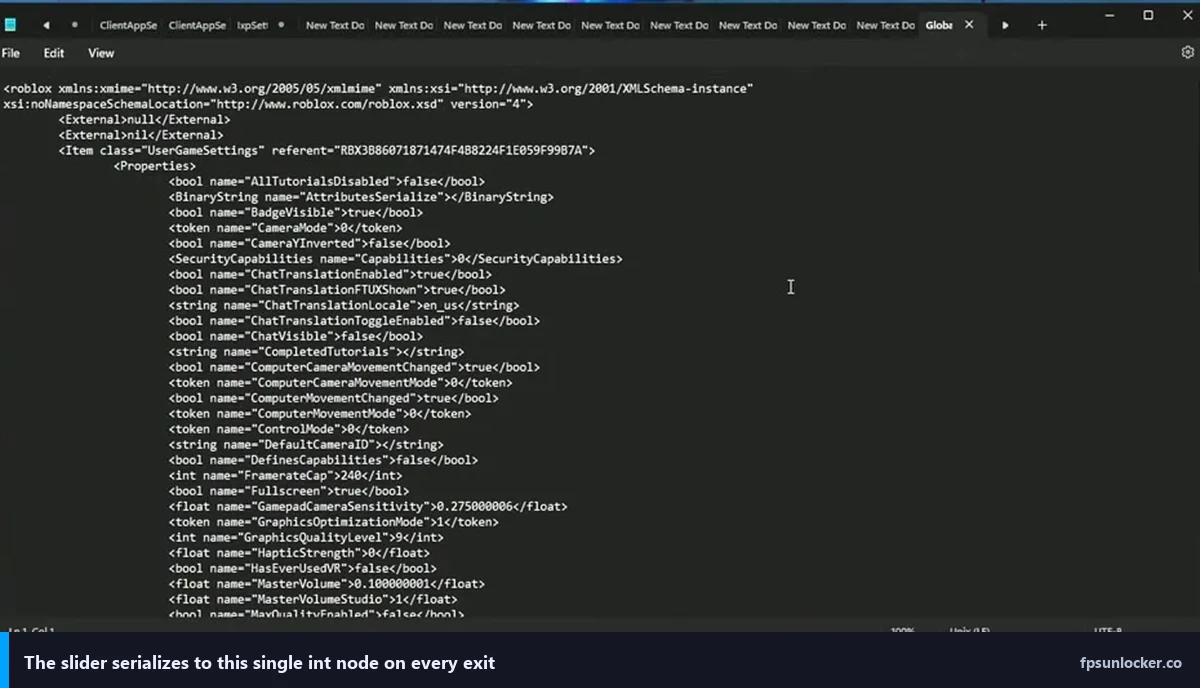
The native Max Frame Rate slider inside Roblox’s own settings menu is the easiest. You open settings, drag a slider, and you’re done. No folders, no JSON, no Notepad. I’ve written a walkthrough of the native slider that covers every step. The downside is that it tops out at 240 FPS, it’s been reported as flaky on some Roblox builds where the slider visually moves but the engine ignores it, and it doesn’t let you touch any of the underlying FastFlags that might also be affecting your experience.
rbxfpsunlocker is the original community tool and it’s still excellent. Point, click, it runs in the tray, it survives Roblox updates automatically, and it handles all the version folder juggling for you. The full rbxfpsunlocker setup guide covers the install cleanly. The catch is that it’s an unsigned executable, which means corporate endpoint protection will block it, privacy-conscious users won’t love it, and some antivirus products still throw false positives on it.
The FastFlag method you just read is the middle path. It’s the most portable, it works on locked-down machines where nothing else will, and it teaches you about the underlying system in a way the GUI tools don’t. It’s also the most fragile because of the version folder problem, and it requires a tiny amount of file management discipline to keep it working.
Who should actually use this
If you’re on a personal gaming rig, you own admin rights, and you just want high FPS without thinking about it, use the native Roblox slider or install rbxfpsunlocker. Either of those will make you happier than manually editing JSON every time Roblox updates.
If you’re on a corporate laptop, a school machine, a loaner device, or any environment where unsigned executables get blocked, this FastFlag method is built for you. It’s also the right call if you want to learn how Roblox’s engine configuration actually works under the hood, if you eventually want to experiment with other FastFlags beyond FPS, or if you just don’t want another tray icon running in the background. I still run this setup on one of my own machines specifically because I like knowing exactly what’s touching my client and nothing else is.
Whatever path you pick, the 60 FPS cap isn’t something you have to live with in 2026. It’s a default, and defaults exist to be changed.