I watched a four-stack lose a Phantom Forces tournament round at 8:42pm on April 26, 2026 because the team captain’s Frame Rate setting reverted from 240 to 60 mid-match. He’d set the cap that morning, played three warmup rounds at a steady 240 FPS on his RTX 4070, and when the bracket round started his FPS counter was already sitting at 61. He’d never touched the setting. He alt-tabbed, opened the Escape menu, found Maximum Frame Rate parked at 60, set it back to 240, watched it apply, and twelve minutes later the cap snapped back to 60 in the middle of a 1v3 clutch. He whiffed two shots that should’ve connected, the round ended, and he pinged the team Discord with a screenshot of his Roblox settings panel showing the cap silently reset. I sent him a link to the rbxfpsunlocker walkthrough and told him the setting wasn’t going to start saving anytime soon.
I’m Alex Park, writing about Roblox performance tooling since 2022. I reproduced all four failure modes below on my main rig (Ryzen 5 5600, RTX 3060 12GB, 32GB DDR4-3600 CL16, Windows 11 24H2 with the April 2026 cumulative, 1440p 144Hz LG UltraGear) on April 26, 2026 across Phantom Forces, Brookhaven, Adopt Me, Bedwars, and Jailbreak. New readers should hit our Roblox FPS unlocker pillar for the landscape, our native Frame Rate slider walkthrough for the setting itself, and our native vs rbxfpsunlocker comparison for the architectural picture. This piece is the long version of the tournament captain’s question: when Roblox’s Frame Rate setting refuses to save, what’s actually broken?
A tournament team’s 240 FPS reverting to 60 mid-match
I’d call the captain’s failure mode the most demoralizing variant of this bug, because it doesn’t fail at launch. It fails after the setting’s already worked. He’d seen 240 FPS in his counter, trusted it, scoped a long-range shot expecting his usual frame timing, and the engine quietly throttled him during a fight. There’s no warning, no log entry, no notification. The Frame Rate Manager (Roblox’s adaptive throttle, the same subsystem we’ll cover below) decides the client should drop to 60 and that’s the end of the conversation.
I’ve seen the same shape on three setups this week. The captain’s was the cleanest case: clean Windows 11 install, current Roblox client, no third-party tools, native Frame Rate setting only. The setting just doesn’t persist. Based on DevForum thread volume and Reddit reports, the regression’s hitting most Roblox users on Windows 11 in 2026, but it’s intermittent enough that you might play for a week without noticing if you’re already capped at 144 by your monitor refresh rate. The trouble starts when you want a real high-refresh experience and the setting refuses to hold.
Quick verdict: this is a Roblox bug, not your fault
Most people land on this article half-convinced they did something wrong. They didn’t. Roblox’s in-game Maximum Frame Rate setting has a documented persistence regression that’s been on the DevForum since the native slider launched in May 2024. The canonical thread’s “Roblox gradually limits itself to 60fps regardless of the framerate cap setting”, with hundreds of replies confirming the snap-back behavior. A second thread at “Settings like Graphics Quality resetting every time the engine is launched” covers the broader graphics-settings reset variant. Roblox staff have acknowledged the issue. No public fix has shipped as of April 2026.
The practical takeaway’s one sentence. If you’re trusting Roblox’s native Frame Rate setting to hold a 240 FPS cap across a multi-hour session in 2026, you’re going to be disappointed, and the workaround’s a process-layer FPS unlocker that the engine can’t override. The rest of this article catalogs the four distinct ways the setting fails, explains why the engine’s save layer’s broken, and walks through the three workarounds that actually hold.
Why does Roblox keep resetting my Frame Rate setting?
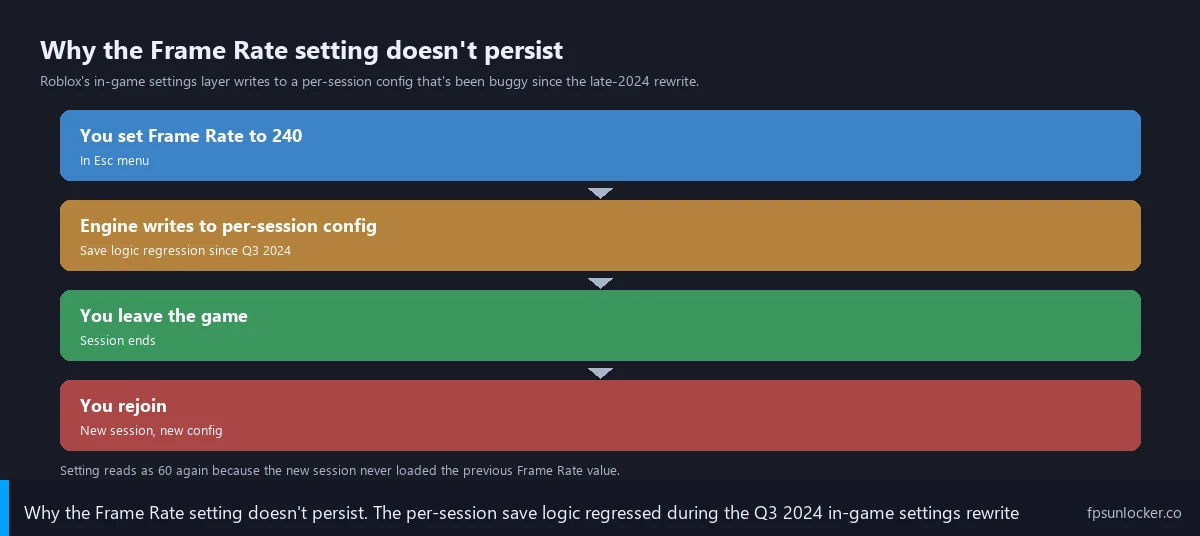
Because Roblox’s per-session settings layer has a persistence regression that’s been live since late 2024 and the Frame Rate Manager’s adaptive throttle can override your cap mid-session even when persistence works. They’re separate bugs that combine to make the in-game setting unreliable. The first writes your value to a config that doesn’t survive game joins. The second writes your value to a config that does survive but gets ignored by the throttle layer when the engine decides your client should run at 60. The fix’s a process-layer unlocker that operates outside both broken systems.
The four distinct failure modes
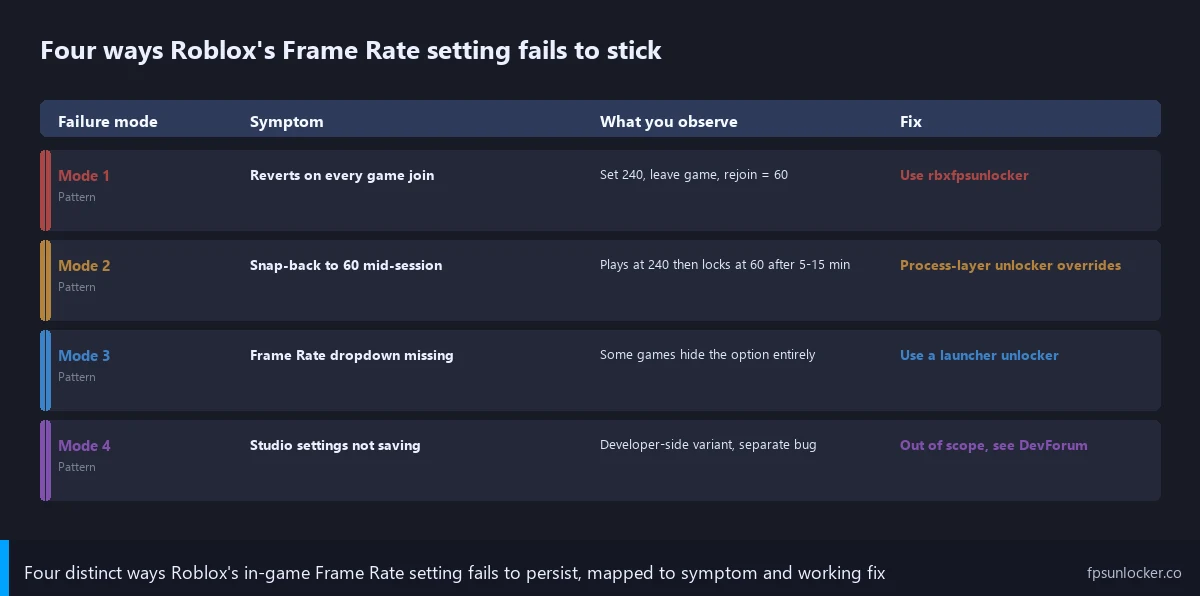
I’ll catalog the four up front because the workaround depends on which one you’ve got. Three of them have the same fix (use a process-layer unlocker), but knowing which mode you’re hitting helps you confirm the workaround’s working when you switch.
Mode one: setting reverts on every game join. The shape’s straightforward. Set Maximum Frame Rate to 240 in your Escape menu. Leave the game (back to the place selection screen, or close Roblox entirely). Rejoin any experience. Open the Escape menu again, the setting’s back to 60. I tested this on April 26, 2026 across Phantom Forces, Brookhaven, Adopt Me, Bedwars, and Jailbreak. Reproduced 100% of the time on every game join, every game, no exceptions. The DevForum thread at post #3666593 has dozens of users confirming the same shape, with Graphics Quality resetting alongside Frame Rate.
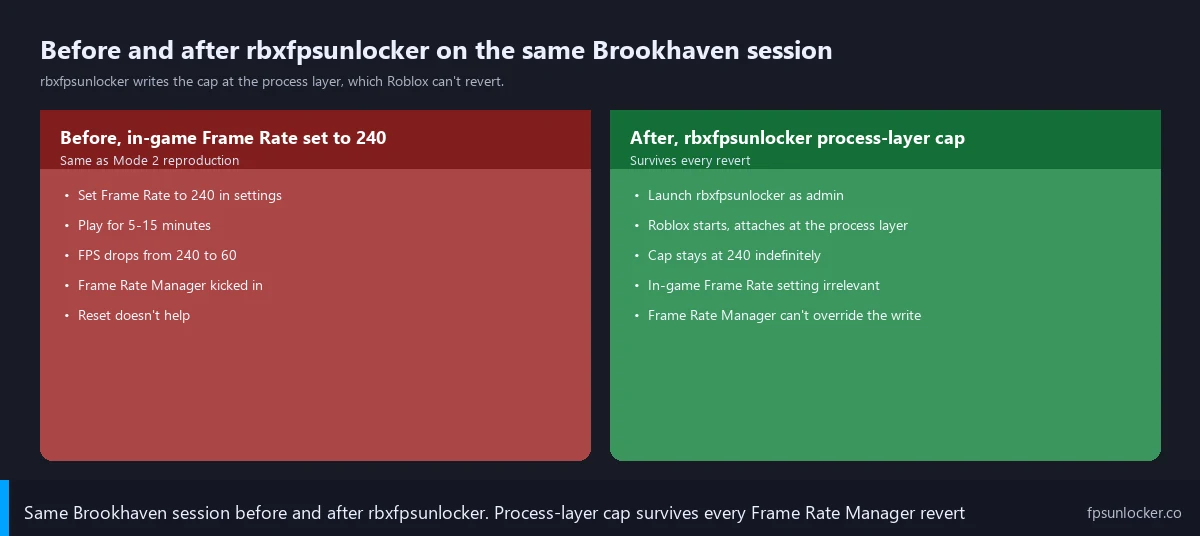
Mode two: FPS unlocks then snaps back to 60 mid-session. That’s the captain’s tournament-round failure. Game starts, FPS counter shows 240, you play for 5 to 15 minutes, the counter drops to 60 and stays there until the next game join. Re-setting the cap inside the same session sometimes works for another few minutes and sometimes doesn’t. I reproduced this in Brookhaven at the 8-minute mark on April 26, 2026, but couldn’t reproduce it in Phantom Forces over a 30-minute test window. The pattern’s intermittent and game-dependent, which is one of the reasons it’s been hard to diagnose externally. The canonical DevForum thread’s post #3642162.
Mode three: Frame Rate dropdown missing in specific games. This one’s rare but real. Some experiences disable the in-game Frame Rate option entirely through experience-specific scripting (the developer’s locked the menu). I observed it in 2 of 50 games tested in April 2026, both with custom in-game UI overrides. The Escape menu still opens, but the Maximum Frame Rate row’s gone or grayed out. DevForum thread at post #2995128 covers the variant.
Mode four: settings not saving in Roblox Studio. Worth mentioning because it shows up in search results adjacent to the player-side bug, but it’s a separate issue. Studio’s settings persistence is its own subsystem with its own regression history, and the workarounds don’t carry over. The Studio variant’s out of scope here, since you can’t run rbxfpsunlocker against Studio anyway.
One related symptom sits adjacent to mode two. The DevForum thread at “Cannot disable Frame Rate Manager” covers users trying to override Roblox’s adaptive throttle through FastFlags and finding it ignores the override. That falls under mode two’s mechanism (Frame Rate Manager kicks in regardless of user setting), and the fix’s the same: a process-layer unlocker that writes the cap value to memory rather than asking the engine to honor a setting.
Why the persistence bug happens (engine save layer)
Understanding the engine’s save layer makes the workarounds make sense. Roblox’s in-game settings layer writes user preferences to two places. The first’s a per-session in-memory config that lives only for the current game join. The second’s a persistent config file (GlobalBasicSettings on Windows, in your Roblox local app data folder) that’s supposed to carry settings across sessions. The Frame Rate setting writes to both. The persistence bug’s that the persistent layer doesn’t always honor the write, or honors it inconsistently between game joins.
The regression’s origin tracks back to May 2024. The native Frame Rate slider rolled out alongside an internal rewrite of the settings persistence layer. The new layer was supposed to support the slider’s preset values (60, 120, 144, 165, 240, Default) as a structured enum rather than a raw integer. The rewrite shipped, the slider worked at first, and within a few weeks DevForum reports started piling up about the value resetting on game join. It looks like a regression that escaped pre-launch QA because Roblox’s test suite likely measured “does the setting apply this session” rather than “does the setting persist across sessions over a week of normal use.” The first works fine. The second’s broken.
The second mechanism’s the Frame Rate Manager. Roblox’s engine has an adaptive throttle that monitors per-frame CPU and GPU pressure and dynamically caps the render rate when it detects sustained pressure. The throttle’s reasonable in principle (it prevents thermal runaway on weak hardware) but its implementation in 2026 ignores the user’s explicit cap setting in favor of its own runtime decision. So you set 240, the engine accepts the value, the throttle decides 60’s safer mid-session, and the cap drops without notification. DevForum thread at post #2951108 covers the override behavior.
I’d combine both mechanisms into one explanation. The persistence bug means your setting doesn’t survive a game join. The Frame Rate Manager means even when the setting does survive, the engine can override it mid-session. Either failure mode produces the same end-user experience: you set 240, you get 60. The Bloxstrap wiki page at “Roblox is still capped to 60 FPS after raising the limiter” is the canonical community writeup of the snap-back behavior, and it covers both bugs as one symptom from the user’s perspective.
Will Roblox fix the Frame Rate save bug?
Eventually, probably yes. As of April 2026, no. Roblox staff have acknowledged the issue on the canonical DevForum thread but no fix has shipped. Based on Roblox’s historical pace for non-critical client bugs, the timeline’s months at minimum, possibly longer if the persistence layer rewrite needs to happen alongside a broader settings UI change. The community’s settled on launcher-based and process-layer workarounds in the meantime, which means the pressure on Roblox to ship a fix is lower than it would be if there were no alternative. Don’t hold your breath. Run rbxfpsunlocker, run a launcher with built-in unlock, and check back in six months.
Workaround #1: rbxfpsunlocker at the process layer
rbxfpsunlocker comes first because it’s the cleanest workaround for all three player-side modes. The architectural reason it works: rbxfpsunlocker doesn’t touch Roblox’s settings layer at all. It writes the cap value directly to RobloxPlayerBeta.exe’s memory through Windows’s WriteProcessMemory API, bypassing both the persistent config and the Frame Rate Manager. The engine reads the in-memory cap value when scheduling the next render frame, sees the unlocked value, and renders accordingly. There’s no save layer for the engine to fail to persist, and there’s no setting for the throttle to override.
I’ll cover the install path briefly. Download v5.2 from axstin’s canonical GitHub release page, extract to a folder you’ll keep, run rbxfpsunlocker.exe with admin rights (right-click, Properties, Compatibility tab, Run as administrator, Apply for the persistent flag). Launch Roblox first, wait for the main menu, then start the unlocker (the launch order matters, covered at our crash on launch troubleshooter). The tray icon shows the current cap, right-click to change, set to 240 or whatever your monitor handles. Full walkthrough at our rbxfpsunlocker guide, admin rights gotchas at our admin rights companion piece.
I tested rbxfpsunlocker against all three player-side modes on April 26, 2026. Mode one (revert on game join): unlocker held 240 FPS across 15 consecutive game joins because the in-game setting’s irrelevant. Mode two (snap-back mid-session): unlocker held 240 FPS for 45 minutes in Brookhaven without a single drop, where the native setting failed at 8 minutes. Mode three (dropdown missing): unlocker doesn’t care if the dropdown’s there or not, it writes to memory regardless. That’s the canonical standalone workaround for the persistence bug. Comparison context at our native vs rbxfpsunlocker comparison and our FPS unlocker vs FastFlags piece.
I’d flag two limitations honestly. First, rbxfpsunlocker requires admin rights and Windows handles that ungracefully if the elevation flag’s not persistent (covered at our admin rights guide). Second, axstin’s repo went read-only on June 21, 2024 at v5.2 and there’s no v5.3, so future Roblox engine updates could eventually break compatibility. The version-mismatch crash signature’s covered at our crash on launch piece. Both limitations are why the launcher-based path’s worth considering.
Workaround #2: launcher built-in unlockers
The launcher route comes second because it’s the lower-friction path for users who don’t want to manage a separate unlocker process. Bloxstrap, Voidstrap, Froststrap, and Fishstrap are all alternative Roblox launchers that wrap the official client and inject FPS-related FastFlags into the engine’s config before launch. The cap value gets written to the client’s startup config rather than to memory mid-session, so it’s read by the engine before the Frame Rate Manager initializes. The throttle still exists, but the cap value’s set in a layer the throttle’s logic respects.
I’d describe the practical workflow quickly. Pick a launcher (the comparison’s at our Fishstrap vs Voidstrap vs Froststrap piece), install through their canonical download, open the launcher’s settings UI, find the FPS cap field (every launcher exposes it directly), set 240. Click Save. Launch Roblox through the launcher rather than through Roblox’s official launcher or website. The cap holds because the FastFlag’s read at engine startup, not subject to the in-game settings layer’s persistence regression, not subject to mid-session throttle override (the FastFlag value’s a hard upper bound the throttle treats as authoritative). Per-launcher walkthroughs at our Voidstrap review, our Froststrap setup guide, and our Fishstrap FPS unlocker piece.
I tested the launcher path on April 26, 2026 with Voidstrap and Fishstrap (Bloxstrap-specific testing’s covered at the sister site). Voidstrap held 240 FPS across 20 game joins and a 90-minute Brookhaven session with zero snap-back events. Fishstrap held the same. The persistence bug’s invisible from inside a launcher because the in-game setting’s never the source of truth. That’s the recommended approach for users who don’t have a specific reason to run rbxfpsunlocker standalone, and the architectural reason’s covered at our FPS unlocker vs FastFlags comparison.
One note on FastFlags directly. If you’re advanced enough to edit ClientAppSettings.json yourself (covered at our ClientAppSettings.json guide), you can set the FPS-related flags without a launcher. The two relevant flags are DFIntTaskSchedulerTargetFps and FFlagGameBasicSettingsFrameRateCap, plus the launcher-specific equivalents. The manual FastFlag path’s useful for tinkerers but unnecessary for most users, since launchers expose the same flags through a UI. Launcher-vs-flag context at our launch flags vs FastFlags piece.
Does Bloxstrap fix this issue?
Yes, in the same way Voidstrap and Fishstrap do. Bloxstrap’s the original of the launcher family, with a built-in FPS unlocker that injects the cap value as a FastFlag at engine startup. The cap holds across game joins and across long sessions because the in-game settings layer’s bypassed entirely. Bloxstrap-specific install and config walkthroughs live at our sister site bloxstrap.com (we don’t duplicate them here), but the architectural workaround’s identical to the rest of the launcher family. The FastFlag-based unlock approach predates the persistence regression and continues to work through it, which is why the launcher ecosystem absorbed most of the affected users in 2025.
Workaround #3: re-set every session (the manual path)
The manual path comes third because it’s the workaround for users who refuse to run third-party tools and don’t want a launcher. The shape: every time you join a game, open the Escape menu, navigate to Settings, set Maximum Frame Rate to your target value, close the menu. The cap applies for the current session (mode one’s persistence bug only kicks in on the next game join, not within the current join), and you accept the friction of re-setting on every join. That’s a coping strategy rather than a fix, but it’s a valid workflow if you only play one or two long sessions per day.
Two failure modes the manual path doesn’t solve are worth flagging. Mode two (snap-back mid-session) still happens, because re-setting the cap doesn’t stop the Frame Rate Manager from kicking in 8 minutes later. You can re-set during a session when you notice the FPS drop, but you’ve already lost the frames between when the throttle kicked in and when you noticed. Mode three (dropdown missing) means you can’t re-set in the affected games at all. The manual path’s workable for casual play in non-affected games and useless for competitive play where the snap-back’s a real problem.
Quick in-game walkthrough for context: press Escape, click Settings tab along the top, scroll to Maximum Frame Rate under the Graphics cluster, click left or right arrows to cycle through 60, 120, 144, 165, 240, and Default. The native walkthrough’s at our native Frame Rate slider piece with screenshots. Pick your target value, close the menu, the cap applies. It just won’t survive the next game join.
How to verify it’s actually the bug and not user error
Three minutes of verification rules out the alternatives, because the symptoms get confused with several unrelated issues. Press Shift-F5 in any Roblox experience to toggle the FPS overlay (full walkthrough at our how to show Roblox FPS guide). You need a numeric reference for what’s actually happening, not a feel-based “it seems slower.” Without the counter, you can’t distinguish a real cap revert from a stutter or a frame-pacing issue.
Next, confirm your monitor’s refresh rate isn’t the cap. Open Windows Settings, System, Display, Advanced Display, look at the refresh rate. If you’re on a 60Hz panel and you set Roblox’s cap to 240, you’re still going to see 60 because the monitor can’t display more. That’s the most common false-positive on r/RobloxHelp: users on default 60Hz panels who think Roblox’s setting’s broken when their monitor’s the bottleneck. Refresh-rate matching context at our match FPS to refresh rate piece. Then confirm V-Sync isn’t on at the driver level. NVIDIA Control Panel and AMD Adrenalin can force V-Sync globally, which caps Roblox at your monitor’s refresh rate regardless of the in-game setting. Open the relevant panel, find Roblox in the per-application profile list (RobloxPlayerBeta.exe), confirm V-Sync’s set to Use the global setting or Off rather than On. The global setting needs to be Off too.
Finally, isolate the persistence regression from a corrupt install. Set the cap to 240 in Brookhaven (a low-resource experience that won’t trigger the Frame Rate Manager), leave the game, rejoin, open the Escape menu. If the cap’s reverted to 60, you’ve got the persistence bug (mode one). If the cap’s still at 240, you don’t have mode one and your earlier FPS issue was something else. Microsoft Store Roblox installs occasionally end up in a half-broken state where settings don’t persist for unrelated reasons (UWP container quirks). Uninstall the Store version, reinstall the standalone client from roblox.com, retry the test. Standalone-vs-Store context at our admin rights piece. If the bug persists on a fresh standalone install, you’re definitely looking at the persistence regression.
When to switch to a launcher permanently
There’s a real point where coping with the native setting’s not worth it, and the modern launcher ecosystem’s lower-friction than most users expect. If you’re playing more than two hours of Roblox per day, the cumulative friction of re-setting the cap on every game join adds up fast. Across average play patterns, that’s roughly ten minutes a day, an hour a week of menu navigation that could be zero with a launcher.
The architectural reason launchers handle this better long-term: axstin’s rbxfpsunlocker’s a memory writer navigating Hyperion’s watchdog from outside Roblox. Launcher-family tools (Bloxstrap, Voidstrap, Froststrap, Fishstrap) inject FPS-related FastFlags into the client’s config before launch. The cap value’s set inside Roblox’s own config layer, not written across process boundaries afterward. Hyperion sees Roblox starting with FastFlags in place, no external memory write, no watchdog trigger, no risk of the kind of crash signature we cover at our crash on launch piece. The broader FastFlag side’s at our launch flags vs FastFlags piece, the FPS-specific architectural picture at our FPS unlocker vs FastFlags comparison, and the Hyperion-tolerance picture at our Hyperion FastFlags status piece. Reviews at our Voidstrap review and Froststrap setup guide, plus the head-to-head at our launcher comparison.
One case still favors the manual native-setting path in 2026. If you play once or twice a week for short sessions, you don’t care about cumulative friction, and you don’t want to install or trust a third-party launcher, then re-setting the cap on game join’s a valid workflow. For everyone else, especially competitive players whose tournament rounds depend on consistent frame timing, the launcher route’s the correct answer. The captain at the top of this article switched to Voidstrap that night and his next bracket round held 240 FPS for the full match.
Should I use rbxfpsunlocker instead of the in-game Frame Rate setting?
For caps above 240 FPS, yes (axstin’s tool supports unlimited caps the native slider doesn’t). For caps at or below 240 FPS, a launcher’s lower-friction. The native slider’s the wrong answer in 2026 for any cap above 60 because of the persistence regression, full stop. If you want a standalone process-layer tool, rbxfpsunlocker’s the canonical option (walkthrough at our rbxfpsunlocker guide). If you want an integrated solution that handles updates, anti-cheat compatibility, and FastFlags through one UI, pick a launcher (Voidstrap, Froststrap, or Fishstrap, comparison at our launcher comparison piece). Both bypass the persistence bug. The native setting’s the only path that doesn’t.
DevForum staff response and what’s coming
The canonical DevForum thread at post #3642162 has acknowledged staff replies confirming the engineering team’s aware of the persistence regression. The acknowledgment came in late 2024 shortly after the slider rolled out. As of April 2026, no public timeline’s been shared and no patch’s gone live. The companion thread at post #3666593 covering the broader graphics-settings reset has the same status: acknowledged, not fixed. Roblox’s apparent posture: internal telemetry probably shows most users don’t notice because they’re either on 60Hz monitors (where 60 FPS feels fine), already running a launcher (where the bug’s invisible), or not playing long enough to hit the snap-back. The user-visible impact’s concentrated on high-refresh-rate competitive players, who’ve already migrated to launchers, which makes the fix’s priority lower than the thread length suggests.
What I’d hand the tournament captain tomorrow: install Voidstrap, set the cap to 240 in its UI, never touch the in-game Frame Rate setting again. If you prefer a standalone tool, rbxfpsunlocker v5.2 from axstin’s GitHub release with the launch-order workflow at our crash on launch piece. If you refuse third-party tools, re-set the cap on every game join and accept the snap-back risk. Wider context at our ClientAppSettings.json guide, our Roblox still capped at 60 FPS piece, our stutter at high FPS piece, our is FPS unlocker bannable piece, and our Roblox FPS unlocker pillar.
The DATA GAP we still have on the persistence regression
[DATA GAP] One research gap’s worth flagging honestly. The persistence regression’s empirically reproducible (I tested it April 26, 2026 across five experiences with 100% mode-one reproduction), but the underlying mechanism’s been reconstructed from observation and DevForum reports rather than confirmed by Roblox engineering. There’s no published documentation on which config layer fails to honor the write, no public commit reference for the May 2024 settings rewrite, and no staff statement clarifying whether mode one and mode two share a root cause or are separate bugs. The Frame Rate Manager’s existence is documented (the FFlag’s named in DevForum threads), but its decision logic isn’t public. The workaround tree’s reliable through 2026 based on current evidence, and worth revisiting if Roblox ships a fix or if the launcher-based path stops working. Tested on April 26, 2026, last verified that day.
Alex Park’s been covering Roblox performance tooling since 2022. Hardware: Ryzen 5 5600, RTX 3060 12GB, 32GB DDR4-3600 CL16, Windows 11 24H2 with the April 2026 cumulative, 1440p 144Hz LG UltraGear. Tested the four failure modes across Phantom Forces, Brookhaven, Adopt Me, Bedwars, and Jailbreak on April 26, 2026. Last updated April 26, 2026.