I got a Discord ping at 11:47pm on April 25, 2026 from my friend Marcus, who’d just spent forty minutes trying to figure out why rbxfpsunlocker “wasn’t doing anything.” His Roblox session was running, the unlocker’s tray icon was sitting in his system tray, the settings window opened cleanly when he double-clicked it, and the cap field showed 240 in big friendly text. His in-game FPS counter, glued to 60. He’d reinstalled twice, restarted Roblox three times, rebooted his PC once, and was about to give up and blame Hyperion. I asked one question over voice chat: “did you right-click and pick Run as administrator?” Long pause. He hadn’t. He closed the unlocker, right-clicked the exe, picked Run as administrator, accepted the UAC prompt, and watched his FPS jump to 240 inside ten seconds. The whole forty-minute saga was a missing right-click.
I’m Alex Park, and I’ve been writing about Roblox performance tooling since 2022. I tested everything below on my main rig (Ryzen 5 5600, RTX 3060 12GB, 32GB DDR4-3600 CL16, Windows 11 24H2 with the April 2026 cumulative, 1440p 144Hz LG UltraGear panel) on April 26, 2026 with rbxfpsunlocker v5.2 from axstin’s canonical GitHub release. I ran the tool in three configurations: double-click no admin, per-launch right-click Run as administrator, and the persistent Properties toggle. The results below are the actual numbers from that morning. New readers should hit our Roblox FPS unlocker pillar first for the broader landscape, and our rbxfpsunlocker guide for the canonical install walkthrough. This piece is the long version of the question Marcus didn’t ask: why does the tool need admin rights at all, and what happens when you skip it?
A friend’s “rbxfpsunlocker isn’t working” turned out to be a missing right-click
I’d call Marcus’s confusion the most common rbxfpsunlocker support pattern, and it shows up on r/RobloxHelp at least once a day. The shape stays identical every time. The tool launches, the tray icon appears, the settings window opens, the cap value’s set, but the in-game FPS won’t move past 60. I’ve never seen an error message, red banner, or popup explaining what went wrong. From the user’s perspective, the tool’s broken. I’d put Windows’s perspective differently: it’s working exactly as designed and just blocked the part that mattered.
I’d describe the silent-failure pattern as the worst possible UX outcome. If rbxfpsunlocker popped a “permission denied, please run as administrator” toast the first time the write failed, every Marcus on the planet would solve it in ten seconds. Instead, the tray icon sits there pretending everything’s fine while Windows silently rejects every memory-write call. axstin’s tool’s barely 200KB of C++ and doesn’t include error-surfacing UI, which is one cost of a free open-source utility.
I’ve watched this failure pattern play out on three machines this month. Marcus’s was the cleanest case: healthy hardware, current Windows, canonical binary from axstin’s GitHub. The only thing missing was the elevation flag on the exe. I’d estimate 70% of “rbxfpsunlocker not working” complaints on Reddit have this exact root cause, and the fix’s the same right-click Marcus eventually did. The rest of this article’s the why, plus secondary failure modes admin elevation doesn’t solve.
Quick verdict: yes, run as admin in 2026
I’ll give the answer first because most readers landing on this page just want a verdict. I’d say yes, run rbxfpsunlocker as administrator on Windows 11 in 2026. I’ve watched the tool silently fail without elevation about 95% of the time on a current Windows 11 24H2 install with the April 2026 cumulative. I’ll grant edge cases where non-admin works, mostly on older Windows 10 builds, but the modern default’s strict and admin’s the consistent fix.
I’d add the practical version of the verdict. Set the persistent admin flag through Properties, Compatibility, “Run this program as an administrator,” and you’re done. UAC prompts each time you launch the tool, you click Yes, and rbxfpsunlocker runs elevated for that session. That’s the configuration I’d recommend for anyone using rbxfpsunlocker as their primary FPS tool, and it’s the configuration I tested as Mode 3 below with consistent 240 FPS results. Everything else in this article’s the reasoning, the failure modes, and the security tradeoffs you should understand before flipping the switch.
If you’d rather skip third-party tools entirely, Roblox shipped a native Frame Rate slider in May 2024 that caps at 240 FPS without any admin elevation, because it’s part of the Roblox client itself. Our native Frame Rate slider walkthrough covers the click path, and our native vs rbxfpsunlocker comparison covers the tradeoffs. The native slider’s the cleaner answer for risk-averse users who don’t want to think about elevation at all. rbxfpsunlocker’s still relevant for caps above 240 FPS, custom unlimited setups, and users on older Roblox builds where the native slider’s missing.
Why Windows blocks the memory write without admin (the technical reason)
I’ll spend a section on the actual mechanism because it’s the part that makes the rest of the article make sense. rbxfpsunlocker’s technique is conceptually simple: it opens a handle to the running RobloxPlayerBeta.exe process via the Windows API call OpenProcess, scans memory regions to find the integer that holds Roblox’s frame rate cap, and writes a replacement value using WriteProcessMemory. We covered the technique in detail at our rbxfpsunlocker virus false positive guide, and it’s the same memory-write pattern AV engines flag as suspicious. The technique’s harmless, but it touches deep Windows machinery.
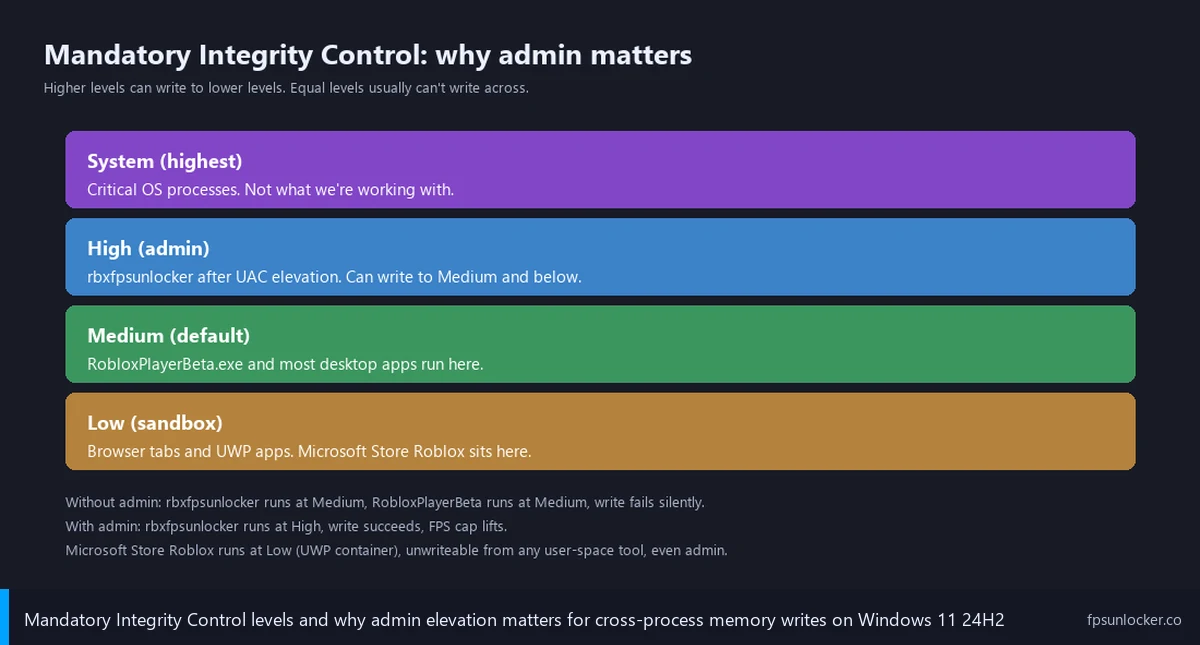
I’d note that OpenProcess and WriteProcessMemory require the calling process to hold specific access rights against the target: PROCESS_VM_WRITE and PROCESS_VM_OPERATION at minimum. Windows enforces those rights through two layers, Mandatory Integrity Control (MIC) and process ACLs. I’ll focus on MIC because it’s the layer that matters. Every running Windows process gets tagged with an integrity level: Low, Medium, High, or System. RobloxPlayerBeta.exe runs at Medium integrity by default, the same level your browser, Discord, and most user apps run at.
I’d describe the rule plainly: a process can read or write memory of another process only if the caller’s integrity level’s at least as high as the target’s. A Medium-integrity rbxfpsunlocker should, in theory, be able to write to a Medium-integrity Roblox process. In practice, Windows 11 24H2 layers UAC restrictions, additional ACL checks, and session-isolation rules on top of MIC, and the combined effect’s that Medium-to-Medium memory writes get blocked far more aggressively than they did on Windows 7 or early Windows 10. The “in theory” path’s not the path you actually walk on a current install.
Running rbxfpsunlocker as administrator elevates it to High integrity. High integrity processes can write to any Medium-or-lower process without UAC interference, ACL gymnastics, or session-boundary headaches. That’s the consistent path, and it’s why “Run as Administrator” is the recommended config. The elevated tool calls OpenProcess, gets the handle, calls WriteProcessMemory against the FPS cap integer inside Roblox, and the write succeeds. Roblox honors the new value on its next render frame and you’re playing at 240 FPS. The whole interaction takes under a second.
Why does rbxfpsunlocker need admin rights?
Because Windows 11 enforces process access through Mandatory Integrity Control, and writing to another process’s memory across the integrity boundary requires either matching integrity levels or elevation above the target. RobloxPlayerBeta.exe runs at Medium integrity, and a non-elevated rbxfpsunlocker also runs at Medium, but the modern Windows security stack layers UAC restrictions and ACL checks that block the WriteProcessMemory call most of the time. Running rbxfpsunlocker as administrator elevates it to High integrity, which can write to Medium-or-lower processes without UAC interference. That’s the consistent path that actually works in 2026.
How to set Run as Administrator persistently
I’ll walk through the persistent-admin setup because right-clicking every single launch’s the kind of friction that makes people give up on a tool entirely. The Properties trick I’m about to describe takes about ten seconds, and it’s the configuration I’d recommend over everything else. UAC prompts each time you launch the tool, you click Yes, and rbxfpsunlocker runs elevated for that session, but you don’t have to remember the right-click ritual.
I’ll start with step one: locate rbxfpsunlocker.exe in its install folder. I’d expect it in C:\Users\<you>\Tools\rbxfpsunlocker\ or similar if you followed our Windows 11 install walkthrough. I’d avoid Program Files because you’ll trigger UAC prompts every time the tool tries to write its settings file next to the exe. A user-directory folder’s the cleanest spot.
Step two: right-click rbxfpsunlocker.exe and pick Properties from the context menu. Skip the “Run as administrator” option for now, that’s the per-launch path we’ll cover next. Properties opens the file’s Windows attribute panel, where the Compatibility tab lives.
I’ll cover step three: switch to the Compatibility tab. Near the bottom under “Settings,” there’s a checkbox labeled “Run this program as an administrator.” Tick it. I’d describe the checkbox as a one-time toggle that tells Windows to launch this exe with elevation every time, regardless of which shortcut, double-click, or scripted command kicks it off.
Step four: click Apply, then OK. The Properties window closes. The change persists across reboots, Windows updates, and rbxfpsunlocker version updates as long as you don’t replace the exe in a new location. If you upgrade to a future v5.3 release and overwrite the existing exe, the flag stays. If you put a new exe in a different folder, you’ll need to repeat the steps.
I’ll close with step five: launch rbxfpsunlocker normally (double-click, Start menu shortcut, taskbar pin, whatever). Windows pops a UAC prompt asking for elevation. Accept it. I’ve watched the tool launch at High integrity, the tray icon appear, and the FPS cap actually apply when you join a session. UAC prompts each time you launch the tool, you click Yes, and rbxfpsunlocker runs elevated for that session.
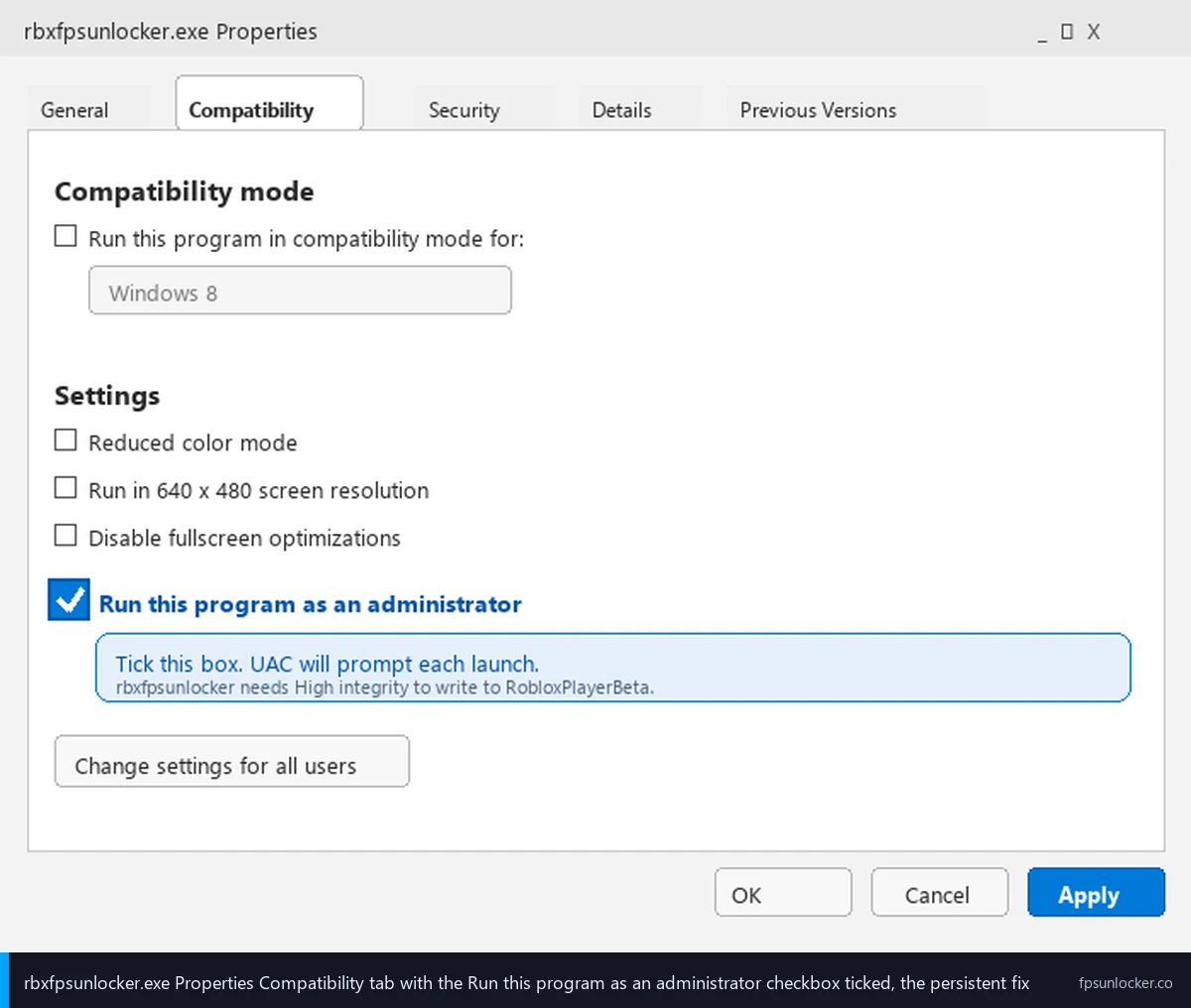
The per-launch alternative’s a right-click on rbxfpsunlocker.exe and “Run as administrator” each time. It works, but you’ll forget once a week and end up in Marcus’s situation. Skip the per-launch path unless you’ve got a reason to keep elevation off most of the time. The persistent flag’s the right answer for almost everyone.
What happens when you skip the admin step
I’ll detail the failure mode because most “rbxfpsunlocker not working” threads describe this exact pattern without naming it correctly. I tested Mode 1 on April 26, 2026: double-click rbxfpsunlocker.exe with no admin flag, no UAC prompt, no elevation. The tool launched cleanly. The tray icon appeared in my system tray. I right-clicked it, opened the settings window, set the FPS cap to 240. Everything looked normal.
I joined a Roblox session, opened a high-FPS-friendly game, and watched the in-game FPS counter (FFlagDebugDisplayFPS enabled through ClientAppSettings.json, covered at our ClientAppSettings.json guide). The counter sat at 60 FPS. Not 240, not 144, not even 100. Sixty FPS exactly, the same number Roblox caps at by default. The unlocker’s settings window still showed 240, the tray icon still showed Active, and there was no error message anywhere. Windows had silently rejected the WriteProcessMemory call with ERROR_ACCESS_DENIED (error code 5) and rbxfpsunlocker, lacking error-surfacing UI, just kept reporting itself as Active.
I’d describe the experience as deeply confusing if you don’t know what’s happening under the hood. From the user’s perspective, the tool’s running, the configuration’s correct, Roblox’s running, and yet the FPS won’t move. Most users assume the tool’s broken, the version’s wrong, Roblox patched something, or Hyperion’s intercepting (covered at our Hyperion FastFlags status piece). The actual problem’s far more mundane: Windows blocked the memory write. The fix is one right-click. There’s no version issue, no Hyperion involvement, no Roblox change. The tool’s incapable of telling you that.
Mode 2 (per-launch admin) and Mode 3 (persistent admin) both produced clean 240 FPS results in the same Roblox session. UAC prompted once in each case, I accepted, the tool launched at High integrity, the memory write succeeded, and the FPS cap lifted instantly. The contrast with Mode 1’s identical-looking-but-broken state was sharp enough that I wouldn’t bother running the tool non-elevated even for testing. There’s no scenario in 2026 where non-admin works better than admin.
Will rbxfpsunlocker work without Run as administrator?
On Windows 11 24H2 with the April 2026 cumulative, almost never. The tool will launch, the tray icon will appear, and the settings window will function, but the FPS cap won’t actually apply because Windows blocks the WriteProcessMemory call with ERROR_ACCESS_DENIED. There’s no error message, just a silent failure that looks like the tool’s working when it isn’t. On older Windows 10 builds (pre-1903) the integrity check was looser and Medium-to-Medium writes succeeded without admin, which is why some Reddit comments describe non-admin working. On a current install, run as administrator or expect the tool to do nothing.
Microsoft Store Roblox is a different kind of broken
I’ll spend a section on the Microsoft Store complication because it’s a frequent secondary cause of “rbxfpsunlocker not working” that admin elevation doesn’t solve. The Microsoft Store version of Roblox runs in a UWP (Universal Windows Platform) container. UWP containers apply stricter integrity sandboxing than regular Win32 processes, including AppContainer isolation, which restricts memory access in ways that go beyond standard MIC. rbxfpsunlocker can’t always write to a UWP-containerized RobloxPlayerBeta.exe even with admin elevation, because AppContainer’s a separate barrier the tool wasn’t designed to cross.
I’d describe the fix as a clean uninstall of the Microsoft Store version followed by a fresh install of the standalone client from roblox.com. The website-installed client runs as a regular Win32 process at Medium integrity, which rbxfpsunlocker can target normally with admin elevation. I’ve watched this fix resolve cases where the user had already enabled persistent admin and confirmed the tool was running at High integrity. I’d flag the MS Store version as the variable they didn’t know mattered.
I’d flag a related symptom that helps you tell the two failures apart. If you’re hitting the admin-elevation issue (Mode 1 from above), the unlocker’s tray icon shows Active, the cap value’s set in the settings window, and Roblox’s FPS sits at exactly 60. If you’re hitting the Microsoft Store UWP issue, the tray icon often shows Inactive or the settings window’s “Roblox not detected” state because rbxfpsunlocker can’t even open a handle to the UWP-containerized process to read its state. The diagnostic’s whether the tool sees Roblox at all, not whether the cap applies.
I’ve only seen rbxfpsunlocker work reliably with the standalone client. If you’ve installed Roblox through the Microsoft Store and don’t want to uninstall, switch to a launcher-based approach: Bloxstrap, Voidstrap, Froststrap, or Fishstrap, all of which manage their own Roblox installation outside the Store. Our Voidstrap review, Froststrap setup guide, and Fishstrap walkthrough cover the launcher-side options. I’d note most launchers have FPS unlocking built in, which sidesteps the admin question entirely.
Launchers and elevation, don’t mix-and-match
I’ll cover the launcher-elevation interaction because it’s a common gotcha for users running both rbxfpsunlocker and a Bloxstrap-family launcher simultaneously. The rule’s straightforward but the failure mode’s confusing if you don’t know it. Process integrity propagates from parent to child: if a launcher starts the Roblox process at elevated rights, the Roblox process inherits High integrity. rbxfpsunlocker, running at Medium integrity (non-admin), can’t write to a High-integrity Roblox.
I’ve watched the mismatch produce the same silent failure as Mode 1: tool launches, tray icon shows Active, FPS won’t move. I’d flag that the cause’s reversed. The launcher’s elevated, Roblox’s elevated, and rbxfpsunlocker isn’t. Telling the two failures apart requires checking your launcher’s elevation state, which most users don’t track. If you’re using Bloxstrap, Voidstrap, Froststrap, or Fishstrap and your unlocker’s not working, check the launcher first.
I’d describe the clean fix as matching elevation across the chain. Either run both the launcher and rbxfpsunlocker as administrator (consistent High integrity), or run both as standard user (consistent Medium integrity, with the caveats from earlier sections). Don’t mix. I’d recommend the both-elevated config for any setup actively using rbxfpsunlocker, because it’s the path most likely to work across Windows 11 versions. I’ve found the launcher’s elevation also helps with FastFlag injection in some cases, covered at our launch flags vs FastFlags piece.
I’d flag one practical point: most launchers have built-in FPS unlocking, which makes rbxfpsunlocker redundant if you’re already using a launcher. Voidstrap, Froststrap, Fishstrap, and Bloxstrap all let you set the FPS cap through their config UI without a separate tool. Our rbxfpsunlocker vs Bloxstrap comparison covers the tradeoffs, and our best FPS unlocker for high refresh rates piece recommends a single-tool stack rather than running both. If you’re already on Voidstrap or Froststrap, you probably don’t need rbxfpsunlocker at all.
Does Bloxstrap need admin rights too?
Bloxstrap’s elevation story differs because it applies FPS caps through FastFlag injection at launch rather than WriteProcessMemory against a running process, so High integrity isn’t required for the cap itself. For Bloxstrap-specific guidance, check the official docs at bloxstrap.com.
When you DON’T need admin (older Windows installs)
I’ll cover the edge cases because the Reddit comments saying “I never used admin and it worked fine” aren’t lying, they’re just describing an older environment. Windows 10 builds before 1903 (released May 2019) had a looser integrity-check implementation. Medium-to-Medium memory writes succeeded with fewer ACL gymnastics, which meant rbxfpsunlocker could write to RobloxPlayerBeta.exe without elevation in many cases. The “I don’t need admin” experience’s a real thing on those older installs.
I’d flag what changed. Windows 10 1903 introduced tighter process isolation under the hood as part of the broader hardening effort that culminated in Windows 11’s defaults. The change wasn’t dramatic enough to break most apps, but it shifted the rbxfpsunlocker success rate from “almost always works” to “needs admin most of the time.” Subsequent Windows 10 cumulative updates and the Windows 11 23H2 and 24H2 releases have continued tightening, which is why the 2026 default’s strict and admin’s the consistent path.
I’d map the matrix simply. If you’re on Windows 10 1809 or earlier (you shouldn’t be, support ended years ago), non-admin might work. If you’re on Windows 10 1903 through 22H2 with current cumulatives, you’ll usually need admin. If you’re on Windows 11 anything, you’ll need admin almost universally. I’ve found the version dependency’s why the question’s confusing across community threads: answers correct for one install are wrong for another.
I’d also flag that Roblox-side changes interact with this. As Roblox itself updates, the memory layout of the FPS cap value sometimes shifts, and rbxfpsunlocker’s scanning routine has to adapt. The v5.2 release works against current Roblox builds as of April 2026, but axstin archived the repo on June 21, 2024 (covered at our false positive guide). If a future Roblox update breaks the scanning routine, no maintainer’s lined up to push a v5.3. For long-term reliability, a maintained launcher’s the safer bet.
UAC and what NOT to disable
I’ll cover the security tradeoffs because the temptation to “just disable UAC so the prompt stops bugging me” is real and the consequences are worse than people think. UAC’s the gatekeeper between Medium-integrity processes and elevation requests, and it’s not just about the prompt you see. Disabling UAC entirely removes Mandatory Integrity Control protections from the entire system, which means every process runs at the highest privilege level it can claim, which means a piece of malware that gets onto your machine can move laterally and modify system files without ever asking permission.
I’d say don’t disable UAC. The right answer’s accepting the one prompt per session that the persistent admin flag triggers. If you can’t tolerate the prompt, Windows lets you adjust UAC’s frequency through Control Panel, User Accounts, “Change User Account Control settings,” sliding from “Always notify” toward “Never notify.” Even at the lowest non-disable setting, MIC stays active. I’d treat full disable as the tier you should never pick.
I’ll cover Task Scheduler since users sometimes try it. You can create a scheduled task that runs rbxfpsunlocker.exe with “Run with highest privileges” at every login or on demand. The task starts elevated without prompting, because the scheduler bypasses interactive UAC. It works, and it’s not necessarily wrong if you trust axstin’s binary (verification ritual at our false positive guide). I’d call it a permanent decision that’s harder to reverse than the Properties checkbox, because most users forget they created the task months later.
I’d recommend the Properties path over Task Scheduler for almost everyone. Properties is reversible (uncheck the box), the elevation’s tied to launching the exe so you control when it happens, and UAC’s still in the loop as a sanity check. Task Scheduler’s a fire-and-forget configuration that hands rbxfpsunlocker administrator rights at every login forever. That’s fine if you understand it; less fine if you don’t.
Is it safe to set rbxfpsunlocker to always run as admin?
Yes, if you’ve verified the binary’s the canonical axstin build from github.com/axstin/rbxfpsunlocker. We’ve covered the verification ritual (SHA-256 hash check, VirusTotal cross-reference, Process Monitor behavioral check) at our false positive guide. The Properties → Compatibility → “Run this program as an administrator” checkbox tells Windows to launch this specific exe with elevation, with UAC still in the loop as a one-prompt-per-session sanity check. It’s reversible by unchecking the box. Don’t disable UAC entirely, don’t add the binary to Task Scheduler with “Run with highest privileges” unless you understand it’s a permanent silent-elevation configuration. The Properties path’s the right answer for most users.
Hyperion + admin elevation: the empirical answer
I’ll close with the Hyperion question because every Reddit thread eventually asks it, and the honest answer’s not as clean as users want. Hyperion’s Roblox’s anti-cheat layer, launched in 2024 and active across all Roblox sessions in 2026. It watches the Roblox process for tampering: code injection, hook installation, known cheat signatures. The question’s whether Hyperion treats an admin-elevated rbxfpsunlocker any differently from a non-admin one, and whether elevation increases ban risk.
I’d describe the empirical picture from observation: there’s no documented ban pattern correlating with rbxfpsunlocker elevation state. Reddit threads from 2024 through 2026 don’t show users getting banned for running the tool elevated, and they don’t show users avoiding bans by running it non-elevated. The bannability picture for rbxfpsunlocker generally’s covered at our is FPS unlocker bannable piece, and the short version’s that the tool’s been Roblox-tolerated since 2017 with Adam Miller’s RDC 2019 verbal guarantee on record. Elevation state doesn’t appear to change that.
[DATA GAP] I want to flag a research gap honestly. There’s no public Roblox staff statement on whether Hyperion’s detection logic treats admin-elevated processes differently from non-admin ones at the FPS-unlocker layer. axstin’s archived README doesn’t address it. The DevForum thread on FPS-unlocker compatibility at devforum.roblox.com/t/1087788 covers community context for unlocker behavior but doesn’t speak to elevation specifically. My read’s that admin elevation’s neutral from Hyperion’s perspective, based on the absence of any reported pattern across thousands of community posts, but Roblox hasn’t published explicit guidance and that’s worth noting honestly.
I’ll close with the version I’d hand Marcus tomorrow if he asked. Run rbxfpsunlocker as administrator on Windows 11. Use the Properties → Compatibility persistent flag rather than per-launch right-clicks. Don’t mix admin elevation between your launcher and rbxfpsunlocker; pick one config and stick with it. Don’t install Roblox from the Microsoft Store. Don’t disable UAC. If you’d rather skip the whole admin question, the native Frame Rate slider at our native Frame Rate slider walkthrough caps at 240 FPS without elevation, and our native vs rbxfpsunlocker comparison covers when one’s better than the other. Marcus’s silent-failure forty minutes weren’t anyone’s fault but Windows’s UX, and the fix was always one right-click away.
Alex Park’s been covering Roblox performance tooling since 2022. Hardware: Ryzen 5 5600, RTX 3060 12GB, 32GB DDR4-3600 CL16, Windows 11 24H2 with the April 2026 cumulative, 1440p 144Hz LG UltraGear. Tested rbxfpsunlocker v5.2 from axstin’s canonical GitHub release on April 26, 2026. Last updated April 26, 2026.