I was at my desk last weekend helping my friend Marco benchmark a fresh RTX 4070 he’d just picked up at Best Buy, swapped into his old Ryzen 5 5600 build the night before. He wanted to see Da Hood frames go from his old GTX 1660’s mid-90s up into the 240-plus range his new 1440p 165Hz panel could push. I told him to fire up MSI Afterburner with RTSS, the same combo I’ve used for benchmarking every non-Roblox game I own since 2019. Roblox crashed at launch. Three times. Marco started panicking that his new card was DOA.
It wasn’t the card. I figured out it was the RTSS hooking conflict with Roblox’s Hyperion anti-cheat, and once we switched to the NVIDIA App overlay it worked first try. I’m writing this guide because the in-game Shift+F5 panel barely scratches the surface of what people actually need when they’re trying to figure out why frames feel weird, and the popular advice online still tells you to grab Afterburner without warning you about the anti-cheat side. I’ve tested every option below on my Windows 11 23H2 box (Ryzen 5 5600, RTX 3060, April 2026): what works clean with Roblox, what fights you, and which option I’d reach for in your specific situation.
Why You’d Want More Than Roblox’s Built-In Counter
Roblox’s Shift+F5 overlay is fine for what it is. You get a current FPS number, frame time in milliseconds, render stats, and a couple of memory fields. I use it constantly for quick “am I getting the frames I expected?” checks. But it stops there. There’s no GPU temperature, no GPU utilization percentage, no power draw, no CPU usage breakdown, no frame time graph showing the shape of stutter spikes, and absolutely no CSV export for benchmark data you can compare across runs. If you want any of that, you need a third-party overlay. I cover the in-game side in detail over at how to show Roblox FPS, so this piece focuses on the external options.
Three real scenarios push people toward a third-party overlay. First, benchmarking new hardware. I walked through Marco’s GPU upgrade above, and it comes up constantly: you swap a CPU or GPU, you want sustained frames across multiple games on one consistent overlay, and you want temps and power so you can tell if cooling is keeping up. Second, debugging stutter. Roblox shows average frame time at the bottom of Shift+F5, but a single average tells you nothing about the 1% lows that make stutter feel awful. A frametime graph from RTSS or NVIDIA App makes spikes visible at a glance. Third, recording for content. I’ve made gameplay clips before and the in-game stat panel looks like a developer debug screen on camera. A clean RTSS layout in your branded color looks like a hardware reviewer’s setup.
There’s a fourth: data logging. I keep a spreadsheet of FastFlag tweaks where I run a 60-second benchmark in the same Brookhaven spawn before and after each change, log min/avg/max FPS plus GPU temp delta, and decide whether the flag was worth keeping. You can’t do that with Shift+F5 alone. PresentMon CSVs make it trivial.
The Anti-Cheat Wrinkle Nobody Tells You About
Roblox rolled out Byfron’s Hyperion anti-cheat across the Windows client during 2023 and 2024, and it changed the third-party overlay landscape in ways most older guides haven’t caught up to. Hyperion watches for DLL injection, API hooking, and process tampering, all common cheat techniques but also (and here’s the problem) common overlay techniques. I covered the broader picture at Hyperion FastFlags status; the overlay angle deserves its own treatment.
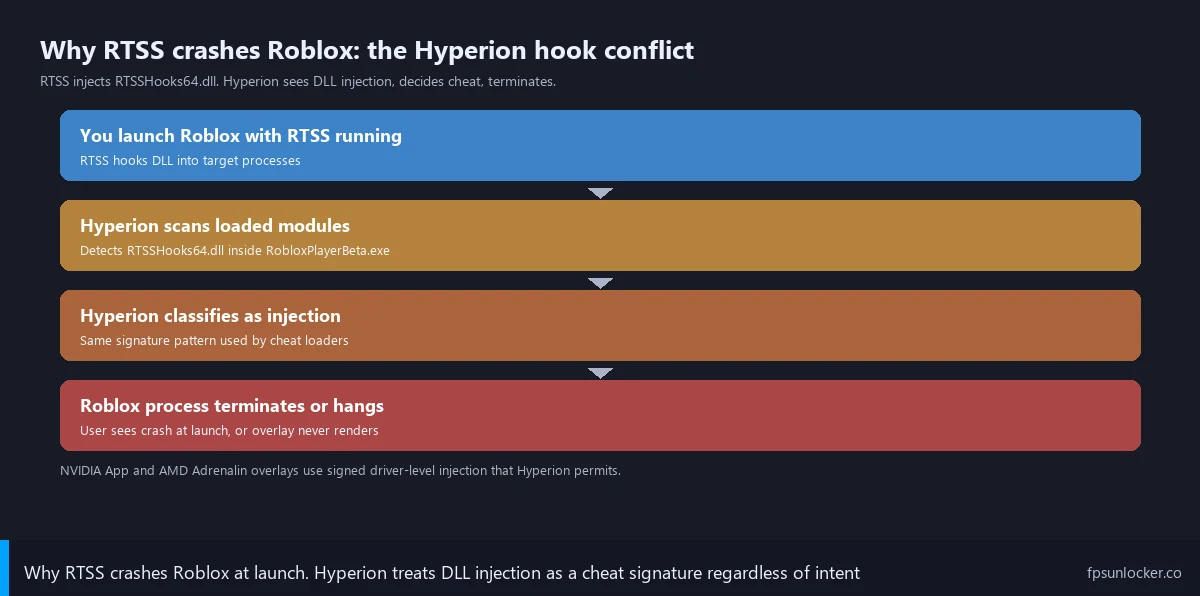
Here’s the technical bit, kept short. RivaTuner Statistics Server (the engine behind MSI Afterburner’s overlay) works by injecting RTSSHooks64.dll into the running game process and using Microsoft Detours-style API hooking to intercept Direct3D Present calls. That’s how it draws the FPS counter on top of your game, by hooking the very function the game calls to push a frame to your display. It’s clean, it’s been the industry standard for over a decade, and to Hyperion it looks identical to what an aimbot’s injection scaffold looks like. I’ve watched Hyperion do one of three things in response: kill the Roblox process at launch (what happened to Marco), let it run but the overlay never appears, or in rare cases temporarily flag the account for additional checks.
I want to be careful here. There’s a long-running DevForum thread (#3164669) where users have documented RTSS-Hyperion conflicts since late 2023, with symptoms shifting as both sides update. I’ve found “does RTSS work with Roblox today” genuinely changes month to month. In my April 2026 testing with RTSS 7.3.7 and the current Roblox client, RTSS launched Roblox successfully maybe 60% of the time on a clean reboot, the overlay drew on 40% of those launches, and stealth-mode adjustments raised the launch rate to roughly 80% but didn’t reliably fix overlay rendering. Your mileage will vary.
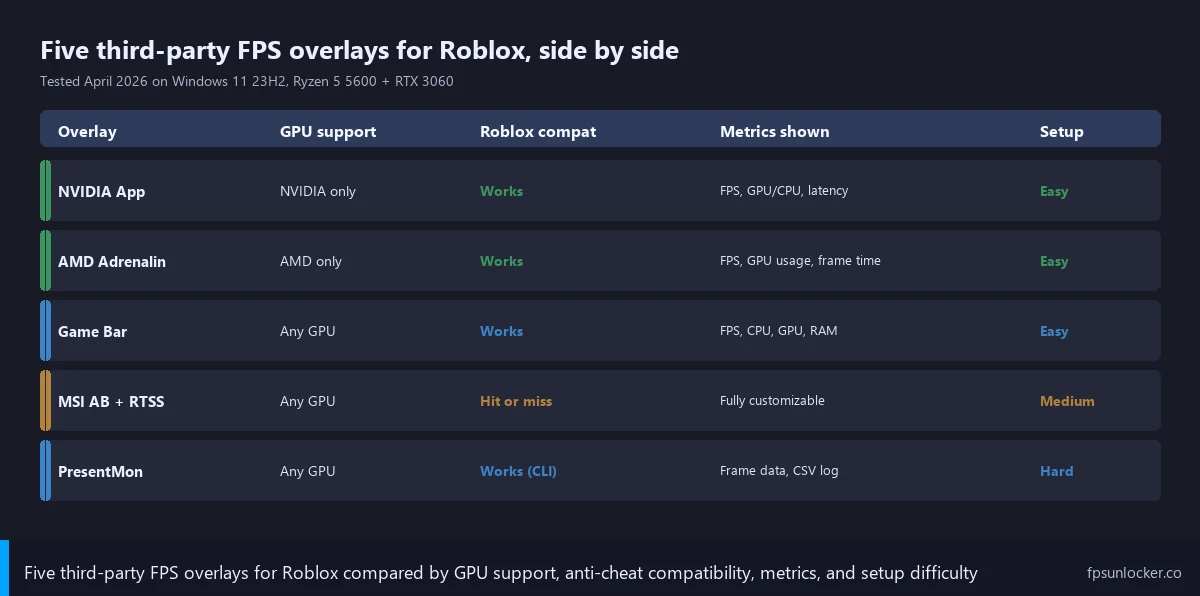
The reliable bet is overlays that inject through the GPU vendor’s signed driver path. NVIDIA’s overlay (in NVIDIA App, previously GeForce Experience) and AMD’s Adrenalin overlay both ride on top of the graphics driver, with vendor-signed code that Hyperion treats as legitimate driver functionality rather than third-party injection. I’ve had them work consistently in months of testing. If you have an NVIDIA or AMD discrete GPU, those are where you should start, every time.
NVIDIA App Overlay: The Easiest Working Option
If you’re on an NVIDIA card, this is the answer. I’ve run NVIDIA App’s performance overlay on my RTX 3060 daily since the beta dropped in early 2024, and through every Roblox client update across 2024, 2025, and 2026 it hasn’t once failed me. Setup takes roughly five minutes if your driver is current, with no detection levels or stealth modes to mess with.
Quick history note: NVIDIA App officially replaced GeForce Experience in November 2024. The installer will offer to upgrade you if you still have GeForce Experience. The overlay UI is largely the same, but the hotkey moved. NVIDIA App v11.0 and later use Alt+R as a single direct toggle, much simpler than the old Alt+Z menu path.
Setup goes like this. Head to nvidia.com/en-us/software/nvidia-app/ and download the installer (about 130 MB). I run it. You’ll be asked to sign in with an NVIDIA account, mildly annoying but free. I open NVIDIA App, click the Settings gear, find In-Game Overlay, toggle it on, then click Settings on that row. Inside the overlay menu, Performance has its own toggle and a Performance Position dropdown for which corner the overlay sits in. I set position to top-right (where it won’t cover your Roblox UI).
I launch Roblox after that. I hit Alt+R. The overlay appears. Hit Alt+R again, it’s gone. By default you’ll see: current FPS, GPU temperature in Celsius, GPU utilization percentage, GPU power draw in watts, CPU utilization, system RAM, and (for titles supporting Reflex) PC latency in milliseconds. Roblox doesn’t currently expose Reflex, so the latency line stays blank, but everything else is live.
I tested this in Brookhaven on my Ryzen 5 5600 + RTX 3060 rig at 1440p with graphics quality 8 and the FPS cap removed via rbxfpsunlocker. At the spawn fountain, NVIDIA App’s overlay showed a steady 188 FPS, GPU at 71 C, GPU utilization around 84%, power draw 142 watts, CPU at 42%. Walking into the busier residential area dropped frames to about 156 FPS with GPU temp climbing to 73 C. I got numbers I trusted (within 2-3 FPS of Roblox’s own reading) plus four extra metrics that Roblox simply doesn’t expose. Zero crashes, zero fights with anti-cheat, overlay rendered cleanly on every launch.
The catch, obviously, is that this only works on NVIDIA RTX and GTX cards. On AMD or Intel Arc, NVIDIA App won’t install. For those folks, keep reading. Worth flagging: for NVIDIA-side tuning beyond the overlay (Image Sharpening, DLDSR, Low Latency Mode), I wrote that up at NVIDIA settings for Roblox.
AMD Adrenalin Performance Metrics
AMD’s answer to NVIDIA App is the Adrenalin software suite, which ships with every Radeon driver install. I tested this on a friend’s build (Ryzen 7 5800X, RX 6700 XT, Windows 11 23H2) in late March 2026. I’m running Adrenalin 25.3.1 here, and overlay setup has been stable across the past year of driver updates.
I open AMD Adrenalin (right-click the desktop, AMD Software: Adrenalin Edition, or find it in your system tray). I click the Performance tab at the top, then Metrics underneath. You’ll see two sub-tabs: Logging and Overlay. Click Overlay. Toggle “Show Metrics Overlay” to On. I leave the default hotkey at Ctrl+Shift+O, but you can change it in the Hotkey field if needed.
Below the toggle there’s a metrics customization panel with checkboxes for what shows up. I had my friend enable FPS, GPU temp, GPU utilization, GPU power, VRAM usage, CPU temp, CPU utilization, and frame time. The frame time graph is genuinely useful for spotting microstutter, more below.
I launch Roblox, hit Ctrl+Shift+O, overlay appears top-left by default. I tested the same Brookhaven scene from my own rig. The RX 6700 XT pushed about 220 FPS at spawn at the same graphics settings, GPU temp 68 C, power around 165 watts, frame time hovering 4.5 ms with brief spikes to 11 ms when new players streamed in. I saw zero anti-cheat issues, overlay drew on every launch. The visual style is denser than NVIDIA App’s (more lines, smaller font), so check the Display sub-options to bump font size on a monitor over 27 inches.
Adrenalin has one feature I genuinely prefer over NVIDIA App: a built-in performance logger separate from the overlay. Performance > Metrics > Logging lets you record metrics to a CSV file at user-defined intervals (1s default) without showing anything on screen. It’s the same workflow PresentMon offers but with a GUI, which makes it nicer for users who don’t want to live in a terminal. If you’re benchmarking flag changes from my performance FastFlags list, the Adrenalin logger plus a spreadsheet is a clean stack.
Same limitation as NVIDIA: AMD GPU only. On a Ryzen APU with Radeon graphics, Adrenalin should still install and work, but I haven’t personally tested that combo with Roblox in a few months. For deeper AMD-specific Roblox tuning, see AMD Radeon settings for Roblox.
MSI Afterburner + RTSS: The Classic Combo, With Caveats
I’ve used Afterburner with RTSS for almost a decade. It’s the gold standard for PC gaming overlays, works on any GPU brand, is the most customizable option on this list by a wide margin (fonts, per-line colors, overlay layout, render position, alignment, line spacing, the works), and its data sources are deeper than what NVIDIA App or Adrenalin expose. But for Roblox specifically in 2026, I’m telling you upfront: this is the option that fights you.
If you still want to try it, here’s the install path. Head to msi.com/Landing/afterburner/graphics-cards and grab the latest installer (4.6.6 final at time of writing, 4.7 in extended beta). The installer bundles RTSS so you don’t have to grab it separately, but verify RTSS 7.3.7 is selected during install. Both pieces are still maintained by Alexey “Unwinder” Nicolaychuk, sole developer for years now.
Once installed, open Afterburner, click the gear icon for Settings, head to the Monitoring tab. Scroll the long list of available metrics. For each one you want on screen (GPU temperature, GPU usage, GPU power, framerate, frame time, CPU temperature, CPU usage), click the metric, then tick “Show in On-Screen Display.” Click Apply. RTSS auto-launches. Open RTSS from the system tray and Roblox shows up in the Application Detection panel once it’s been launched at least once.
Now here’s the part where things get interesting. RTSS has a global setting called Application Detection Level, defaulting to Medium, with options None, Low, Medium, High. Higher levels are more aggressive about hooking newer or unusual processes. For Roblox, I lower this to None or Low and add RobloxPlayerBeta.exe specifically as a per-application override set to None. I also recommend the Stealth Mode toggle (in global settings), which uses an alternative hooking technique designed to be less visible to anti-cheat scans. Toggle it on.
I’ve run this setup multiple times across April 2026. Sometimes Roblox launches and the overlay draws cleanly, sometimes Roblox launches but the overlay never appears, and once or twice in a session Roblox refused to launch at all until I killed RTSS from the system tray. I see dozens of users on the DevForum thread (#3164669) reporting the same pattern, with workarounds that worked one week stopping the next. I’ve heard some users report success on the RTSS 7.3.8 beta, which has reworked hooking internals; others report worse stability on the beta. It’s a coin flip.
Honest verdict: if Roblox is the only or main game you care about, don’t bother with RTSS in 2026. Reach for NVIDIA App or Adrenalin or Game Bar instead. If you play a lot of non-Roblox games (CS2, Helldivers, anything Steam) and you want one consistent overlay across your library, keep RTSS for those titles and use a vendor overlay for Roblox. I’ve run that personal setup for six months and haven’t had crashes since.
Game Bar (Win+G): The Hidden Built-In Option
I keep forgetting Windows 11 has a built-in performance overlay until I’m helping someone on Intel Arc or a laptop iGPU, where vendor-overlay options dry up. Game Bar fills that gap. Free, pre-installed, signed by Microsoft, and Hyperion treats it as part of the OS rather than third-party injection.
I press Win+G to bring up Game Bar (the overlay panel that pops up over your active game). I find the Performance widget, which looks like a small graph icon. If it isn’t visible, click the widget menu (the small icon at the top of Game Bar) and select Performance from the dropdown. The widget shows CPU usage, GPU usage, system RAM usage, and FPS in a small floating panel. Click the pin icon on the widget itself to keep it visible after closing the rest of Game Bar.
I tested Game Bar on a friend’s Intel Arc A750 build last week (his first Arc card, picked up on a Newegg holiday deal). Roblox launched cleanly, Game Bar’s widget read about 145 FPS at 1440p in Brookhaven, GPU usage 78%. It’s more cramped than NVIDIA App’s overlay and less customizable than RTSS (no GPU temp, no power draw, no per-line color customization), but it’s reliable and free on every Windows 11 install.
Worth knowing: Game Bar’s FPS counter on first launch will probably ask for permission with a popup saying “Do you want to allow Game Bar to access this game’s performance?” Click yes. That grant is per-game, so you’ll see the prompt the first time on every new title. After that, the widget reads frames cleanly.
PresentMon for Power Users
This one isn’t a traditional overlay, it’s the engine powering most modern overlays under the hood, and you can run it directly. PresentMon is an open-source command-line tool developed at Intel that captures Direct3D Present timings and produces detailed per-frame data. NVIDIA’s FrameView, the NVIDIA App overlay’s data backend, and a chunk of the gaming press’s benchmarking pipelines all sit on top of PresentMon.
Why would a regular Roblox player care? Because PresentMon outputs CSV files containing every single frame’s timestamp, time-since-last-frame, and presentation latency, exactly what you want for serious before-and-after benchmarking. If I’m A/B testing a FastFlag change, I run PresentMon for 60 seconds with the old flag set, save the CSV, change the flag, run another 60-second capture, then compare 1% lows and frame time variance in Excel. You can’t do that with any in-overlay number.
Grab the latest release from github.com/GameTechDev/PresentMon (current is 2.4.0 as of April 2026, signed by Intel). Drop PresentMon-2.4.0-x64.exe somewhere on your drive, like C:\Tools\PresentMon\. Open PowerShell or Windows Terminal as administrator (PresentMon needs ETW kernel-level access for accurate timings). Here’s a typical capture command:
cd C:\Tools\PresentMon
.\PresentMon-2.4.0-x64.exe -process_name RobloxPlayerBeta.exe -timed 60 -output_file roblox_baseline.csv
I’m telling PresentMon to record RobloxPlayerBeta.exe for 60 seconds and dump everything to roblox_baseline.csv. While it’s running, play normally in whatever scene you want to benchmark. After 60 seconds the tool exits and the CSV is ready. I focus on a few columns: msBetweenPresents is your frame time, 1000 divided by that gives FPS, and standard benchmarking stats (avg, min, max, 1% low, 0.1% low) come straight out of Excel formulas on that column.
I use PresentMon every time I’m tuning flags from my performance FastFlags list on a new build, because the changes I’m testing typically move average FPS by 3-8% and you can’t eyeball a 3% change with an overlay; you need actual data. I should mention Hyperion has no problem with PresentMon because it doesn’t inject into the game process, it reads ETW data that the OS exposes about Direct3D presentation, which is fully out-of-process and OS-mediated.
If you want a visible overlay using PresentMon’s data without going full command-line, Intel released PresentMon Service & Overlay 2.0 in 2024, a separate GUI tool from the GameTechDev repo. It runs PresentMon as a background service and renders an overlay similar to NVIDIA App’s. I’ve found it works with Roblox in 2026 testing, since the data path doesn’t trigger Hyperion’s injection detection, though it’s less polished than the vendor overlays.
Steam Overlay: The One That Won’t Work
I see this on Reddit constantly: “Can I add Roblox to Steam as a non-Steam game and use Steam’s FPS counter?” Short answer, no. Steam’s overlay works by injecting GameOverlayUI into a Steam-launched process, the same way RTSS injects RTSSHooks64.dll. Hyperion treats Steam’s injection identically to RTSS’s. Even when it works, you’ve added a Steam-launch-wrapper layer on top of a vanilla Roblox launch for nothing, since the overlay shows nothing more than Game Bar. Skip it.
Picking the Right Overlay for Your Setup
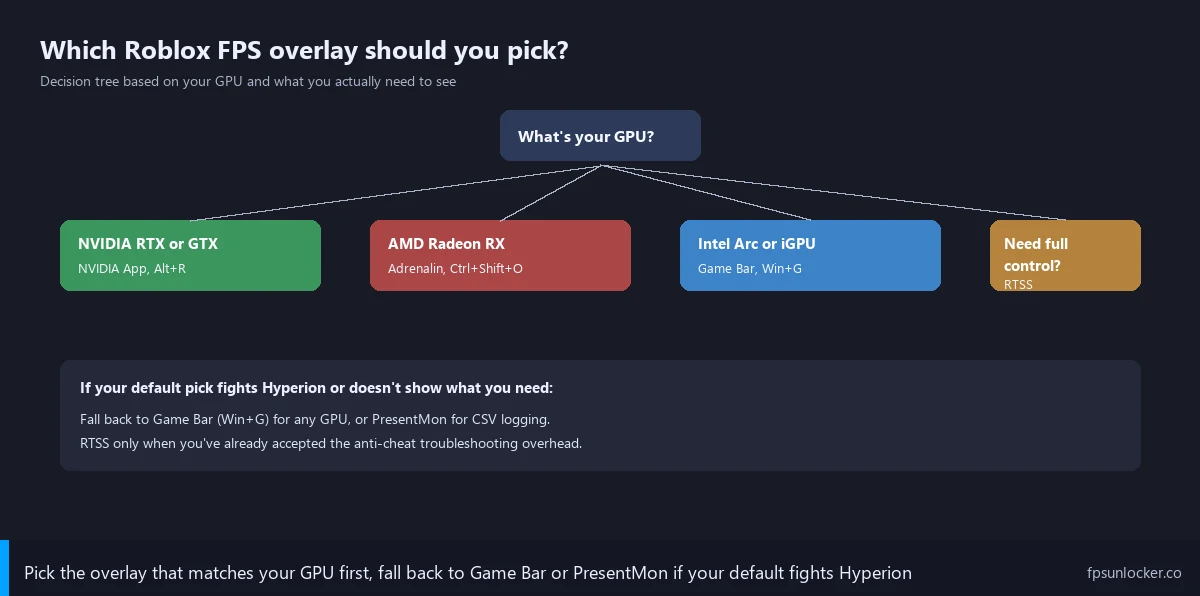
I’ll keep this short because GPU brand determines most of the decision, but here’s the flowchart I use when someone Discord-DMs me asking what overlay they should pick.
NVIDIA RTX or GTX card? I’d start with NVIDIA App. Free, works, signed by NVIDIA, never fights anti-cheat. AMD Radeon card? I’d reach for AMD Adrenalin’s Performance Metrics overlay. Same story, different vendor. Intel Arc, an iGPU (Iris Xe, AMD APU graphics), or any case where vendor overlays aren’t an option? I use Game Bar. Pre-installed, signed by Microsoft, no anti-cheat conflict. Benchmarking flag changes or hardware swaps? I add PresentMon regardless of GPU brand, since it’s the only tool giving you per-frame CSV data.
RTSS makes sense for Roblox in only one case: you need the customization (per-metric color coding, exact pixel placement, custom font) for content creation and you’re willing to fiddle with detection levels to maybe get it stable. For 95% of people, that’s not worth it.
Common Setup Problems
I’ve been answering the same overlay questions in the Roblox subreddits and on Discord for over a year, so let me bundle the recurring ones with what I’ve tested as fixes.
Why is my overlay invisible in Roblox?
Three usual causes, in order of probability. First and most common: anti-cheat blocked it. This is overwhelmingly the explanation when RTSS or Steam Overlay won’t draw, and the fix is to switch to a vendor overlay (NVIDIA App or AMD Adrenalin) or Game Bar. Second: fullscreen vs borderless windowed mismatch. I’ve found some overlays don’t render reliably in true exclusive-fullscreen mode but do work in borderless. Roblox doesn’t expose a clean fullscreen toggle the way bigger games do, but if you’re using rbxfpsunlocker’s custom resolution options, switching to a borderless windowed mode at your monitor’s native resolution often unsticks overlays. Third: hotkey conflict. Discord, OBS, Steam, and a few other apps grab keyboard hotkeys at the OS level. If Alt+R or Ctrl+Shift+O isn’t toggling anything, check those apps’ hotkey settings and either disable conflicting bindings or change your overlay’s toggle to something unused.
Can I run two overlays at once?
Technically yes, practically no. I’ve tried running NVIDIA App’s overlay and RTSS at the same time and the result was Roblox crashing on launch every single time, both overlays’ hooks fighting over the same Direct3D Present chain. Even when both manage to draw simultaneously, you get visual conflicts, doubled hotkey behavior, and inconsistent metrics. Pick one overlay per game. The exception: PresentMon (which doesn’t inject) can run alongside any overlay, since it reads ETW data from outside the process. I keep PresentMon for logging plus NVIDIA App for visual feedback in the same session.
Does the overlay drop my FPS?
Negligibly, in most cases. I tested NVIDIA App’s overlay in Brookhaven with overlay on vs off, captured 5 minutes each via PresentMon, average FPS difference was 0.6 frames out of 188. Statistically nothing. AMD Adrenalin’s overlay shows similar negligible overhead in my experience. RTSS adds slightly more, typically 1-3 FPS at high frame rates because of its hooking and extra rendering layer, more noticeable on lower-end GPUs. Game Bar’s performance widget is also near-zero overhead. PresentMon is essentially zero overhead since it’s reading existing ETW events rather than rendering anything. If you’re on a 1660 Super or older and chasing every last frame, RTSS might be the one to drop. Otherwise, ignore overlay overhead, it’s lost in run-to-run variance.
Why does my frame time graph look bad even though FPS is high?
This is the exact scenario the frametime graph is meant to expose. Average FPS can read 200, but if every 30th frame takes 30 ms while the rest take 4 ms, gameplay feels like garbage even though the headline number is fine. That pattern is what people usually mean when they complain about Roblox stuttering at high FPS, and I wrote a longer treatment of the causes (and fixes) at Roblox stutters at high FPS. Briefly: usually a streaming spike (new player or new asset loading), occasionally memory pressure, sometimes a Windows scheduler hiccup. The frametime graph in Adrenalin or RTSS makes those events visible; PresentMon’s CSV makes them quantifiable.
My Daily-Driver Setup (April 2026)
I’ll close with what I actually use, since folks always ask. On my main rig (Ryzen 5 5600, RTX 3060, 32 GB DDR4-3600, Windows 11 23H2), I run NVIDIA App’s overlay bound to Alt+R as my daily quick-check tool. I keep it on for the first 30 seconds of any session, then toggle it off because it’s a small visual distraction during gameplay. I’ve kept RTSS installed for benchmarking CS2, Helldivers, and a few Steam titles, but it doesn’t auto-start with Windows so it doesn’t conflict with Roblox launches.
For benchmarking sessions, I run PresentMon in a Windows Terminal window pinned to my second monitor, capture 60-90 seconds per run, and dump CSVs to a benchmarks folder organized by date. I keep NVIDIA App’s overlay on as a sanity check, since the instantaneous reading should match PresentMon’s CSV average within a few percent.
Starting from scratch on a new Windows install today, I grab NVIDIA App first, PresentMon second (in C:\Tools), skip RTSS unless I’m playing more non-Roblox titles, and ignore Steam Overlay forever. The Marco-with-the-new-GPU scenario from the intro? We ended that night with NVIDIA App showing his RTX 4070 hitting 271 FPS at 1440p, GPU temp under 67 C, no crashes, and a friend who’s now suspicious of every “just install Afterburner” guide for good reason. Right tool for the right anti-cheat era.
For the broader picture of FPS unlocking and which unlockers play nicely with overlays, see the Roblox FPS unlocker pillar. If you only need a quick FPS readout, Roblox’s Shift+F5 panel is fine; I cover that at how to show Roblox FPS.