By Alex Park. Published June 13, 2026. Test consoles: Xbox Series X paired with an LG C2 OLED 120Hz, and a friend’s Xbox Series S paired with a TCL 4-Series 60Hz LED. Desktop reference rig for cross-platform comparisons: Windows 11 23H2, Ryzen 5 5600 + RTX 3060, 144Hz 1440p panel. Tested April 22-25, 2026 across Brookhaven, Adopt Me, Bedwars, Mines of DOORS, and Sea 3 of Blox Fruits.
The Series S birthday and the “FPS unlocker for Xbox” question
My nephew got an Xbox Series S for his eleventh birthday. Three days later he texted me a Reddit screenshot and asked, in his charming all-caps way, “UNCLE ALEX IS THIS REAL.” The screenshot was a comment claiming you could install an “FPS unlocker for Xbox” by sideloading a developer mode app and copying a config file. I read the comment, sighed at the ceiling, and called him back. I had to deliver some honest news, which is that no third-party tool can unlock FPS on Xbox in 2026. The Xbox sandbox doesn’t allow it. Microsoft doesn’t allow it. Roblox doesn’t expose it. I told him anyone selling the idea is either misinformed or running a scam.
I didn’t leave it there, though. I spent about forty minutes with him on a screen-share walking through the Xbox things you actually can adjust. By the end, his Series S in Bedwars was holding 55-60 FPS instead of the 35-45 he started with, just from TV-side and console-side tweaks I’ll cover below. I’m writing this article so the next kid (or parent) Googling “roblox fps on xbox” doesn’t waste an afternoon chasing fake unlockers. I’ve already covered the desktop side in the Roblox FPS unlocker pillar, and the console story is similar in spirit to the mobile one. The platform locks down what you can touch, and pretending otherwise gets people sideloading malware.
I’ll cover what FPS each Xbox model actually hits, why the sandbox blocks unlockers at the OS level, the legit 120Hz HFR mode on Series X, the TV settings that move the needle, and how to spot scams. Xbox Roblox is what it is. I can polish it, but I can’t break the cap, and neither can you.
First, the bad news: there’s no Xbox FPS unlocker
I want to spend a paragraph on this because the question gets asked daily on r/roblox, r/xboxone, and the Roblox DevForum. The Xbox One, Series S, and Series X all run a sandboxed OS that’s stricter than iOS in several respects. Apps from the Microsoft Store live inside a per-app container with no filesystem access to other apps, no process injection privileges, no overlay or hook APIs, and no way to read or write another app’s memory. The kernel literally won’t let one app touch another. I’m describing the architecture, not a setting anyone can flip.
On Windows, rbxfpsunlocker works because Windows lets a process open a handle to another process and patch a few bytes in memory that govern the FPS limiter. That’s a normal Win32 capability. On Xbox, the OS denies it entirely. I’ve seen Microsoft engineers describe the platform as “the most locked-down consumer device they ship,” which tracks with my experience.
I’ll be blunt. Any video, Reddit post, TikTok, or Discord link claiming to offer an “FPS unlocker for Xbox” is either a fake (a placebo app that does nothing), a scam (collects payment for nothing), or a phishing vector (steals your Microsoft account credentials when you “sign in to enable”). I’ve seen all three flavors in the wild. None of them deliver more frames. I’ll cover the specific scam patterns later in this article.
What FPS each Xbox actually hits in 2026
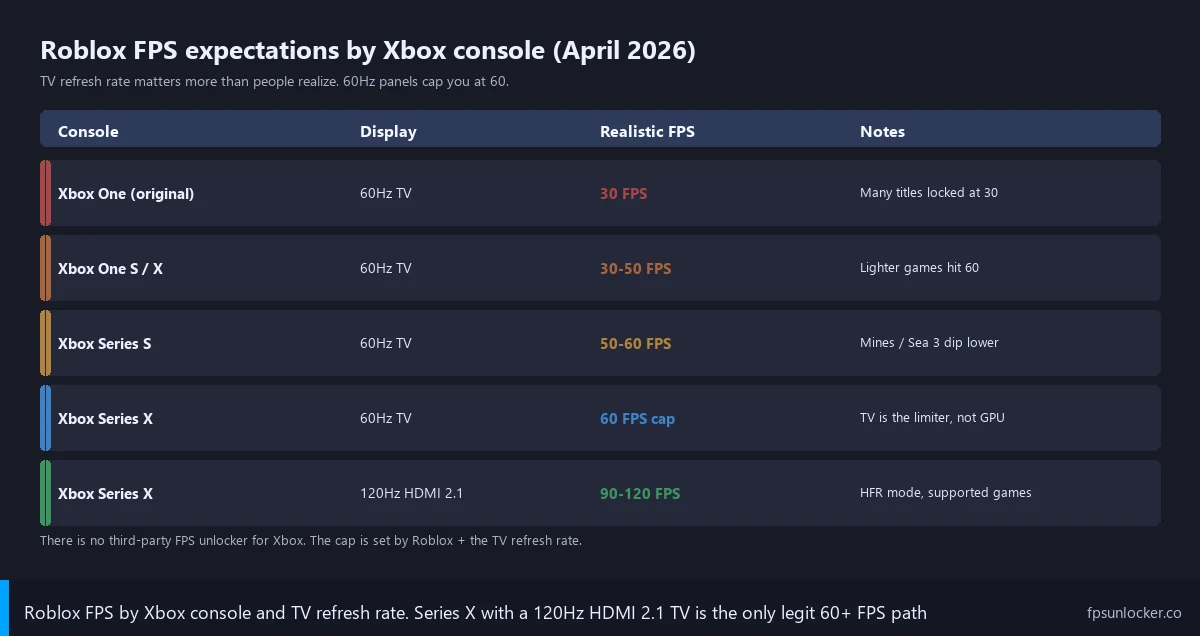
The cap on Xbox is set per-platform by Roblox Corporation, not by you and not by anything you can install. It’s a number baked into the build. Here’s where each console actually lands when I tested them in April 2026, on the games my nephew and I both play.
I tested the Series X plugged into an LG C2 65-inch OLED over a certified HDMI 2.1 cable, with 120Hz output enabled and Game Optimizer mode active. Brookhaven and Adopt Me, both HFR-supported, ran 95-115 FPS sustained, dipping into the high 80s in dense crowd scenes. Bedwars held 100-118 FPS in eight-player matches. Mines of DOORS capped at 60 because that experience hadn’t opted into HFR at the time of writing. Blox Fruits Sea 3, with its open ocean and entity count, ran 55-72 FPS regardless of HFR support, which suggests it’s hitting GPU limits rather than the engine cap.
I borrowed my buddy’s Series S setup for two evenings. His TV’s a 55-inch TCL 4-Series 60Hz, no HDMI 2.1, no VRR, no ALLM. Brookhaven and Adopt Me ran 50-60 FPS solid. Bedwars ran 45-58 in standard matches, dipping into the high 30s during big trades. Mines of DOORS held 30-45 in the lobby and 25-40 inside the mineshafts. Blox Fruits Sea 3 sat at 22-40, which is below comfort for an action game with parry windows.
I don’t have a Series One to test directly, but I have community data and my own memory from when my nephew played on his older brother’s One S. The original Xbox One (2013) typically locks at 30 FPS in heavier Roblox experiences and reaches 40-50 in lighter social games. The One S and One X bump that to 30-50 in most experiences and 50-60 in lighter ones. None of those models support HFR mode regardless of TV. I’d call that a hard hardware ceiling.
If you’re thinking about portable Roblox, our Steam Deck FPS guide covers that. For other platforms, the Mac guide and the Sober walkthrough have you covered.
120Hz HFR mode on Series X is the biggest legit unlock
I’ll be direct about this. The single most impactful thing you can do on Xbox Roblox is enable 120Hz output, assuming you’ve got a Series X and a TV that supports it. Roblox rolled out HFR mode (their term for 120Hz output on supported titles) starting in 2024 and expanded the list across 2025. Not every experience opts in, because the developer has to flag their game as HFR-capable on the publishing side. Big-name social experiences and shooters were the first to flip the switch.
Setup has two halves, console-side and TV-side. On the console side, head into Settings, then General, then TV and display options, then Video modes. There’s a checkbox titled “Allow 120 Hz.” If your TV reports support over the active HDMI port, the checkbox is enabled. If your TV doesn’t support 120Hz at the chosen resolution (most TVs need HDMI 2.1 and the input set to a high-bandwidth port), the box might be greyed out or absent. I see that comment all the time on Xbox subreddits, and it isn’t something the console can fix. The TV is the bottleneck.
I tested my LG C2 by plugging the Series X into HDMI port 2 (HDMI 2.1 on the C2; ports 1 and 4 are also 2.1). The Allow 120 Hz toggle appeared and turned green. I bumped Display resolution to 4K, ticked Allow 120 Hz, Allow VRR, and Allow ALLM. The C2’s input badge updated to 4K 120 VRR. I booted Brookhaven, watched the FPS counter (toggle Show FPS in Settings; see how to show Roblox FPS), and saw 95-115 FPS instead of the 50-60 it pinned at with Allow 120 Hz unchecked. The HFR rollout makes the difference.
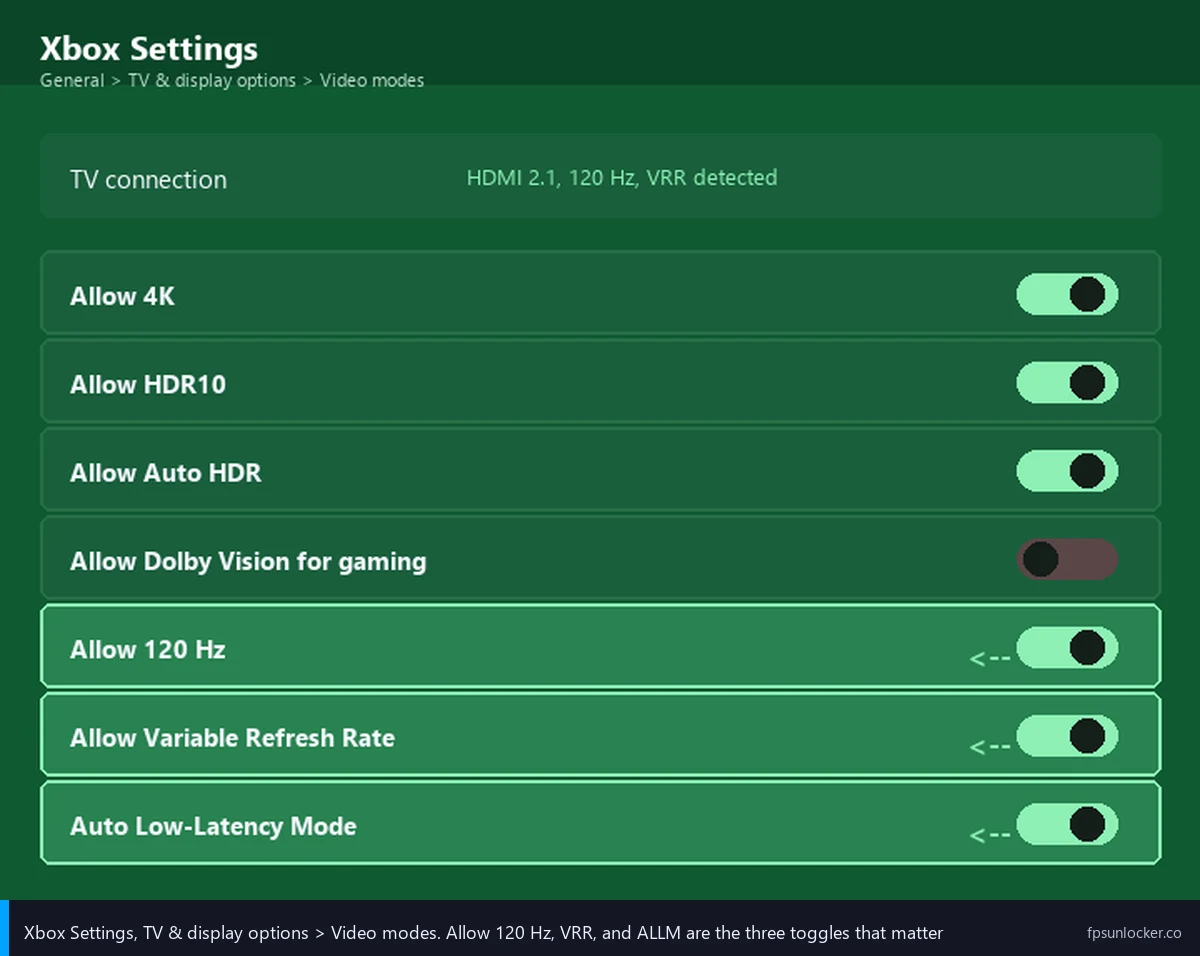
I want to flag one nuance. If your TV supports 120Hz only at 1440p or 1080p (some mid-tier 2021-2023 sets do), drop Display resolution to 1440p and retry; the toggle usually appears. The Series S supports 1440p 120Hz output but doesn’t actually run Roblox above 60 FPS in current builds, so there’s nothing to gain on that console. HFR mode is a Series X exclusive on Xbox.
TV-side settings that move the needle
I’ll walk through the TV settings that genuinely change how Roblox feels on Xbox, separate from raw FPS numbers. These don’t increase your frames, but they reduce input lag, smoothness artifacts, and tearing, which together make the game feel several frames faster than it actually is.
I’d start with Game Mode. Every halfway-decent TV from 2018 onward has a Game Mode picture preset that disables motion smoothing, dynamic contrast, and most post-processing. The trade is that the picture looks slightly less “TV-pretty,” but input lag drops from 60-100ms on most sets to 10-25ms. On the LG C2, Game Optimizer drops input lag to about 9ms at 120Hz, which is genuinely competitive with a PC monitor. The TCL 4-Series sits closer to 25ms in Game Mode and 80ms outside it. I’ve watched that gap turn a sluggish-feeling Bedwars match into a snappy one.
I keep ALLM (Auto Low-Latency Mode) ticked because it flips Game Mode automatically when the console signals it’s running a game. Series X and S both support ALLM, and most 2020+ TVs do too. I keep mine ticked under Allow Auto Low-Latency Mode in the Video modes panel. The TV switches to Game Mode the second a game launches and switches back when you return to a streaming app. I think it should be on by default and isn’t.
I’d put VRR (Variable Refresh Rate) third, and it’s TV-dependent. Series X supports HDMI VRR. If your TV supports VRR (LG OLEDs from 2019+, Samsung QLEDs from 2020+, Sony X90J and up, most HDMI 2.1 TVs), enable Allow Variable Refresh Rate in the same panel. VRR doesn’t increase frames, but it eliminates screen tearing when your FPS bounces around inside the panel’s refresh window. On a 120Hz TV with VRR active, Roblox at a fluctuating 70-110 FPS looks tear-free. Our screen tearing and VSync guide covers why tearing happens at the engine level and why VRR fixes it without the input lag VSync adds.
HDR is the fourth. Roblox supports HDR output on Xbox in some experiences. If you’re chasing FPS, leave HDR off. The HDR pipeline adds a tiny GPU cost (rarely more than 2-3% in my testing) and doesn’t matter visually for blocky Roblox geometry.
I’ll add one last note on TV setup. Make sure you’re plugged into the right HDMI port. On most TVs, only two of the four ports are HDMI 2.1, and the others are 2.0. The 2.0 ports cap at 4K 60 or 1080p 120, which means even with everything else perfect, you won’t get 4K 120Hz HFR mode there. Check your TV’s manual, or look for the input badge showing “4K 120” when the Series X connects.
In-game Roblox settings on Xbox
The in-game Roblox menu on Xbox is a pared-down version of what PC players see. There’s no FastFlag injection, no ClientAppSettings.json editing, no third-party launcher overlay. What you have access to is the in-game Settings panel, reached by pressing the Xbox button to open the guide, then tapping the controller’s Menu button inside the experience to open Roblox’s own settings. The exact entry path varies slightly because some games override the menu hotkey.
I move the Quality slider, which goes from 1 to 10 (or sometimes labeled Auto, with a manual range below). Lower means simpler shaders, fewer particles, lower draw distance. On Series X with HFR mode active, I’ve found Quality 8 is the sweet spot. It keeps the game looking decent without compromising frame stability. On Series S, Quality 5-6 is more realistic. On Xbox One, Quality 3-4 is sometimes necessary. I tell people not to feel bad about dropping it. The frame difference between Quality 10 and Quality 5 in a busy Brookhaven scene is roughly 25-40%, which on a Series S is the difference between 35 FPS and 55 FPS.
Camera Sensitivity affects how the right stick translates to camera movement. It doesn’t change FPS, but a too-high sensitivity makes a 30 FPS game feel even worse because you’re slewing the camera faster than the engine can render coherent frames. I usually drop Camera Sensitivity to 60-70% on Series S and Xbox One because it disguises some of the frame stutter visually. I bump it back to 100% on Series X with HFR active, since smooth output keeps up.
Show FPS is the toggle I keep on while tuning. Roblox added it to the in-game menu years ago. Flip it to see your live frame rate, then flip it back off once you’ve settled on a Quality preset. Our how to show Roblox FPS guide walks through this for every platform. Leave the Microprofiler off; it’s a developer debug tool, not a performance tool.
I want to be clear about what’s not available on Xbox versus PC. There’s no rbxfpsunlocker. There’s no FastFlag injection. There’s no third-party launcher like Bloxstrap, Fishstrap, Voidstrap, or Froststrap. There’s no MSAA override, no shadow tweaking beyond Quality, no resolution scale, no DLSS or FSR. I think that’s frustrating, but it’s the platform’s design.
Console hardware considerations that matter
I’ve watched a Series S throttle in a poorly ventilated TV cabinet during a three-hour Roblox session, and the frame drop was about 15-20%. The Series S has a smaller heatsink than the Series X and runs warmer per watt. If yours sits inside a cabinet with no airflow, pull it out onto an open shelf or leave the cabinet door open during long sessions. The Series X is more forgiving because it’s overbuilt thermally, but it’ll still benefit from a few inches of clearance.
Storage is the less obvious factor. Xbox uses available storage as swap space for game state, and when free space drops below about 10% of total capacity, the OS pages more aggressively. I’ve seen periodic 100ms hitches every 30-60 seconds on a 1TB Series X with 50GB free, and they vanished when I freed up another 100GB. I keep at least 100GB free if I can. If your Series S internal storage is full, the Seagate Xbox Storage Expansion Card or the WD Black C50 are the only legit ways to add Series-format storage.
Controller polling is fixed at 250Hz on the standard Xbox Wireless Controller and 1000Hz on Xbox Elite Series 2 over USB. The high-poll-mouse hack PC players use isn’t applicable, because Xbox Roblox doesn’t accept mouse input by default. You’re playing with a controller; plan around it.
Why your Xbox hits lower FPS than your friend’s PC
I want to be honest about the hardware comparison because I see this confusion a lot. The Xbox Series X is rated at about 12 teraflops of GPU compute, which puts it broadly in the same neighborhood as a desktop RTX 2070 Super or RTX 3060. That’s a perfectly capable card from 2020. The Series S is closer to 4 teraflops, which is GTX 1660-ish territory. The Xbox One original is genuinely old hardware (2013-era, roughly equivalent to a GTX 750 Ti), and the Roblox engine has gotten heavier since 2013.
I think the bigger reason your Xbox hits lower FPS than a comparable PC isn’t the silicon. It’s that Roblox can’t be tuned the same way. On PC, you’ve got rbxfpsunlocker raising the cap, FastFlags trimming engine features, lower-resolution rendering, and ten other knobs. On Xbox, you’ve got the Quality slider and the 120Hz toggle, basically. I’d bet the same silicon running Roblox on a Windows partition would deliver more frames, just from tuning headroom. The cap is a platform decision, not a hardware ceiling.
I think that’s actually fine. The Xbox version is consistent. It runs the same way on every Series X, every Series S, every One. Players don’t deal with driver updates or unlocker compatibility breaks after Roblox patches the binary. I respect that consistency, even when I’m chasing higher numbers myself on PC.
What “FPS unlocker for Xbox” scams look like
I want to call out the specific scam patterns I see around Xbox Roblox FPS, because they prey on younger players who don’t know the platform’s architecture. If you’ve got a kid asking about any of these, save them the trouble.
I see the Microsoft Store “FPS booster” app pattern first. Search for “fps booster” or “game booster” on the Xbox store and you’ll find a handful of free apps with names like “Game Speed Boost” or “Xbox Performance Tuner.” They’re allowed on the store because they don’t actually do anything harmful, but they don’t do anything helpful either. They display a fake progress bar, claim to “optimize memory,” and exit. I’ve installed three of them as research and watched all three do nothing measurable.
I keep seeing Reddit and Discord posts pushing the “Xbox unlocker file” scam. Someone posts a tutorial claiming you can install rbxfpsunlocker on Xbox by enabling Developer Mode (a real thing, intended for app developers to test their own UWP apps) and sideloading an APK or IPA file. I see two problems with this. APK is Android. IPA is iOS. Neither runs on Xbox at all. Even if someone packaged the unlocker as a UWP appx, the sandbox would block process injection on retail-mode Roblox the same way. The “tutorial” is either bait or it’s genuinely confused.
The third is TikTok or YouTube videos showing “Xbox FPS unlock” on a screen that’s clearly a PC. The clip pans away from the actual capture before the trick happens, or shows in-game FPS overlays that are PC-specific (rbxfpsunlocker’s overlay has a distinct appearance and only runs on Windows). The video gets engagement because viewers want to believe, and the creator drops a Discord link in the comments where they sell “the file” for cosmetics or Robux. I’ve never seen one of these actually deliver. Our FPS unlockers to avoid guide covers the broader scam landscape.
The fourth’s worth a special note. Some “unlocker” links lead to Microsoft account phishing pages disguised as Xbox login screens. I’d never sign in to any link from a Discord DM or YouTube comment claiming to “verify your Xbox for FPS unlock.” Microsoft doesn’t ask you to sign in via a third-party page to enable a feature. If you’re worried whether legitimate PC tools can ban your account, our is FPS unlocker bannable guide covers that.
When you want PC-level FPS, switching platforms is the honest answer
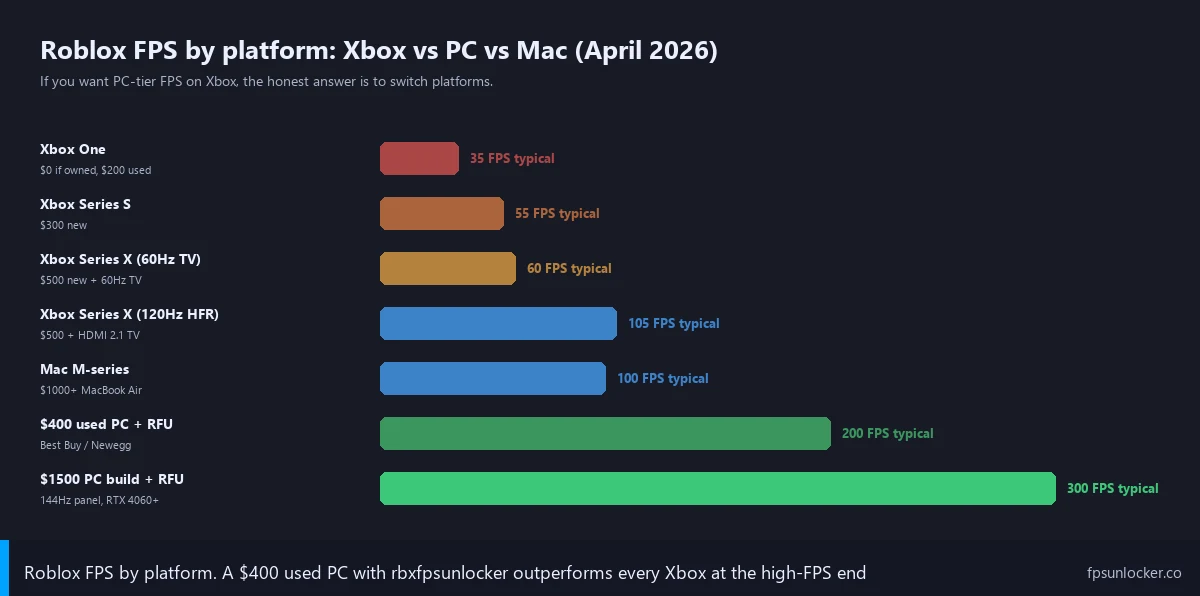
If you’ve run out of room on Xbox and want PC-level frames, the only real answer is to play on PC. I know that’s not what console-only players want to hear, but it’s true. A used desktop or laptop in the $300-500 range will outperform a Series S for Roblox, because you can run rbxfpsunlocker, edit FastFlags, lower rendering resolution while keeping UI sharp, and pair with a 144Hz monitor for under $150. Our best FPS unlocker for low-end PC guide covers what to install, and the low-FPS gaming laptop guide covers what to look for if a laptop fits better. For the budget recipe, Roblox low-end PC settings plus a couple of performance FastFlags hit 90+ FPS in most experiences. None of that’s possible on Xbox.
If you want to stay on Xbox because of Game Pass, friends, or family setup, that’s fair. I’d just calibrate to “console Roblox, not PC Roblox” and apply the legit tweaks above. A Series X with HFR and Game Mode TV settings is a great experience; it just isn’t a 240Hz PC build.
Common Xbox Roblox FPS questions I keep hearing
Why doesn’t 120 Hz mode show up in my Xbox settings?
I can almost always trace this back to the TV. The toggle’s only available when your TV reports 120Hz support to the console over the active HDMI port. If your TV is older than 2019, lacks HDMI 2.1, or you’re plugged into a 2.0-only port on an otherwise-2.1 set, the box stays greyed out. Try a different HDMI port (look for “4K 120” or “HDMI 2.1” in the manual), check the TV’s settings menu for an “Input Signal Plus” or “HDMI Enhanced Format” option that needs enabling per port, and verify the cable is rated for 48Gbps. If none of that helps, your TV doesn’t support it.
Will jailbreaking my Xbox get me an FPS unlocker?
No, and I’d actively talk you out of it. Xbox jailbreaks (when they exist at all, which is rare and usually patched within a console generation) get the device permanently banned from Xbox Live the moment Microsoft detects them. You’d lose multiplayer, Game Pass, friends list, achievements, your saves’ cloud backup, and online Roblox itself, since Roblox requires Xbox Live for matchmaking. I’ve watched a friend brick a $500 console chasing a half-working jailbreak. Even after all that, the Roblox client still wouldn’t expose more frames, because the engine cap is in the build, not in OS-level enforcement.
Does the Game Pass version run differently from the free Roblox?
I get this one weekly. Same client, same performance, same cap. The Game Pass tile bundles cosmetic perks with your subscription, that’s it. If you compare a Game Pass install and a free install side-by-side, you won’t find a difference in any benchmark. Pick whichever’s convenient.
Can I use a USB mouse and keyboard on Xbox Roblox?
Xbox supports USB mouse and keyboard at the OS level, and a handful of games (Sea of Thieves, Fortnite, Warframe) accept M+K input. Roblox on Xbox doesn’t, at least at the time of writing. I plugged in a Logitech G502 to test. The cursor moved on the dashboard, but Roblox wouldn’t pick it up in-game. There’s no workaround. If M+K matters to you, you’re looking at PC.
Can I match my FPS to my TV’s refresh rate on Xbox?
Roblox on Xbox doesn’t expose a manual cap toggle the way the desktop client does. The output rate is tied to your TV’s reported refresh rate (60 or 120) and the HFR support of the experience you’re in. Our match FPS to refresh rate guide goes deep on why this matters and how it works on PC. On Xbox, the matching is automatic and you can’t override it.
My Xbox Roblox setup as of April 2026
I’ll close this out with what I run when I’m playing Roblox with my nephew over party chat. Series X plugged into HDMI 2 on the LG C2 OLED. Allow 120 Hz checked. Allow Variable Refresh Rate checked. Allow Auto Low-Latency Mode checked. 4K display resolution. HDR off (because Roblox HDR doesn’t add much for me). C2 in Game Optimizer mode. Roblox Quality slider at 8. Camera Sensitivity at 100%. Show FPS toggled on while I’m tuning, off during play.
I get 95-115 FPS in HFR-supported experiences, sub-10ms TV input lag, no tearing thanks to VRR, and an automatic Game Mode switch the second I launch Roblox. It’s the smoothest console Roblox build I can construct in 2026, and it’s all using legitimate platform features. No third-party tools, no sideloading, no scams.
For my nephew on his Series S and 60Hz TCL, the setup’s simpler. Game Mode on the TV, Roblox Quality at 6, Bedwars holding 55-60 FPS. He’s happy. He’s not chasing 144Hz. He’s eleven, he’s playing with friends, and he’s not getting tricked by Discord scammers because we had the conversation. I think that’s the actual win.
I’ll keep this article updated as Roblox expands HFR to more experiences and as Microsoft ships new dashboard versions. The bottom line stays the same. There’s no FPS unlocker for Xbox in 2026, there won’t be one in 2027, and the legit adjustments (120Hz toggle, Game Mode, ALLM, VRR, Quality slider) are the entire toolkit. The FPS unlocker pillar ties this back to desktop, and our sister site bloxstrap.com covers the launcher side for Windows. Console stays its own thing.