I woke up on a Tuesday in April 2026, fired up Brookhaven for a quick warmup test before recording a benchmark video, and watched my framerate counter sit at 75 FPS. That’s not a typo. I usually baseline north of 200 FPS on this rig (Ryzen 5 5600, RTX 3060, Windows 11 23H2) in Brookhaven with the renderer on Vulkan and shadows on Medium. So 75 looked like somebody had clamped my GPU at half its clock speed. I assumed at first that Roblox had silently broken my FastFlag config overnight. I checked, the flags were intact. I rebooted, no change. I opened GeForce Experience and saw the version number had rolled back from 575.86 to something starting with a 5 that I didn’t recognize. Windows Update had quietly swapped my proper NVIDIA Game Ready Driver for a generic Microsoft-signed package via Optional Updates while I slept.
I reinstalled NVIDIA GRD 575.86 from nvidia.com with the “perform clean install” box ticked, and my full 200+ FPS came back inside ten minutes. The whole episode cost me half a morning, and the only reason I caught it quickly is that I’ve seen this exact pattern enough times to know where to look. This guide is about that kind of detective work. If your Roblox FPS tanked overnight, if you’re getting random black screens, if Brookhaven looks like it’s running through a kaleidoscope filter, or if Event Viewer is full of nvlddmkm or amdkmdag entries, your graphics driver is almost always the suspect, and the fix is rarely as simple as “click the update button.”
By Alex Park. Last tested April 2026 on a Ryzen 5 5600 + RTX 3060 desktop on NVIDIA GRD 575.86, an HP Pavilion (i3-1115G4 + Intel UHD) on the latest Intel DSA 31.x driver, and a friend’s Ryzen 7 5800X + RX 6700 XT rig on AMD Adrenalin 25.3.1 WHQL.
How to tell if it’s actually your driver
I keep a short symptom list in my head when triaging. FPS halved compared to last week with no settings change. Stutter that started right after a Windows Update finished. A black screen that lasts about two seconds and comes back, sometimes with a “Display driver stopped responding and has recovered” toast. Screen tearing that didn’t used to be there. Glitched textures where baseplate parts flicker or trees render with missing leaves. Any of those scream driver, not Roblox config.
I run a quick triage test before touching anything: I open a different game. If you’ve got Steam, launch CS2 or Apex on low settings for thirty seconds and watch for the same symptoms. If your other games stutter or crash too, you’ve got a driver-wide or hardware problem. If only Roblox is misbehaving, you’ve got either a renderer regression on your specific driver, or a Roblox config issue.
Event Viewer is the second triage tool. I open it via the Start menu, navigate to Windows Logs then System, and scroll for entries from the source nvlddmkm if I’m on NVIDIA, amdkmdag on AMD, or igfxn on Intel. The timestamps matter. If I see a cluster of these errors within a minute or two of when Roblox crashed or my screen went black, that’s a smoking gun for driver instability. A single entry from three weeks ago doesn’t mean much. Five entries in the last two days, all near Roblox session times, means something is wrong with your driver state right now.
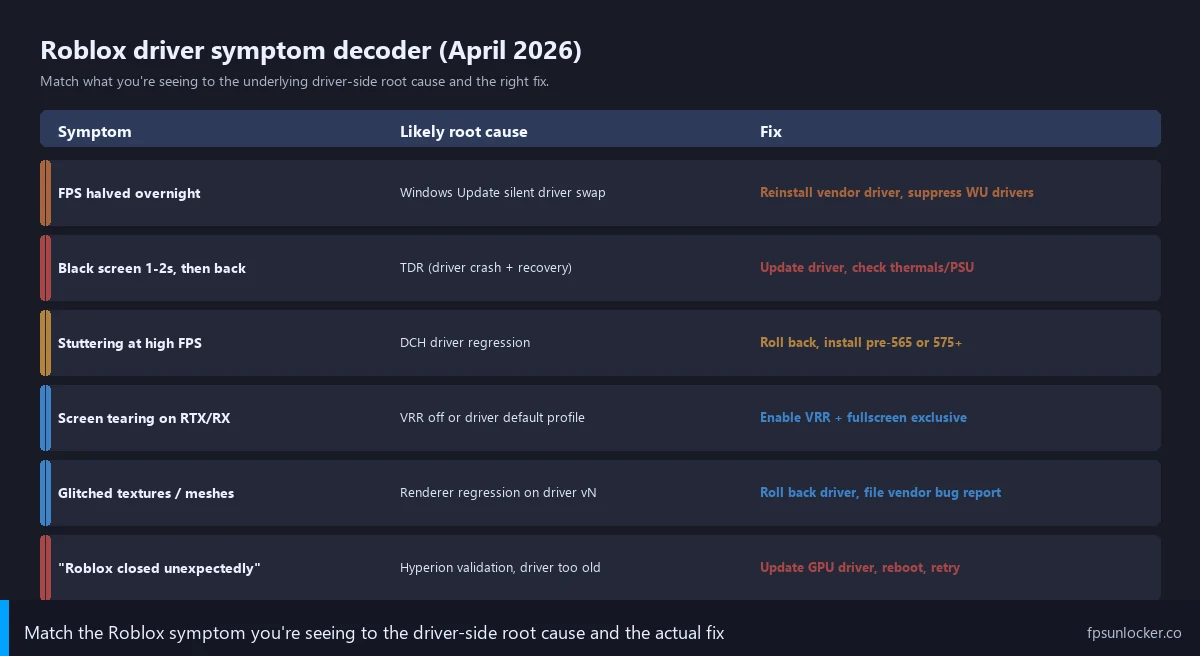
Check what driver version you’re actually running
I see a lot of people skip this step and go straight to reinstalling. I’ve watched friends spend a full evening reinstalling drivers when the version they had was already current. Here’s how I check on each platform.
On NVIDIA, I right-click the desktop, open NVIDIA Control Panel, click Help in the menu bar, and pick System Information. The window shows Driver version on the second line, formatted like 575.86. I copy that, head to nvidia.com/drivers, plug in my GPU model and Windows version, and see what NVIDIA’s serving as the latest Game Ready Driver. If the numbers match, my driver isn’t the issue. If they’re off by more than one release, that’s a candidate for what’s wrong.
On AMD, I open Adrenalin, click the gear top right, then System, and the Software & Driver Version line shows what’s installed. I cross-reference against amd.com/support and let the page show me the current WHQL and Optional versions. The friend with the 6700 XT is on 25.3.1 WHQL as of this writing.
On Intel, I open Intel Graphics Command Center (free from the Microsoft Store) and check the Software & Drivers tab. The Pavilion shows 31.0.101.5xxx where the last digits depend on which iGPU generation you’ve got. The Intel Driver & Support Assistant (Intel DSA) is what tells you whether you’re current. I install Intel DSA from intel.com/dsa, run it, and it scans your hardware and tells you if your graphics driver is behind. I’ll come back to why DSA matters so much for iGPU systems.
One catch on the version check: Windows Device Manager shows a different driver version format than what NVIDIA, AMD, and Intel use on their websites. I trust the vendor’s tool, not Device Manager’s number.
NVIDIA: Game Ready vs Studio drivers
When you download an NVIDIA driver, you’ll see two options on most modern cards: Game Ready Driver (GRD) and Studio Driver (SD). The default is GRD, and that’s what most Roblox players want. GRD ships roughly weekly around big game launches, bundling game-day fixes. Studio ships monthly, prioritizes stability for creator apps like DaVinci Resolve, Blender, and OBS, and typically lags a few weeks behind GRD on game-specific bugfixes.
I want Game Ready for Roblox. The renderer evolves quickly on Vulkan, and I’d rather have the latest game-side fixes than gain whatever stability margin Studio Drivers offer for video editing apps I’m not using. The rare exception is heavy OBS streaming, where Studio Drivers can be marginally more stable for encoding.
Telling which one you have isn’t obvious: NVIDIA Control Panel doesn’t say “Game Ready” or “Studio” anywhere visible. I just reinstall when I’m not sure. I pick GRD on the download page, run the installer, tick “Perform a clean installation,” and that wipes whatever was there.
The DCH driver migration story is worth knowing because it bit a lot of Roblox players in late 2024. NVIDIA shipped DCH-formatted drivers (the modern Microsoft-compliant package format that replaced the older “Standard” format) with a regression specifically affecting Roblox’s renderer at high FPS. I had two weeks of unexplained 1% lows on Brookhaven before NVIDIA shipped 565.x and the issue went away. The lesson is to stay within one release of the current GRD.
If you want a deeper walkthrough of NVIDIA Control Panel settings tuned for Roblox after you’ve got the driver squared away, my NVIDIA settings for Roblox guide covers shader cache size, Threaded Optimization, Power Management Mode, and Low Latency Mode in proper depth.
AMD: Adrenalin Optional vs WHQL
AMD’s split is similar in spirit to NVIDIA’s. When you open Adrenalin and check for updates, you’ll sometimes see two flavors: Recommended (WHQL) and Optional. WHQL drivers are Microsoft-certified, having passed Windows Hardware Quality Labs testing. Optional drivers ship features faster but bypass WHQL and can carry bugs WHQL drivers wouldn’t.
I recommend WHQL for most Roblox players on a 6700 XT, 7800 XT, or anything in that range. The friend with the 5800X and 6700 XT runs 25.3.1 WHQL and has had clean Roblox sessions for weeks, hitting 220+ FPS in Brookhaven with the unlocker, no stutter, no TDR crashes. The few times he’s tried Optional drivers chasing a specific game-day fix, he’s hit weird issues, including a black screen on game launch that needed a rollback.
I install via Adrenalin’s auto-detect path. Open Adrenalin, click the gear, hit System, then Drivers & Software, and Check For Updates. If a new WHQL is offered, click Express Install. If you’re switching from Optional back to WHQL, do a clean install via the Factory Reset option (hidden under Custom Install).
If the Roblox-specific symptom is high-FPS stutter rather than crashes, my Roblox stutter at high FPS guide walks through the AMD Anti-Lag, Radeon Boost, and Image Sharpening interactions that cause weird microstutter even on a clean WHQL install. The AMD Radeon settings for Roblox post covers per-app overrides in detail.
Intel iGPU: the DSA workflow
I’d hand this section to anyone running Roblox on a laptop with no discrete GPU. The integrated graphics on Intel chips, whether that’s UHD, Iris Xe, or the newer Arc-branded iGPUs on Meteor Lake, all live or die based on driver currency. Microsoft’s Windows Update ships generic Intel drivers that are routinely two or three years out of date.
I run an HP Pavilion test rig with an i3-1115G4, Intel UHD, and 8GB of RAM. When I first set it up to test Roblox on weak hardware, I fired up Brookhaven on Vulkan at 1080p with the graphics slider at 5 and saw 28 to 32 FPS. I checked the driver version: Microsoft generic Intel driver from 2023, eighteen months out of date.
I downloaded Intel DSA from intel.com, ran it, and it offered a 31.0.101.5xxx driver as the latest for that iGPU. I let it install (the installer prompts for a reboot when it’s done), restarted, and ran the same Brookhaven benchmark. New numbers: 38 to 44 FPS. Same hardware, same Roblox build, same graphics settings, just a current Intel driver instead of a Microsoft-generic one. That’s roughly 30 percent uplift on a single driver swap, and it costs nothing.
The catch with Intel DSA is that the latest driver isn’t always best for your specific iGPU generation. Intel prioritizes Arc and newer Iris Xe variants, and older UHD chips can sometimes regress on a specific release. If a DSA driver makes things worse, Intel’s support page lets you download an older version manually and install it via Device Manager.
For weak laptop performance overall, the low FPS on a gaming laptop guide covers thermal throttling, power profiles, and dGPU handover. The Roblox low-end PC settings guide covers the FastFlag and graphics-slider tuning that gets you another 5 to 10 FPS on top of a current driver.
The Windows Update trap
Back to the morning that started this article. My NVIDIA driver got swapped to a Microsoft generic one not by a normal Windows Update but by Optional Updates, which is a separate setting from the standard cumulative update flow. Optional Updates is where Microsoft offers driver updates for hardware that already has a working driver, on the premise that newer-from-Microsoft is better. For most users, it isn’t. The Microsoft-supplied generic driver almost always lags the vendor’s current driver, sometimes by years, and in NVIDIA’s case ships without the NVIDIA Control Panel.
On Windows 11 Home, I head to Settings > Windows Update > Advanced options > Optional updates and check that nothing’s queued for install. I scroll up in Advanced options and toggle off “Receive updates for other Microsoft products” if it’s on. There isn’t a clean Home-edition toggle for “never install driver updates,” but you can install Microsoft’s “Show or Hide Updates” tool, which lets you blacklist specific driver updates so Windows won’t keep offering them. I keep the NVIDIA generic driver entry on permanent block on the Home rigs in this house.
On Windows 11 Pro, the cleaner solution is Group Policy. I open Run (Win+R), type gpedit.msc, navigate to Computer Configuration > Administrative Templates > Windows Components > Windows Update > Manage updates offered from Windows Update, and enable “Do not include drivers with Windows Updates.” I reboot, and Windows stops offering driver updates entirely. The vendor tool (GeForce Experience, Adrenalin, Intel DSA) stays in charge.
One caveat: suppressing Windows Update drivers means new hardware you plug in won’t get a driver auto-installed. I’m fine with that, and it’s a small price for not having my Roblox FPS halved overnight again.
TDR errors in Event Viewer
TDR stands for Timeout Detection and Recovery. It’s a Windows feature that watches for the GPU to stop responding to display commands, and if the GPU goes more than two seconds without responding, Windows resets the driver. That’s what causes the “black screen for two seconds, then back to normal” symptom. Each TDR trigger logs an Event Viewer entry under Windows Logs > System with the source name nvlddmkm, amdkmdag, or igfxn.
I open Event Viewer and use Filter Current Log on the right rail. I set the source filter to one of the three driver names and the event level to Error. That cuts the log down to driver crashes only. If I see a tight cluster (five or more in 48 hours) and the timestamps line up with Roblox sessions, I’ve got driver instability. If I see one TDR a month spread out at random times, that’s noise and I ignore it.
I sort TDR causes into a few buckets. Pure driver instability where the current version has a bug specifically affecting your card. Thermal, where the GPU hits its temp limit and throttles so hard it stops responding for >2 seconds. Power, where a flaky PSU is browning out the GPU during a load spike. And memory pressure, where a 6GB card running at 1440p with high textures has VRAM full enough that allocation hangs occasionally.
I flag PSU and thermal because they masquerade as driver problems. If your card is two years old and you’ve never opened it, dust buildup can drop thermal headroom 10 to 15 degrees, enough to push a marginal load over the TDR threshold. If updating drivers and DDU don’t fix repeating TDRs, I check GPU temps in HWiNFO64 during a Roblox session, then consider whether the PSU is old or undersized.
When to use DDU (Display Driver Uninstaller)
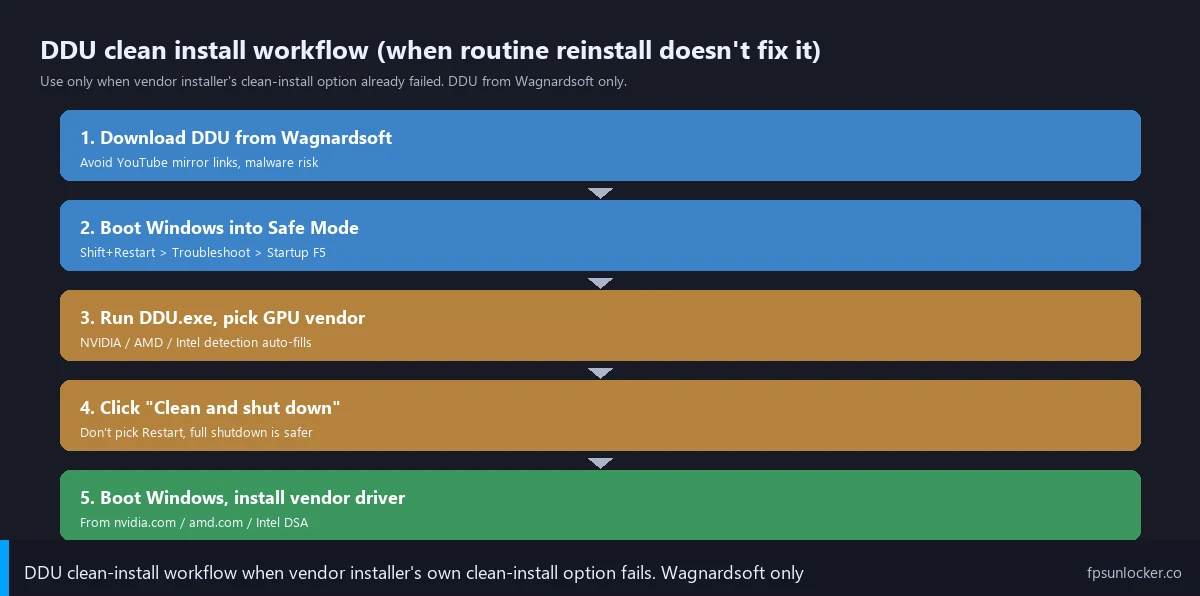
DDU has a reputation for being the magic fix-all. It isn’t, and using it for routine driver updates is overkill that can cause more problems than it solves. Here’s when DDU is justified, and when it’s overkill.
Justified: switching brands, like going from an NVIDIA card to an AMD card. The leftover NVIDIA driver state can interfere with the new AMD install. Justified: persistent issues after multiple normal reinstalls with the vendor’s clean-install option ticked. Justified: a regression rollback that didn’t take cleanly.
Overkill: a normal driver update from one stable version to the next. I just run the vendor installer with the clean-install option. Overkill: a brand-new install of Windows where there’s no previous driver to leave residue. Overkill: trying DDU as a first step before checking what’s actually wrong.
The DDU workflow, when it’s the right tool, looks like this. I download DDU from wagnardsoft.com, never from a random YouTube link. I extract it to a folder on my desktop. I boot into Safe Mode by holding Shift while clicking Restart, then Troubleshoot > Advanced Options > Startup Settings > Restart, and press F5 for Safe Mode with Networking. I run DDU.exe in Safe Mode, pick GPU and the correct vendor, then click “Clean and shutdown.”
I boot back into normal Windows, open the vendor installer, and let it install fresh on a system with zero leftover driver state. I reboot once more, open the vendor’s tool to verify the version, and check Device Manager > Display Adapters to confirm.
Hyperion and drivers, briefly but important
Hyperion is Roblox’s anti-cheat layer, and one thing it does on launch is query GPU device info to validate the system isn’t being spoofed. On really old drivers (NVIDIA 4xx series from 2022, AMD Adrenalin pre-22.x), Hyperion’s queries can fail and Roblox refuses to launch. The visible symptom is the Hyperion splash appearing for a second or two, followed by Roblox closing without an error, or with a generic “Roblox closed unexpectedly” toast.
I haven’t seen this issue on a driver newer than two years old, so the threshold is forgiving. If you haven’t touched your driver since 2021, do the vendor-installer update before you spend hours on FastFlag debugging. The Hyperion FastFlag status guide covers what Hyperion does and doesn’t tolerate. If crashes happen on launch specifically, my FPS unlocker crash on launch guide covers the unlocker and Hyperion angles.
Roblox-specific driver questions I get a lot
Why does my FPS tank only in Roblox after a driver update?
I see this when there’s a renderer regression on a specific driver version. Roblox’s renderer (especially Vulkan) interacts with vendor drivers in ways that are sometimes broken by a driver update, even when other games are fine. The DCH story earlier was exactly this. The fix is rolling back via Device Manager, or waiting for the next driver release with a Roblox-side fix. Vendors usually catch these inside two release cycles.
What if rolling back the driver fixes it?
If a rollback fixes the issue, you’ve confirmed it’s a driver regression. I stay on the rollback until the next release. I file a bug report with the vendor (NVIDIA’s developer support form, or AMD’s bug report form) describing the symptom and the affected version. I check vendor release notes for new drivers before installing anything, looking for any mention of Roblox or Vulkan fixes.
Does my GPU need to be overclocked for higher Roblox FPS?
No, and this is one of the most persistent myths. Roblox is rarely GPU-limited on any modern card. I see GPU usage on the 3060 hover at 30 to 50 percent in Brookhaven at 200+ FPS. The bottleneck is CPU and memory speed. GPU overclocking buys you almost nothing on Roblox. The wins come from a clean driver install, the right FastFlag set (see the performance FastFlags list), and Windows-side tweaks. The low FPS on gaming laptop guide covers the CPU side in detail.
Should I install both NVIDIA and AMD drivers if my laptop has iGPU plus dGPU?
Yes, both. Windows manages handover automatically, and you want both drivers current. The catch is making sure Roblox uses the dGPU. On Windows 11, I open Settings > System > Display > Graphics, scroll to find RobloxPlayerBeta.exe (or add it manually), click Options, pick High performance, and save. That tells Windows to route Roblox to the dGPU regardless of the laptop’s default power profile. If you’re using Bloxstrap, you may need to add the bootstrapper executable too. My sister site bloxstrap.com has the Bloxstrap-specific path.
What about screen tearing right after a driver update?
I see screen tearing after a driver update when the new driver reset your VSync or G-Sync settings. The “perform clean install” option wipes per-app overrides, which can include the VSync setting you’d applied to Roblox. The fix is reapplying VSync in NVIDIA Control Panel or AMD Adrenalin’s per-app section. The Roblox screen tearing and VSync guide walks through the full setup.
Does the Roblox FPS unlocker care which driver I use?
The unlocker itself doesn’t, but the FPS ceiling you hit absolutely depends on driver state. A clean install of the current GRD or Adrenalin WHQL is the difference between hitting your CPU-bound ceiling and being randomly throttled to half by driver-side issues. The Roblox FPS unlocker pillar and the rbxfpsunlocker guide cover the unlocker side. If your FPS isn’t saving across sessions even on a clean driver, the Roblox FPS not saving guide covers that. And for input-feel issues that look like driver problems, the Roblox input lag fix guide covers the non-driver causes.
The driver diagnostic order I run, April 2026
I run this sequence every time something looks like a driver issue. It’s saved me hours over the last year, and it’s the same order I gave the friend with the 6700 XT when his Roblox started stuttering after a Windows reinstall.
Step one: I verify current driver version via the vendor’s tool (NVIDIA Control Panel > System Information, Adrenalin > System, Intel Graphics Command Center > Software & Drivers). I cross-check against the latest version on the vendor’s website. If the numbers match, I skip to step five. If they’re different, I go to step two.
Step two: I download the current driver from the vendor’s site. NVIDIA uses nvidia.com/drivers, AMD uses amd.com/support, Intel uses Intel DSA. I avoid Windows Update for driver installs. I run the vendor installer with the clean-install option ticked.
Step three: I reboot the machine, even if the installer doesn’t force it. A reboot ensures all driver components load fresh.
Step four: I launch Roblox and reproduce the original test. If the issue’s gone, we’re done. If it’s still there, I go to step five.
Step five: I open Event Viewer and check Windows Logs > System for nvlddmkm, amdkmdag, or igfxn errors in the last 24 hours. A cluster near Roblox sessions means driver instability. If clean, I look at FastFlags or Roblox config instead.
Step six: I try a driver rollback via Device Manager > Display Adapters > Properties > Driver > Roll Back Driver. If rollback fixes it, you’ve found a regression and you stay on it.
Step seven: DDU plus clean install of the vendor’s current driver. This is the last resort, and it usually fixes anything that survived the first six steps. If even DDU doesn’t help, the issue isn’t driver-side, and I’d look at thermals, PSU, or hardware fault.
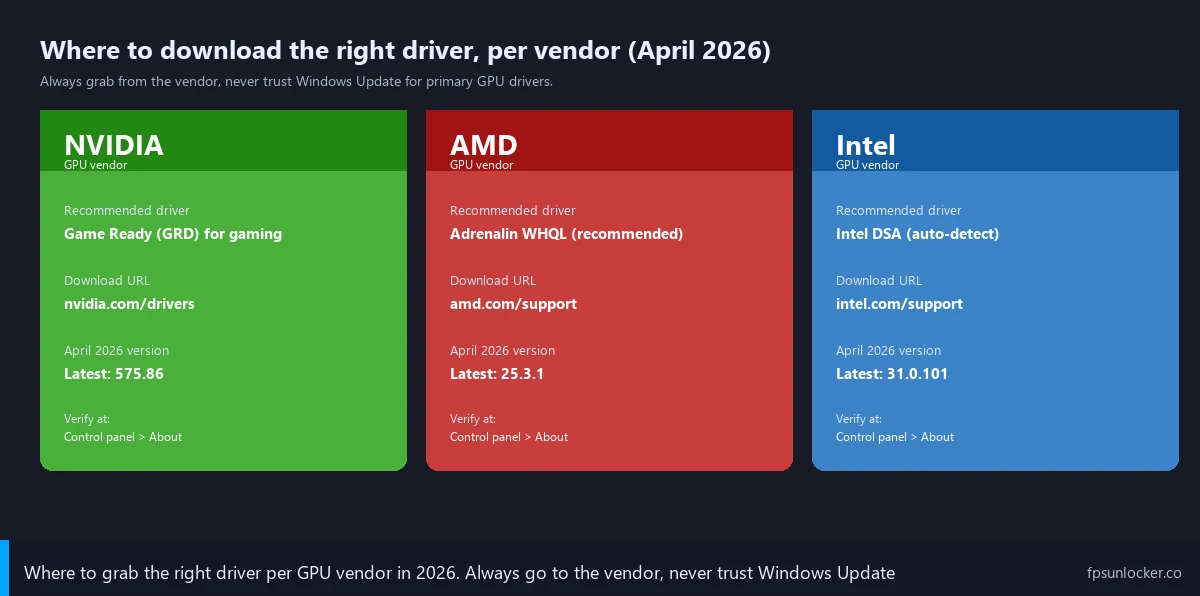
My driver setup across three rigs, April 2026
I’ll close out with exactly what I’m running across the three rigs I test on, so you’ve got concrete reference points for what a clean working setup looks like.
Main desktop: Ryzen 5 5600 with an RTX 3060 12GB, Windows 11 23H2. NVIDIA Game Ready Driver 575.86, installed clean from nvidia.com about three weeks ago after the Windows Update incident. Optional driver updates suppressed via gpedit.msc. Brookhaven hits 200 to 220 FPS on Vulkan at 1080p with shadows on Medium and the unlocker capping at 240 to match my monitor refresh. No TDR entries since the install.
Pavilion test laptop: i3-1115G4 with Intel UHD on the integrated graphics, 8GB RAM, Windows 11 23H2 Home. Intel DSA latest in the 31.0.101.5xxx line, installed via DSA after I noticed Windows Update had given it a generic 2023 driver. Brookhaven runs 38 to 44 FPS on D3D11 (Vulkan is rougher on this iGPU) at 1080p with the graphics slider at 4 and shadows off. Optional driver updates suppressed via Microsoft’s Show or Hide Updates tool.
Friend’s gaming desktop: Ryzen 7 5800X with an RX 6700 XT 12GB, Windows 11 23H2 Pro. AMD Adrenalin 25.3.1 WHQL, installed via Express Install after a clean Factory Reset. Optional Adrenalin drivers disabled in auto-update settings. Brookhaven 220 to 250 FPS on Vulkan at 1440p with medium settings and unlocker capped at 165. Zero TDR errors since the install three weeks ago. The pre-25.3 install was crashing Roblox on launch every couple of sessions, and the WHQL Factory Reset fixed it cleanly.
If your driver state is somewhere in the chaos this article opens with, working through the seven-step order and ending up at one of these clean configurations is the goal. I budget about 20 to 30 minutes for a normal driver fix, including the reboot. DDU plus clean install pushes that to 45 minutes. Either way, it’s a one-time fix that pays off in stable Roblox sessions for months. I haven’t touched the driver on the main rig since the April 2026 install, and the friend’s 6700 XT has been clean for the same span. For the bigger picture on Roblox performance tuning beyond drivers, the Roblox FPS unlocker pillar ties together driver work, FastFlag tuning, and unlocker setup.