Last Tuesday, a friend messaged me a screenshot of his rbxfpsunlocker tray menu and asked why his options topped out at 240 when his new monitor ran at 360Hz. Fair question. I’ve been using rbxfpsunlocker since before Roblox added the native Max Frame Rate slider, and the custom cap workflow is one of the reasons some of us still prefer it. The tray menu gives you presets, but the config file lets you set any value you want, and picking the right one matters more than people realize.
I’m Alex Park. I test Roblox performance on a Ryzen 5 5600 / RTX 3060 / 1440p 144Hz desktop and an i5-1240P Iris Xe laptop. I’ve written about rbxfpsunlocker more times than I can count. This piece is specifically about the custom cap feature, when to use it, and what number actually makes sense for your hardware. April 2026.
What the Tray Menu Gives You
Right-click the rbxfpsunlocker icon in your system tray. You’ll see a menu with an “FPS Cap” section that shows preset values: 30, 60, 75, 100, 120, 144, 165, 200, 240, and Unlimited. Those are the common monitor refresh rates plus a couple of intermediate values. The current selection is marked with a dot.
The default is Unlimited. That’s what most guides recommend for testing, and it’s the setting I use when I’m benchmarking. For day-to-day play, Unlimited is rarely the right answer, which we’ll get into in a moment. The preset list covers almost every monitor you’re likely to own. If your monitor is 360Hz, 480Hz, or some oddly specific refresh rate that isn’t in the list, you need the config file approach, which I’ll cover below.
The menu also has a VSync toggle and a checkbox for “Check for Updates on Startup.” The VSync toggle is important and frequently misunderstood. I’ll cover it separately below because it interacts with your cap choice in a way worth understanding.
[IMAGE: rbxfpsunlocker tray menu expanded, showing the FPS Cap submenu with 144 highlighted]
Why “Match Monitor Refresh Rate” Is the Smart Default
Here’s the thing people miss when they first get into FPS unlocking: your monitor can only display frames at its refresh rate. If you run a 144Hz monitor and uncap Roblox to 400 fps, the monitor still only shows you 144 distinct images per second. The other 256 frames the GPU rendered are thrown away. That’s wasted GPU work, wasted electricity, and wasted heat.
On my 144Hz monitor, I cap Roblox at 144. On a 240Hz monitor I reviewed for a friend, I’d cap at 240. The rule is simple: match the cap to your refresh rate. This gives you the smoothest possible experience for what your display can actually show, keeps GPU load reasonable, and avoids the screen-tearing issues that come with unsynced rendering.
There’s one exception: competitive players sometimes want fps higher than their refresh rate for input latency reasons. With an uncapped framerate, the frame Roblox is rendering when you click is fresher than it’d be with a capped framerate, because the render loop isn’t waiting for vsync intervals. For Phantom Forces, Arsenal, or anything competitive where reaction time matters, there’s an argument for running uncapped on hardware that can sustain it. For everything else, match your refresh.
If you’re a newcomer who hasn’t used rbxfpsunlocker before, our rbxfpsunlocker guide walks through the install and first-launch experience in detail. This article assumes you already have it running.
How to Pick the Right Number
I’ll walk through the common scenarios.
If you have a 60Hz monitor: cap at 60. Don’t be tempted to go higher. You won’t see it. A 60Hz cap with VSync off gives you the cleanest experience on a 60Hz panel. If you’re noticing tearing, turn VSync on, which I cover below.
If you have a 144Hz or 165Hz monitor: cap at your refresh rate. The 144/165 presets exist for a reason. This is the sweet spot for most of us because 144Hz panels are cheap now and Roblox has no problem hitting 144 on mid-range hardware.
If you have a 240Hz monitor: cap at 240 if your hardware can hit it, or drop to 200 or 165 if it can’t. There’s no point in capping at a number your hardware will miss consistently, because missed caps cause frame-time variance, which feels worse than a steady lower framerate. I’d rather have a rock-steady 144 than a variable 200-to-240.
If you have a 360Hz+ monitor: custom cap time. More on that in the next section.
If you’re on a laptop on battery: consider capping lower than your refresh rate. My laptop has a 60Hz panel and I still cap at 40 on battery, because that extends my session and Roblox runs cooler. On mains, I cap at 60. Different scenarios call for different caps, and rbxfpsunlocker changes instantly from the tray.
Does Unlimited ever make sense?
Unlimited makes sense in a few specific cases. I use it when I’m benchmarking hardware, because I want to see what the system can actually push. I use it briefly when I’m tuning Roblox’s graphics quality slider, because uncapped fps gives me the clearest signal that “quality 8 costs X frames versus quality 7.” And I use it if I’m on a variable-refresh-rate monitor (G-Sync or FreeSync) where the monitor actually does refresh at whatever rate the GPU is delivering, up to the panel’s max. In that VRR case, you’d still want a soft cap just below the panel’s max to keep it inside the VRR window, which I’ve covered in our screen tearing VSync explainer.
For most people most of the time, Unlimited is not what you want. It sounds good because “unlimited = more,” but in practice it wastes resources without benefit.
The VSync Toggle
VSync (vertical sync) tells the GPU to wait for the monitor’s refresh cycle before delivering a new frame. It eliminates screen tearing but adds input latency because frames sit in a queue waiting for the refresh interval. rbxfpsunlocker has its own VSync toggle that operates at the Roblox level, and this is separate from any VSync setting in your GPU driver panel.
I leave VSync off in rbxfpsunlocker for competitive play and on for casual roleplay games where the latency doesn’t matter and tearing is annoying. If you have a G-Sync or FreeSync monitor, leave VSync off in rbxfpsunlocker and let the VRR handle sync at the hardware level. Running VSync on top of VRR adds latency without benefit.
If you’re still seeing a 60 fps cap even with rbxfpsunlocker set higher, VSync is often the culprit at the driver level. Our still capped at 60 fps guide covers all the common causes. In-game quality settings can also contribute, but driver-level VSync is the most common one by a wide margin.
Setting a Custom Value via the Config File
This is what my friend with the 360Hz monitor needed. The tray menu has presets, but the underlying config file accepts any integer. You can set 360, 480, 1000, or 37 if that’s somehow what you need.
First, close rbxfpsunlocker completely. Right-click the tray icon and pick Exit. If you don’t close it, your edits will be overwritten when the tool saves its state on shutdown.
Then navigate to the folder where rbxfpsunlocker lives. It’s wherever you extracted it. Inside that folder, you’ll find a settings file (the exact name varies by version, but it’s plain text). Open it in Notepad or any text editor.
Look for the FPSCapValues or FPSCap line (naming varies by version). You’ll see the current cap as a number. Change it to whatever you want. Save and close. Re-launch rbxfpsunlocker, and the tray menu will show your custom value in the list.
That’s the entire custom cap workflow. It’s not glamorous, but it’s reliable.
What happens if I pick a cap higher than my hardware can deliver?
Nothing bad, but also nothing useful. If you cap at 240 and your hardware can only push 160 in Brookhaven, you’ll get 160 most of the time and the cap will do nothing. This is fine; it’s not an error state. But it’s also why I recommend matching the cap to what your hardware actually delivers rather than what your monitor could theoretically show. If you’re consistently missing your cap, drop it to a number you can consistently hit. Consistency matters more than peak numbers for how the game feels.
My 3060 hits 144 in most Roblox experiences at 1440p with medium quality, but Phantom Forces on busy maps can dip into the 110-120 range. On those maps, I’d rather cap at 120 and get a consistent experience than cap at 144 and get variance. Frame-time variance is what makes a game feel “laggy” even when the average is high.
Tray Menu vs Config File: When to Use Each
The tray menu is for quick changes. I use it when I’m switching between battery and mains on the laptop, or when I’m testing different caps for an article. It’s the right tool for experimentation.
The config file is for set-and-forget values. Once you know your ideal cap, edit the config so it’s the permanent default on startup. You won’t have to touch the tray menu again unless something changes.
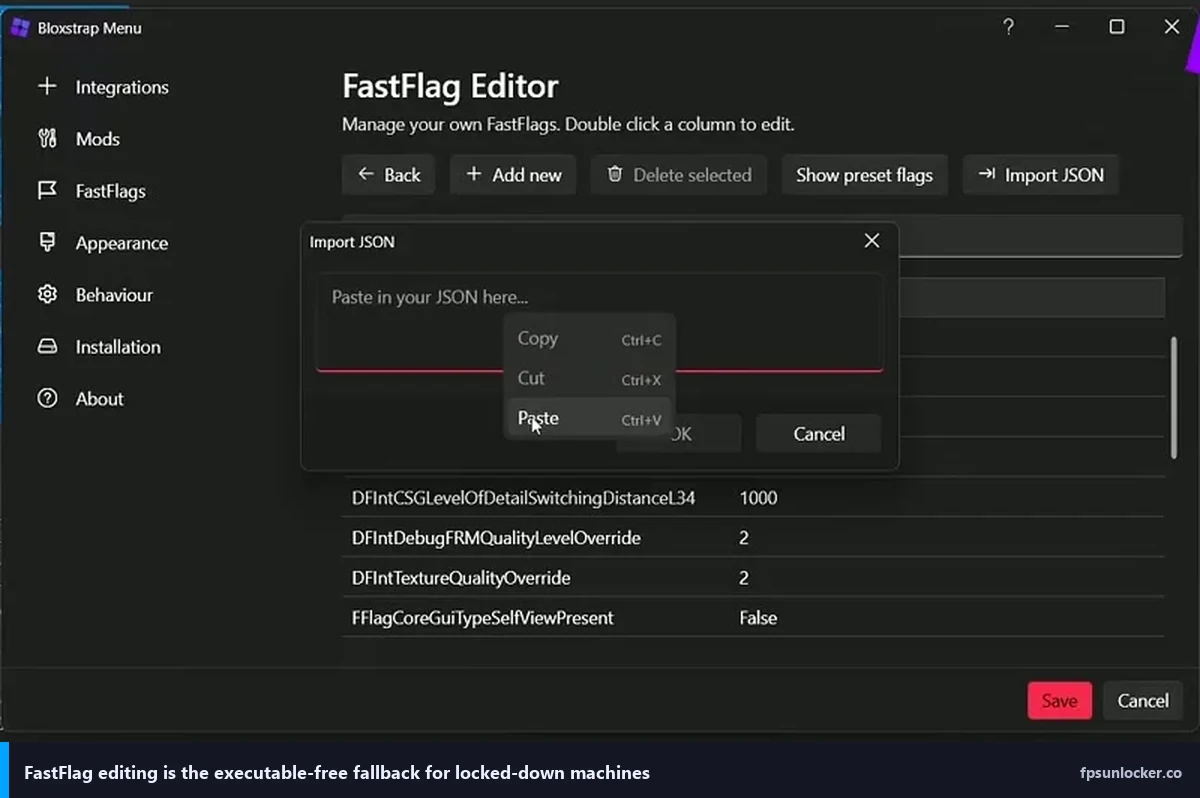
I’d also mention that if you’re coming from a launcher-based workflow like Bloxstrap, the equivalent of rbxfpsunlocker’s cap is the Max Frame Rate FastFlag, which you can set in the launcher UI. Our rbxfpsunlocker vs Bloxstrap comparison covers the tradeoffs. Both approaches are valid; it’s a workflow preference.
What About the Native Roblox Slider?
Since Roblox added the Max Frame Rate slider in 2025, you can technically cap your framerate without rbxfpsunlocker at all. The native slider goes up to 240 in the standard UI. For a lot of players, that’s enough, and they don’t need a third-party tool.
rbxfpsunlocker is still useful for a few reasons. The tray workflow is faster than opening Roblox’s settings menu. Custom values beyond 240 aren’t exposed in the native slider but are possible through rbxfpsunlocker’s config. And rbxfpsunlocker has been around long enough that its behavior is well-understood, which some people value.
For anyone worried about the safety question, I’ve covered it at length in is FPS unlocker bannable. Short version: rbxfpsunlocker has been in consistent use since 2017 without causing bans in any pattern I’ve seen.
My Actual Setup
On the desktop: 144 cap, VSync off (I use G-Sync instead), rbxfpsunlocker startup with Windows. On the laptop: 60 on mains, 40 on battery, VSync off, changed manually from the tray when I plug or unplug. That’s it. No complicated config, no custom values, just matching the cap to the monitor and letting the tool do its job.
If you take one thing away from this article, let it be: match your cap to your refresh rate, leave VSync off unless you see tearing, and don’t default to Unlimited. That covers almost everyone.
Alex Park has been testing Roblox performance tools since 2022. Hardware: Ryzen 5 5600, RTX 3060, 1440p 144Hz, plus an i5-1240P Iris Xe laptop. Last updated April 2026.