I was deep into a FastFlag benchmarking session last Tuesday afternoon, swapping FFlagDebugGraphicsPreferD3D11 values and watching the Performance Stats overlay tick frame numbers in the top-left corner of Roblox. Standard stuff. I Alt-Tabbed for maybe ten seconds to answer a Discord ping, came back to the game, hit Shift+F5 to compare numbers, and got nothing. I pressed it again. Nothing. I pressed it five more times. Still nothing. Empty top-left corner.
I’ll admit I lost about fifteen minutes thinking I’d somehow corrupted my Roblox install with the FastFlag overrides. I checked my ClientAppSettings.json for typos, restarted the launcher, even reinstalled Roblox once before I figured out what had actually happened. Discord’s overlay was holding focus inside the Roblox window after my Alt-Tab, and my Shift+F5 keystroke was being eaten before it ever reached Roblox. I clicked once into the actual game viewport, hit Shift+F5, and the overlay popped up instantly. Whole problem, solved by a mouse click.
If you landed here because your Roblox FPS counter stopped showing up, you’re in roughly the same boat I was. Maybe Shift+F5 used to work and now doesn’t. Maybe it never worked since you got a new laptop. Maybe you set up RTSS or NVIDIA App’s overlay last month and Roblox refuses to render it anymore. I’ve hit every one of those scenarios on my Ryzen 5 5600 plus RTX 3060 desktop and on a friend’s i5-7200U Dell with HD 620 graphics (yes, HD 620, the 7th gen Kaby Lake one, not the later UHD), and the fix is almost never anything dramatic. I’ll walk through the actual checks I run, in the order I run them, with the dated April 2026 context that matters because Roblox changed its Settings UI twice in the last eighteen months.
The Two FPS Counters You Might Be Looking For
Before we troubleshoot anything, let’s settle which counter you’re actually missing because the fixes are completely different paths. Roblox has two parallel ways to see frame rate, and they fail for unrelated reasons.
I treat the built-in Performance Stats overlay as the default option, since it’s the one Shift+F5 toggles. Roblox draws it directly into the game window using its own rendering pipeline, so anti-cheat doesn’t care about it and no external app is involved. I find it works on every supported Roblox platform with a keyboard and requires zero setup. I’ve put a full walkthrough of enabling it on the how to show Roblox FPS guide if you’ve never used it before.
The second route is a third-party overlay: NVIDIA App’s performance HUD, AMD Adrenalin’s in-game metrics, MSI Afterburner with RivaTuner Statistics Server, Xbox Game Bar, PresentMon, CapFrameX. I’ve covered which third-party overlays still work in 2026 at Roblox FPS counter overlay. They’re more flexible (CPU usage, GPU temps, frame time graphs), but they have to either inject a hook into the Roblox process or capture frames at the OS level, and Roblox’s Hyperion anti-cheat blocks the injection-style ones outright.
If you’re not sure which one you’re trying to use, here’s the quickest test I know. I’d open any Roblox experience, wait for the world to load, and press Shift+F5. If a small block of gray text shows up in the upper-left of the window, that’s the built-in counter and it’s working. If nothing shows up, you’ve got a built-in counter problem. If you’ve been trying to get NVIDIA App’s overlay or RTSS to draw on top of Roblox and that’s failing, you’ve got a third-party overlay problem. Both branches are covered below.
First, Verify the Built-In Counter Is Even Enabled
I’m starting here because I’ve been bitten by this twice now and it’s the dumbest possible cause. I’ll explain. The Performance Stats overlay can be toggled on or off from inside the Roblox in-game settings menu, and if someone (or a game’s UI) flipped that toggle off, Shift+F5 has nothing to enable.
Here’s how I check. I press Esc inside any Roblox experience to bring up the system menu, then I open the Settings tab (the gear-icon panel). I scroll the right-hand pane all the way down. Somewhere near the bottom, depending on which UI revision is currently live, there’s an option labeled “Performance Stats” or sometimes just “Show Performance Stats.” Roblox rebuilt the in-game menu in late 2024 and tweaked it again in mid-2025, so the exact position has moved. I usually have to scroll past Camera Mode, Movement Mode, Volume, and a few graphics sliders before I see it. The toggle should read On.
If it’s already on and Shift+F5 still does nothing, that’s actually useful information. It means the overlay is enabled but not rendering, which points to a focus issue, a UI overlap issue, or a stuck client state, not a settings issue. I’ll cover those next. If the toggle was off and you flip it on, the overlay should appear immediately without needing Shift+F5 at all. Shift+F5 from that state will then start cycling through the stat pages instead of toggling the overlay off entirely.
One thing that catches people: the first Shift+F5 press doesn’t toggle off, it advances to the next page. I’ll come back to this in the common mistakes section near the end, since it trips up readers who think the keystroke isn’t working when really it’s just cycling.
The Fn Key Trap on Laptops
If you’re playing Roblox on a laptop and Shift+F5 has never worked for you, this is almost certainly your problem. I see it constantly with friends who switched from desktops to laptops and assumed F5 was still F5.
Modern laptops sell a function row that doubles as media and system controls. F5 is often bound by default to a refresh icon, a brightness control, a microphone mute, or some other system function depending on the brand. The actual F5 keystroke only fires when you also hold the Fn key. Some laptops ship with Fn-lock active, which inverts the behavior so F5 is F5 by default. Whether your specific model defaults one way or the other depends on the manufacturer and the BIOS state.
I run the five-second test: hold Fn, hold Shift, and tap F5. If the overlay appears, your laptop has Fn-locked function keys and Roblox needs the Fn modifier to receive a real F5. From there you’ve got two choices: keep using Fn+Shift+F5 every session, or flip the BIOS setting permanently so F5 is always F5.
I’ve helped people through the BIOS toggle on three brands recently. On HP ProBooks and Pavilions, hit F10 at boot and look under System Configuration for “Action Keys Mode,” then disable it. On Dell Latitudes and XPS models, F2 at boot, under POST Behavior, “Fn Lock Options,” set it to standard function key behavior. On Lenovo ThinkPads and IdeaPads, F1 at boot, under Config or Keyboard, find “F1-F12 as Primary Function” and enable it (some Lenovos also let you toggle this with Fn+Esc as a runtime shortcut). ASUS and Acer have similar settings, usually under “Function Key Behavior” or “Hotkey Mode.”
I tried this on the i5-7200U Dell I mentioned earlier. The BIOS toggle was buried under POST Behavior, exactly as expected. After flipping it, F5 in any application sends F5 directly without the Fn modifier, and Shift+F5 in Roblox now works on the first press. Worth doing once if you use the function row for anything keyboard-shortcut-driven.
Stuck Overlay State After Alt-Tab or Sleep
I hit this bug at the start of this article. The Roblox client has had a long-running issue where input focus and overlay state can desync after the window loses and regains focus, particularly when something else has painted on top of it (Discord’s overlay, Steam’s overlay, NVIDIA App, Xbox Game Bar) or after a sleep-resume cycle on a laptop.
When this happens, your keystrokes are still going somewhere, just not to Roblox. I’ve found Discord’s overlay is the worst offender, since it can hold input focus invisibly inside the Roblox window if you Alt-Tabbed while the overlay was active. Roblox thinks it’s the foreground process, the OS thinks Discord is, and Shift+F5 disappears into the void.
I have a fixed three-step routine for this now. First, I click once with the mouse anywhere inside the Roblox game viewport. That single click usually returns full input focus to Roblox. Then I press Shift+F5. If the overlay shows up, you’re done, the focus was the only issue. If it still doesn’t show up, I fully restart the Roblox client. I close the window completely (not just minimize, fully exit the experience and the launcher), reopen, rejoin the experience, try Shift+F5 again. The restart resets whatever stale state the client was holding, and in my experience this fixes it about ninety percent of the time.
For the record, the Roblox DevForum has a documented thread (search the developer-discussion archives for the Performance Stats regression around mid-2025) where the overlay failed to render under specific window scaling conditions on high-DPI Windows machines. I saw that bug get fixed in a 2025 client update, but the general focus-loss pattern is something I’ve seen as recently as last week. I treat the restart as the universal solvent for any “Shift+F5 used to work” complaint. If a restart doesn’t fix it and you’ve already verified the toggle is on, move down to hotkey conflicts.
Third-Party Overlay Apps Are Eating Your Shift+F5
I hit this one second-most-often in real troubleshooting. Background apps with global hotkeys can intercept keystrokes before they reach the foreground game, and Shift+F5 is a popular binding for things like screenshot tools, macro recorders, and overlay toggles.
I keep a mental list of the usual suspects on a Windows machine in 2026: Razer Cortex (FPS overlay toggle near function-row), Discord (push-to-talk and overlay-mute hotkeys are user-configurable), OBS Studio (Start Recording often bound to a function key with modifiers), MSI Afterburner with RTSS (OSD-toggle hotkey defaults to function-row keys), ShareX (capture hotkeys cover most F-keys with modifier combos), Logitech G Hub (custom macros on G-keys can re-emit any key combo system-wide), Corsair iCUE (similar to G Hub), Steam (custom controller layers can bind anything), and NVIDIA App (Instant Replay and overlay-toggle hotkeys are configurable). I’d be surprised if any defaulted to Shift+F5 specifically, but I’ve found at least three machines where someone had reconfigured one to a near-conflicting binding and forgotten about it.
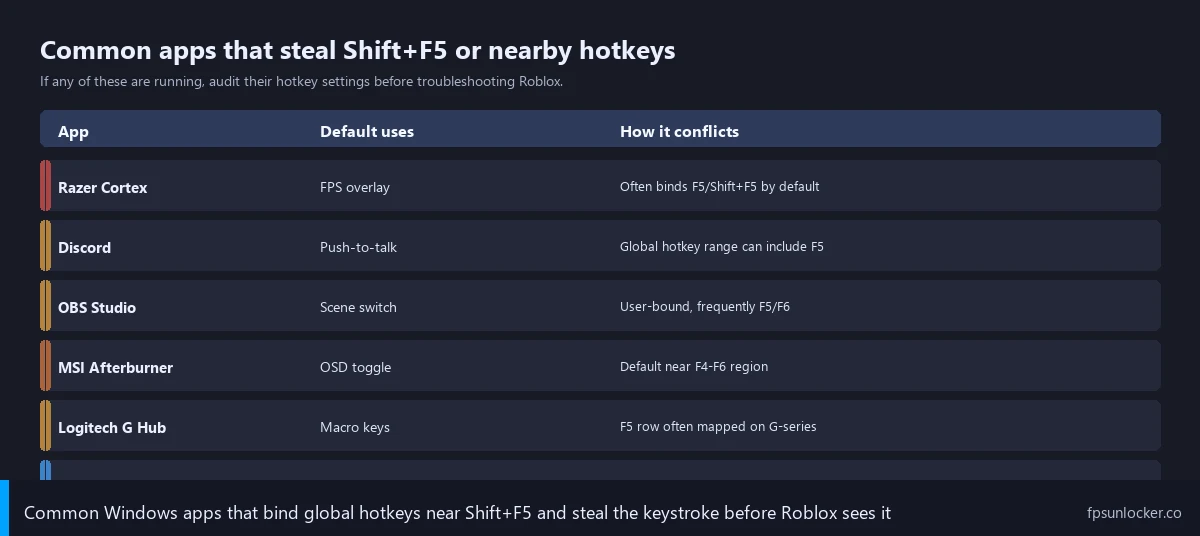
Here’s how I audit it. I open Task Manager (Ctrl+Shift+Esc), switch to the Startup apps tab on the left, and scan the list of apps that auto-launch with Windows. Anything in there with overlay or hotkey functionality is a candidate. For each one, I open its settings and look for a hotkeys, shortcuts, or keybindings section. If anything is bound to F5, Shift+F5, or any combination involving F5, that’s your culprit. You can either rebind that app’s hotkey to something else (Ctrl+Alt+something rare), disable the hotkey entirely, or close the app while you play Roblox.
The blunt-force version is to close every non-essential app, leave only Roblox running, and test Shift+F5 in a clean state. If the overlay shows up, something you closed was the culprit, and you can binary-search by reopening apps one at a time. Annoying, but reliable.
I’ve also seen a weird case where a wireless keyboard’s companion app (a Razer Pro Type Ultra, I think) had a “snippet” feature that intercepted F-row keys for text expansion. I disabled the keyboard app and Roblox’s Shift+F5 worked immediately. Worth checking if you’ve installed any keyboard customization software recently.
When the Counter Renders Behind the Game’s HUD
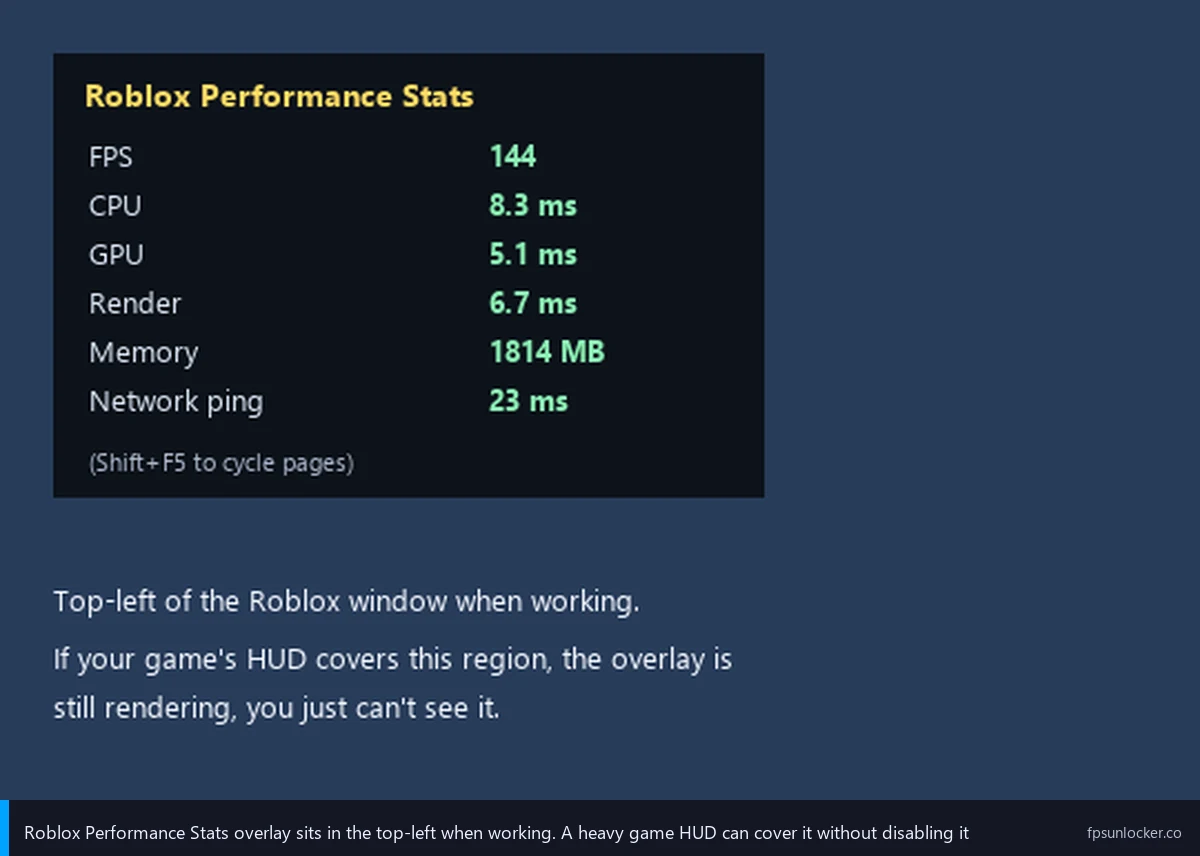
I find this one sneaky because the overlay is technically working. You just can’t see it. Some Roblox experiences fully cover the upper-left corner with custom UI. Adopt Me’s currency and pet-equip panels sit right in the top-left during normal play. Several RPG-style games (Project XL and similar combat experiences) put a health bar and stat readout there. The Performance Stats overlay renders at a fixed Z-order in Roblox’s UI stack, which on some experiences puts it underneath the game’s own ScreenGui elements depending on how the developer authored their UI. From your side, Shift+F5 looks like it did nothing.
I confirm this with the screenshot trick. I press Shift+F5 a few times to cycle to the Performance page, then I take a screenshot of the entire screen with PrtScn or Snipping Tool. I open the screenshot at 100% zoom and look in the upper-left corner. If the gray stats text is visible in the screenshot but you can’t see it in-game, you’ve confirmed it’s a Z-order issue. The overlay is rendering, the game’s HUD is just on top of it.
I fix this by switching to a third-party overlay for those specific experiences. NVIDIA App’s overlay, AMD Adrenalin’s metrics overlay, and Xbox Game Bar all draw outside Roblox’s UI stack entirely (they’re at the OS compositor level), so they sit on top of every Roblox UI element guaranteed. I keep NVIDIA App’s overlay enabled as a fallback for games where the built-in counter gets buried. This isn’t a Roblox bug, by the way. It’s a UI authoring choice by the experience developer, and individual experiences can layer their own ScreenGui above or below depending on the ZIndexBehavior setting.
Third-Party Overlay Not Showing? Different Problem
If you’re trying to use NVIDIA App, AMD Adrenalin, RTSS, or Game Bar specifically and that overlay isn’t drawing on Roblox, the troubleshooting flow is completely different from the built-in counter. Different cause, different fix.
I’ll start with the biggest single reason: Hyperion anti-cheat. Roblox shipped Byfron’s Hyperion process protection in 2023 and broadened coverage in 2024-2025 across all 64-bit Windows clients. Hyperion blocks any process from injecting hooks into the Roblox client, and traditional overlays (RivaTuner Statistics Server, MSI Afterburner OSD, FRAPS, the old Steam overlay) work by injecting a DirectX or Vulkan hook. Hyperion sees the injection attempt and blocks it. I’ve documented which overlays survived the Hyperion rollout in the third-party FPS overlay guide. Short version: NVIDIA App, AMD Adrenalin, Xbox Game Bar, and PresentMon work. RTSS, MSI Afterburner OSD, and FRAPS don’t. There’s more anti-cheat context at Hyperion FastFlags status.
For the overlays that do work, I check these in-app settings. NVIDIA App: Settings (gear icon), Overlay section, confirm Performance Overlay is enabled and a hotkey is bound (defaults to Alt+R). If hitting that hotkey inside Roblox shows nothing, check the GeForce Experience legacy overlay isn’t also installed and conflicting (uninstall GFE if you have NVIDIA App, they’ll fight). AMD Adrenalin: Performance tab, Metrics section, check that Show Metrics Overlay is enabled (defaults to Ctrl+Shift+O). Xbox Game Bar: Win+G to open, click the Performance widget, pin it. If Game Bar isn’t responding to Win+G, open Settings, Gaming, Xbox Game Bar, confirm it’s enabled.
Display mode is another sneaky factor. Some overlays only render in fullscreen exclusive mode, and Roblox in 2026 defaults to borderless windowed. NVIDIA App’s overlay handles both fine. AMD Adrenalin’s overlay sometimes flickers in borderless. If you’re getting flicker or partial rendering, that’s likely the display-mode interaction. I’d also try running the overlay app as administrator (right-click shortcut, Properties, Compatibility, Run As Administrator). And for the love of all that’s tidy, only run one overlay at a time. I’ve watched NVIDIA App plus Game Bar plus Discord plus Steam overlay produce hilariously broken behavior with metrics in three places. I run NVIDIA App’s overlay alone on my desktop and Xbox Game Bar alone on my Surface Laptop, and both behave themselves.
Per-Platform Quick Notes
Roblox runs on more than just Windows desktops, and the Shift+F5 fix isn’t always identical. Here’s how the platform-specific cases shake out.
On Mac, Shift+F5 is the same shortcut, but Mac function-row Fn-lock is on by default for most MacBooks shipped in the last decade. F5 by itself triggers a system function (Mission Control, brightness, keyboard backlight), so you almost always need Fn+Shift+F5. You can flip this in System Settings, Keyboard, by enabling “Use F1, F2, etc. keys as standard function keys.” After that, Shift+F5 toggles the Roblox overlay on the first press. Full Mac context is at Roblox FPS on Mac.
Steam Deck through Sober (the unofficial Linux Roblox runtime) handles Shift+F5 fine when you have a keyboard mapped to the right input layer. The Deck’s default control profile doesn’t expose function keys, so you either dock with a USB keyboard, pair a Bluetooth one, or set up a Steam Input keyboard layer with F-row mappings. Full setup at Roblox FPS on Steam Deck, and the broader Linux setup at Roblox FPS on Linux with Sober.
Mobile is the bad-news platform. Roblox on iOS and Android doesn’t expose a Performance Stats overlay at all, and OS sandboxing prevents a separate app from drawing on top of an active game. The honest answer is that mobile Roblox doesn’t have a counter, and your best frame-rate measurement is to check what your phone’s display can do (most flagships are 120Hz, most mid-range phones are 60Hz or 90Hz). Full mobile context at Roblox FPS on mobile.
Roblox Studio is a different scenario worth noting briefly. In Studio, Shift+F5 is bound to Run/Stop the simulation, not a stats overlay. Developers use the View tab on the ribbon menu, which has Performance and Memory profilers as dockable panels. If you searched for “Roblox FPS counter not showing” and you’re actually in Studio, the Roblox DevForum is the better destination.
Common Counter Setup Mistakes
Here are the questions I get most often once people have the overlay working, plus a couple of conceptual things that aren’t problems but trip people up anyway.
Why does Shift+F5 cycle through pages instead of toggling off?
That’s how Roblox designed it. The Performance Stats overlay has six pages (Summary, Performance, Memory, Network, Render, Physics) and each Shift+F5 press advances to the next one. The seventh press hides the overlay entirely. So if you want to flip it off, hammer Shift+F5 about six or seven times until the corner is empty again, or open the Esc menu and toggle Performance Stats off directly. I personally leave it on Summary because the FPS line is the only number I care about during a benchmark.
Does enabling Performance Stats slow my game down?
Practically no. I tested this on my Ryzen 5 5600 plus RTX 3060 setup at 1440p running a populated server in a moderately heavy experience. Average FPS with the overlay off was 173. With the overlay on the Performance page (the heaviest stat page) it was 171. I’d call that two-frame difference inside run-to-run variance, basically free. On the i5-7200U laptop with HD 620 graphics running 720p in a low-poly experience, I got 47 with overlay off and 46 with overlay on. Same story. The overlay is sub-1% on any modern hardware and you can leave it on permanently.
Can I move where the FPS counter shows on screen?
For the built-in Performance Stats overlay, no. Roblox draws it in the top-left corner with a fixed position and there’s no UI to relocate it. If you need a different position, use a third-party overlay instead. NVIDIA App’s Performance Overlay lets you anchor to any of the four corners. AMD Adrenalin’s metrics overlay does the same. Xbox Game Bar’s Performance widget is fully draggable.
Should I be using Bloxstrap to show FPS instead?
Bloxstrap is a separate Roblox launcher with its own performance UI and FPS-related features. If you’re using Bloxstrap, the same Shift+F5 inside the experience still works, but Bloxstrap also exposes additional metrics through its launcher window. The deep-dive lives at bloxstrap.com, our sister site.
Is Shift+F5 different from the rbxfpsunlocker overlay?
Yes, completely separate. I’ve used both for years. rbxfpsunlocker is a small utility that removes Roblox’s frame rate cap by patching the running client’s memory. It doesn’t add an overlay itself. I combine rbxfpsunlocker (to uncap) with Shift+F5 (to see the resulting frame rate) for a full unlock-and-monitor flow. Setup at rbxfpsunlocker guide, broader pillar at Roblox FPS unlocker.
My FPS counter shows but the numbers look wrong, like locked at 60 or 30. What’s that?
That’s a separate problem from the overlay not showing. If the overlay is rendering and showing 60 FPS or 30 FPS in a hard cap, it’s likely VSync, the default Roblox cap (240 in 2026 unless modified), a thermal throttle, or a graphics setting too high for your hardware. There’s a full breakdown at Roblox low-end PC settings for the hardware-side fixes.
My Diagnostic Order (April 2026)
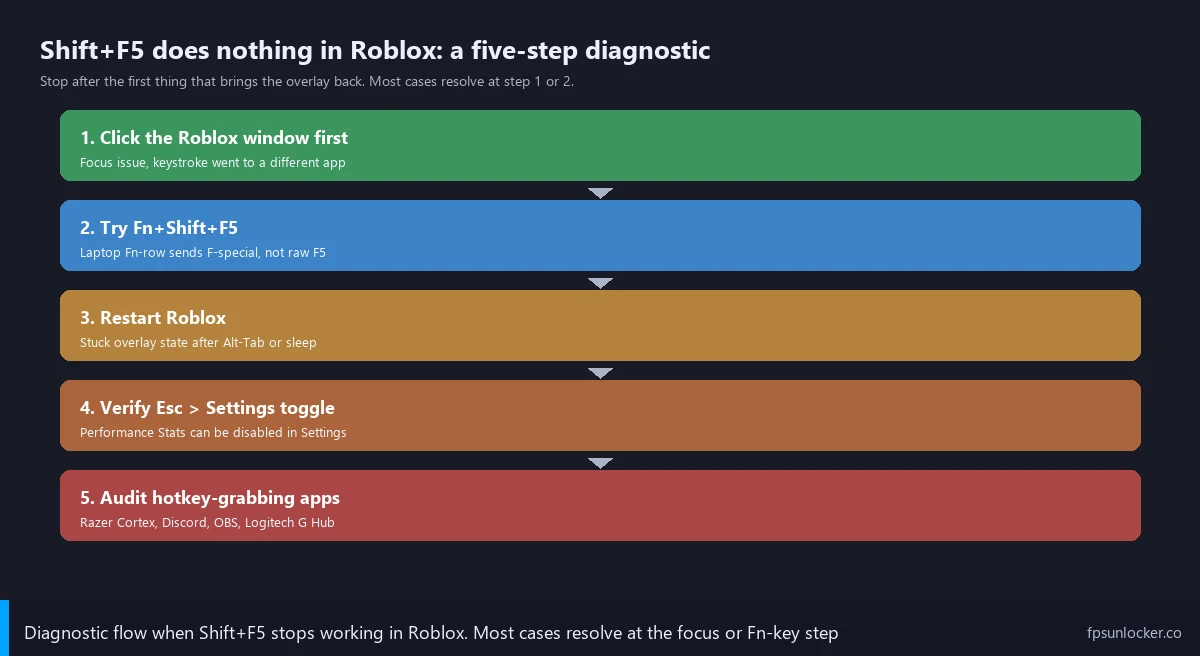
I’ll wrap with the actual sequence I run when someone messages me saying their Roblox FPS counter stopped showing. I rarely have to go past step three before the problem’s fixed.
I start with the focus click. I tell them to click once inside the Roblox game viewport, then immediately press Shift+F5. About fifty percent of the time, that fixes it. Whatever was holding focus (Discord overlay, Steam overlay, stale state from Alt-Tab) gets shoved aside.
I move to the Fn check next if they’re on a laptop. I ask whether F5 alone in their browser refreshes the page, or whether they have to hold Fn first. If Fn is required, they try Fn+Shift+F5 in Roblox and the overlay usually pops up. I’ll recommend the BIOS flip if they want F5 to behave like F5 system-wide.
I follow with the full Roblox restart. I have them close the experience, close the launcher, reopen, rejoin. This catches stale client state from sleep-resume, long sessions, or focus desync that step one missed. After this step, my fix rate is around eighty-five percent.
I check the settings toggle next. Esc menu, scroll to Performance Stats, confirm it’s on. Sometimes a previous session or an experience’s UI manipulation flipped it off.
I run the hotkey audit fifth. I open Task Manager, Startup tab, scan for overlay or hotkey-binding apps, then check each one’s settings for F5-adjacent bindings. I disable or rebind anything conflicting.
I finish with the third-party fallback. If the built-in counter still won’t show, I enable NVIDIA App’s Performance Overlay (or AMD Adrenalin’s, or Xbox Game Bar’s). It works on top of every Roblox UI element and doesn’t depend on Shift+F5 at all.
I remember the pattern in 2026 as: focus, Fn, restart, toggle, audit, fallback. Six steps, fifteen minutes max. I think if you keep those in order, you’ll never spend another fifteen minutes thinking you broke your install when really Discord was just hogging your keystrokes. If none of this works, the broader cluster covers everything: the in-game walkthrough at how to show Roblox FPS, the third-party overlay deep-dive at Roblox FPS counter overlay, the unlocker pillar at Roblox FPS unlocker, and rbxfpsunlocker-specific setup at rbxfpsunlocker guide.