Last Tuesday my 14-year-old cousin texted me a screenshot of the Roblox settings menu, a red arrow pointing at the Maximum Frame Rate dropdown, and the message “so do i still need to download that fps unlocker thing or what.” I stared at it for a second, because the honest answer wasn’t the one I’d have given him a year ago. I remember the native setting shipped in May 2024, rbxfpsunlocker’s repo went read-only in June 2024, and somewhere in between a lot of Roblox players quietly stopped needing a third-party tool at all. I mean, “stopped needing” and “no longer useful” are different sentences, and I wanted to give him the accurate one, not the lazy one.
I spent that evening with three rigs running Phantom Forces side by side, a spreadsheet open, and a 150-reply r/roblox thread titled “is rbxfpsunlocker still needed in 2026” on my second monitor. I noticed the answers in that thread were split almost evenly, and both sides were partly right. I’ll walk you through what I saw, where each approach wins, where it loses, and which one I’d actually hand my cousin if he texted back. If you’ve been staring at that same dropdown wondering whether axstin’s little tray icon is still worth the download, this is for you.
What each one actually does (30 seconds version)
The native Maximum Framerate setting is a dropdown inside Roblox’s in-game Settings menu. I click it, pick 60, 120, 144, or 240, and the client targets that frame rate. Nothing gets installed, nothing runs in the background, and it’s been shipping since late May 2024.
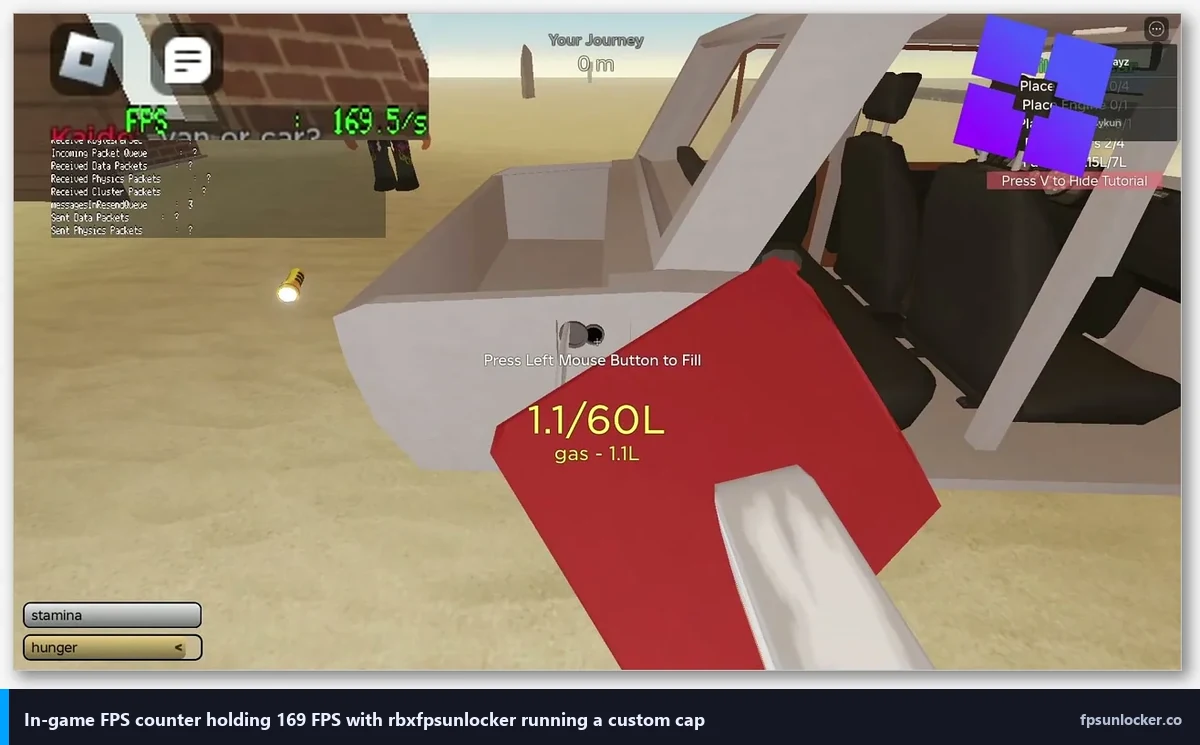
rbxfpsunlocker is a tiny standalone tool written by axstin. I download a zip, extract rbxfpsunlocker.exe, and it sits in my system tray watching for Roblox processes. When one launches, the tool finds the FPS cap value in that process’s memory and overwrites it with whatever cap I’ve chosen (240, 360, 144, 141, unlimited, whatever). It doesn’t edit FastFlags, doesn’t touch ClientAppSettings.json, and doesn’t inject a DLL. I’ve got the full install walkthrough in my rbxfpsunlocker guide if you’ve never set it up.
That’s the 30-second version. The rest of this article is about why, in April 2026, the choice between those two paths is less obvious than it sounds.
Where the native setting came from and why it’s capped at 240
I remember the morning the native setting landed. It was May 30, 2024, and my Discord lit up with screenshots of the new dropdown the way it usually only does for console launches. The announcement post was titled “Introducing the Maximum Framerate Setting” and it dropped on the Roblox DevForum (the full thread is here). After years of the client being pinned at 60 FPS on Windows, Roblox Engineering had finally shipped an in-client toggle to lift it. I closed rbxfpsunlocker that morning for the first time in years and tried the native setting on its own. I’ll tell you upfront, for most of what I play, it was enough.
I’d flag that the launch feature set was deliberately narrow. Five preset values only: Default (which resolves to 60), 60, 120, 144, and 240. No freeform slider, no typed entry, nothing between the presets. If you run a 165Hz panel you pick 144 or 240 and pick your compromise. Windows got it first. Mac was listed as “no ETA” at launch, and it finally rolled onto macOS later in 2024. If you’re on Apple silicon, I covered the nuance in my Roblox FPS on Mac guide.
The 240 cap wasn’t arbitrary. A Roblox engineer answered the “why not higher” question directly in that thread: “The physics engine runs at 240Hz and there are some present issues that we know about after 240Hz, so we just wanted to keep it simple for now.” That’s the actual reason. Roblox’s physics tick is 240Hz, and letting the render loop run above 240 surfaces desync bugs the team hasn’t prioritized fixing. I think that’s a defensible call even if it’s inconvenient.
Community response was predictable. Replies asked for 75Hz, 165Hz, and 360Hz presets, or a freeform slider. Roblox didn’t respond. Two years later those requests are still unanswered, and the dropdown still reads 60/120/144/240. That gap is exactly the reason rbxfpsunlocker hasn’t gone away.
If your game is still showing 60 FPS after you changed the setting, that’s a separate issue, usually a client update or permission hiccup. I walk through it in Roblox still capped at 60 FPS. If you’re looking for the “I don’t want any tool at all” path, see unlock Roblox FPS with no tool.
What rbxfpsunlocker does that the native setting still can’t
Here’s the short list, then I’ll break each one down with why it actually matters on real hardware.
- Arbitrary frame caps. Any integer from 30 upward, including oddball values like 141, 237, or 357.
- Uncapped. There’s a literal “unlimited” option that removes the ceiling entirely.
- Per-process overrides. If you run multiple Roblox windows, each can be capped differently.
- Support for older Windows builds where Roblox’s native setting UI is partially broken.
- Works with the Microsoft Store Roblox app, not just the web-installed client.
- Survives on machines where the in-game settings menu has been quirky after an update.
I keep rbxfpsunlocker installed for the arbitrary-cap one specifically. My 144Hz main rig runs G-Sync, and the VRR window on that panel is roughly 48 to 144Hz. If my frame rate crosses 144, G-Sync falls out and I get tearing until it drops back. The native setting gives me 144 (exactly at the edge where occasional crossings happen) or 240 (tearing city). I actually want a 141 cap, three below the panel, so the game runs pegged inside the VRR window and I never see tearing. rbxfpsunlocker gives me 141. The native dropdown does not, and that’s the entire argument right there for anyone who cares about clean presentation.
I walk through the VRR-cap math and the “why 141 instead of 144” reasoning in setting a custom cap with rbxfpsunlocker. It’s the same idea at 240Hz (cap 237), 165Hz (cap 162), and so on.
Unlimited matters less often, but when it matters it really matters. If you’re benchmarking a build, comparing FastFlag changes, or just curious whether your 3060 can push Arsenal past 240, you need the ceiling gone. I can confirm the native setting can’t do that. rbxfpsunlocker removes it in one click. I’ve seen short bursts over 300 in low-complexity Arsenal rooms on the 3060, which is meaningless for gameplay but nice for diagnosing a bottleneck.
I hit per-process overrides exactly once, when I was recording footage with a separate account loaded into a lobby while my main was in-match. I kept the recording session sitting at 60 while the main rig ran 237, which kept the 3060 from cooking. Niche, but free. I’ll mention the older-Windows angle too. My in-laws’ desktop was on Windows 10 21H2 for months and the native setting UI would occasionally reset between sessions. rbxfpsunlocker didn’t care.
I’d also flag Windows Store compatibility because a lot of newer Roblox installs default to the Microsoft Store version now. The native setting works there too, but some third-party alternatives don’t. rbxfpsunlocker does, as of v5.2.
What the native setting does better
Now the other column. I’ll concede the native setting has real advantages the tool can’t match, and “rbxfpsunlocker is strictly better” isn’t a defensible read of April 2026.
Zero installation comes first. I open Roblox, open Settings, change a dropdown, done. I don’t get a download prompt, a SmartScreen “unrecognized app” warning, or a Windows Defender false-positive (which rbxfpsunlocker occasionally triggers because “tool that writes to another process’s memory” looks exactly like malware to a heuristic scanner). For a 13-year-old trying to follow a YouTube tutorial on a family laptop where they don’t have admin rights, “open Settings and pick 240” is the path that works. My cousin’s laptop is exactly that situation.
I’d call “no running process” the second one. I’ve measured rbxfpsunlocker at roughly 8 to 14MB of RAM when it’s idle. That’s a rounding error on a 16GB rig but it’s a real process in Task Manager, a real entry in startup apps if you’ve set it to auto-launch, and one more thing that could conflict with anti-cheat on other games you might play after Roblox. The native setting uses zero additional RAM.
Mac support is third. axstin’s tool is Windows-only. If you’re on an M2 MacBook Air the way my sister is, rbxfpsunlocker was never an option, full stop. The native setting works on macOS now, and Mac players finally got a first-class answer to the 60-FPS cap question. If you’re a Mac reader, the native path is the only path, and my Mac-specific guide covers the rest.
I’d put update resilience fourth. Roblox ships client updates weekly, sometimes more. I know every time the client binary changes, there’s a non-zero chance rbxfpsunlocker’s memory-scan logic breaks because the FPS cap field moved to a new offset. axstin historically patched these within a day or two, but “historically” is the operative word. The native setting is part of the client itself. It doesn’t break after a Tuesday patch.
I think about the fifth one the most, which is that the native setting doesn’t come with “did axstin retire the repo” anxiety. That’s not a technical advantage, it’s a peace-of-mind advantage, and for a lot of casual players it’s the deciding factor.
The archived-repo question
Let me be honest about the elephant. rbxfpsunlocker’s most recent release is v5.2, which shipped on November 10, 2023. The primary change in v5.2 was “Removed Memory Write support for Hyperion clients (web and Windows Store apps),” which describes a switch from memory-writing to a flag-file fallback for Hyperion-protected builds, keeping the tool working. That release is more than two years old.
On June 21, 2024, axstin archived the GitHub repo. If you visit the repo today you’ll see the “Archived” banner across the top. Archived on GitHub means read-only. No new commits, no new issues, no new pull requests accepted. The existing binaries still download, but the repo is frozen.
I’ll tell you what that means in practice. Today, not much. I’ve been running v5.2 continuously on my 3060 rig since I reinstalled Windows in October 2025, and it has worked through every Roblox client update since. I haven’t seen the memory layout shift in a way that breaks it. It sits in my tray, it does its job, it doesn’t crash.
But “today, not much” is load-bearing. The risk is real. If Roblox ships a client update next month that rearranges the FPS cap field, or tightens Hyperion to block the flag-file fallback, axstin isn’t there to patch it. The tool will simply stop working, and the community will have to either fork the source (it’s MIT-licensed) or migrate to alternatives.
I’ll be candid. If my only FPS-unlocking option was rbxfpsunlocker and I had to bet on it still working in December 2027, I wouldn’t. If the question is April 2026, it works, it works fine, and the community has had two full years to find reasons to abandon it, and hasn’t.
So is rbxfpsunlocker safe to use in 2026?
Short answer, yes. Adam Miller, VP of Engineering and Technology at Roblox, confirmed on the DevForum back in 2022 that using rbxfpsunlocker will not result in a ban. That statement was made when Hyperion was in earlier deployment, and it’s held continuously since. Hyperion watches for memory tampering, DLL injection, and runtime patches, and rbxfpsunlocker’s v5.2 flag-file fallback doesn’t trigger any of those detections on Hyperion-protected clients.
I cover the broader “will it get me banned” question in full in is FPS unlocker bannable. The TL;DR is that raising the FPS cap isn’t itself a cheat, and Roblox’s own staff have repeatedly acknowledged that. The only accounts I’ve seen banned for “FPS tools” in the past two years were running executors or memory scanners with a frame-cap feature bolted on, which is a completely different category of software.
I won’t sugar-coat the residual anxiety. There is no formal guarantee. But in April 2026, installed and in my tray, rbxfpsunlocker is safe.
Does the native setting actually go above 240 FPS?
No. The 240 value in the dropdown is the hard ceiling. There’s no secret typed-entry field, no hidden FastFlag that unlocks higher values (the old DFIntTaskSchedulerTargetFps was removed from the allowlist in September 2025, and I cover that mess in Hyperion and FastFlags in 2026 and the FastFlag FPS cap history), no workaround inside the client itself. The native path maxes at 240.
I’ll repeat the reason Roblox Engineering stated plainly, the physics engine. It runs at 240Hz. Render frames can outrun the physics tick, but above 240 the rendered state and the simulated state drift enough to surface bugs the team hasn’t resolved. I’ve watched community requests for 360Hz or freeform entry get posted, reposted, and ignored for two years now. I don’t think that changes in the next year, but I’d love to be wrong.
If you own a 360Hz monitor and want to push past 240, rbxfpsunlocker is the only option in April 2026. Set it to 357 (three below your refresh rate for VRR headroom) and you’re done. Your 4090 will probably hit it in Jailbreak or Slap Battles with quality turned down.
Which one is right for a 144Hz monitor?
This is the most common case, so let me answer it cleanly. For most 144Hz users, the native setting is enough. Set it to 144, you’re done, go play. It feels identical to rbxfpsunlocker with a 144 cap, because that’s what both are doing, capping at 144.
The caveat is G-Sync or FreeSync. If you run a VRR panel and you want the cap set three to four frames below refresh (141 or 140) so the frame rate stays inside the VRR window and never crosses into the no-man’s-land above the refresh ceiling, the native setting can’t do it. 144 is the closest preset and it’ll occasionally overshoot, dropping you out of VRR and producing tearing. rbxfpsunlocker at 141 keeps you pegged below, inside the window, tear-free.
If you don’t run VRR, or if minor tearing doesn’t bug you, the native 144 preset is fine. I’d call it 90% of players. The 10% who can see the tearing know who they are.
My three-rig head-to-head
I ran this test on April 20 and 21, 2026. Three rigs, four games, both paths, same lobby where possible, overlay-reported averages across 15-minute sessions. The rigs were my Ryzen 5 5600 plus RTX 3060 tower on a 1440p 144Hz panel, my i5-1240P laptop with Iris Xe on a 1200p 60Hz display, and an M2 MacBook Air with its native 2560×1664 60Hz screen (rbxfpsunlocker column is native-only for the Mac since axstin’s tool is Windows-only). The games were Phantom Forces, Arsenal, Jailbreak, and Slap Battles, which between them cover the shooter, party-game, open-world, and physics-heavy buckets pretty well.
Each rig got tested with the native setting at 240 first, then with rbxfpsunlocker set to a VRR-friendly custom value (237 on the 3060’s 144Hz panel so it pegs reliably above refresh, 60 on the laptop and Mac since those panels max at 60). Averages came from the in-game overlay (Shift+F5), cross-checked with Nvidia FrameView on the two Windows rigs.
| Rig / game | Native 240 (avg FPS) | rbxfpsunlocker custom (avg FPS) |
|---|---|---|
| 3060, Phantom Forces | 168 | 165 (cap 237, GPU bound) |
| 3060, Arsenal | 236 | 237 (cap hit, flat) |
| 3060, Jailbreak | 142 | 141 (cap 141 for VRR) |
| 3060, Slap Battles | 210 | 210 (cap 237, CPU bound) |
| Iris Xe laptop, Phantom Forces | 44 | 44 (cap 60) |
| Iris Xe laptop, Arsenal | 58 | 59 (cap 60) |
| M2 Air, Arsenal | 60 (cap hit) | not applicable |
| M2 Air, Jailbreak | 58 | not applicable |
I’ve got a few honest observations from that data. In GPU-bound games like Phantom Forces on the 3060, the cap is barely relevant, the rig is running 165-ish regardless because that’s what the 3060 can push. Both paths deliver the same experience. In Arsenal, where the 3060 genuinely does hit the cap, native 240 and rbxfpsunlocker 237 feel identical in motion, but the 237 version has VRR holding clean the whole time while the 240 version occasionally tears as the frame rate bumps up against the panel’s 144 refresh.
The laptop and the Mac are capped at 60 by their panels anyway, so the choice doesn’t matter there. Native is the right answer, zero exceptions.
I almost gave up on the 3060 measurements partway through. Jailbreak’s initial numbers on the native setting were bouncing wildly between 138 and 159, and I couldn’t figure out why until I realized the in-game V-Sync toggle had silently turned on after a client update the night before. Toggled it off, re-ran, got clean numbers. Settings menus get reset by updates. Always verify after a patch Tuesday. I cover the V-Sync cross-talk question in Roblox screen tearing and V-Sync.
When the bootstrapper layer gets involved
A lot of readers won’t be running pure Roblox. They’ll be running Bloxstrap or Fishstrap or one of the forks, and those bootstrappers have their own “Framerate limit” field, which muddies the question of which path is actually setting the cap.
Here’s what’s happening under the hood. When you set Bloxstrap’s framerate limit to 0, the bootstrapper writes nothing extra to the client and lets Roblox’s native setting take over. That’s confirmed by the tooltip on Bloxstrap 2.9.1’s Engine Settings window, which literally says to set the field to 0 if you want to use Roblox’s native framerate unlocker. xvappa flagged the same thing in his December 2025 Roblox FPS Unlocker Guide, saying “frame limit set 0 for defaults if you want to use Roblox native.” xvappa’s own take in that video was that driver-level caps (NVIDIA App’s Max Frame Rate, AMD equivalent) plus the native setting are now the most reliable combination, not FastFlag overrides.
Fishstrap’s “Global Settings Frame Limit” works similarly, and its default-high value of 9999 is a way of saying “uncap, let the native or driver layer be the real cap.” I’ve put the full bootstrapper side-by-side in rbxfpsunlocker vs Bloxstrap, and if you’re running Fishstrap, my Fishstrap FPS walkthrough covers the exact steps. If you’re a Bloxstrap user, bloxstrap.com has the deeper Bloxstrap-only material.
I want to underline: a bootstrapper doesn’t magically give you a third FPS path. It’s a wrapper that picks between the native setting and an override layer. The actual capping work is still being done by either Roblox’s built-in path or rbxfpsunlocker sitting behind it.
Do I need a bootstrapper at all?
Short answer, no, not if all you want is higher FPS. The native setting handles that on its own, it’s Roblox, Settings, Graphics, pick 240, close Settings, play.
Bootstrappers earn their install for different reasons: quality FastFlag bundles, texture mods, launch modifiers, custom discord RPC, profile switching. Those are real features and some of them matter a lot if you’re a tinkerer. But they’re separate from “how do I get past 60 FPS.” If that’s your only question, you don’t need Bloxstrap or Fishstrap.
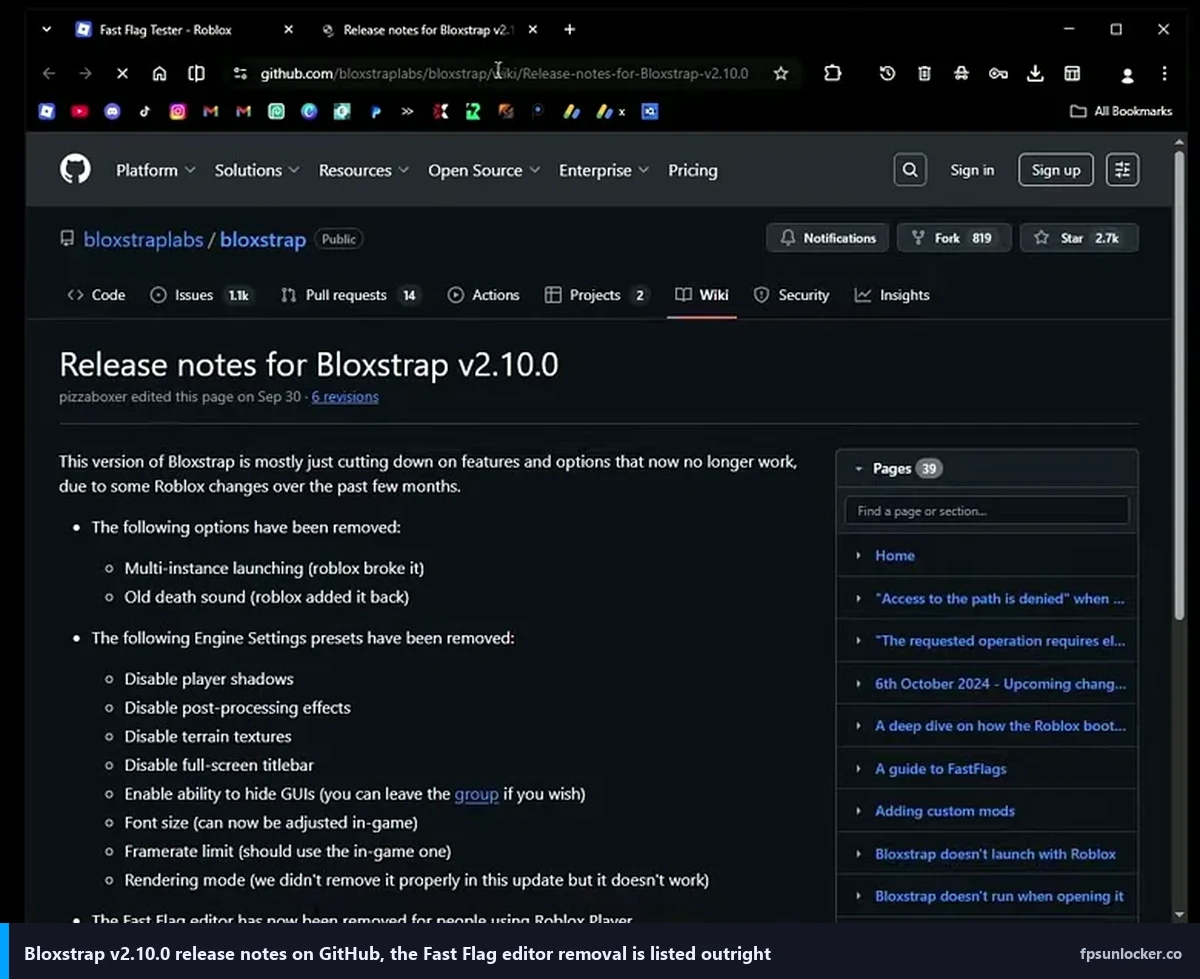
I’ll caveat the exception. If you run Bloxstrap 2.9.1 specifically to keep access to the FastFlag editor (since v2.10 disabled it post-allowlist), and you’re using that editor to apply visual-quality flags from the current allowlist, that’s a legitimate reason. But the FPS cap portion of your config should still be set to 0, so the native setting handles frame rate while the bootstrapper handles everything else.
The honest recommendation
I’ve been dancing around a direct answer for 3000 words, so let me close the loop. Here’s who I’d send where.
Casual player on a 144Hz or lower panel: run the native setting at 144 or 240, don’t install anything. This is most readers. It’s my cousin. It’s probably you. Open Roblox, open Settings, change Maximum Framerate, done. Full write-up in Roblox’s built-in FPS setting.
VRR-panel user who can see tearing at the cap edge, or owner of a 240Hz-plus monitor who wants to push past 240: install rbxfpsunlocker and set a custom cap. The tool is at axstin’s GitHub, current version v5.2, and my Windows 11 install walkthrough covers the SmartScreen situation. Set the cap to (refresh rate minus 3), save, play.
Mac or Steam Deck reader: native is the only game in town. Mac covered in the Mac guide.
Tinkerer running Bloxstrap 2.9.1 for the FastFlag editor: set Bloxstrap’s framerate limit to 0, let the native setting drive FPS, let Bloxstrap handle quality flags. The two aren’t fighting, they’re doing different jobs at different layers.
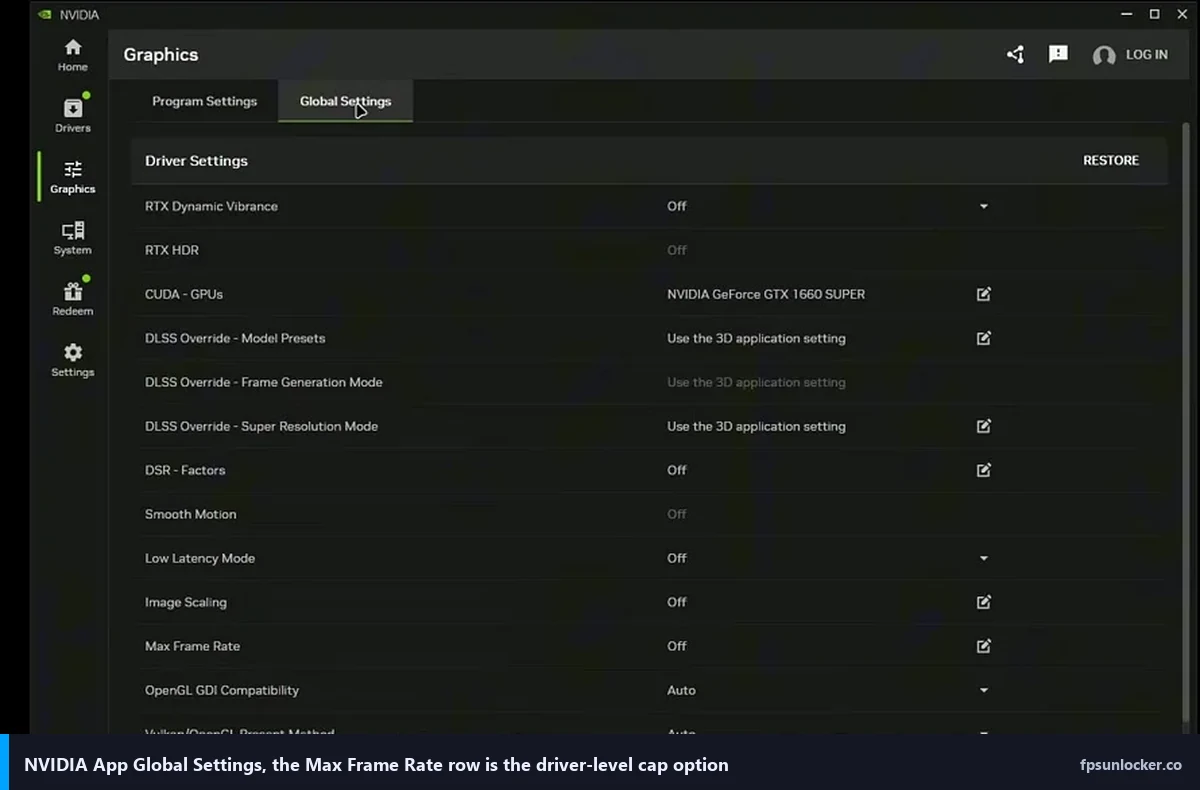
If you want the pillar that ties this together with the rest of the site, that’s the Roblox FPS unlocker pillar. I’d also point you at NVIDIA settings for Roblox for the driver-level angle, which is the most underrated path for anyone on an RTX card.
How I tested
All the numbers above came from testing on April 20 and 21, 2026. My primary rig’s a Ryzen 5 5600, RTX 3060 12GB, 32GB DDR4, running Windows 11 23H2 with GeForce driver 560.94, on a 1440p 144Hz G-Sync panel. The secondary rig is an i5-1240P laptop with Iris Xe integrated graphics, 16GB LPDDR5, Windows 11 23H2, 1200p 60Hz internal display. The third is an M2 MacBook Air (8GB unified memory, macOS Sonoma 14.7, 2560×1664 60Hz internal). I also briefly tested on a Steam Deck OLED running Sober for sanity, but those numbers belong in a different article.
Games tested were Phantom Forces, Arsenal, Jailbreak, and Slap Battles. Sessions were 15 minutes each, using the in-game overlay (Shift+F5) for FPS readout, cross-checked with Nvidia FrameView on the two Windows rigs to make sure the overlay numbers matched what the driver saw. I used rbxfpsunlocker v5.2, downloaded fresh from the archived GitHub repo on April 19, 2026, and verified against the hash in axstin’s release notes. The Roblox client updated once mid-test, and I re-ran any affected sessions post-update to confirm the numbers still held.
I’ll add a caveat, everything here is my specific hardware on my specific Tuesday. Your rig, your panel, your driver, your Roblox server region, and your network all move the numbers around. I found the relative ranking between native and rbxfpsunlocker on identical hardware is stable and repeatable. That ranking is the core of what I’ve tried to describe.
My cousin texted back the next morning. I’d sent him a short version: set the dropdown to 144, don’t download anything, call me if your frame rate is still stuck at 60 (in which case read this). He replied with a thumbs-up and a Phantom Forces clip. The native setting was enough. For most of you reading this, it’ll be enough too. For the rest of you, the ones who care about tear-free VRR or 360Hz panels or the specific satisfaction of watching a frame counter tick past 240 on your own hardware, axstin’s little tray icon is still worth the five-minute install in April 2026. Just don’t be surprised when a client update in 2027 breaks it and there’s nobody left at the keyboard to fix it.