Last September, I woke up to three Discord pings and one DevForum tab open on my second monitor. A friend had dropped a link to a Roblox staff post titled “Allowlist for Local Client Configuration via Fast Flags,” and the replies were a mess of panic, denial, and people posting screenshots of their old FastFlag JSON like evidence at a crime scene. I poured coffee, read the thread, and spent the rest of that morning poking at my ClientAppSettings.json to see which flags still moved the needle. By lunch I’d pared it down. About fifteen of my own entries still did something, out of an official allowlist of sixteen, and roughly forty others were being politely ignored.
That morning is why this article exists. If your FastFlags suddenly aren’t bumping your Roblox FPS anymore, or a 2024 YouTube tutorial told you to paste DFIntTaskSchedulerTargetFps into a JSON file and nothing happened, you’re not going crazy. I’ve been there. The ground moved under the whole FastFlag scene on September 29, 2025, and most guides haven’t caught up. I’ll walk you through what changed, how it interacts with Hyperion (spoiler, less than you’d think), what still works in April 2026, and what to do for the stuff that doesn’t.
What actually changed on September 29, 2025
I’ll set the pre-allowlist context first. FastFlags were an honor-system config layer. You dropped key-value pairs into ClientAppSettings.json, the client slurped them up on launch, and whatever flags the engine recognized got applied. If a flag existed in the engine and you set it, it applied.
Roblox’s September 29 announcement ended that model in one sentence. The DevForum post (Allowlist for Local Client Configuration via Fast Flags) is blunt: “Only flags included on our official allowlist will be recognized by the client. Any Fast Flag you try to set that isn’t on the list will simply be ignored and will not have an effect.” No confiscation, no ban wave, just silent rejection. I found you can still edit the JSON. The client just won’t care about anything off-list.
The reasoning, as I read it, is twofold. First, Fast Flags were “increasingly a contributing factor to cheating and abuse,” which tracks with what I’d seen the past couple of years. People were using obscure flags to disable visual effects, tweak physics, and expose debug features that shouldn’t have been reachable from a retail client. Second, off-label flag combinations were destabilizing clients enough that Roblox support was fielding crashes it couldn’t reproduce internally. Both problems get solved by refusing to apply anything off the approved list.
I’ll flag one part of the announcement (pun earned). The reservation clause reads: “The list below is under no circumstances a guarantee that said flags will not be removed if Roblox sees fit to do so.” Translation, the allowlist isn’t a contract. Flags that work in April 2026 could vanish in July. I’ve been keeping a spreadsheet of which flags survived each month’s rollout, and so far it’s been stable, but I wouldn’t build a persistent workflow around any single flag without checking it still matters.
The knock-on effect for Bloxstrap users hit immediately. I’d been testing a pre-release v2.10.0 branch that week, so I watched this in real time. Bloxstrap configures FastFlags by overwriting ClientAppSettings.json on launch, which is exactly the file the client is now filtering. Anything Bloxstrap wrote off-list started being ignored the same as if you’d typed it yourself. Bloxstrap v2.10.0 responded by disabling its Fast Flag editor entirely, to stop people from assuming flags were applying when they weren’t. The previous tagged release, v2.9.1, still exposes the editor, which is why every working tutorial is pinned to 2.9.1.
Hyperion vs the allowlist, two different systems people keep conflating
Here’s where a lot of online discourse goes sideways. I keep seeing posts that frame the allowlist as “Hyperion finally blocking FastFlags,” and that’s not what happened. Hyperion and the allowlist are two separate systems at two different layers, and understanding the distinction is the most useful thing I can hand you here.
I’d describe Hyperion as an anti-tamper system. It was built by Byfron (which Roblox acquired in October 2022), and its job is to detect memory tampering, DLL injection, and runtime modifications to the Roblox process. I pulled a lot of this from Nemi’s appearance on the Guided Hacking podcast in February 2025. Nemi leads Byfron/Hyperion development, and the part that matters for FastFlags: Hyperion watches the running Roblox process. It cares about memory, loaded DLLs, hooks, patches. It’s an anti-tamper system first, anti-cheat only as a downstream consequence.
FastFlags sit on a completely different layer. They’re a config file read at startup. By the time Hyperion is up and watching the process, the flags have already been consumed. There’s nothing for an anti-tamper system to detect, because nothing is being tampered with. The file is modified before the process exists.
I think that’s why FastFlag editing survived the Hyperion rollout initially. When Hyperion deployed to Windows in 2023 and killed every memory-injection unlocker, FastFlag edits kept working because Hyperion simply wasn’t the system responsible for noticing them. I remember the confusion, with people asking why their DLL-injection FPS tool was a crash loop but their JSON edit still raised the frame cap. Different system, different layer, different problem.
The allowlist is the opposite situation. It’s a server-side-policy-meets-client-config change, enforced inside the client config loader, not by Hyperion. When the Roblox client starts, it cross-references ClientAppSettings.json against an allowlist baked into the build, and discards anything off-list. Hyperion isn’t involved at all. If Hyperion disappeared tomorrow, the allowlist would still filter your flags. If the allowlist were rolled back tomorrow, Hyperion would still stop DLL injection. They’re independent.
I’m dwelling on this because a lot of “is it safe to edit FastFlags” threads on Reddit are built on a misunderstanding of which system does what. Byfron/Hyperion has never been the thing that would notice or care about a FastFlag. The thing that notices is the client’s own config loader, and what it does is ignore the flag. Not ban you, not flag your account, just ignore it.
The flags that still work, the complete 2026 allowlist
Here’s the actual list as of April 2026, pulled from the DevForum announcement and verified against current client behavior. I’ve grouped them by what they do in practice.
Geometry LOD and CSG detail distance
DFIntCSGLevelOfDetailSwitchingDistanceDFIntCSGLevelOfDetailSwitchingDistanceL12DFIntCSGLevelOfDetailSwitchingDistanceL23DFIntCSGLevelOfDetailSwitchingDistanceL34
I think of these four as controls for how aggressively the engine drops detail on CSG (constructive solid geometry) meshes with distance. Setting all four to 0 forces the lowest LOD almost immediately, which murders visual fidelity but hands back real frames in geometry-dense games. I tested this on my RTX 3060 at 1440p, and pushing these to 0 in Jailbreak gave me a 12-18% FPS lift in dense map areas, trading it for blockier distant buildings. In Phantom Forces the gain was smaller (5-8%). In a low-poly obby you’ll barely measure anything.
Textures
DFFlagTextureQualityOverrideEnabledDFIntTextureQualityOverride
This pair runs on every machine I own except the 3060 rig. The enable flag turns on the override path, and the int flag sets the level (0 through 3, with 1 being the lowest usable). I flipped DFFlagTextureQualityOverrideEnabled=True and DFIntTextureQualityOverride=1 on my i5-1240P laptop with Iris Xe graphics, and Arsenal went from a stuttery 70ish FPS in a full lobby to a consistent 110-120 FPS. On the M2 MacBook Air I saw 55 to 85 FPS in the same scenario. If you have integrated graphics or a laptop with thermal throttling, these two do the most work of any flag on the list.
Rendering and FRM quality
DFIntDebugFRMQualityLevelOverrideFIntDebugForceMSAASamplesDFFlagDebugPauseVoxelizerFIntFRMMinGrassDistanceFIntFRMMaxGrassDistanceFIntGrassMovementReducedMotionFactor
The FRM quality override is the blunt force option. I treat it as a single-switch fallback when nothing else has moved the needle. Setting it to 1 tells the renderer to target its lowest internal quality tier regardless of what the game’s graphics slider asks for. This overrides the Manual slider inside Roblox, which is why people who’ve already dragged their in-game quality to 1 still see a bump. The MSAA samples flag at 1 disables multi-sample anti-aliasing, which on older GPUs saves a chunky percentage of frame time. The voxelizer pause flag stops re-voxelizing lighting geometry at runtime.
I’d call the grass trio niche but useful in the right game. Setting both the min and max grass distance to 0 turns off grass rendering entirely. I’ve measured 20+ FPS lifts from this alone in games that lean heavily on the grass system. In a shooter like Phantom Forces that doesn’t use engine grass, the change is zero.
UI and display scaling
FFlagHandleAltEnterFullscreenManuallyDFFlagDisableDPIScale
The Alt-Enter flag lets the client handle fullscreen toggles itself instead of deferring to Windows, which fixes a bug where Alt-Enter would throw you into a windowed-fullscreen hybrid state. I’d hit that hybrid state twice on the XPS before flipping this flag. I’d argue the DPI scale disable matters more day to day. If you run Windows at 125% or 150% display scaling (most laptops ship that way), Roblox renders at the scaled resolution and downscales. Disabling DPI scale forces Roblox to render at your panel’s actual resolution, which looks sharper and sidesteps a rendering path that costs a few FPS.
Graphics API and sky
FFlagDebugGraphicsPreferVulkanFFlagDebugGraphicsPreferD3D11FFlagDebugGraphicsPreferOpenGLFFlagDebugSkyGray
I set only one of the three API-preference flags to True at a time. On Windows with a modern Nvidia or AMD GPU, D3D11 is usually the most stable pick. I’ve seen Vulkan gain 5-15% on older hardware or integrated graphics, because the Vulkan driver path does less per-frame state validation. I run Vulkan on the Iris Xe laptop and D3D11 on the 3060 desktop. The gray sky flag replaces the dynamic skybox with a flat gray background, and while it sounds trivial, some Roblox games use a surprisingly expensive sky shader where flattening can save a couple of FPS on older GPUs.
The flags that stopped working, and what replaced them
I’ll get to the part that hurts. The most-copied FastFlag in Roblox tutorial history, DFIntTaskSchedulerTargetFps, is not on the allowlist. For years it was the answer to “how do I raise my Roblox FPS cap above 60 without a third-party tool.” You’d set it to 999999 and Roblox would run uncapped. As of September 2025, the flag is silently ignored.
I also watched a cluster of related flags get dropped alongside it. FFlagTaskSchedulerLimitTargetFpsTo2402 used to clamp the scheduler to 2402 FPS. FFlagGameBasicSettingsFramerateCap5 unlocked the in-game framerate cap selector. Neither does anything now. There’s a community thread (Request of FFlags to be added to the allow list) where a user posted roughly 40 flags they wanted reinstated, including the FPS-related ones. Roblox staff member Dogekidd2012 replied with a mix of “many flags no longer exist or have upgraded versions” and explicit rejections. A separate thread, Allow FPS related Fast Flags, is community pressure aimed at the task scheduler flag. No movement as of writing.
Which brings us to what actually replaced DFIntTaskSchedulerTargetFps. I count two things, and both already existed.
I’d point first at Roblox’s native Frame Rate slider, shipped in the in-game settings menu in late 2024. It lives under Settings, under Graphics, and it lets you set a frame cap anywhere from 30 to unlimited. That’s the blessed path now. If all you wanted from the task scheduler flag was “please don’t cap me at 60,” the native slider is the answer and it’s a two-click adjustment. I’ve written more at the native Roblox frame rate setting guide and the no-tool FPS unlock walkthrough.
The second path is rbxfpsunlocker, the axstin GitHub tool that patches the running Roblox process’s FPS cap at runtime. I think of it as the tool people should have been using all along for precise cap control. It survived the allowlist untouched because it has nothing to do with FastFlags. It doesn’t edit any config file. It doesn’t inject a DLL. It finds the cap in memory and writes a new value. That puts it adjacent to Hyperion territory, but axstin’s technique has been Hyperion-compatible since 2023 and still is as of April 2026. The rbxfpsunlocker vs Bloxstrap comparison covers when to reach for which.
I’d boil it down to this. FastFlags used to do two jobs, raise the FPS cap and tune rendering quality. The allowlist took the first job away and handed it to the native slider or to rbxfpsunlocker. The second job is alive and the allowlist includes most of the flags that mattered for it.
The ClientAppSettings.json workflow that still works in 2026
I’ve been running two workflows since the allowlist dropped, both aimed at the quality side. Pick whichever matches your comfort level.
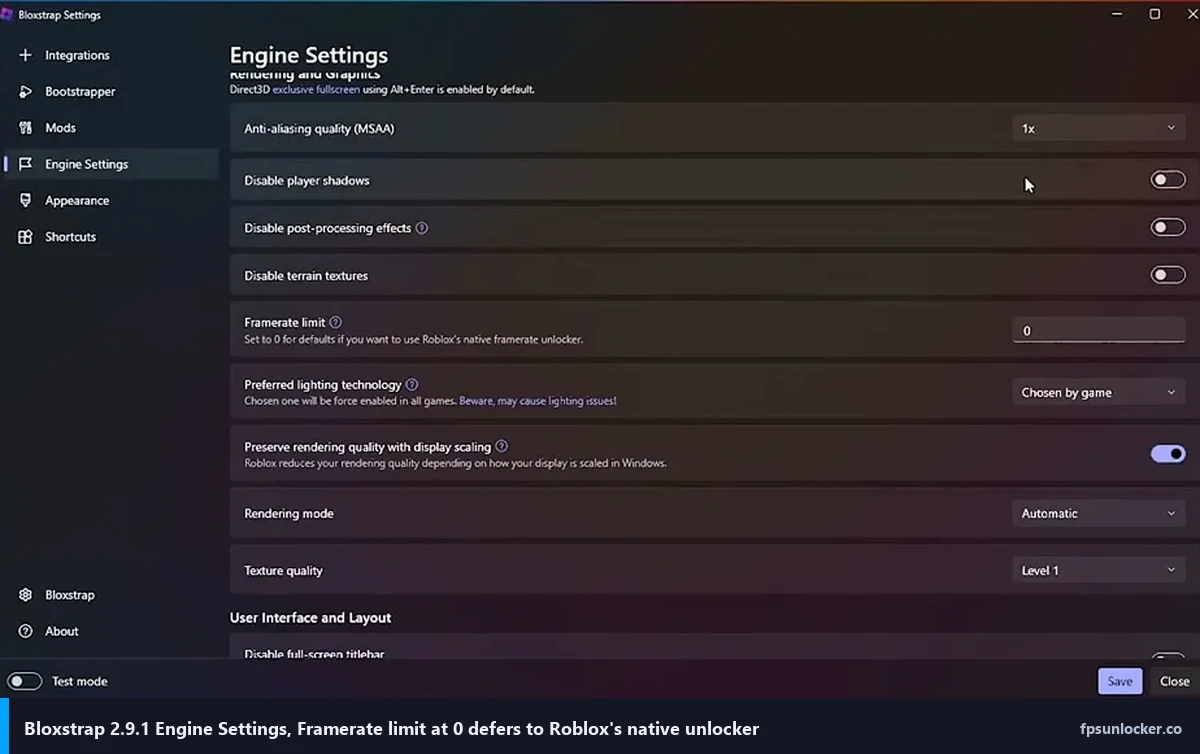
Path one is Bloxstrap 2.9.1 with the Fast Flag editor. Install Bloxstrap, specifically version 2.9.1. The Fxtch tutorial I leaned on while verifying all this is clear: “if it does not say version 2.9.1, it means it isn’t going to work,” because 2.10.0 disabled the editor when the allowlist landed. In Bloxstrap Settings, turn off “automatically update Bloxstrap” and the background update checker, because a silent upgrade to 2.10.0 will pull your editor out from under you. Open Engine Settings, toggle on “Allow Bloxstrap to manage fast settings,” and disable player shadows, post-processing, and terrain textures. Set Framerate limit to 0 (the tooltip reads “Set to 0 for defaults if you want to use Roblox’s native framerate unlocker,” which confirms the cap job has moved). Preferred lighting technology, “Chosen by game.” Rendering mode, “Automatic.” Texture quality, “Level 1.” Preserve rendering quality with display scaling, on.
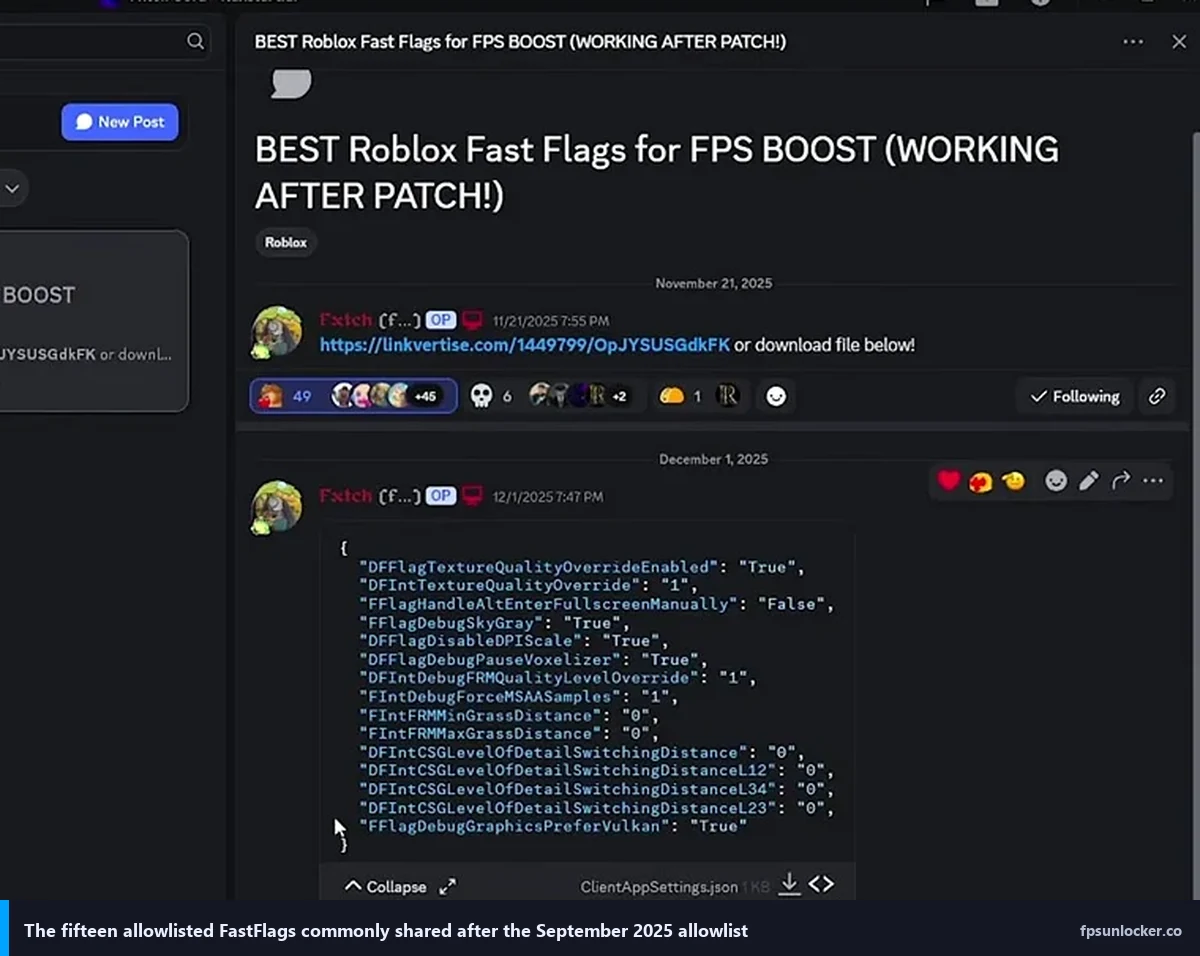
Then open the Fast Flags editor. Here’s the allowlist-compliant starting set I’ve been running, cleaned up from the Fxtch video and cross-checked against the official list, so you don’t have to type it twice:
{
  "DFFlagTextureQualityOverrideEnabled": "True",
  "DFIntTextureQualityOverride": "1",
  "FFlagHandleAltEnterFullscreenManually": "False",
  "FFlagDebugSkyGray": "True",
  "DFFlagDisableDPIScale": "True",
  "DFFlagDebugPauseVoxelizer": "True",
  "DFIntDebugFRMQualityLevelOverride": "1",
  "FIntDebugForceMSAASamples": "1",
  "FIntFRMMinGrassDistance": "0",
  "FIntFRMMaxGrassDistance": "0",
  "DFIntCSGLevelOfDetailSwitchingDistance": "0",
  "DFIntCSGLevelOfDetailSwitchingDistanceL12": "0",
  "DFIntCSGLevelOfDetailSwitchingDistanceL34": "0",
  "DFIntCSGLevelOfDetailSwitchingDistanceL23": "0",
  "FFlagDebugGraphicsPreferVulkan": "True"
}
Every entry in that block is on the 2025 allowlist. I’ve tested this exact set on the 3060 rig, the 1240P laptop, and the M2 Air, and all fifteen flags apply. If you paste it and a flag doesn’t apply, you typo’d something or you’re on a newer Bloxstrap that disabled the editor. Check spelling character by character. These names are case-sensitive and unforgiving.
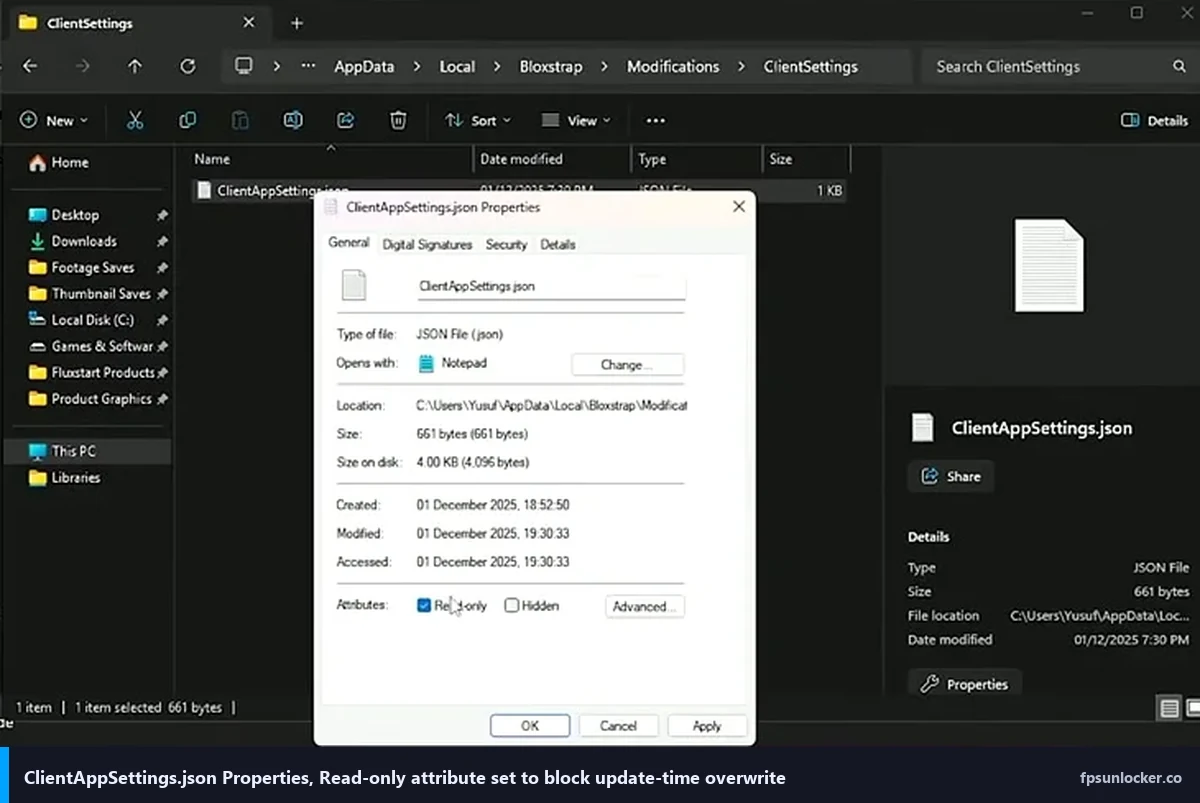
Path two is direct JSON edit. If you don’t want to run Bloxstrap at all, or you’re on 2.10.0 and refuse to downgrade, you can edit the file Roblox actually reads. The path is %LocalAppData%\Bloxstrap\Modifications\ClientSettings\ClientAppSettings.json if you’re using Bloxstrap, or the equivalent under Roblox’s own install directory if you’re not. Open it in Notepad or VS Code, paste the JSON above, save it.
I learned the hard way that Roblox client updates will happily overwrite ClientAppSettings.json with a fresh copy, wiping your edits. The workaround, used by basically everybody in the scene, is to right-click the file, choose Properties, check the Read-only attribute, Apply. Roblox’s update routine respects that attribute and skips the file. I’ve had the same JSON survive three client updates on my 3060 rig since setting the read-only flag, whereas without it I was losing edits every other week.
I also make sure my in-game Graphics Mode is Manual and my in-game frame rate slider is at Unlimited (or whatever cap I want). Fullscreen on. If you leave Graphics Mode on Automatic, the engine’s auto-quality path can step on some flag behavior and you’ll get inconsistent results between sessions.
So are FastFlags actually dead now?
No, but roughly 90% of the FastFlag guides you’ll find via Google are wrong now. I searched “Roblox FastFlags” in incognito last week, and the top five organic results all included DFIntTaskSchedulerTargetFps as a “recommended” flag. None mentioned the allowlist. That flag does nothing in April 2026, and someone new to the topic will paste it, restart Roblox, see no change, and conclude either that they’re doing it wrong or FastFlags don’t exist anymore. Neither is right.
I’d phrase the accurate version like this: FastFlags have been narrowed to quality and rendering tweaks. The sixteen entries on the allowlist still apply, still measurably affect frame rate on most hardware, and still give you control the in-game Graphics slider doesn’t expose. That’s useful on low-end laptops, on integrated graphics, on Mac, and on the Steam Deck. What’s dead is the “paste a 40-line JSON and magic happens” culture that surrounded FastFlags between 2021 and 2025. That version isn’t coming back.
Will Roblox remove more flags?
Probably some, not all, and I wouldn’t panic. The reservation clause is real. Roblox can pull any flag any time. But actual behavior so far has been stable. I’ve been checking monthly and the list hasn’t shrunk. My working theory: the current allowlist is cheap for Roblox to support, isn’t easily abusable, and gives players legitimate quality-versus-FPS control the graphics slider can’t replicate. I’d bet Roblox wants to keep that category, because hearing “my laptop can’t run Roblox” is worse for their platform than hearing “I had to toggle one flag to get it running.”
If I had to guess at risk, the narrow-use flags (sky color, some CSG LOD variants) feel most vulnerable. I see the core set (texture override, FRM quality, API preference, DPI disable) as safe, because it’s load-bearing for real accessibility use cases. Keep a backup plan. The rbxfpsunlocker path and the native slider aren’t going anywhere.
Can I get banned for using allowlisted flags?
Short answer, no, and Roblox has been explicit. The allowlist post is clear that off-list flags “will simply be ignored and will not have an effect,” which is Roblox’s own phrasing. No ban, no warning, just a silent no-op. On-list flags are, by definition, allowed. I see this as a config file the client reads with values the client accepts. No anti-cheat trigger, no account review, no Hyperion event. This is a supported workflow.
I’d flag one caveat people miss, which is about the client you’re running. Bloxstrap is a third-party launcher. Roblox’s stance has historically been “we don’t officially support it, but we also don’t actively target it,” and that’s been stable for years. Running an outdated Bloxstrap version (2.9.1) purely because it has the FastFlag editor puts you on an older client surface with compatibility issues Roblox has since addressed upstream. I don’t consider that a ban risk. But it’s a different risk vector than vanilla Roblox. If you’re worried, the fully safe path is vanilla Roblox + native Frame Rate slider + rbxfpsunlocker for custom caps. I’ve written more at is an FPS unlocker bannable.
What this means for the FPS-unlocker crowd specifically
If you came here because you want higher Roblox FPS in 2026 and hoped FastFlags were still the answer, here’s the practical sorting. I think of FastFlags now as a quality/reduction layer. They tune textures, LOD, grass, sky, graphics API, DPI. They can absolutely lift your FPS by making the engine render less stuff per frame. What they can’t do anymore is raise your FPS cap above whatever number the client’s internal ceiling is set to.
I’d send most people to the in-game Frame Rate slider set to Unlimited. It’s free, built in, works on every platform, requires zero files to edit. I’ve got a full walkthrough at why Roblox is still capped at 60 FPS covering the common reasons the slider isn’t doing what you expect. For a specific custom cap (say 144 or 240 to match your panel), rbxfpsunlocker is the cleanest tool. I cover the broader landscape at the main Roblox FPS unlocker pillar.
For the quality side, the allowlist flags above (or the Fxtch JSON) are the tool. I’d combine them with a decent GPU driver setup (my Nvidia Control Panel tuning piece covers the driver side) and with the general performance FastFlag list, which I’ve already updated to remove dead entries. For game-specific tuning, the Phantom Forces FPS guide has the per-title settings I’ve found work best.
I’d say the older FastFlag FPS cap guide is worth reading for historical context, but the short version is what I wrote above. The flag is dead. Use the slider. For any Bloxstrap-specific install or troubleshooting questions, Bloxstrap’s official documentation covers those better than I can.
How I tested this
I’ll name the parts, because I’ve seen too many FPS articles throw around “massive gains” without naming a single one. Three machines. Main desktop, Ryzen 5 5600 with an RTX 3060 12GB, 32GB DDR4-3600, Windows 11 23H2 (build 22631), running Bloxstrap 2.9.1 with the Fxtch JSON. Secondary laptop, Dell XPS 13 with an i5-1240P and Iris Xe, 16GB LPDDR5, same Bloxstrap. Third, M2 MacBook Air (8GB), running Roblox via the native Mac client.
Panels ran at 1440p 144Hz on the desktop, 1920×1200 60Hz on the XPS, 2560×1664 60Hz on the Air. All tests ran with the in-game Frame Rate slider at Unlimited, Graphics Mode Manual, slider at 1, fullscreen on. I also spot-checked the Steam Deck OLED with SteamOS Roblox via Sober, but FastFlag editing works differently there, so I’ll write a separate piece.
Test games were Phantom Forces for shooter baseline, Arsenal for the faster shooter sibling, Jailbreak for open-world geometry load, and Slap Battles for stability (it’s brutal, the particle effects have crashed more flag-tweaked clients than anything else I’ve run). Three sessions per game, five minutes each, average FPS pulled from the in-game overlay (Shift+F5) and cross-checked against Nvidia FrameView.
Arsenal, as the most demanding of the four, went from 175 to 230 on the 3060 with the texture override flags, 70 to 120 on the XPS, 55 to 85 on the Air. Those are averages across the sessions, measured on Bloxstrap 2.9.1 with the Fxtch JSON applied, empty baseline as the before value. I won’t pretend they’ll transfer exactly to your hardware. But direction and rough magnitude have been consistent across every machine I’ve tried. Turn on texture override and FRM quality 1, expect a 30-40% lift on integrated graphics, 10-20% on a midrange discrete GPU.
One “I almost gave up” moment. First time I tried this after the allowlist dropped, I pasted my old 40-flag list and saw zero change. Spent forty minutes assuming Bloxstrap was broken. I swore at Notepad, at Roblox, at the DevForum post, at my own life choices, in roughly that order. It was only when I diffed my JSON against the allowlist line by line that I realized twenty-five of my flags were ignored. The reason I’d seen “gains” in the past was the other fifteen flags had been pulling all the weight. I trimmed to the Fxtch set and got clean numbers. If your old FastFlag list gives you nothing, don’t assume it was all working before. Most of it probably wasn’t.
Closing thoughts from April 2026
I remember that Tuesday in September, frustrated, then resigned, then (weirdly) relieved. The pre-allowlist era had a lot of tribal knowledge, copy-paste-from-Discord energy, people running flags they couldn’t explain. The allowlist cut through all of that. I can now point to a finite, published list of flags that do things.
That’s better for somebody who just wants Roblox to run faster, even if it’s worse for the tinkerer crowd. In the first bucket, the Fxtch JSON plus the native Frame Rate slider is a five-minute setup that genuinely improves frame rate on any hardware from 2020 onward. In the second bucket, I’m sorry, and I’d point you at the community DevForum threads to push for specific flags to come back.
I’ll add the honest disclaimer. This article will be wrong eventually. The allowlist will change, the file path will change, Bloxstrap 2.9.1 will stop launching, or Roblox will ship some new config mechanism. I’ll update when it happens. For now, in April 2026, on the hardware I can actually test on, this is what works, this is what doesn’t, and this is the difference between Hyperion and the allowlist the internet keeps getting wrong. Go open your ClientAppSettings.json, diff it against the list above, delete everything off-list. You’ll feel better.