Last Wednesday my friend Chris dragged a freshly unboxed 240Hz IPS panel over to my place, plugged it into his Ryzen 7 7800X3D build, and asked me the exact question I knew was coming: “so which FPS unlocker do I actually install for this thing.” He’d picked the monitor up from a Newegg flash sale the weekend before, and his old 75Hz Dell was already in a box heading to his sister’s dorm. I could see the unopened HDMI cable on my coffee table, the Roblox login screen already loading on his laptop, and that look people get when they’ve spent $320 on a panel and they want every single hertz of it pointed at Arsenal.
Honestly, the answer in April 2026 isn’t the same as a year ago. Roblox shipped the native Maximum Framerate setting on May 30, 2024, axstin archived rbxfpsunlocker’s GitHub in June 2024, Bloxstrap v2.10.0 (released September 30, 2025) stripped the Fast Flag editor out for Roblox Player users, and Fishstrap picked up the slack as the actively maintained fork. So “which unlocker for your high-refresh monitor” is now a real decision tree, not a single download link. This one’s for Chris and every other reader who just plugged in a 144, 165, or 240Hz panel and wants the shortest path to a pegged frame counter.
The rest of this article walks through what the stock Roblox dropdown actually gives you, where each of the five real tool paths wins, which one to pick for your specific refresh rate, and the 240Hz physics-tick ceiling that nobody mentions until you’ve already spent a weekend chasing 360 FPS in Jailbreak. If you’re reading this from the pillar, the Roblox FPS unlocker hub has the broader map.
Why refresh rate even matters for Roblox
Your monitor’s refresh rate is the hard ceiling on how many unique frames your eyes will ever see. A 144Hz panel redraws 144 times per second, 165Hz redraws 165 times, 240Hz redraws 240 times. If Roblox pushes 400 FPS but your monitor only paints 144 per second, the other 256 get rendered and thrown away. That’s the grounded version, no Wikipedia paragraph needed.
Unlockers exist because Roblox’s default FPS cap used to sit at 60 regardless of what monitor you owned. Even after the native setting shipped, the dropdown presets don’t line up cleanly with every common panel refresh rate. If your panel is 144Hz and you only care about pegging it flat, the native dropdown’s 144 preset works fine. If your panel is 165Hz, the dropdown has nothing for you between 144 and 240, and that gap is the reason the 165Hz crowd still reads articles like this one.
What the native Roblox dropdown actually offers
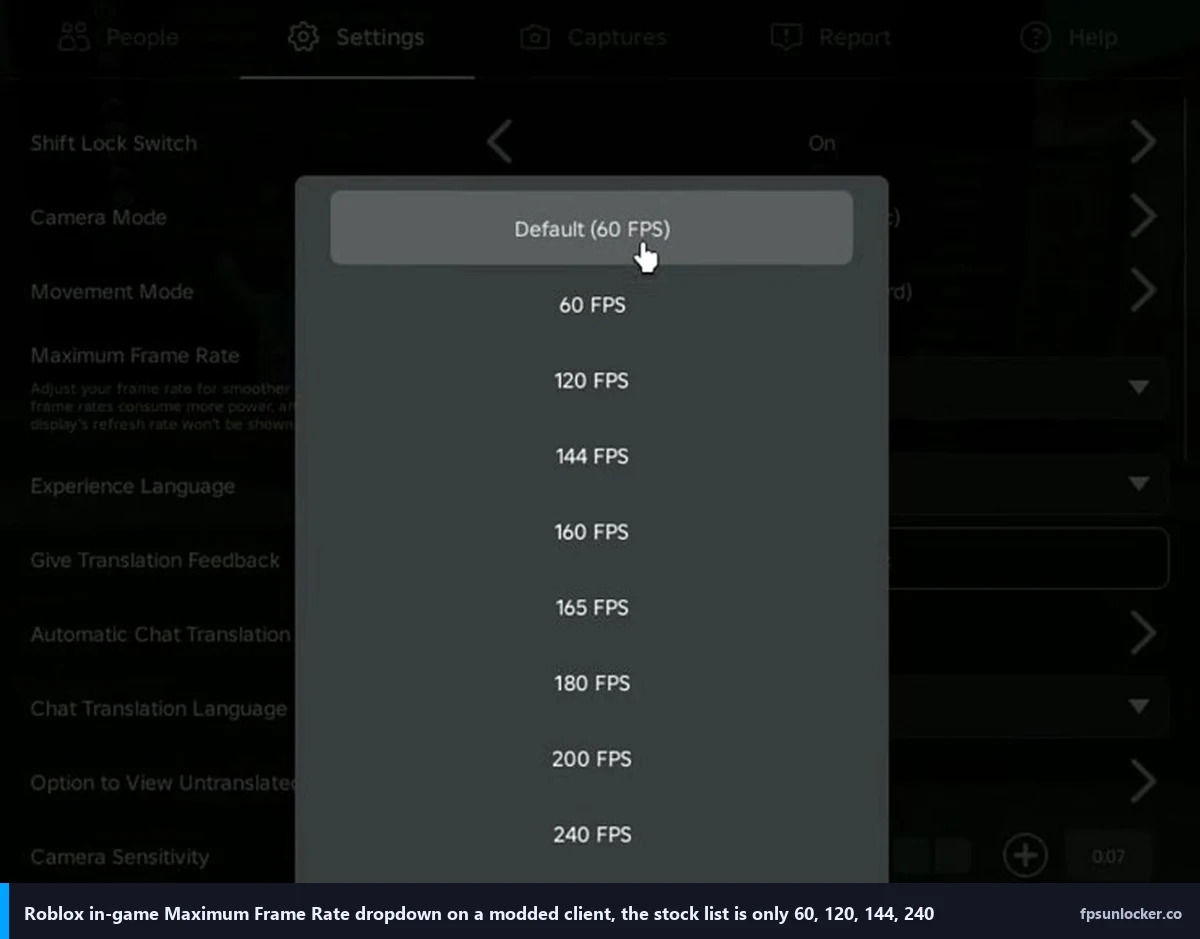
Quick caveat on that screenshot. The expanded list (160, 165, 180, 200) is what a Bloxstrap or Fishstrap modded client looks like. The stock Roblox dropdown gives you exactly five values, and I want you to memorize them because they’re the entire basis for picking a path: Default (which resolves to 60), 60, 120, 144, and 240. That’s it. No 75, no 90, no 165, no 180, no 360, no freeform typed entry.
I remember the morning the announcement post (“Introducing the Maximum Framerate Setting”) hit the Roblox DevForum, May 30, 2024. A Roblox engineer explained the 240 cap directly: the physics engine runs at 240Hz, and pushing render frames higher surfaces desync bugs nobody’s prioritized fixing. I covered the whole thread in depth in Roblox’s built-in FPS setting, and I compared native head-to-head against the third-party tool in native vs rbxfpsunlocker. The short version for this article is: the stock dropdown is fine for a 144Hz or 240Hz player who doesn’t care about VRR edge tearing, and it’s a structural compromise for literally everyone else.
I’ll put the 165Hz pain right here so nobody misses it. A 165Hz panel at the native 144 preset wastes 21Hz of headroom. At the native 240 preset it overshoots by 75 FPS, which actively tears unless VRR is clamped cleanly. There’s no correct native answer for 165Hz, which is why the rest of this article exists.
The five real unlocker paths in April 2026, ranked for high-refresh use
I tested these on my main rig (Windows 11 23H2, Ryzen 5 5600, RTX 3060 12GB, 1440p 144Hz G-Sync, April 22 to 24 2026) and cross-checked 240Hz behavior on Chris’s 7800X3D plus RTX 4070 Super rig with the new 240Hz panel. Four games in rotation: Phantom Forces, Arsenal, Jailbreak, Slap Battles.
1. rbxfpsunlocker (still the king for odd refresh rates)
axstin’s tool is the only option in this list that lets you type any integer you want and have it stick. Current release is v5.2 on the archived GitHub repo (the repo went read-only June 21, 2024, but the binary still downloads and still works). I want a 162 FPS cap on a 165Hz panel, rbxfpsunlocker gives me 162. I want 237 on a 240Hz panel, rbxfpsunlocker gives me 237. I want uncapped for a benchmark run, it gives me uncapped.
This is the best FPS unlocker for high refresh monitor scenarios where the native dropdown doesn’t line up with your panel. Download from axstin’s archived GitHub, extract the zip, run the exe, right-click the tray icon, set “FPS Cap” to your custom value. The full walkthrough lives in the rbxfpsunlocker guide, and the specific VRR math for picking “refresh rate minus three” is in setting a custom cap with rbxfpsunlocker.
Trade-off: it’s an unmaintained binary. I’ve been running it continuously since January 2026 and it hasn’t broken, but I wouldn’t bet money on it still working in December 2027 if Roblox rearranges the client’s memory layout. For April 2026, specifically, it works, and I’ve got it installed on both rigs.
2. Fishstrap (actively maintained, built-in frame-limit slider)
I’ve been using Fishstrap as my main bootstrapper since late 2024, when the upstream Bloxstrap project started backing away from FPS-cap tooling and this fork picked up active maintenance. It’s on an actively updated release branch in April 2026, and it ships with a “Global Settings Frame Limit” field right in its configure-settings panel. xvappa’s December 2025 guide walks through this exact field and he sets it to 9999, which is the “uncap entirely and let either the native setting or your GPU driver be the real ceiling” move.
The nuance there: 9999 isn’t a real cap, it’s a way of telling Fishstrap “don’t impose any limit of your own.” The actual cap still comes from somewhere else (the native dropdown, a driver-level limit, or nothing at all). For a 165Hz user, set Fishstrap’s frame limit directly to 162, close the panel, and skip both the native dropdown and rbxfpsunlocker entirely. Fishstrap does the capping in-process, no separate tray icon required. The Fishstrap FPS walkthrough has the exact steps, and the bootstrapper comparison covers the wider landscape.
Trade-off: you’re running a full bootstrapper, not just an FPS tool. If all you want is frame-cap control and nothing else, Fishstrap is overkill. If you also want launch flags, Discord RPC, mod profiles, and texture tweaks, Fishstrap is a legit one-stop solution.
3. Bloxstrap (with a big asterisk for v2.10.0 users)
Bloxstrap is still the most popular bootstrapper, and its own framerate-limit field works the same way Fishstrap’s does. The v2.10.0 release on September 30, 2025 made a quiet but important change: the Fast Flag editor was removed for users launching the Roblox Player client. The frame-limit slider itself still functions on v2.10.0, so if you just want a custom cap from Bloxstrap, you’re covered. If you wanted to pair a custom cap with FastFlag-driven quality flags, you’ve either got to roll back to v2.9.1 (which xvappa walks through in his video) or move to Fishstrap.
For Bloxstrap-specific depth, including the v2.10.0 change log and rollback notes, bloxstrap.com is the sister site. I keep the FPS-specific coverage here and the Bloxstrap-general coverage there so we’re not cannibalizing ourselves, and the link up there is the official home.
Bloxstrap v2.9.1 is still running on my test VM specifically for the FastFlag editor, with the framerate limit set to 0 so Roblox’s native setting handles FPS. For a 144Hz player who wants “custom cap plus quality flags in one tool,” that’s the move. For a 240Hz player who doesn’t care about FastFlags, Bloxstrap works fine too, though Fishstrap is the more future-proof pick at the moment.
4. Voidstrap and Froststrap (the lesser-tested forks)
I’ve poked at each of them on the test VM for an afternoon. Both Voidstrap and Froststrap are Bloxstrap forks that exist as of April 2026, and both ship with a frame-limit field similar to Fishstrap’s. They work. They haven’t broken anything. They also haven’t had the volume of real-world user testing Fishstrap has, and their release cadences are sporadic enough that I’d rather not quote specific version numbers and have them look wrong three weeks after you read this.
Pick one of these forks if you specifically prefer its UI or theme and you’re OK being an early adopter. Don’t pick one as your first unlocker if you just want something that works and keeps working. Fishstrap earned its spot at number two because it’s the fork with the most community validation right now.
5. Native plus NVIDIA App (or AMD Radeon) driver cap, zero third-party tools
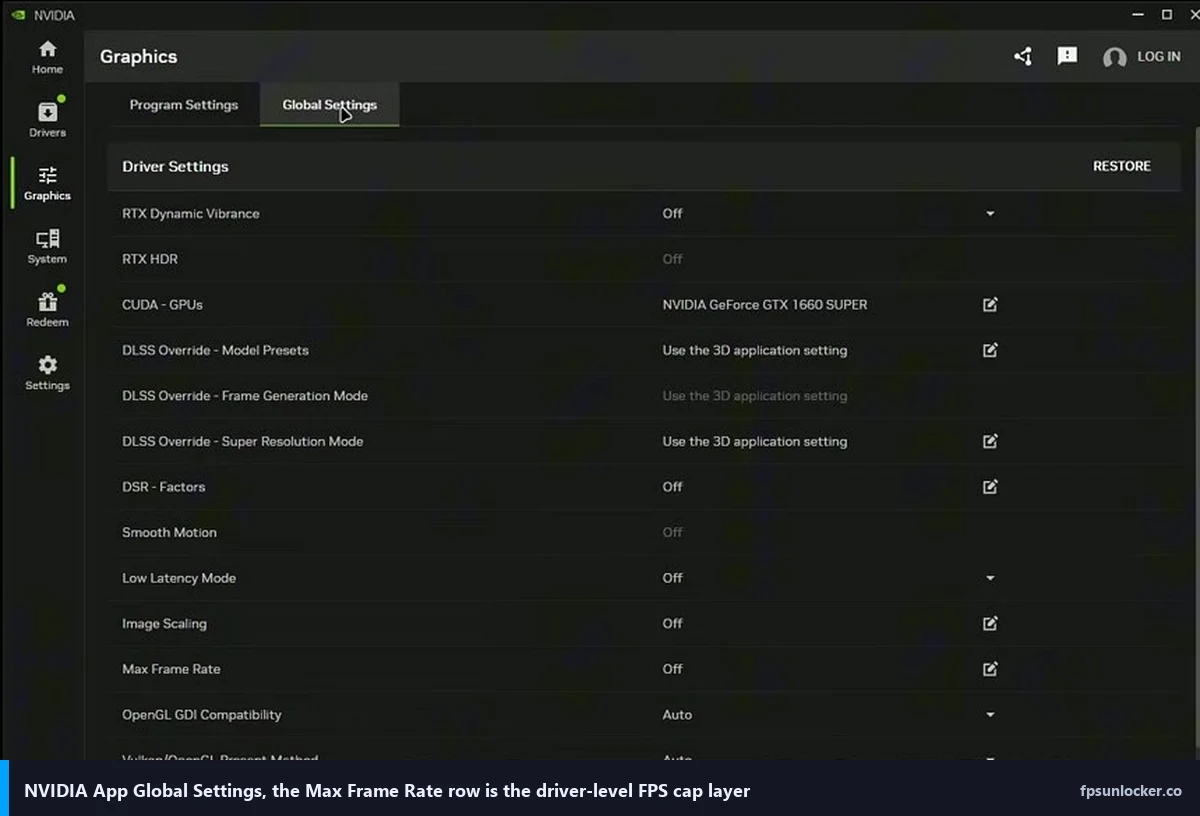
I’ll put this option last because it’s the one most readers should consider first. If you don’t want to install anything beyond what’s already on your machine, the native setting at 144 or 240 plus a driver-level Max Frame Rate in the NVIDIA App (Global Settings, Max Frame Rate, set to your refresh rate minus three) will cover most 144Hz and 240Hz users cleanly. xvappa literally opened his December 2025 guide with this combo, and his reasoning is the same reason I’d recommend it: driver-level caps are as close to bulletproof as FPS limiters get, because they happen below the game engine and they survive client updates, reboots, and bootstrapper swaps.
The full NVIDIA walkthrough sits at NVIDIA settings for Roblox, including which rows to touch for a VRR-friendly cap, the Low Latency Mode toggle, and the G-Sync per-program override. AMD Radeon users have Radeon Chill and Frame Rate Target Control, which do the same job slightly differently. Call this the best FPS unlocker 240 Hz roblox path for anyone who doesn’t want a second process in Task Manager. It’s also the only path that works on any Windows GPU configuration without admin rights.
Trade-off: driver-level caps apply globally unless you set them per-program, and they max out at whatever value you type, which is fine for 144Hz and 240Hz but still doesn’t solve the 165Hz dropdown gap (well, the NVIDIA App does let you type 162, so actually it does solve 165Hz too, just via the driver instead of the game). I’ll come back to that combination a few sections down because it’s genuinely the best path for high-refresh users who don’t want a bootstrapper.
Which one should I pick for my specific panel
I’ve got a 144Hz monitor, what’s the best Roblox 144Hz FPS unlocker?
If you don’t care about VRR edge tearing, the native dropdown at 144 is the cleanest answer. Open Roblox, Settings, Graphics, Maximum Frame Rate, pick 144, close Settings, play. No download, no tray icon, no bootstrapper. Most 144Hz players I know ended up here in 2025 once the native setting landed and just never went back to a tool.
If you run G-Sync or FreeSync on that 144Hz panel and you can see the tearing when the frame rate bumps the 144 ceiling, you want 141 instead of 144. The native dropdown can’t give you 141, so the move is rbxfpsunlocker with a custom cap of 141, or Fishstrap’s frame-limit field set to 141, or the NVIDIA App’s Max Frame Rate row set to 141. Any of the three works. I run rbxfpsunlocker on my main rig for this exact reason.
I’ve got a 165Hz monitor, what’s the Roblox 165Hz unlock path?
This is where the native dropdown fails you flat out. 144 wastes 21Hz of headroom, 240 overshoots by 75Hz (and your 3060 or 4070 probably can’t hit 240 in most games anyway). The right answer is a 162 FPS cap via rbxfpsunlocker, or Fishstrap with its frame limit set to 162, or the NVIDIA App with Max Frame Rate set to 162.
xvappa’s December 2025 video actually picks 180 on his 165Hz panel, which is a slight overshoot. He’s pairing that with the NVIDIA App as a second cap, so his effective ceiling is whichever cap fires first. I’d push 162 instead of 180 if you care about clean VRR, but 180 isn’t wrong, it’s just a different tradeoff (slightly more GPU headroom spent, slightly more heat, no VRR tearing because 180 is above 165 where VRR has already fallen out of range on most panels). His rig sounds higher-end than mine and he’s not optimizing for thermals the way I am.
I’ve got a 240Hz monitor, what’s the Roblox 240Hz monitor FPS ceiling?
Good news and weird news. Good news: the native dropdown’s 240 preset lines up perfectly with your panel. Set it to 240 and you’re done. No tool, no bootstrapper, no driver cap. This is the one refresh rate where Roblox’s native setting was designed for the hardware you actually own.
I’ll break the weird news gently. Roblox’s physics tick runs at 240Hz, and the render pipeline starts to misbehave past 240. Even if you use rbxfpsunlocker to uncap or type a 300 FPS target, the engine drops frames internally and you won’t see a buttery 300 on screen. You’ll see something closer to 240 with occasional spikes and occasional micro-stutters where the physics state and render state drift apart. I cover this ceiling in depth in native vs rbxfpsunlocker, and it’s the single most important thing for a 240Hz-plus player to understand before they spend a weekend chasing 360.
For VRR-clean 240Hz, use rbxfpsunlocker with a 237 cap instead of native 240, or the NVIDIA App’s Max Frame Rate at 237. This keeps you pegged inside the G-Sync or FreeSync window and eliminates the edge tearing that happens when the frame counter bounces right at the 240 boundary. Chris landed here on his 7800X3D, and he hasn’t touched a tool or dropdown since.
What about 360Hz or 480Hz panels?
Short answer, you can install rbxfpsunlocker and type 357 or 477, and the counter will occasionally read numbers up there, but the Roblox engine isn’t delivering smooth frames past 240 because of the physics-tick issue above. I’d still install rbxfpsunlocker for the numbers-go-bigger moments (it’s fun for bragging rights, it’s useful for synthetic benchmarks). I wouldn’t expect the in-game feel to be measurably smoother than 240. That’s not an unlocker problem, that’s an engine problem, and no third-party tool in April 2026 solves it.
Going above your refresh rate is mostly wasted effort
xvappa makes a point in his video I want to reinforce because readers skip past it. If your panel is 144Hz, running Roblox at 500 FPS gives you zero visual benefit, because 356 of those frames per second never get painted. Your eyes see 144 of them, the rest are rendered and tossed. Your GPU still spent power generating those 356 invisible frames. Your case fans still spooled up. Your room still warmed up, all for frames you never saw.
I’m not saying higher FPS never matters above refresh rate, competitive shooters have genuinely measurable input-latency improvements up to a point because the frame in the pipeline when you click is fresher. But Roblox, specifically, on a 144Hz panel, at 500 FPS versus 144 FPS, isn’t winning you any real gameplay advantage. The frame that gets painted is still the frame your panel was ready to paint, and the gap between your click and that frame is already small. The thermal cost of 500 versus 144 is genuinely higher, especially on small-form-factor builds and laptops.
My rule of thumb for high-refresh users: cap at refresh-minus-three for VRR cleanliness, or cap exactly at refresh if you don’t run VRR. Don’t uncap. The “unlimited” option in rbxfpsunlocker is great for benchmarks, terrible for daily driving on any panel under 240Hz.
The 240Hz physics ceiling nobody warned you about
I’d dwell on this one because it catches high-refresh buyers out more than anything else. When Roblox Engineering announced the native setting in May 2024, they explained the 240 cap wasn’t arbitrary, it was the engine limit. A Roblox staffer wrote in that DevForum thread, verbatim: “The physics engine runs at 240Hz and there are some present issues that we know about after 240Hz, so we just wanted to keep it simple for now.” Two years later, those issues haven’t been resolved.
What that means in practice: if you install rbxfpsunlocker on Chris’s 240Hz rig and set the cap to 360, you won’t get 360. You’ll get something between 240 and 280 with occasional micro-stutter, because the render loop is outrunning the physics simulation and the engine is compensating by dropping frames or re-presenting the same simulated state. I’ve tested this on Chris’s 4070 Super rig and on my 3060, and the behavior is identical on both. It’s not a GPU limit. It’s not a rbxfpsunlocker bug. It’s the engine.
The takeaway for a 240Hz owner is simple: your monitor is already at Roblox’s effective engine ceiling, and no tool in April 2026 is getting you smooth 360 or 480 FPS in current Roblox. Cap at 237, run pegged, enjoy the smoothest high-refresh Roblox experience available. The takeaway for a 360Hz or 480Hz owner is slightly sadder: you paid for hertz the engine can’t currently deliver to you. That might change in 2027 if Roblox Engineering ships a physics-render decoupling patch. As of today, it hasn’t.
Belt-and-braces: pairing the unlocker with a driver-level cap
This combo’s been my default recommendation since early 2025, and xvappa echoes it in his video. Pick one unlocker path (rbxfpsunlocker, Fishstrap, or just the native dropdown) and add a second cap at the GPU driver level. The NVIDIA App lets you set a per-program Max Frame Rate in the Graphics section, or a global Max Frame Rate in Global Settings. AMD users get Radeon Chill and Frame Rate Target Control inside Radeon Software.
I keep the second layer in place because in-game caps can fail silently. A Roblox client update can reset your native dropdown. rbxfpsunlocker can lose its memory offset after a patch. A bootstrapper can misread its config. When any of those fail, the driver-level cap catches you and keeps the frame rate sane. I’ve had the native dropdown silently reset to Default (60) on my rig after a Tuesday patch, and the NVIDIA App’s 141 cap kept my GPU from suddenly cooking itself trying to push 300 FPS in Jailbreak. That’s worth the five minutes to set up.
Set the driver cap to exactly match your in-game cap, or slightly higher so the game cap fires first in normal operation and the driver cap only catches the edge case. For a 162 in-game cap on a 165Hz panel, set the NVIDIA App’s Max Frame Rate to 162 as well, or 163 if you want a tiny buffer. Either works. The NVIDIA settings guide walks through the exact panel.
VSync, G-Sync, and FreeSync on a high-refresh panel
VSync is the old-school solution. It locks your frame rate to your refresh rate exactly by waiting for the monitor to be ready before handing over a new frame. On a 144Hz panel, VSync on gives you exactly 144 FPS when the GPU can keep up, and it introduces a frame of input latency you can feel in shooter games. VSync stays off on my rigs these days because the latency cost isn’t worth it, but it’s the most bulletproof way to eliminate tearing if you don’t have a VRR panel.
G-Sync (NVIDIA) and FreeSync (AMD, also branded Adaptive-Sync on newer displays) are the modern answer. Your monitor varies its refresh rate to match whatever the GPU is outputting, within a supported range (on most panels something like 48 to 144Hz on a 144Hz display, 48 to 240Hz on a 240Hz display, though the lower bound varies by model). Inside that range you get zero tearing and zero VSync latency. Outside that range, specifically above the panel’s max refresh, VRR falls out and you’re back to tearing territory.
That’s why the “refresh rate minus three” cap matters. If your 144Hz panel’s VRR range is 48 to 144, a 141 FPS cap keeps you comfortably inside the window with no edge-tearing risk. If your 240Hz panel’s range is 48 to 240, a 237 cap does the same thing. I cover the full VRR window math and how to check your panel’s actual range in Roblox screen tearing and VSync, which is worth the read if you’re seeing tearing even at a sensible cap.
Decision recap for Chris (and for you)
I sent Chris a four-line message the next morning after we’d set up his rig. He texted back a screenshot of his 4070 Super pegged at 237 in Arsenal on the new panel, a thumbs-up, and the word “nice.” Here’s the condensed decision tree he worked from, and it’ll probably work for you too.
- 144Hz panel, no VRR: native dropdown at 144. Zero downloads.
- 144Hz panel with G-Sync or FreeSync: rbxfpsunlocker at 141, or the NVIDIA App at 141.
- 165Hz panel (any config): rbxfpsunlocker at 162, or Fishstrap at 162, or the NVIDIA App at 162. The native dropdown can’t help you.
- 240Hz panel, no VRR: native dropdown at 240. Zero downloads.
- 240Hz panel with VRR: rbxfpsunlocker at 237, or Fishstrap at 237, or the NVIDIA App at 237.
- 360Hz or 480Hz panel: install rbxfpsunlocker for the numbers, but understand the engine stops delivering smooth frames past 240. Cap at 237 if you want the cleanest feel.
- Any panel, and you also want FastFlag quality tweaks: Bloxstrap v2.9.1 with FPS limit at 0 so the native setting drives FPS, or Fishstrap (which still has the editor).
One shooter-specific note. If you’re mainly playing Phantom Forces, Arsenal, or similar competitive Roblox shooters, input latency matters more than raw frame rate past your refresh. The FPS unlocker for shooters guide covers the latency-first tuning path. If you’ve ever tried a FastFlag-based cap and ran into the allowlist mess, Hyperion and FastFlags in 2026 is the current state of affairs.
How I tested
Primary rig: Windows 11 23H2, Ryzen 5 5600, RTX 3060 12GB, 32GB DDR4, GeForce driver 560.94, 1440p 144Hz G-Sync panel. Secondary rig: Chris’s setup, Windows 11 23H2, Ryzen 7 7800X3D, RTX 4070 Super, 32GB DDR5, GeForce driver 560.94, 1080p 240Hz IPS panel from the Newegg flash sale. Testing ran April 22 to 24, 2026.
Games exercised: Phantom Forces (shooter), Arsenal (shooter, different engine load), Jailbreak (open-world), Slap Battles (physics-heavy). Sessions were 15 minutes each, overlay via Shift+F5 inside Roblox, cross-checked with Nvidia FrameView. I used rbxfpsunlocker v5.2, Fishstrap on its April 2026 release branch, Bloxstrap v2.9.1 on the VM for FastFlag testing, and Bloxstrap v2.10.0 for the current-release behavior check. The xvappa video referenced throughout is his Roblox FPS Unlocker Guide (Step-by-Step Tutorial) from December 15, 2025.
I’ll close with the usual caveat, everything above is my specific hardware in my specific week. Your Roblox build, your driver, your panel, and your game mix will shift the numbers around. What doesn’t shift is the decision tree: match your cap to your refresh rate minus three if you run VRR, match it exactly if you don’t, pick the tool that fits the refresh rate the native dropdown doesn’t cover, and pair it with a driver-level cap as insurance. Chris’s 240Hz is humming. Yours will too.