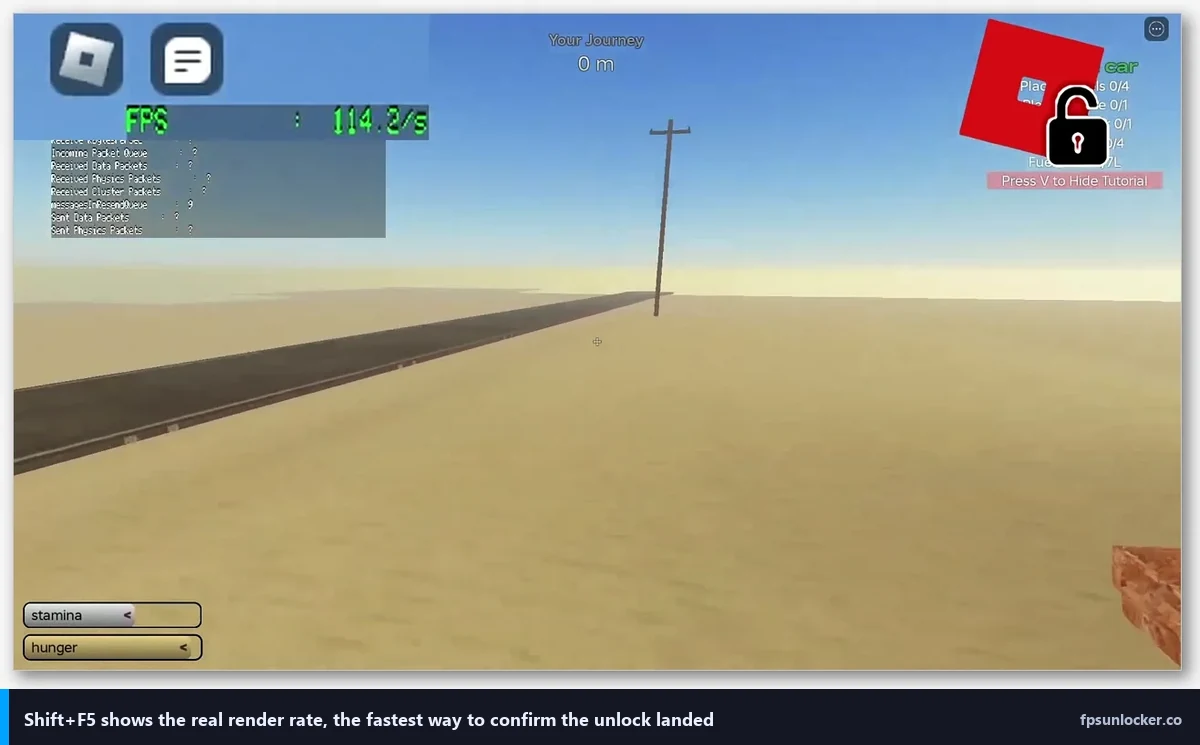
My roommate built a new PC last month and texted me a video clip of his Roblox session with a horizontal line cutting through the frame every time he panned the camera. “Is this a driver problem?” he asked. Not really. He’d just run into his first case of screen tearing on a monitor without VRR enabled. I walked him through VSync, G-Sync, and FreeSync on a Saturday afternoon, and once his panel settings were right, the tearing vanished. The whole conversation is this article.
I’m Alex Park. I test Roblox on a Ryzen 5 5600 / RTX 3060 / 1440p 144Hz G-Sync monitor, plus an i5-1240P Iris Xe laptop with a 60Hz internal panel. April 2026. Screen tearing is one of those issues where the fix is simple but the explanation matters, because the wrong fix adds latency you don’t want.
What Screen Tearing Actually Is
Your GPU draws frames. Your monitor displays them. They operate on their own clocks. The GPU finishes a frame whenever it finishes, and the monitor refreshes at its own fixed interval (every 16.67 milliseconds on a 60Hz panel, every 6.94 milliseconds on a 144Hz panel). If the GPU delivers a new frame in the middle of the monitor’s refresh cycle, the monitor ends up showing part of the old frame and part of the new frame. That visible seam where they meet is what we call a tear.
Tearing is most visible when the camera pans horizontally, because the top and bottom halves of the screen show geometry from slightly different moments in time. You see a horizontal offset. In Roblox specifically, you’ll see it most in games with fast camera motion. My roommate noticed it in Phantom Forces. In Adopt Me, the camera rarely moves fast enough for tearing to be obvious.
Tearing is not a bug. It’s what happens when the GPU and monitor are unsynchronized. The solutions are all about getting them synchronized.
[IMAGE: Side-by-side comparison of tearing and clean rendering during a Roblox camera pan, VSync toggle setting visible in corner]
VSync: The Old Way
VSync (vertical sync) tells the GPU to wait for the monitor’s refresh cycle before delivering a completed frame. The GPU finishes rendering, then holds the frame in a buffer until the monitor’s ready to display it. No mid-cycle delivery means no tear.
The downside is latency. The GPU is now waiting, which means your input-to-display time increases. In casual games, this is invisible. In competitive games with fast inputs, VSync latency is noticeable, especially at 60Hz where the wait can be up to 16ms. At 144Hz, the wait tops out at about 7ms, which most people can’t feel.
VSync also caps your framerate at the monitor’s refresh rate. Run VSync on a 60Hz monitor and your fps can’t exceed 60. This is fine because the monitor can’t display more than 60 anyway, but it’s worth understanding that VSync enforces a framerate ceiling as a side effect of its sync mechanism.
If your fps drops below the refresh rate (say, your GPU is struggling and delivering 45 fps on a 60Hz panel), VSync tends to stutter because the frames it is delivering don’t align evenly with the refresh cycle. Some panels drop to half-refresh in this scenario (30Hz on a 60Hz panel), which feels worse than the original 45.
For most Roblox players in 2026, VSync is not the best answer. It’s the old answer, from before VRR panels were affordable.
G-Sync and FreeSync: Variable Refresh Rate
VRR (variable refresh rate) flips the sync problem around. Instead of making the GPU wait for the monitor, VRR makes the monitor wait for the GPU. The monitor’s refresh rate becomes dynamic, matching whatever the GPU is delivering within a supported range. No tearing, no latency penalty, no framerate ceiling beyond the panel’s max.
G-Sync is NVIDIA’s VRR technology. FreeSync is AMD’s. They’re functionally equivalent for our purposes, and in 2026 most monitors support both (they’re compatible at the signaling level, and NVIDIA certifies some FreeSync monitors as “G-Sync Compatible”). If you bought a gaming monitor in the last few years, it probably has VRR.
VRR is the right answer for Roblox. It eliminates tearing without the latency cost of VSync, it doesn’t cap your framerate arbitrarily, and it makes Roblox’s frame-pacing feel smooth even when fps fluctuates. On my G-Sync setup, I don’t think about tearing at all. It just doesn’t happen.
Do I need to turn anything on to use G-Sync or FreeSync?
Yes. VRR isn’t on by default, which surprises a lot of new builders. On NVIDIA, open the NVIDIA Control Panel, go to Display, Set up G-Sync, and check “Enable G-Sync, G-Sync Compatible.” You can choose to enable it for fullscreen only or for windowed too; I’d enable it for both because Roblox’s windowed mode is common. On AMD, open Radeon Software, go to the Display tab, and toggle FreeSync on. Your monitor may also have its own on-screen menu toggle for VRR that needs to be enabled, which I missed for about three months on a new panel once. Check both sides.
After enabling, relaunch Roblox. Pan the camera. Tearing should be gone. If it’s not, VRR isn’t actually active, which means either the driver setting didn’t apply, the monitor toggle is off, or the cable you’re using doesn’t support VRR (older HDMI cables can’t carry VRR signals; DisplayPort 1.2+ always can).
The VRR Window
VRR has a supported range, and this is something a lot of people don’t realize. A 144Hz panel typically supports VRR from around 48Hz up to 144Hz. Below 48 fps, the monitor falls back to a fixed refresh rate, and tearing (or stutter, depending on setup) can return. Above 144 fps, the panel can’t go higher, so you either get tearing or, if you have VSync enabled as a fallback, the framerate gets capped at 144.
This is why you want a soft cap in Roblox set just below your panel’s VRR maximum. On my 144Hz panel, I cap Roblox at 144 using the built-in Max Frame Rate slider, which keeps me inside the VRR window. If I’d uncap entirely and let Roblox push 300 fps, I’d be outside the VRR window and tearing would come back.
Specifically, the common recommendation is: cap at 3 fps below your panel’s VRR max. So on a 144Hz panel, cap at 141. On a 240Hz panel, cap at 237. This gives VRR headroom and prevents frame delivery from banging against the ceiling. Honestly, for Roblox, I’ve found capping exactly at the refresh rate works fine because Roblox’s frame pacing isn’t so precise that the 3-fps buffer matters. But if you want to be safe, go 3 below.
For the low end of the VRR window, there’s a technology called LFC (low framerate compensation) that essentially doubles the refresh rate when your fps drops below the VRR minimum. Most modern VRR monitors support this and it’s enabled automatically. The upshot is that you don’t have to worry about the bottom of the window much.
NVIDIA Panel Settings for Roblox
Open the NVIDIA Control Panel. Here’s what I set.
Set up G-Sync: Enable G-Sync, G-Sync Compatible. Full screen and windowed.
Manage 3D Settings, Global: Vertical sync set to “On” (this is G-Sync + V-Sync, which is a hybrid that keeps you inside the VRR window and acts as a safety net). Low Latency Mode set to “Ultra.” Max Frame Rate set to 141 (my panel max minus 3). Preferred refresh rate set to “Highest available.”
Some people say Vertical Sync should be Off when using G-Sync. The NVIDIA recommendation is actually to use both together, because VSync acts as a fallback only when you exceed the VRR window. Inside the window, G-Sync does the work and VSync is inert. This is the configuration I run and it’s tear-free.
AMD Panel Settings for Roblox
Open Radeon Software. Display tab: FreeSync On. Gaming tab: Radeon Anti-Lag On (this is AMD’s equivalent of NVIDIA’s Low Latency Mode). Radeon Chill Off (Chill is a framerate-reducing feature, useful for battery but counterproductive for tearing fixes). FRTC (Frame Rate Target Control) can be set to 141 or whatever 3 below your refresh is.
Like the NVIDIA setup, you can combine VSync with FreeSync for a safety net outside the VRR window. I’d enable VSync at the driver level and cap Roblox’s framerate to match your refresh rate.
Should I use rbxfpsunlocker’s VSync toggle or the driver’s?
Pick one, not both. Running two VSync layers introduces conflict and adds latency without fixing anything. My preference is to disable VSync in rbxfpsunlocker and let the driver handle it, because the driver-level setting is more aware of VRR window boundaries. If you’re using the native Roblox slider instead of rbxfpsunlocker, the same logic applies: let the driver own sync. Our custom cap guide covers rbxfpsunlocker’s toggle in more detail.
How Roblox Interacts With Each Sync Method
Roblox’s rendering is standard DirectX under the hood. It plays nicely with VSync and VRR like any DirectX game. There’s no Roblox-specific gotcha, which is good news. The one thing I’d note is that Roblox’s frame pacing isn’t as tightly controlled as a AAA competitive title. You’ll see frame-time variance even on beefy hardware, especially during script-heavy experiences. VRR absorbs this variance gracefully. VSync doesn’t, because VSync expects steady delivery and stutters when it doesn’t get it.
If you’re still seeing tearing after setting up VRR, check that the monitor toggle is on, check the cable, and check that you’re actually inside the VRR window (fps above the panel’s minimum). Our still capped at 60 article is worth a read if your framerate is too low for VRR to help, because LFC only partially compensates for very low framerates.
What If My Monitor Doesn’t Support VRR?
Plenty of monitors, especially older ones or cheap laptop panels, don’t have VRR. My laptop’s built-in 60Hz panel is one of these. In that case, VSync is the best you’ve got. Enable it at the driver level, cap Roblox at your refresh rate (60 for a 60Hz panel, and yes this is the native Max Frame Rate slider territory), and accept the small latency cost.
For competitive play on a non-VRR panel, some players disable VSync entirely and live with the tearing because the latency matters more than the visual artifact. This is a legitimate tradeoff. On my laptop, I’ve done this for Phantom Forces sessions. The tearing is visible, but my clicks register faster.
If you’re in the market for an upgrade and you play a lot of Roblox, a 144Hz VRR panel is the single best gaming purchase you can make for the money. The difference between 60Hz VSync and 144Hz VRR is dramatic in a way that’s hard to describe until you’ve used both. I’d rather give up 20% of my GPU’s raw speed than give up that panel experience.
The Short Version
Got VRR: Enable G-Sync or FreeSync, cap Roblox at your panel’s refresh rate (or 3 below), leave driver VSync on as a fallback. Disable in-game and rbxfpsunlocker VSync. Tearing is gone, latency is minimal.
No VRR: Enable VSync at the driver level, cap Roblox at your refresh rate. Accept a small latency cost, or disable VSync and accept tearing. Your call.
If you’ve been chasing tearing fixes through random Discord tips, a lot of what you’ll find is outdated. VRR is the answer in 2026, and the setup is twenty minutes of panel settings. Do it once and you won’t think about tearing again. If you want to dig into the broader FPS-unlocker stack, our rbxfpsunlocker guide and built-in slider guide cover the cap-setting side of the picture.
Alex Park has been testing Roblox performance tools since 2022. Hardware: Ryzen 5 5600, RTX 3060, 1440p 144Hz G-Sync primary, plus an i5-1240P Iris Xe laptop. Last updated April 2026.