I was helping my sister-in-law set up her new work-from-home laptop last weekend when she asked if there was a way to let her kid’s Roblox run smoother without installing anything “weird.” Her IT department locks down software installs hard, and even at home, she doesn’t want unsigned executables on the machine. I walked her through the native Roblox Max Frame Rate slider in about two minutes. No tools, no downloads, no risk. That conversation became this article.
I’m Alex Park. I test Roblox performance on a Ryzen 5 5600 / RTX 3060 / 1440p 144Hz desktop and an i5-1240P Iris Xe laptop. April 2026. The “I don’t want to install anything” crowd has a real, official path now, and it works well. This piece is for people who want the answer without third-party software involvement.
The Native Max Frame Rate Slider
In 2025, Roblox added a Max Frame Rate slider to the in-game settings menu. This is the feature rbxfpsunlocker has been replicating externally for years, now shipped inside the official client. No download needed, no unsigned executables, no launcher to install. It’s part of the Roblox application you already have.
Here’s how to turn it on. Launch any Roblox experience from the website or from the Roblox app. Once you’re in-game, open the main menu by pressing Escape or clicking the Roblox icon in the top-left. Go to the Settings tab. Scroll down the settings list until you find “Max Frame Rate.” The slider starts at 60 by default and goes up in steps. Drag it to whatever value matches your monitor. Close the menu and you’re done.
That’s it. That’s the entire process. Roblox will remember this setting across sessions, so you don’t have to redo it every time you launch. If your monitor is 144Hz, set it to 144. If it’s 240Hz, set it to 240. Our built-in FPS setting guide covers the slider in more depth if you want screenshots and edge cases.
[IMAGE: Roblox in-game settings menu with Max Frame Rate slider set to 144, main gameplay visible behind]
Why This Is Actually the Best Method for Most People
I spent years recommending rbxfpsunlocker because it was the only way. That changed when the slider shipped. For the vast majority of players, the slider is now the right answer, and I’d tell you the same even though I run an FPS-unlocker-focused site.
No download means no installation risk, no antivirus false positives, no “is this safe” question. The slider is Roblox’s own code, signed by Roblox, updated by Roblox. There’s zero chance it could conflict with the anti-cheat layer because it is part of the same application. I’ve written about the bannability question extensively in is FPS unlocker bannable, and for the slider specifically, there’s just nothing to worry about. It’s an official feature.
It also works on school-issued laptops, work laptops, and locked-down family computers where installing anything requires admin approval. The slider is inside an app the user already has permission to run, so no admin prompt appears.
Does the slider have any downsides?
A few, and I want to be honest about them. The slider’s maximum is 240 in the current UI. If you have a 360Hz or 480Hz monitor, the slider caps out below what your panel can display. That’s where the FastFlag approach (covered below) becomes useful. I’d also point out that the slider setting applies globally to all Roblox experiences. If you want different caps for different games (say, 60 for social games on battery and 144 for competitive on mains), you’d need to change the slider manually each time, whereas rbxfpsunlocker can be toggled from the tray without opening a game. This is a workflow-preference thing, and our custom cap guide covers how rbxfpsunlocker handles this if that use case matters to you.
The other caveat: the slider is subject to Roblox’s own client-level behaviors. If you’re noticing that you’re still capped at 60 even after moving the slider, there’s usually a driver-level or Windows-level cause. Our still capped at 60 fps troubleshooting piece walks through the common ones.
The FastFlag Fallback (ClientAppSettings.json)
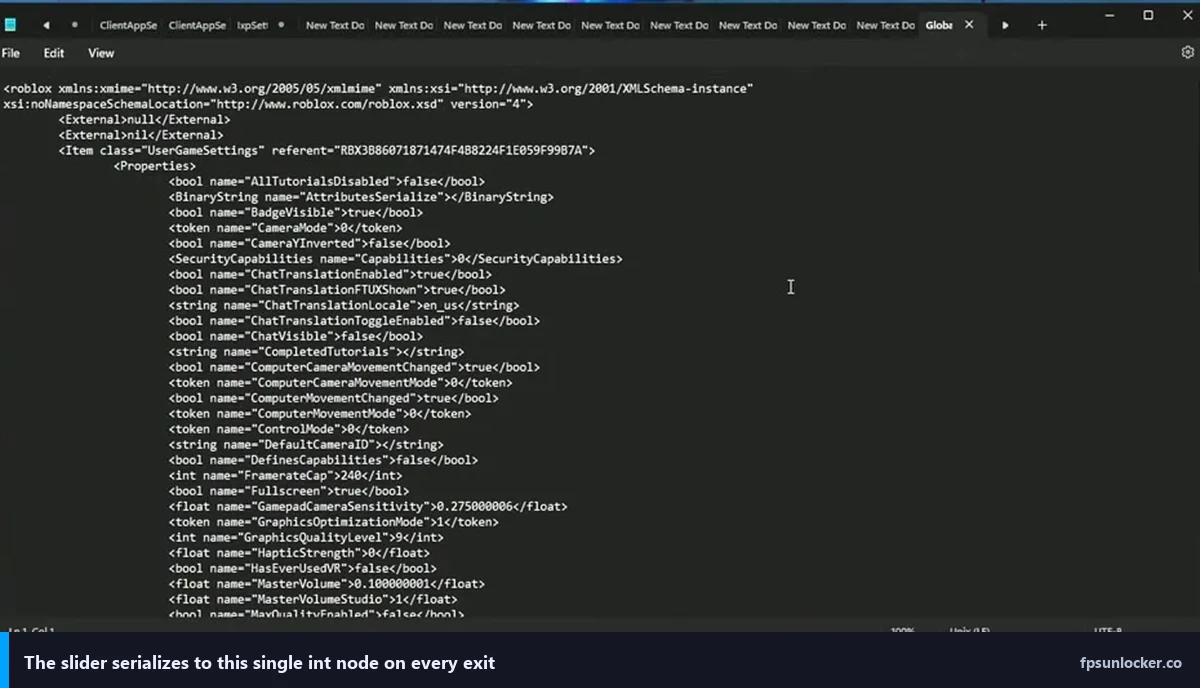
If the slider’s 240 cap isn’t enough for you, or you want to enable some rendering behaviors the slider doesn’t expose, you can edit a file called ClientAppSettings.json. This is still a “no download, no third-party tool” method because you’re using Notepad (or any text editor that ships with your OS) to edit a config file that’s already on your system. No executable is being installed.
The file lives deep inside the Roblox Player’s installation path, which changes with every Roblox update because the path includes a version string. The exact path varies, but it’s somewhere under AppData\Local\Roblox\Versions and inside the current version folder, there’s a ClientSettings folder (you may need to create it) and inside that, the ClientAppSettings.json file (also create if missing). I’ve documented the full path and the flag values in our FastFlag FPS cap guide, which is the authoritative piece on this approach.
The key flag you’d add is the frame rate override. Create the JSON file with standard JSON syntax (curly braces, quoted keys and values, comma separators if you’re adding multiple flags). Save it. Launch Roblox. The client reads the file on startup and applies the flags. No installer. No service. Just a text file.
When to Use FastFlags Versus the Slider
If the slider works for you, use the slider. I’m not going to manufacture a reason to prefer FastFlag editing over a feature that’s one click away. FastFlags are for edge cases.
Edge case one: you have a 360Hz+ monitor and want to uncap above 240. FastFlags let you set a higher cap.
Edge case two: you’re doing competitive Phantom Forces-style play and want to unlock rendering behaviors that the slider doesn’t expose. Certain FastFlags affect how Roblox manages its render queue, and some high-level players report that specific flag combinations improve their input-response feel. I’d be careful here because “flag stacks from Discord” are a common source of instability. Stick to documented values.
Edge case three: the slider isn’t working for you due to some interaction I can’t anticipate. In that case, FastFlags are a bypass. But first, check our troubleshooting guide, because usually the slider works and something else is the cause.
For everyone else, the slider is where to start and likely where to stop.
Is editing ClientAppSettings.json against the rules?
No. FastFlags are a Roblox-internal mechanism that Roblox’s own engineers use to roll features out gradually. The flags are readable configuration, not code. Editing the JSON file is equivalent to changing a settings value. It’s not modifying the client binary, not bypassing anti-cheat, not injecting anything. I’ve covered the full picture in is FPS unlocker bannable, and the same reasoning applies: FastFlags have existed for years without causing bans. Launchers like Bloxstrap and Fishstrap are built around applying them. It’s a legitimate approach.
That said, treat random flag lists from strangers with suspicion. Some flags affect anti-cheat behavior, and some community-shared lists bundle flags whose purpose is unclear. The flags documented in our FastFlag guide are ones I’ve tested and can speak to. Anything outside of that, use your judgment.
The “No Download, Nothing Unsigned” Framing
I want to address this specifically because it’s why many people land on this article. You want to unlock Roblox’s FPS without installing anything, without running unsigned code, without antivirus complaints, and without anything that looks suspicious to a school or work IT department.
The slider meets all of those criteria. It’s inside an app you already run. It’s signed by Roblox. It’s an official feature. There’s no new process, no new installation, no new registry entry. If your environment allows Roblox at all, it allows the slider.
The FastFlag approach mostly meets those criteria. Editing a JSON file with Notepad doesn’t install anything. But it does modify a file inside the Roblox installation directory, which some locked-down environments might flag as a policy violation. On a personal machine, there’s no issue. On a school-managed machine, I’d stick to the slider and avoid the JSON edit, just to not catch attention from monitoring software.
Neither method involves any third-party tool. That’s the point.
What About Bloxstrap or rbxfpsunlocker?
These are both legitimate tools and I recommend them for users who want their features. But they are downloads. If your explicit requirement is “no download,” they’re off the table by definition. I’d still point you to our rbxfpsunlocker vs Bloxstrap comparison if you’re curious what you’re missing out on.
The features those tools add over the native slider include: custom bootscreens, Discord Rich Presence integration, multi-instance support, preset FastFlag bundles, and a tray-based workflow for quickly toggling the cap. None of those are essential. All are nice. If you’ve decided you’re not installing anything, you’re trading those conveniences for the peace of mind of not running third-party software, and that’s a reasonable trade.
A Quick Troubleshooting Pass
If you move the slider to 144 and you’re still seeing 60, the most likely cause is VSync enabled at your GPU driver level. Open the NVIDIA Control Panel (or AMD Radeon Software) and set Vertical Sync to “Use 3D application setting” or Off. Relaunch Roblox and check again.
Second most likely cause: Windows power plan throttling. On laptops especially, battery-saver mode can cap your GPU. Switch to Balanced or High Performance and check.
Third: your monitor might be running at 60Hz even if it supports higher. Right-click your desktop, go to Display Settings, Advanced Display Settings, and check the refresh rate. Bump it up to your panel’s rated maximum.
If you’ve done all three and you’re still capped at 60, check our dedicated troubleshooting article for the less-common causes.
My Recommendation
For the “no third-party tool” audience, here’s my concrete recommendation: use the native Max Frame Rate slider, set it to match your monitor, verify VSync is off at the driver level, and play. That’s going to cover maybe 95% of readers who find this article.
The 5% who need more (competitive players on 360Hz+ monitors, or people with a specific FastFlag configuration they want to run) can edit ClientAppSettings.json. It’s not hard, it’s documented, and it meets the “no download” criterion.
Both methods are official-adjacent. Neither is bannable. Neither requires admin rights on most systems. If you came here hoping for a tool recommendation and you’ve now realized you probably don’t need one, that’s the honest outcome. The native slider is good enough for most people, and Roblox deserves credit for finally shipping it.
Alex Park has been testing Roblox performance tools since 2022. Hardware: Ryzen 5 5600, RTX 3060, 1440p 144Hz, plus an i5-1240P Iris Xe laptop. Last updated April 2026.