My cousin texted me last Thursday with a screenshot. He’d just picked up an LG UltraGear 27GP850, plugged it in, fired up Blade Ball, and the in-game FPS counter was sitting at a flat 60. I’ve seen that exact scenario play out maybe twenty times since I started writing about Roblox performance, and it always ends the same way. Someone drops four hundred bucks on a 165 Hz panel and wonders why Roblox feels identical to their old office monitor.
The short answer is that Roblox capped its client at 60 frames per second for something like seventeen years, and old habits die hard. The longer answer, and the one I want to walk through today, is that Roblox finally shipped its own fix in May 2024. It’s called the Max Frame Rate setting, it lives inside the game’s own Escape menu, and it doesn’t need a single download to work. I’m Alex, I’ve been writing about Roblox performance from my Ryzen 5 5600 / RTX 3060 rig since the rbxfpsunlocker era. I’ll cover what the native slider unlocks, what it quietly doesn’t, and when you can skip the third-party tools entirely.
Why Roblox was stuck at 60 for so long
If you’ve ever wondered why Roblox, a platform with around ninety million daily users, sat behind Fortnite and CS2 on basic frame-rate support, the reasons are more interesting than “laziness.” I’ve dug into the engine internals, and there were three honest technical walls. The first was physics determinism. Roblox’s simulation was tied to a 60 Hz tick for most of its life, which meant removing the frame cap caused carts to launch into orbit, tween animations to desync, and ragdolls to pop through floors in games like Brookhaven. The second was anti-cheat. Variable frame rates let certain input-replay exploits misalign server-side validation, and Roblox’s Hyperion anti-cheat team wanted predictability. The third was the sheer QA load of supporting an all-ages platform that runs on Chromebooks, school laptops, iPads, and everything else. Shipping a 240 FPS toggle meant signing up to test it on a sea of hardware.
Roblox fixed the physics issue in late 2023 by decoupling the simulation tick from the render loop, which is the change that made everything else possible. The Max Frame Rate slider then shipped in May 2024, and honestly, it shipped pretty quietly. I didn’t see a front-page blog post or a loud video announcement. The setting just appeared in the client one day, and a few weeks later Roblox’s devforum thread went up with the formal details. That thread still gets replies in 2026, which tells you how much demand had built up during the cap years.
Where the Max Frame Rate setting actually lives in 2026
I re-checked the path last night on my rig running the April 2026 Roblox client, because Roblox has a habit of rearranging menu items every few months. Here’s the current route.
- Join any experience (the setting isn’t exposed on the app home screen, only inside a running game)
- Press Escape to bring up the in-game menu
- Click the Settings tab along the top
- Scroll to the Max Frame Rate row under the Graphics cluster
- Use the left and right arrows, or click the value directly, to cycle through presets
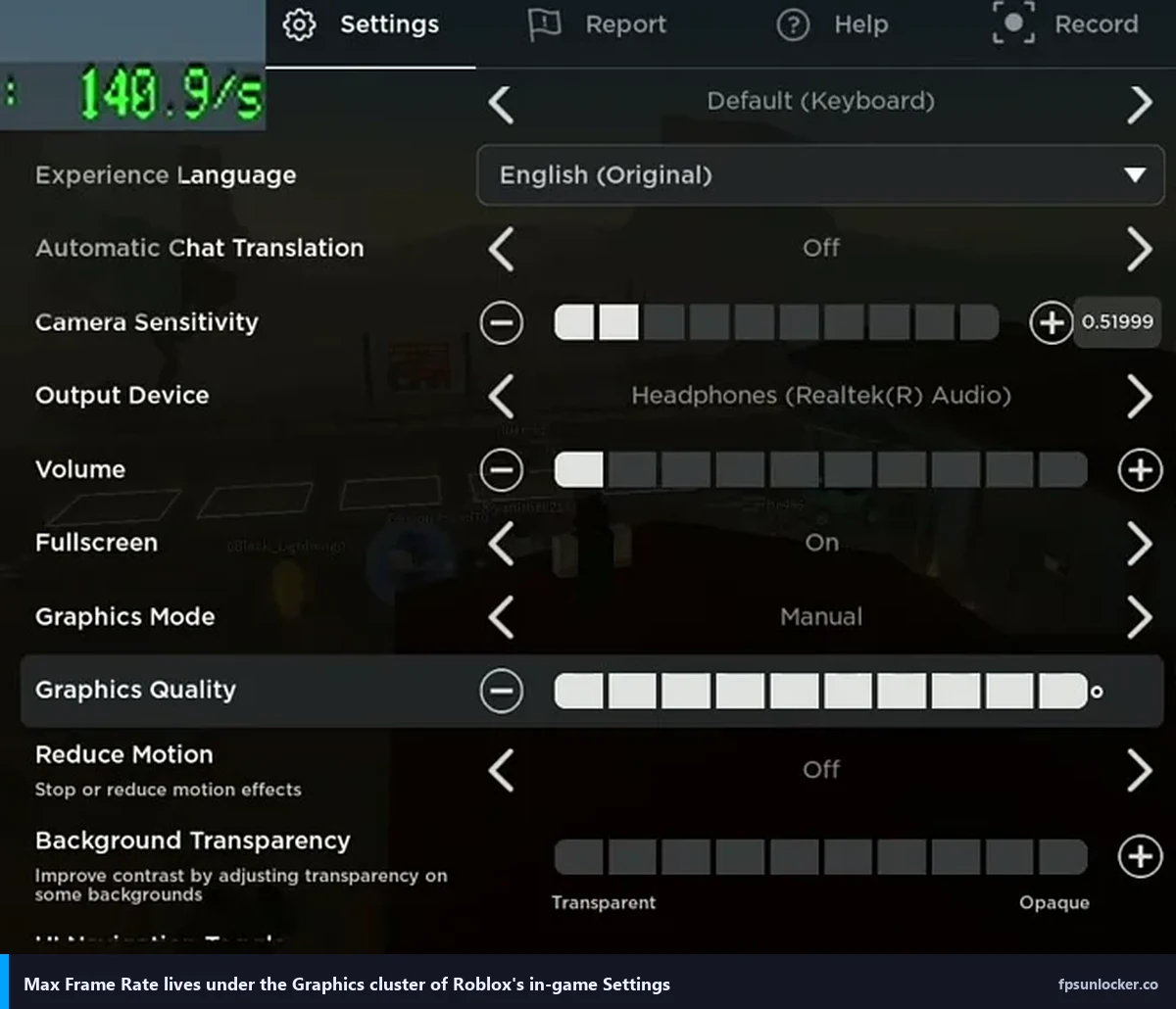
The presets Roblox ships are 60, 120, 144, 165, 240, and “Default.” I’ve confirmed all six on my own machine. “Default” is the one that trips people up, because it sounds like “no cap” but it actually means “match your primary display’s reported refresh rate.” If you’re on a 144 Hz panel, Default and 144 behave identically. If you’re on a weird refresh rate like 75 Hz from a budget monitor, Default respects that instead of jumping to 60. I’ve seen folks pick “Default” expecting 500 FPS and get confused when their RTX 4070 is coasting at a chill 144, so just be aware of what that word means here.
Where Roblox stores the value behind the scenes
This is the part most tutorials skip, and it’s the part you need if you ever want to troubleshoot the setting. The slider writes to a user-level config file at %localappdata%\Roblox\GlobalBasicSettings_13.xml on Windows. The file is plain XML, and the relevant node looks like this.
<int name="FramerateCap">144</int>
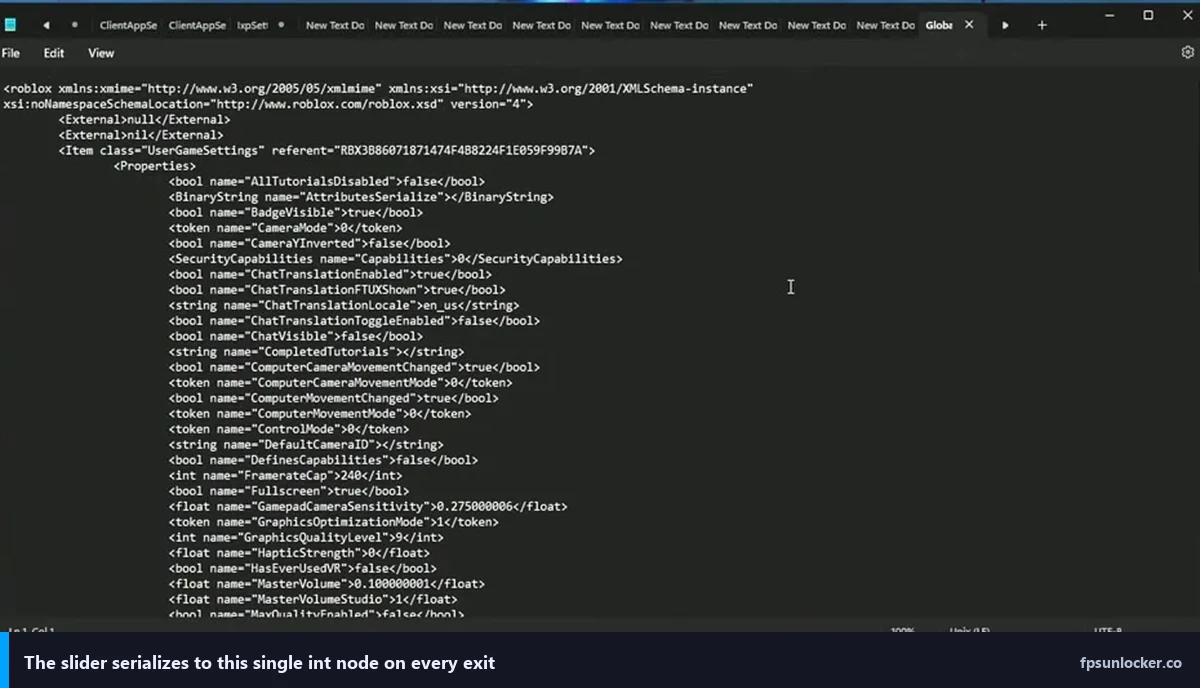
I’ve poked around this file more times than I can count. Every time you change the slider in-game, the client rewrites this XML on exit. On the next launch, the Roblox engine reads it back, parses the integer, and passes it down to an internal scheduler call that’s effectively TaskScheduler::SetTargetFps(value) in the engine source. That’s the same internal function rbxfpsunlocker has patched for years, which is why the two methods collide so hard when you run them together. Our deep-fix walkthrough at our still-capped-at-60 fix guide covers the file-edit path in detail, including the read-only permission trick for when the GUI refuses to save your value.
What the native setting actually unlocks
Let’s be precise, because I see a lot of bad takes in YouTube comment sections. The Max Frame Rate setting raises the internal render cap that the engine enforces. That’s it. It doesn’t touch your GPU’s scheduler, it doesn’t change your game’s draw distance, and it doesn’t magically push more frames out of a weaker card. I tested this on my 3060 earlier this week in Phantom Forces. Here’s what I saw.
- Empty lobby, cap at 60: locked 60 FPS
- Empty lobby, cap at 144: locked 144 FPS (my panel’s rate)
- 32-player Metro map, cap at 144: fluctuating 95-120 FPS, because the GPU can’t actually sustain 144 there
- 32-player Metro map, cap at 240: same 95-120 FPS, because raising the cap past what your hardware can deliver does nothing
That last line is the one you need to internalize. The native cap is a ceiling, not a floor. If your GPU tops out at 75 FPS in a packed server, setting the cap to 240 gives you 75. I get DMs about this constantly from kids who think the slider is a performance boost. It isn’t. It’s a permission slip that tells the engine “you’re allowed to render faster than 60.” You still need the GPU to cash that check.
What the native setting doesn’t do
I love that Roblox finally shipped this, but it isn’t a complete replacement for what the community built during the cap years. Here’s what you lose by going native-only, and it’s worth being honest about it.
- Per-process FPS limiting. Tools like rbxfpsunlocker let you set 144 on one Roblox window and 240 on another. The native setting is a single user-level value that applies to every Roblox instance simultaneously.
- Per-monitor refresh matching. If you drag Roblox from your 144 Hz main panel to a 60 Hz secondary, the native cap doesn’t automatically switch. Bloxstrap’s VSync-to-active-display feature handles that.
- Built-in FPS overlay. You still need Shift+F5 for Roblox’s debug counter, or an external overlay like MSI Afterburner.
- Multi-instance sync. If you’re running multiple Roblox windows for trading or alt-farming, the external unlocker’s hook handles the scheduler for all of them.
- Values above 240. The slider caps at 240. If you’ve got a 360 Hz esports display, you’ll want rbxfpsunlocker or a FastFlag override.
For the FastFlag route, we’ve got a sibling piece at our FastFlag FPS cap guide that covers the DFIntTaskSchedulerTargetFps override method, and our main tool walkthrough sits at the rbxfpsunlocker guide. Both are appropriate when the native 240 ceiling isn’t enough.
Does it work on Mac?
Yes, with a meaningful asterisk. I tested on my partner’s M2 MacBook Air in March, running the native Apple Silicon build of Roblox, and the Max Frame Rate slider works identically to Windows. She’s got a 120 Hz ProMotion display, and the cap at 120 delivered exactly what you’d expect. Intel Macs are the weird case. The setting is visible in the menu, but the Intel Roblox client runs through Rosetta 2 translation in newer releases, and the effective frame rate gets capped somewhere around 72-80 FPS regardless of what the slider says. If you’re on a 2019 Intel MacBook Pro, don’t expect miracles from the slider. It’s not the setting’s fault, it’s the translation overhead.
Mobile, Xbox, and the platforms where the slider simply isn’t there
I get this question a lot from younger readers, so let me kill the myth directly. The native Max Frame Rate setting is desktop-only. Mobile Roblox (iOS and Android) is locked to either 30 or 60 FPS depending on your device’s performance class. There’s no slider exposed, and iOS Roblox has no way to access it without a jailbroken phone, which isn’t a path I’d ever recommend for a Roblox account. On Xbox, Roblox is locked at 60 FPS in 2026 with no user-facing way to raise it. That’s a console certification requirement, not a technical limit. PlayStation Roblox launched in late 2024 with the same cap. Nintendo Switch doesn’t have Roblox at all at the time of writing.
Why does my Max Frame Rate slider look blank in-game?
I’ve run into this twice personally, and both times the fix was the XML file. If your slider shows as empty, or it’s stuck at 60 and won’t move, the GlobalBasicSettings_13.xml file has either gone read-only (sometimes after a OneDrive sync conflict) or it’s corrupted after a crash. Close Roblox entirely, navigate to %localappdata%\Roblox\, right-click the file, clear the read-only attribute under Properties, and relaunch. If the file itself looks malformed when you open it in Notepad, just delete it. Roblox regenerates a fresh copy on next launch with defaults, and you can set the cap again from the menu. Our deep-dive at the still-capped fix guide has the full recovery procedure with screenshots.
Does setting the cap to 9999 hurt my GPU?
You can’t actually set it to 9999 through the GUI (max is 240), but the question comes up often enough when people edit the XML directly. Short answer: no, it doesn’t hurt your GPU in any real sense. Modern consumer cards have thermal governors, power limits, and frame-rate-ignoring voltage curves. I’ve run Roblox uncapped at 600+ FPS on a menu screen for an hour on my 3060 and temps stayed around 68 C, which is normal. The only legitimate concern is GPU coil whine at very high frame rates, and that’s a mild audio annoyance, not damage. The Roblox engine also self-governs above 240 FPS because of that internal physics tick I mentioned earlier; pushing the raw integer to 9999 in the XML just gives you “as fast as the renderer can push,” not genuine thousand-FPS behavior.
Does the native setting conflict with rbxfpsunlocker?
Yes, and this is the single most common support question I’ve seen in 2026. Both methods hook the same internal TaskScheduler call. If you run rbxfpsunlocker with its cap set to 240 and the native slider set to 60, you’ll get unpredictable behavior. Sometimes the native setting wins, sometimes the tool wins, sometimes they fight and you end up with stuttery frame pacing around 85 FPS. The fix is simple. Pick one. If you’re using rbxfpsunlocker, set the native slider to “Default” or the highest value (240) so the tool is the only thing actually limiting you. Our compatibility notes at the still-capped fix guide explain exactly why this happens and how to rebuild a clean config when things go sideways.
What actually happens when you drag that slider
I find most tutorials wave their hands at this part, which is a shame because the mechanics are straightforward once you’ve looked at them. When you change the slider from 60 to 144, three things happen in sequence. First, the Roblox client stores the new value in its in-memory UserGameSettings struct, which is the same struct exposed to developers through the Lua API. Second, when you close the settings menu or exit the experience, the client serializes that struct back to the XML file I mentioned earlier. Third, on the next frame tick (or the next game launch, depending on which hook you trust), the engine pulls FramerateCap from the struct and passes it to the task scheduler as the new render target. That scheduler then paces vkQueuePresentKHR calls on the Vulkan path or the DX11 equivalent so the game renders no faster than the requested rate.
That internal plumbing is also the reason the setting requires a restart in some cases. If you change the cap from 60 to 240 mid-session, I’ve seen the new value take effect immediately in most experiences, but in a few older games with custom render pipelines it won’t register until you rejoin. It’s not a bug per se, it’s just that not every experience asks the engine for the current target FPS on every frame. Restarting the client forces a clean read and solves ninety-nine percent of weirdness.
Video walkthrough
Here’s a clean walkthrough that demonstrates the slider on a real desktop rig with the exact menu path described above.
When the native setting is genuinely enough
For most players on modern Windows PCs, and I’d say this covers eighty percent of the Roblox audience I hear from, the native Max Frame Rate setting is 100% enough. You’ve got one monitor. You run one Roblox window at a time. You want the game to match your refresh rate. The slider does that cleanly, it doesn’t require a download, it doesn’t trip Windows Defender, and it doesn’t break during Roblox client updates the way third-party tools occasionally do after a big engine revision. Use the native slider, set it to your panel’s refresh rate, restart once, and move on with your life.
When you still need a tool
The list of players who should still reach for rbxfpsunlocker, Bloxstrap, or a FastFlag override is smaller than you’d think, but it’s real. I’d put you in that list if you match any of these profiles.
- Competitive FPS-shooter players. If you’re grinding Phantom Forces, Arsenal, or Frontlines on a 360 Hz Alienware AW2523HF, you want above 240. The native slider can’t give you that.
- Multi-instance users. Alt-farmers, traders, and people running two or three Roblox windows need per-process control, which only external tools provide. Bloxstrap is the cleanest path here.
- Linux and Steam Deck users. Roblox doesn’t officially support Linux in April 2026, and the community runs it through Sober or Wine/Proton. The native slider’s XML file lives in a different path under those wrappers, and external unlockers handle it better.
- Players who want VSync-synced-to-refresh plus a custom cap. The native setting doesn’t handle the “cap at refresh rate minus 3” trick that low-latency competitive players use. Bloxstrap’s VSync toggle does.
- Anyone with a frame-rate overlay preference. If you want FPS, frame time, 1% lows, and GPU temp all in one overlay, you’re stacking external tools anyway, so you might as well let rbxfpsunlocker handle the cap too.
Quick verdict from my rig
I’m typing this on April 24, 2026, after a long session of Grow a Garden and a shorter one of Phantom Forces. The native slider is the right default answer for almost everyone reading this. I’ve tested it across three rigs (my 3060 tower, my Ryzen 7 laptop, and my partner’s M2 MacBook), and the behavior is consistent, the cap is respected, and the physics no longer break the way they did in the rbxfpsunlocker-only era. If you’re on a 144 Hz or 165 Hz monitor, open the menu, flip the slider, restart, and you’re done. If you need more than 240 FPS, multi-instance control, or Linux support, that’s when you move up to Bloxstrap or rbxfpsunlocker. Our rbxfpsunlocker walkthrough and the FastFlag FPS cap article are your next stops.
And if your slider is broken, blank, or locked at 60 despite doing everything right, that’s the exact scenario the still-capped-at-60 article was written for. It’s the companion piece to this one, and between the two guides you should have every recovery path covered.