My roommate downloaded rbxfpsunlocker two weeks ago on her new Surface laptop, hit run, and Windows 11 threw a big blue SmartScreen warning that said “Windows protected your PC.” She closed it, thought the file was malware, and deleted it. A week later she asked me why her Roblox was still capped. We sat down, reinstalled it the right way, and everything worked. This happens to thousands of people, and it’s a pure UX problem, not a malware problem.
I’m Alex Park. I’ll walk through what SmartScreen actually does, why it yells at rbxfpsunlocker specifically, and the clean way to install on Windows 11 in 2026 without fighting Defender every five minutes.
What SmartScreen actually is
Windows SmartScreen checks executables against a Microsoft reputation database. Files that haven’t been downloaded and run by a lot of Windows users globally get flagged as “unrecognized.” That’s not the same as “unsafe.” It just means Microsoft doesn’t have enough data on the file to vouch for it.
rbxfpsunlocker is open source, has been around for years, and is developed by axstin on GitHub. It’s used by millions of people. The reason it still trips SmartScreen is that the binaries change with each release, and the reputation of a specific signed hash takes time to build. Also, it’s not signed with a paid Extended Validation code-signing cert, which would pre-build reputation instantly.
EV certs cost hundreds of dollars a year. Free open source tools generally don’t have them. That’s the whole reason for the warning. Not because the tool is sketchy.
“More info > Run anyway” explained
When you see the SmartScreen warning and click “More info,” Windows reveals a “Run anyway” button. This is what it does: Windows acknowledges that SmartScreen doesn’t have reputation data, logs your choice, and lets the executable run with the same permissions it would have had normally.
It’s not granting admin rights. It’s not disabling antivirus. It’s telling SmartScreen “I’ve verified this source and I accept responsibility for running it.” That’s the exact workflow Microsoft designed for this case.
Where people get nervous is when they confuse SmartScreen’s warning with Defender flagging the file as malware. Different systems. Defender uses signature-based and heuristic scanning against known malware. If Defender actively quarantines rbxfpsunlocker, that’s a false positive (which happens occasionally and usually resolves in a few days). If SmartScreen just says “unrecognized,” it’s reputation, not detection.
Unblock the zip first (this is the one most people skip)
When Windows downloads a file from the internet, it tags it with an NTFS alternate data stream called Zone.Identifier. This marks the file as “from the Internet Zone,” which triggers extra scrutiny from SmartScreen every time you run it or anything inside it.
Here’s the clean workflow:
- Download the rbxfpsunlocker-x64.zip from the official GitHub releases page
- Right-click the zip (not the extracted folder, the zip itself) and choose Properties
- At the bottom of the Properties window, check the “Unblock” box and click OK
- Now extract the zip to wherever you want
- Run rbxfpsunlocker.exe from the extracted folder
Unblocking the zip before extraction means the extracted files don’t inherit the mark-of-the-web, which means SmartScreen doesn’t yell as aggressively when you run them. This is a Windows feature that’s genuinely poorly documented, and most people don’t know about it.
[IMAGE: Windows 11 File Explorer Properties dialog for rbxfpsunlocker zip showing the Unblock checkbox at the bottom of the General tab]
The installation walkthrough
Assuming you’ve done the unblock step, here’s the full flow. I wrote a more thorough version of this in my rbxfpsunlocker guide, but this is the Windows 11 specific version.
- Go to github.com/axstin/rbxfpsunlocker/releases
- Download the x64 zip (almost certainly what you want on any modern Windows 11 machine)
- Right-click the downloaded zip, Properties, Unblock, OK
- Extract to somewhere permanent (I use C:\Tools\rbxfpsunlocker)
- Double-click rbxfpsunlocker.exe
- If SmartScreen prompts, click “More info” then “Run anyway”
- The tool appears in your system tray (click the up arrow in the taskbar to see it)
- Right-click the tray icon to set your FPS cap
Don’t put rbxfpsunlocker on your desktop or in Downloads. Both of those locations sometimes get cleaned by Windows Storage Sense, and your unlocker will disappear without warning. A dedicated tools folder on C: is the right spot.
Do I need to run rbxfpsunlocker as administrator?
Usually no. Roblox runs as your user account, and rbxfpsunlocker only needs to attach to the Roblox process, which it can do without admin rights. Some older guides recommend admin for historical reasons, but in 2026 it’s not necessary. If you set rbxfpsunlocker to admin, you’ll also need to run Roblox as admin for them to interact, which is more friction than it’s worth.
The exception is if you’re using the “auto-start with Windows” feature via Task Scheduler. That setup sometimes needs admin to configure, but once configured, it runs fine as the user account.
Defender exclusions (when you actually need them)
Usually you don’t. If Defender isn’t actively flagging rbxfpsunlocker, leave it alone. But occasionally after a Roblox or Windows update, Defender’s heuristics get twitchy and start flagging the file. If that’s happening:
- Open Windows Security (search “Virus & threat protection” in Start)
- Click “Manage settings” under “Virus & threat protection settings”
- Scroll down to “Exclusions,” click “Add or remove exclusions”
- Click “Add an exclusion” and pick Folder
- Navigate to C:\Tools\rbxfpsunlocker (or wherever you extracted)
Only do this if you’re confident about where you got the file. Only from the official GitHub repo under axstin’s username. There are typosquatted repos and sketchy download mirrors. I never recommend installing from random “download sites” that claim to have rbxfpsunlocker. Use GitHub directly.
Windows 11 app execution policies
Windows 11 added “App & browser control” and “Smart App Control” features that can block unsigned executables more aggressively than older Windows versions. If you’ve got Smart App Control set to On (new installs sometimes default to this), unsigned apps can be outright blocked rather than just warned.
To check: Windows Security > App & browser control > Smart App Control settings. If it’s On, you have two options. Turn it off (which is a one-way trip; you can’t re-enable without a Windows reset), or leave it on and accept that rbxfpsunlocker won’t run.
I personally leave Smart App Control off on my gaming PC. It’s overly aggressive for my use case. On a work laptop or a parent’s computer, I’d leave it on.
What if my school or work laptop blocks it entirely?
Managed Windows accounts often have group policies that prevent unsigned executables from running, no matter what you click. You can’t bypass this without admin rights, and attempting to is usually against IT policy. If that’s your situation, Roblox’s built-in FPS target setting is your alternative. It’s less flexible but requires zero installation. Bloxstrap sometimes works where rbxfpsunlocker doesn’t because it installs to your user folder, but on strict managed accounts it’ll also be blocked.
Don’t fight your IT department over an FPS unlocker. Use the native slider and move on.
Verifying rbxfpsunlocker is actually working
After installation, launch Roblox, join any game, and press Shift+F5 (or the equivalent for your version) to show the stats overlay. If your FPS number is above 60, you’re good. If it’s still stuck at 60, something’s overriding the unlocker.
Common override culprits:
- NVIDIA Control Panel global VSync is on
- Xbox Game Bar has a frame rate limit set for Roblox
- rbxfpsunlocker isn’t actually running (check the system tray)
- Your GPU physically can’t push more than 60 FPS in the game you’re testing (try a lighter game first)
I’ve got a full diagnostic for this in my still capped at 60 FPS article. Start there if the FPS number won’t go up.
Alternatives if SmartScreen keeps fighting you
If you’ve genuinely fought SmartScreen and Defender for an hour and can’t get rbxfpsunlocker running, you’ve got options:
- Bloxstrap: Installed as a proper MSI-style installer. Triggers SmartScreen once, but handles the ongoing interaction with Roblox more cleanly because it replaces the launcher.
- Roblox’s native slider: In the in-game settings menu under Graphics. Does the job with zero installation friction.
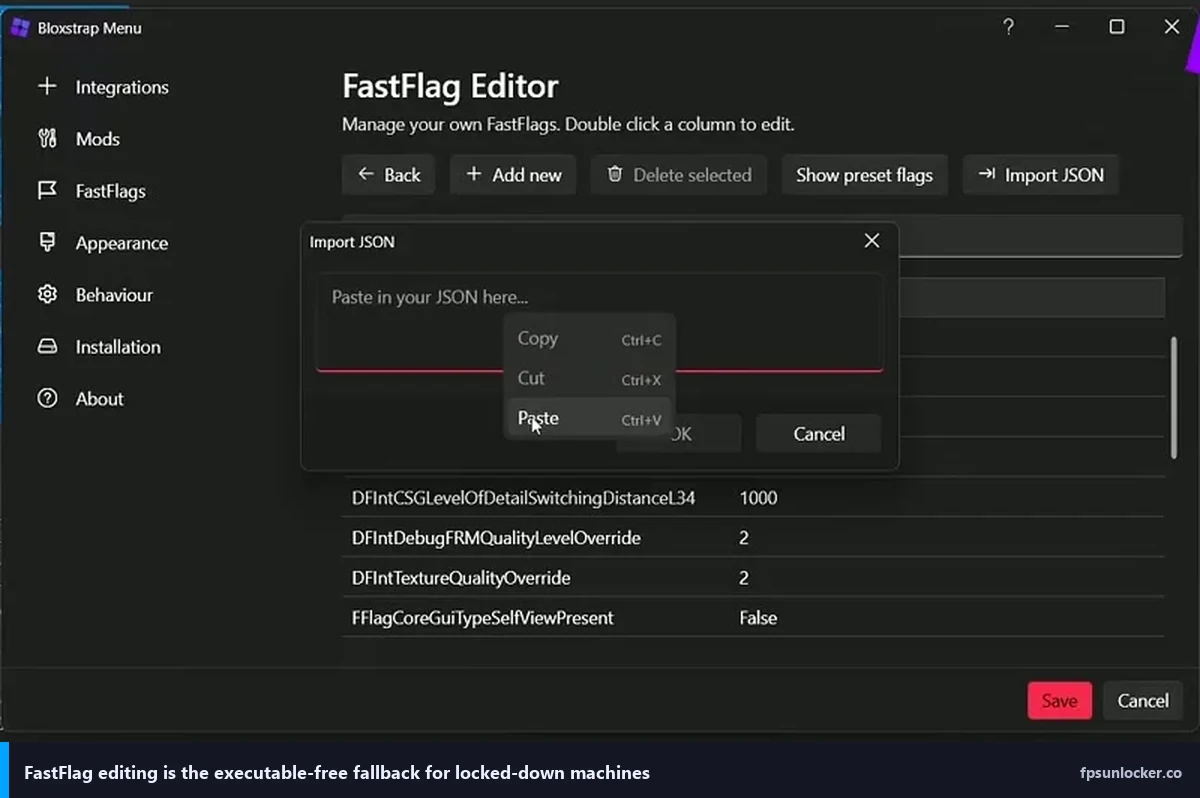
- FastFlag-only approach via Bloxstrap: You can cap FPS via a FastFlag without running a separate unlocker binary at all.
My side-by-side comparison of the two main tools is at rbxfpsunlocker vs Bloxstrap if you want to compare. For most people, rbxfpsunlocker is the cleaner choice on Windows 11 once you’ve done the unblock-and-run-anyway dance. Bloxstrap is worth it if you want FastFlag control anyway.
The bottom line for Windows 11
SmartScreen isn’t saying your file is bad. It’s saying it doesn’t recognize the file. Those are different things. Unblock the zip before extraction, run the exe, click “More info” then “Run anyway” once, and you’re done forever.
My roommate’s Surface runs rbxfpsunlocker at 141 FPS cap now and she hasn’t seen another SmartScreen warning for it. The reputation is built. Roblox doesn’t fight with it. This whole process takes about 90 seconds if you know what you’re doing and 20 minutes of panicked Googling if you don’t. Now you know what you’re doing.
Go install it. Don’t skip the unblock step. That’s the part most tutorials leave out.
Alex Park, April 2026. Ryzen 5 5600, RTX 3060, 144Hz 1440p.