Three days into a Phantom Forces grind with my brother’s kid, I finally got fed up. Installed rbxfpsunlocker the way every old tutorial told me to. Launched Roblox. Opened Shift+F5. FPS: 60.0. Dead flat.
I’d spent about forty minutes reinstalling it twice, running it as admin, killing my antivirus, re-downloading from axstin’s GitHub in case the mirror I grabbed was stale. Nothing budged. My Ryzen 5 5600 and RTX 3060 were coasting at like 18% GPU usage while Roblox happily pretended I was on a potato. Classic.
If that’s where you are right now, I’ve been there. So I sat down on my Windows 11 23H2 rig in April 2026, walked through what’s actually going on in the current Roblox client, and pinned down the fix that finally hit. This is the fix: you don’t need a new unlocker. You need to edit one file in your AppData folder, change one number, and tell Windows to stop letting Roblox overwrite it.
TL;DR. In 2025 Roblox quietly shipped its own max frame rate setting, and it fights every external unlocker. Open %localappdata%\Roblox\GlobalBasicSettings_13.xml, change <int name="FramerateCap"> to something like 9999, save, right-click the file, Properties, tick Read-only, Apply. Launch Roblox. You’re done. rbxfpsunlocker is optional from here.
What’s in this guide
- Why rbxfpsunlocker stopped “just working” in 2025
- The fix I use in April 2026 (editing GlobalBasicSettings_13)
- Locking the file so Roblox can’t undo your cap
- The in-game Max Frame Rate setting trap
- When rbxfpsunlocker still pulls its weight
- VSync, NVIDIA panel, and the hidden external caps
- FAQ
Why rbxfpsunlocker stopped “just working” in 2025
For years, the workflow was three steps. Download rbxfpsunlocker from axstin’s GitHub, run it before Roblox, right-click the tray icon, pick a cap. Done. The tool worked by finding Roblox’s internal task scheduler variable in memory and swapping the 60 FPS target for whatever you wanted. Clean, fast, no file edits.
Then late 2024, Roblox added its own “Max Frame Rate” slider inside the in-game menu. The idea was fine. But what shipped with it was less fine: the client now writes that value into a serialized settings file on disk, and the Roblox process re-reads it periodically. So even if the external unlocker patches the scheduler variable in memory, Roblox’s own settings loop overwrites the cap a few seconds later. You watch your FPS spike to 240 for one second, then snap back to 60. I thought my GPU was broken the first time I saw it.
The GitHub issue tracker on axstin/rbxfpsunlocker has had versions of this complaint posted over and over since the setting shipped. People assume the tool broke. It didn’t. The tool still does its job, but Roblox’s own config is now the bigger boss. If you don’t set the disk value first, everything else is a band-aid. That’s the whole thesis here.
💡 Pro tip. Press Shift+F5 in Roblox to toggle the real FPS/ping counter. That’s how you tell if the fix is working (or just placebo). If the readout moves above 60.0, the cap is off. If it’s pinned at 60.0, the disk value is overruling you.
The fix I use in April 2026 (step by step)
Close Roblox first. Fully close it, tray icon and all, otherwise the process re-writes the file the second you save. Then follow this.
1. Open the Roblox local app data folder
Press Win+R, type %localappdata%\Roblox, hit Enter. Windows 11 drops you into C:\Users\<you>\AppData\Local\Roblox. This is where the Roblox player stores every per-user setting.
2. Find GlobalBasicSettings_13.xml
Press G on your keyboard to jump to the G’s. You want the one named exactly GlobalBasicSettings_13.xml. Not GlobalBasicSettings_13_studio.xml. That’s Roblox Studio’s config and editing it does nothing for the player. On my machine the right file is about 4 KB.
3. Open it in Notepad and find FramerateCap
Right-click, “Open with”, pick Notepad (or Notepad++ if you have it, the line endings are Unix LF so plain Notepad sometimes shows it as one giant line, Notepad++ respects the formatting). Press Ctrl+F, search FramerateCap.
You’ll land on a line that looks like <int name="FramerateCap">240</int>. The number between the tags is the cap in FPS. Mine was 240 out of the box because I’d previously slid the in-game setting, yours might be 60, 120, or whatever else.
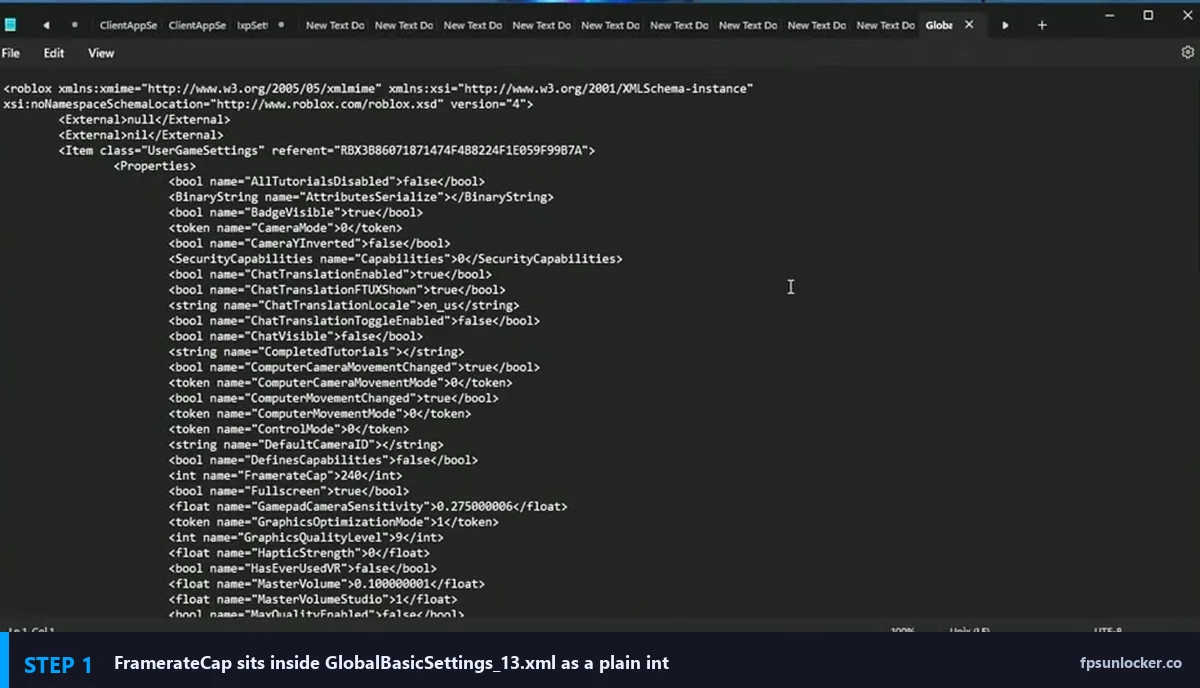
<int name="FramerateCap">240</int>. Change the number between the tags, nothing else.4. Change the number, save
Swap 240 for whatever you want. I run 999 because I’m never realistically hitting four digits in Roblox even on a 3060, and round numbers look cleaner in debugging. Fxtch’s tutorial I linked below uses 9999, which is fine too. Anything above your monitor refresh rate is functionally “unlimited” for your eyes. Save the file with Ctrl+S. Don’t close the window yet.
⚠️ Heads up. Don’t touch anything else in that file. There’s a GraphicsQualityLevel line and a bunch of camera/chat settings. Changing those at random is a fast way to make Roblox launch into a broken UI. One number, one save.
Lock the file so Roblox can’t undo your cap
This is the step everyone misses, including me the first time. If you just save and close, Roblox will rewrite the file the moment you hit a settings menu in-game. The cap silently resets to 60 or to your refresh rate. The fix is to mark the file read-only at the Windows filesystem level. Roblox’s write attempt fails silently and your value sticks.
Back in File Explorer, right-click GlobalBasicSettings_13.xml, pick Properties. At the bottom of the General tab there’s an “Attributes” row with a Read-only checkbox. Tick it, Apply, OK.
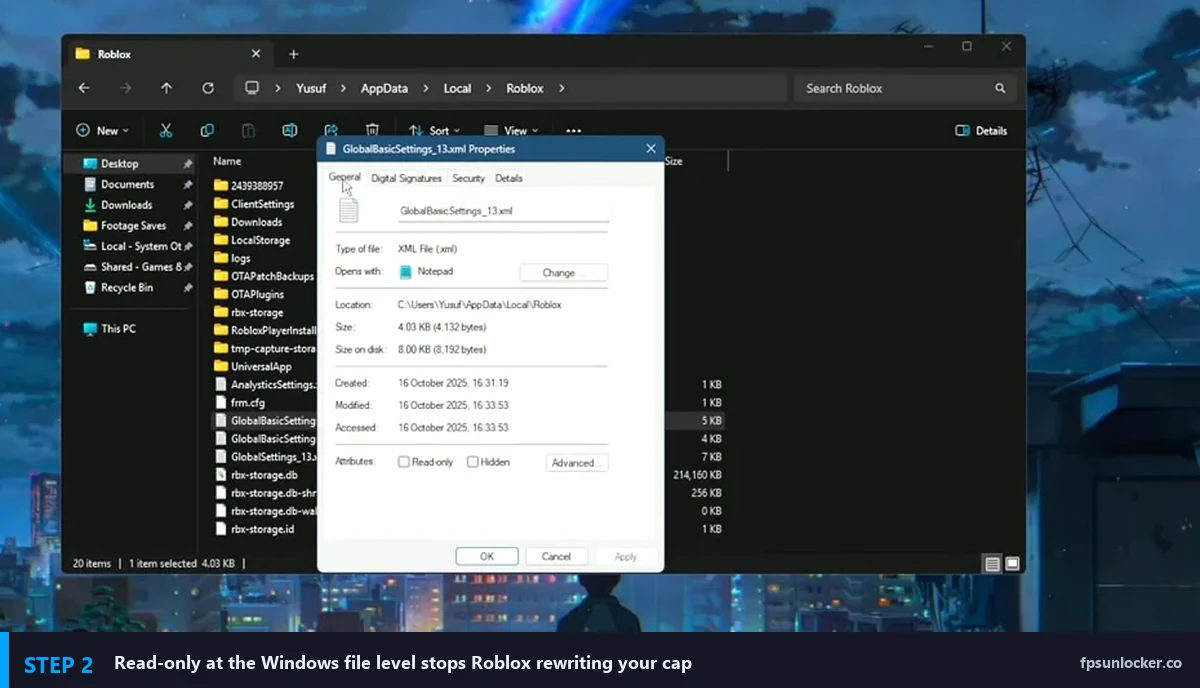
Launch Roblox, hop into any game. Press Shift+F5. If the FPS readout is climbing past 60, you’re done. On my test rig (Ryzen 5 5600, RTX 3060 12 GB, 144 Hz 1440p panel) I went from a flat 60 to somewhere around 190–220 in Phantom Forces depending on the map. On the laptop I keep as a low-end reference (i5-1240P, Iris Xe, 60 Hz screen) I gained nothing visible because the panel tops out at 60, but the engine was finally rendering past its cap in the background (which actually smooths input feel, even if the eyes can’t tell).
📝 Note. If you ever need to raise or lower the cap later, untick Read-only, edit, re-tick. Don’t leave it unlocked between sessions.
The in-game “Max Frame Rate” setting trap
Here’s the part that tripped me up for a week. After you’ve read-only’d the file, your in-game Max Frame Rate slider will look blank or refuse to move. That’s normal. Roblox can’t write the value, so the UI defaults to empty. People assume that means “nothing is selected, the cap is at default 60”, panic, and re-download the unlocker. Don’t.
The rule is: once the XML is locked with your value in it, leave the in-game slider alone. Don’t click into it, don’t drag it, don’t set it to “Default” thinking that’ll help. Any interaction tries to overwrite the file, fails, and clears the displayed value. The cap in the XML is still active regardless of what the UI shows.
A lot of the “fps unlocker not working 2025/2026” Reddit threads in r/roblox are people who did everything right, panicked at the blank slider, clicked Default, and undid half the fix. The short Fxtch video embedded below is the cleanest visual walkthrough I’ve seen, and it calls out that exact “slider looks empty but it’s working” moment at the end.
When rbxfpsunlocker still pulls its weight
Honest answer: for most people in 2026, the file edit is enough and rbxfpsunlocker is optional. But there are three situations where I still install it.
- You want the cap to follow display refresh rate. rbxfpsunlocker has a “VSync” option in its tray menu that pins the cap to the monitor’s refresh rate (144, 165, 240 etc). The XML edit sets a hard number.
- You want the overlay. rbxfpsunlocker can draw its own FPS readout without needing Shift+F5. Small thing but useful if you’re benchmarking.
- You run multiple Roblox instances. Some bootstrappers like Fishstrap or Voidstrap spawn multiple processes with different settings files. Running rbxfpsunlocker over the top keeps the cap consistent across all of them. (If you’re on Bloxstrap, it has its own unlocker baked in and you don’t need a separate one, I wrote about that over on bloxstrap.com.)
So: file edit first. Read-only second. rbxfpsunlocker third, only if one of those three cases applies to you.
VSync, NVIDIA Control Panel, and the hidden external caps
If you’ve done everything above and FPS is still pinned (or capping at 60, 75, 120, or your refresh rate exactly), the cap isn’t coming from Roblox anymore. It’s coming from your GPU driver.
On NVIDIA: open NVIDIA Control Panel, Manage 3D Settings, find the per-program tab, add RobloxPlayerBeta.exe, then check “Vertical sync” and “Max Frame Rate”. Vertical sync set to “Use the 3D application setting” and Max Frame Rate set to “Off” is what you want. If either one is overriding, it’ll lock you to refresh rate or whatever number is there.
On AMD: Adrenalin has “Radeon Chill” and “Frame Rate Target Control” which both quietly cap Roblox without telling you. Disable both for the Roblox profile specifically, not globally, because you probably want them on for heavier games.
And one sneaky one: Windows 11’s “Variable Refresh Rate” toggle under System, Display, Graphics, Default graphics settings can bully Roblox into matching your monitor. Worth a glance if nothing else explains it.
How does the real FPS feel after the fix?
Numbers are only half of it. On a 144 Hz panel, anything above 144 visually stops mattering, but Roblox’s input pipeline does get snappier at higher internal framerates because it samples mouse input more often. Going from 60 to 200 felt like the difference between driving in fog and driving clear. Worth every minute of the fix, and I stopped needing to babysit rbxfpsunlocker in my tray.
Frequently asked questions
Is editing GlobalBasicSettings_13.xml bannable?
No. The file is a per-user settings file Roblox itself writes and reads. You’re not touching game files, not injecting anything, not altering the protected client binary. Byfron/Hyperion doesn’t flag config edits in your own AppData folder. Roblox staff have effectively sanctioned the in-game Max Frame Rate setting since late 2024, and the XML is just the same setting’s backing store. Safe.
Do I need to redo this after every Roblox update?
Usually no. Roblox’s main client updates don’t clear AppData\Local\Roblox. Once in a blue moon a version bump resets the file (I saw it once in an early 2026 release when the schema added two new fields). If your cap ever reverts to 60 out of nowhere, reopen the file, check that FramerateCap is still your value and the read-only flag is still ticked. Five-second fix.
Why is my Max Frame Rate slider blank in-game?
That’s expected if you locked the XML read-only. The Roblox client tries to read the current value, can’t cleanly round-trip it to the UI because it also can’t write back, so the slider renders empty. The cap in the file is still active. Don’t click the slider, don’t drag it, don’t press “Default”. Just back out of settings.
What cap number should I actually use?
Match your monitor’s refresh rate, plus a small buffer. 60 Hz panel: 100. 144 Hz: 200. 165 Hz: 240. 240 Hz or 360 Hz: 999 or 9999. Going massively beyond your refresh rate wastes GPU for no visual benefit, but a small overhead helps Roblox’s input loop sample faster, so don’t just set it to your refresh exactly.
Does this work on Mac or Linux?
Mac has a different settings path and Roblox’s native unlock handles most cases on Apple Silicon. On Linux through Sober, the XML lives inside the Sober prefix and the same edit applies if you can get to it via your file manager. I wrote a separate piece for Steam Deck and Sober because the Proton layering adds a couple of steps. [INTERNAL LINK: Steam Deck FPS unlock guide → /roblox-fps-steam-deck/]
Can I use this with Bloxstrap or Fishstrap?
Yes, but you probably don’t need to. Bloxstrap has a built-in FPS unlocker that patches the cap before Roblox even launches, which sidesteps the XML fight entirely. Fishstrap has similar behavior. If those aren’t working for you, the XML edit is still a valid fallback, just lock the file before launching through the bootstrapper. [INTERNAL LINK: rbxfpsunlocker vs Bloxstrap → /rbxfpsunlocker-vs-bloxstrap/]
rbxfpsunlocker says “unable to find task scheduler”, what now?
That error shows up when the tool’s signature for the scheduler function is out of date (usually right after a Roblox client patch). Check the GitHub releases page for a newer build. If the latest release predates the last Roblox patch by more than a couple of weeks, the XML edit above is your best bet until axstin pushes an update.
Will higher FPS reduce input lag?
A bit, yes. Roblox’s render loop and input poll are coupled, so doubling the framerate roughly halves the worst-case input-to-photon latency. On my 144 Hz screen I can feel the difference between 60 and 200 fps in mouse movement even though the screen can’t show frames faster than 144. That said, input lag is also dominated by mouse polling rate and monitor response time, so FPS alone isn’t the whole story.
What to do next
If the fix worked, bookmark this page because Roblox ships patches often and occasionally one of them resets GlobalBasicSettings_13.xml. The steps are the same every time, but it helps to have the file path handy instead of rummaging for a Reddit thread. And if your FPS is high but the game still feels choppy, that’s a different problem (stutter at high framerates usually means GPU driver or Windows Game Mode, not the FPS cap). [INTERNAL LINK: Why Roblox stutters at 240 fps → /roblox-stutter-high-fps/]
Tested April 2026 on Windows 11 23H2 (Ryzen 5 5600 / RTX 3060 12 GB / 144 Hz 1440p) and a reference laptop (i5-1240P / Iris Xe / 60 Hz). Roblox client build 0.657. rbxfpsunlocker v5.1. Alex Park.